
If you’ve ever had a string like “Apple Banana Cherry” and needed each word on its own line, you’ve come to the right place.
Converting spaces to new lines in PowerShell sounds simple, but there are a few ways to do it — each one suits a slightly different situation. In this tutorial, I’ll walk you through all the practical methods to convert spaces to new lines using PowerShell with real examples.
Let’s get into it.
Why Would You Need This?
Before jumping to the code, let me give you a few real-world scenarios where this comes up:
- You have a space-separated list of server names in a string and want to process each one separately.
- You’re reading a CSV or text file where values are space-delimited, and you want them broken into individual lines.
- You’re building a report or log output and want cleaner, line-by-line formatting.
- You’re parsing command output that returns everything on one line, but you need it split up.
All of these boil down to the same thing: replacing spaces with a newline character. Here’s how to do it.
What Is a Newline in PowerShell?
Quick detour before the methods — you need to know how PowerShell represents a new line.
PowerShell uses escape sequences inside double-quoted strings:
`n— Line Feed (LF). This is the standard newline on Unix/Linux/macOS.`r— Carriage Return (CR).`r`n— Carriage Return + Line Feed (CRLF). This is the Windows-style line ending.
If you’re running PowerShell on Windows, I recommend using `r`n for file output because that’s what Windows expects. For console output, `n alone works fine.
There’s also [Environment]::NewLine, which automatically picks the correct newline for the operating system you’re running on. That’s a handy option when you’re writing cross-platform scripts.
One important thing: escape sequences only work inside double quotes. If you use single quotes in PowerShell, the backtick sequences are treated literally — they won’t expand into actual newlines.
# This WORKS — double quotes expand `n
"Hello`nWorld"

# This does NOT work — single quotes treat `n as literal text
'Hello`nWorld'
Keep that in mind throughout this tutorial.
Method 1: Using the .Replace() String Method
This is probably the most straightforward approach. PowerShell strings are .NET objects, so you can call the .Replace() method directly on any string.
$str = "Apple Banana Cherry Mango"
$result = $str.Replace(" ", "`n")
Write-Host $result
Output:
Apple
Banana
Cherry
Mango
What’s happening here: .Replace(" ", "n”)` finds every space in the string and swaps it out with a newline character.
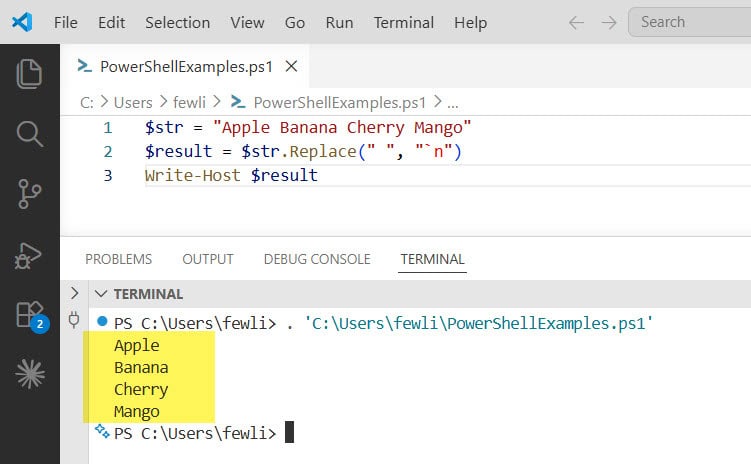
You can see the exact output in the screenshot below:
If you’re on Windows and writing the output to a file, use `r`n instead:
$str = "Apple Banana Cherry Mango"
$result = $str.Replace(" ", "`r`n")
$result | Out-File "C:\output\fruits.txt"
Open that text file in Notepad, and you’ll see each fruit on its own line.
When to use this method:
- When you have a simple string variable and want a quick one-liner.
- When readability matters, and you want the code to be obvious to anyone reading it.
Check out PowerShell: Convert Hashtable to String
Method 2: Using the -replace Operator
PowerShell has its own -replace operator that works similarly to .Replace(), but with one major advantage: it supports regular expressions (regex). This makes it way more powerful when you need to handle multiple types of whitespace.
$str = "Apple Banana Cherry Mango"
$result = $str -replace ' ', "`n"
Write-Host $result
Output:
Apple
Banana
Cherry
Mango
That looks the same as Method 1, right? Here’s where -replace pulls ahead — you can use regex patterns. For example, if your string has a mix of spaces and tabs and you want to replace all of them with newlines:
$str = "Apple`tBanana Cherry`tMango"
$result = $str -replace '\s+', "`n"
Write-Host $result
The pattern \s+ matches one or more whitespace characters — spaces, tabs, you name it. So instead of just catching single spaces, it catches any stretch of whitespace.
Another practical example: Splitting a list of server names from a config file:
$servers = "SERVER01 SERVER02 SERVER03 SERVER04"
$servers -replace ' ', "`n"
Output:
SERVER01
SERVER02
SERVER03
SERVER04
Clean, readable, ready to process.
When to use this method:
- When you need regex power — multiple whitespace characters, patterns, etc.
- When you want a more “PowerShell-native” feel to your script.
Check out Replace Multiple Strings in a File Using PowerShell
Method 3: Using -split and -join
This is a two-step approach: first split the string on spaces, then join the pieces back together using a newline as the separator.
$str = "Apple Banana Cherry Mango"
$result = ($str -split ' ') -join "`n"
Write-Host $result
Output:
Apple
Banana
Cherry
Mango
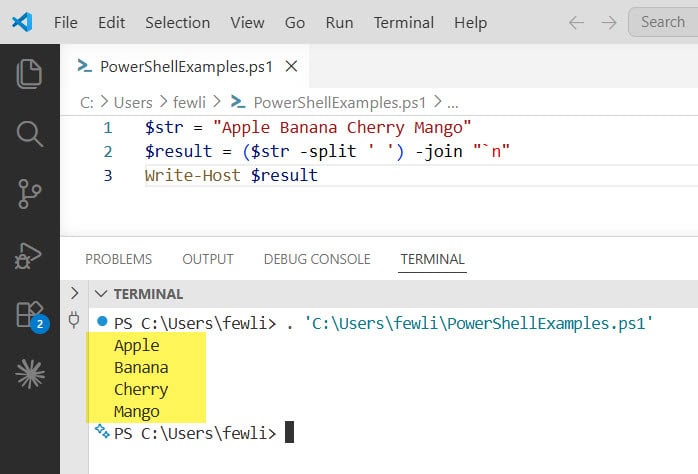
Here is the exact output in the screenshot below:
Here’s what’s happening:
-split ' 'breaks the string at every space and returns an array:@("Apple", "Banana", "Cherry", "Mango")-join "n”` glues that array back together, placing a newline between each element
This two-step approach gives you a lot of control. For instance, if you want to filter out empty items first (in case there are double spaces), you can do this:
$str = "Apple  Banana   Cherry Mango"
$result = ($str -split '\s+' | Where-Object { $_ -ne '' }) -join "`n"
Write-Host $result
The \s+ pattern handles multiple consecutive spaces, and Where-Object { $_ -ne '' } drops any empty strings that sneak through.
When to use this method:
- When you want to manipulate or filter the individual items before joining them.
- When you’re working with arrays already and just need to join them differently.
Read Replace Text in Strings Using PowerShell
Method 4: Using [Environment]::NewLine for Cross-Platform Scripts
If you’re writing a script that needs to run on both Windows and Linux (which is totally possible with PowerShell 7+), hardcoding `r`n can cause issues on Linux systems.
[Environment]::NewLine solves this — it returns the correct newline string for whatever OS the script is running on.
$str = "Apple Banana Cherry Mango"
$newline = [Environment]::NewLine
$result = $str.Replace(" ", $newline)
Write-Host $result
You can use this with any of the methods above. Here’s the -replace version:
$str = "Apple Banana Cherry Mango"
$result = $str -replace ' ', [Environment]::NewLine
Write-Host $result
When to use this method:
- Any time you’re writing scripts meant to run on both Windows and Linux/macOS.
- When you’re writing output to files and want the line endings to match the OS.
Check out Replace Placeholders in Strings Using PowerShell
Method 5: Applying This to File Content
Let me show you how this works in a practical file scenario, because that’s where a lot of people actually run into this problem.
Say you have a text file called servers.txt that contains:
SERVER01 SERVER02 SERVER03 SERVER04
You want to convert it so each server name is on its own line.
# Read the file content
$content = Get-Content -Path "C:\scripts\servers.txt" -Raw

# Replace spaces with newlines
$result = $content.Replace(" ", "`r`n")

# Write the result back to a new file
$result | Out-File -FilePath "C:\scripts\servers_clean.txt"
The -Raw parameter is important here. Without it, Get-Content returns an array of lines (one string per line). With -Raw, it reads the whole file as one big string, which is what you need when you want to do string replacements across the entire content.
After running this, servers_clean.txt will look like:
SERVER01
SERVER02
SERVER03
SERVER04
If you want to process the servers right in the script without writing a new file, you can do this:
$content = Get-Content -Path "C:\scripts\servers.txt" -Raw
$servers = $content.Trim() -split '\s+'
foreach ($server in $servers) {
    Write-Host "Processing: $server"
    # Your logic here
}
Check out Get JSON Data from a URL in PowerShell
Method 6: Using a Here-String for Multi-Line Output
This isn’t exactly “converting” spaces to new lines, but I want to mention it because people sometimes ask about it in the same context.
If you’re building a string from scratch and you want it to span multiple lines, PowerShell’s here-string syntax is the cleanest way to do it:
$output = @"
Apple
Banana
Cherry
Mango
"@

Write-Host $output
The @"..."@ syntax lets you write the string exactly as you want it to appear, line breaks and all, no escape characters needed.
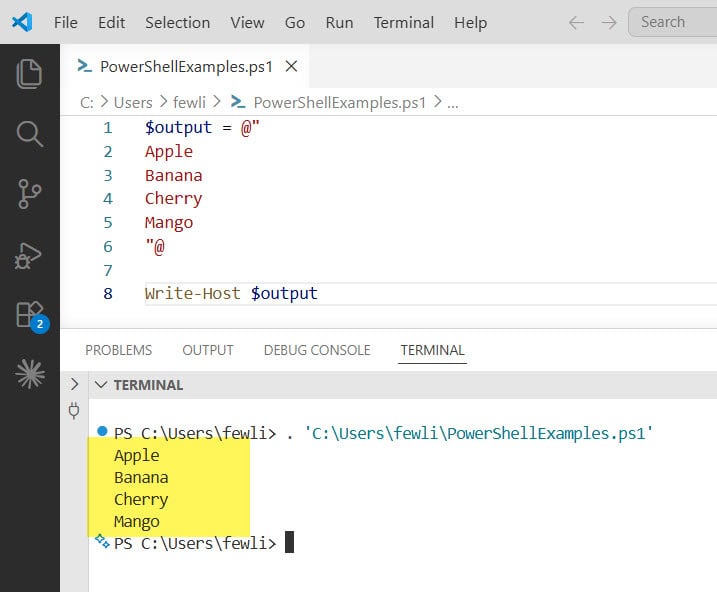
You can see the exact output in the screenshot below:
Quick Comparison of All Methods
Here’s a summary to help you pick the right approach:
| Method | Best For | Regex Support |
|---|---|---|
.Replace() | Simple, readable one-liners | No |
-replace | Flexible pattern matching | Yes |
-split + -join | When you need to filter/process items | Yes (in split) |
[Environment]::NewLine | Cross-platform scripts | Works with any method |
| Here-string | Building new multi-line strings | N/A |
Things You Shouldn’t Do
Here are a few things you should not do:
- Using single quotes with escape sequences. In PowerShell,
`nonly works inside double quotes. Single-quoted strings treat the backtick literally. - Forgetting
-RawwithGet-Content. If you skip it, you get an array of lines, not one big string — and.Replace()won’t work the way you expect. - Double spaces in the source string. If there are two spaces between words, a simple
replace ' 'will leave an empty line. Use\s+with the-replaceoperator to handle that cleanly. - Line endings on Windows vs Linux. If your output file looks weird in Notepad, you probably used
`ninstead of`r`n. Windows Notepad historically needs CRLF, though newer versions handle LF better.
Check out PowerShell Find Folders Matching Pattern
Real-World Use Case: Formatting PowerShell Output
Here’s one more real-world example I find useful. Let’s say you’re querying a list of installed software and want to display the names one per line from a space-separated string:
$softwareList = "VSCode Git Notepad++ Chrome Firefox"

Write-Host "Installed Software:"
Write-Host "-------------------"
$softwareList -replace ' ', "`n" | Write-Host
Output:
Installed Software:
-------------------
VSCode
Git
Notepad++
Chrome
Firefox
Neat, readable, and easy to work with.
Wrapping Up
To convert spaces to new lines in PowerShell, your go-to options are:
.Replace(" ", "n”)` — quick and simple-replace ' ', "n”` — more powerful with regex(-split ' ') -join "n”` — split-then-join for more control[Environment]::NewLine— when cross-platform compatibility matters
Pick the one that fits your situation. For most everyday scripts, -replace is the most flexible because of regex support. For quick one-off replacements in simple strings, .Replace() is perfectly fine.
The key thing to always remember: use double quotes when your string contains escape sequences like `n . That one detail saves a lot of head-scratching.
You may also like the following tutorials:
- PowerShell Output to File and Console
- How to Move Files from One Folder to Another Using PowerShell
- PowerShell Write-Host Color

Bijay Kumar is an esteemed author and the mind behind PowerShellFAQs.com, where he shares his extensive knowledge and expertise in PowerShell, with a particular focus on SharePoint projects. Recognized for his contributions to the tech community, Bijay has been honored with the prestigious Microsoft MVP award. With over 15 years of experience in the software industry, he has a rich professional background, having worked with industry giants such as HP and TCS. His insights and guidance have made him a respected figure in the world of software development and administration. Read more.