
If you’ve ever worked with Active Directory, Azure AD, or any system that stores identity data, you’ve probably run into GUIDs. They look like this: bcd2e574-8d58-4136-a9df-8a19b145db79. Clean enough. But then someone asks you for the hex representation, and suddenly things get confusing.
I’ve been there. You Google around, find a few scattered Stack Overflow answers, and still aren’t sure which method actually fits your situation. So in this tutorial, I’m going to walk you through exactly how to convert a GUID to hex in PowerShell — multiple methods, real examples, and clear explanations of when to use each one.
Let’s get into it.
What Is a GUID and Why Convert It to Hex?
A GUID (Globally Unique Identifier) is a 128-bit value used to uniquely identify objects. In Windows environments, you’ll see it all the time — Active Directory objects, COM components, registry keys, you name it.
A GUID in its standard string form looks like this:
bcd2e574-8d58-4136-a9df-8a19b145db79
A hex representation of the same GUID looks like this (space-separated bytes):
74 E5 D2 BC 58 8D 36 41 A9 DF 8A 19 B1 45 DB 79
Wait — why does the order look different? That’s because of byte order (endianness). The first three segments of a GUID are stored in little-endian format on Windows, which means the bytes get reversed. The last two segments stay in the same order. This trips people up all the time, so keep that in mind.
You typically need hex conversion when:
- Reading or writing the
mS-DS-ConsistencyGUIDattribute in Active Directory - Building LDAP filters to search for objects by GUID
- Syncing on-premises AD with Azure AD (for ImmutableID/source anchor work)
- Debugging identity issues in Azure AD Connect (AADC) environments
Before You Start: The [GUID] Type in PowerShell
PowerShell has built-in support for the [GUID] type, which is actually .NET’s System.Guid class under the hood. This is super handy because it gives you access to the ToByteArray() method — and that’s the secret weapon behind most of the conversion techniques below.
You can cast any valid GUID string into a GUID object like this:
$guid = [GUID]"bcd2e574-8d58-4136-a9df-8a19b145db79"
And from there, calling $guid.ToByteArray() gives you an array of 16 bytes. Convert those bytes to their hex equivalents, join them together, and you’ve got your hex string.
Simple concept. Let’s now look at the actual methods.
Method 1: Using ToByteArray() with ToString(‘X2’)
This is the most common and reliable method. It gives you a clean hex string where each byte is represented as two uppercase hex characters.
$guid = "bcd2e574-8d58-4136-a9df-8a19b145db79"
$hexstring = (([GUID]$guid).ToByteArray() | ForEach-Object { $_.ToString('X2') }) -join ' '
$hexstring
Output:
74 E5 D2 BC 58 8D 36 41 A9 DF 8A 19 B1 45 DB 79
You can see the exact output in the screenshot below:
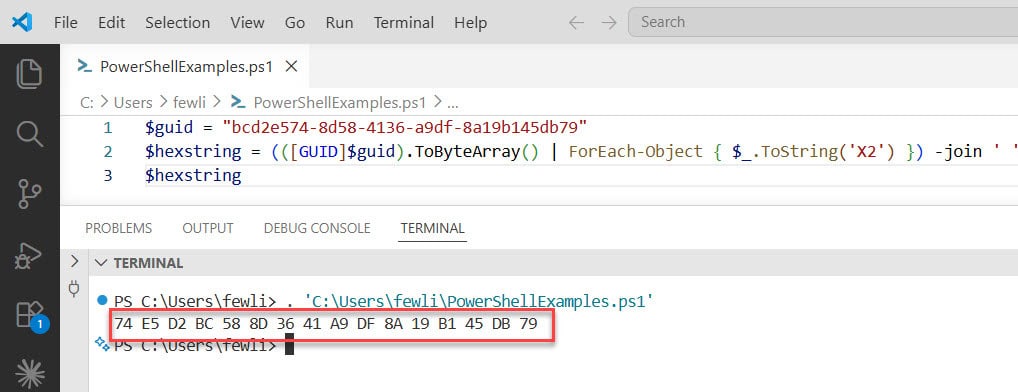
What’s happening here:
[GUID]$guid— casts the string into a .NET GUID object.ToByteArray()— converts the GUID into a 16-element byte arrayForEach-Object { $_.ToString('X2') }— converts each byte to a 2-digit uppercase hex value (theX2format specifier ensures leading zeros are kept — more on this below)-join ' '— joins the bytes with a space separator
The X2 part is important. If you just use X without the 2, single-digit hex values won’t get a leading zero. So byte value 9 would show up as 9 instead of 09, and your hex string would be wrong. Always use X2 (or x2 for lowercase).
Shorthand version using the % alias:
$hexstring = (([GUID]$guid).ToByteArray() | % ToString X2) -join ' '
Same result, just more compact. Both work exactly the same way.
Check out PowerShell Convert Byte Array to Hex String
Method 2: Without Spaces (Compact Hex String)
Sometimes you don’t want spaces between the bytes. For example, if you’re passing the hex value to another tool or building a compact identifier string. Just change the -join separator:
$guid = "bcd2e574-8d58-4136-a9df-8a19b145db79"
$hexstring = (([GUID]$guid).ToByteArray() | % ToString X2) -join ''
$hexstring
Output:
74E5D2BC588D3641A9DF8A19B145DB79
You can see the exact output in the screenshot below:
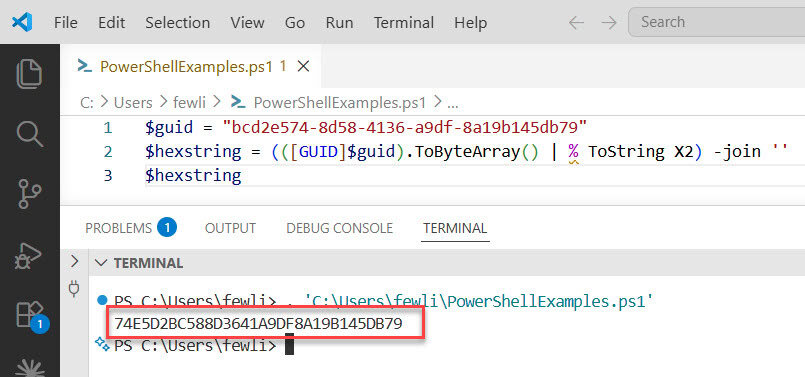
No spaces, all uppercase, 32 characters total. If you prefer lowercase, swap X2 for x2:
$hexstring = (([GUID]$guid).ToByteArray() | % ToString x2) -join ''
# Output: 74e5d2bc588d3641a9df8a19b145db79
Read Convert Byte Array To String In PowerShell
Method 3: Building an LDAP Filter with Backslash-Separated Hex
If you work with Active Directory and want to search for an object by its GUID using an LDAP filter, you need the hex bytes separated by backslashes, not spaces. The format looks like this:
\74\E5\D2\BC\58\8D\36\41\A9\DF\8A\19\B1\45\DB\79
Here’s how to build it:
$guid = "bcd2e574-8d58-4136-a9df-8a19b145db79"
$hexstring = (([GUID]$guid).ToByteArray() | % ToString X2) -join ' '
$ldapFilter = "(objectGUID=\" + ($hexstring -replace " ", "\") + ")"
$ldapFilter
Output:
(objectGUID=\74\E5\D2\BC\58\8D\36\41\A9\DF\8A\19\B1\45\DB\79)
Now you can use this directly in Get-ADUser or Get-ADObject:
Import-Module ActiveDirectory
Get-ADUser -LdapFilter $ldapFilter
This is incredibly useful when you’re debugging AD sync issues or trying to locate a specific object when the standard Get-ADUser -Identity isn’t cooperating.
Check out Create Byte Arrays in PowerShell
Method 4: Convert Hex String Back to GUID
What about the reverse? Maybe you have a hex string from the AD attribute editor and need to turn it back into a readable GUID.
Here’s how:
$hexstring = "74 E5 D2 BC 58 8D 36 41 A9 DF 8A 19 B1 45 DB 79"
$guid = [GUID]([byte[]] (-split (($hexstring -replace " ", "") -replace '..', '0x$& ')))
$guid.ToString()
Output:
bcd2e574-8d58-4136-a9df-8a19b145db79
Breaking it down:
$hexstring -replace " ", ""— removes the spaces to get74E5D2BC588D3641A9DF8A19B145DB79-replace '..', '0x$& '— inserts0xbefore every two characters and adds a space, giving you0x74 0xE5 0xD2 ...-split— splits the string into an array of those0x...tokens[byte[]]— converts each token to an actual byte value[GUID]— assembles the bytes back into a GUID
It looks complicated at first glance, but once you break it down, it’s actually elegant. The regex is doing all the heavy lifting.
Check out Convert Byte Array To String In PowerShell
A Flex Converter Script
If you’re regularly jumping between GUID formats — maybe during a migration project or day-to-day AD troubleshooting — it’s worth having a script that can detect what format you’ve given it and convert it to everything else automatically.
Here’s a handy all-in-one converter:
$input = "bcd2e574-8d58-4136-a9df-8a19b145db79"  # Can be GUID, Hex string, or Base64

if ($input.Contains('-')) {
    # It's a GUID
    $guid      = $input
    $hexstring = (([GUID]$guid).ToByteArray() | % ToString X2) -join ' '
    $base64    = [System.Convert]::ToBase64String(([GUID]$guid).ToByteArray())
}
elseif ($input.Contains(' ')) {
    # It's a Hex String
    $hexstring = $input
    $guid      = [GUID]([byte[]] (-split (($hexstring -replace ' ', '') -replace '..', '0x$& ')))
    $base64    = [System.Convert]::ToBase64String([byte[]] (-split (($hexstring -replace ' ', '') -replace '..', '0x$& ')))
}
else {
    # It's Base64
    $base64    = $input
    $guid      = [GUID]([System.Convert]::FromBase64String($base64))
    $hexstring = ([System.Convert]::FromBase64String($base64) | % ToString X2) -join ' '
}

Write-Host "GUID:       $($guid.ToString())"
Write-Host "Hex String: $hexstring"
Write-Host "Base64:     $base64"
Just paste your value into $input, run the script, and it figures out the format and spits out all three representations. I find this incredibly handy when I’m doing Azure AD Connect troubleshooting and bouncing between ImmutableID (Base64), objectGUID, and the hex form for LDAP filters.
Understanding the Byte Order Issue
I mentioned endianness at the start, so let me quickly explain why the hex output looks “reversed” compared to the original GUID.
Take this GUID: bcd2e574-8d58-4136-a9df-8a19b145db79
Split it into its segments:
- Segment 1:
bcd2e574→ stored as74 E5 D2 BC(reversed) - Segment 2:
8d58→ stored as58 8D(reversed) - Segment 3:
4136→ stored as36 41(reversed) - Segments 4 & 5:
a9df-8a19b145db79→ stored as-is:A9 DF 8A 19 B1 45 DB 79
Windows uses little-endian byte ordering for the first three GUID segments. This is by design and matches how the GUID is stored in the Windows registry and Active Directory. The ToByteArray() method returns bytes in this native Windows byte order, which is exactly what you want when working with AD.
If you were working with a system that expects big-endian GUIDs (like some Java-based or cross-platform systems), you’d need to reverse those first three segments manually. But for Windows/AD work, just trust ToByteArray() — it handles it correctly.
Read Convert String to Byte Array in PowerShell
Quick Reference: All Methods Side by Side
| What You Want | Code |
|---|---|
| Hex with spaces (uppercase) | (([GUID]$guid).ToByteArray() \| % ToString X2) -join ' ' |
| Hex without spaces (uppercase) | (([GUID]$guid).ToByteArray() \| % ToString X2) -join '' |
| Hex without spaces (lowercase) | (([GUID]$guid).ToByteArray() \| % ToString x2) -join '' |
| LDAP filter hex format | Replace spaces with \ in the hex string |
| Hex string back to GUID | [GUID]([byte[]] (-split (($hex -replace " ","") -replace '..','0x$& '))) |
Common Mistakes to Avoid
Not using X2 (missing leading zeros)
This is the most common issue. If you use {0:X} instead of {0:X2}, bytes with values less than 16 (like 9) won’t get padded to two characters. Your hex string will be the wrong length and won’t work in LDAP filters or attribute editors.
Always use X2 or x2.
Forgetting to cast the string to [GUID] first
If you pass a plain string directly to ToByteArray(), PowerShell will throw an error because strings don’t have that method. Always cast with [GUID]$yourString first.
Assuming all systems use the same byte order
As I explained above, Windows GUIDs use little-endian for the first three segments. If you’re working across platforms, double-check what byte order the target system expects before assuming your output is correct.
Wrapping Up
In this tutorial, I explained how to convert a GUID to hex in PowerShell using several methods:
- Cast your GUID string to
[GUID] - Call
.ToByteArray()to get the raw bytes - Format each byte as
X2to get the two-character hex representation - Join them with whatever separator your use case needs
The hex-with-backslashes variant for LDAP filters and the reverse conversion (hex back to GUID) are the two extra tricks you’ll reach for most often in AD and Azure AD work.
Do let me know in the comments below if you still have any questions.
You may also like the following tutorials:

Bijay Kumar is an esteemed author and the mind behind PowerShellFAQs.com, where he shares his extensive knowledge and expertise in PowerShell, with a particular focus on SharePoint projects. Recognized for his contributions to the tech community, Bijay has been honored with the prestigious Microsoft MVP award. With over 15 years of experience in the software industry, he has a rich professional background, having worked with industry giants such as HP and TCS. His insights and guidance have made him a respected figure in the world of software development and administration. Read more.