
To move files by date in PowerShell, filter them with Where-Object on LastWriteTime and pipe what’s left to Move-Item. Move-Item has no date parameter of its own, so this line moves every file older than 30 days:
Get-ChildItem $source -File | Where-Object { $_.LastWriteTime -lt (Get-Date).AddDays(-30) } | Move-Item -Destination $destinationThat’s the whole idea. The details matter, though: which date you compare, where a date range ends, and what happens when the destination folder doesn’t exist yet. I tested each case below in PowerShell 7 and Windows PowerShell 5.1.
Move files older than 30 days to another folder
My sample Reports folder has six files last saved between 2 and 120 days ago. This script creates the Archive folder, moves everything older than 30 days and prints what moved:
$source      = 'C:\psfaqs\t\movedate\Reports'
$destination = 'C:\psfaqs\t\movedate\Archive'
$cutoff      = (Get-Date).AddDays(-30)

New-Item -Path $destination -ItemType Directory -Force | Out-Null
Get-ChildItem -Path $source -File |
    Where-Object { $_.LastWriteTime -lt $cutoff } |
    Move-Item -Destination $destination -PassThru |
    Sort-Object Name | ForEach-Object { "Moved: $($_.Name)" }

"Still in Reports: $((Get-ChildItem $source -File | Sort-Object Name).Name -join ', ')"
Output:
Moved: budget.xls
Moved: budget.xlsx
Moved: invoice-1001.pdf
Moved: sales-austin.csv
Still in Reports: notes.txt, sales-denver.csv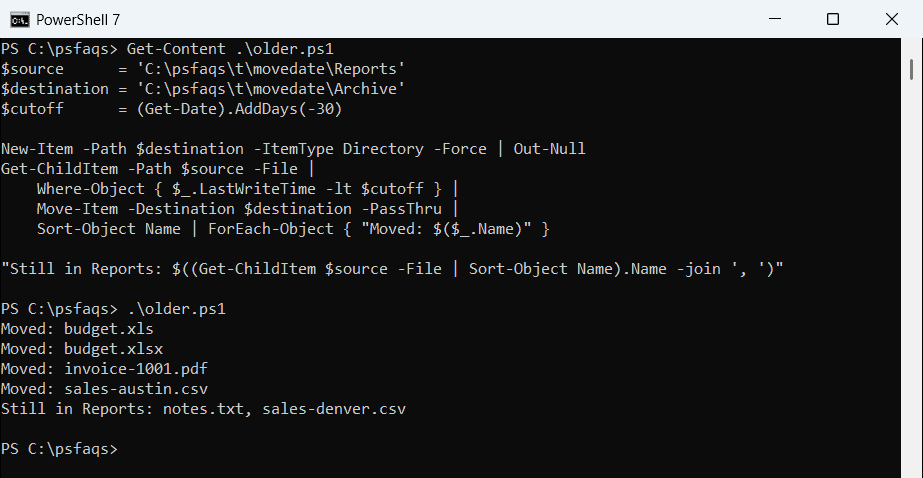
The -File switch keeps subfolders out of the match, and -PassThru makes Move-Item return each moved file, which it doesn’t do by default. AddDays takes a negative number to go back in time, as covered in adding days to a date.
Change -lt to -gt to move the recent files instead. To move a single known file, the plain syntax is in moving a file to a folder.
CreationTime vs LastWriteTime: which date should you filter on?
Every file carries a CreationTime (when this copy appeared on the disk) and a LastWriteTime (when its content last changed). They drift apart as soon as a file gets copied. Here’s an old invoice and a fresh copy of it:
$file = Get-Item 'C:\psfaqs\t\movedate\Reports\invoice-1001.pdf'
New-Item 'C:\psfaqs\t\movedate\Inbox' -ItemType Directory -Force | Out-Null
$copy = Copy-Item $file.FullName 'C:\psfaqs\t\movedate\Inbox\invoice-1001.pdf' -PassThru

foreach ($f in $file, $copy) {
    $created  = ((Get-Date) - $f.CreationTime).Days
    $modified = ((Get-Date) - $f.LastWriteTime).Days
    '{0,-8} created {1,3} days ago, modified {2,3} days ago' -f $f.Directory.Name, $created, $modified
}
Output:
Reports  created  90 days ago, modified  90 days ago
Inbox    created   0 days ago, modified  90 days ago
The copy says it was created today, but its content is still 90 days old. A CreationTime filter would treat every restored or copied file as new and leave it behind, so use LastWriteTime for age-based archiving.
Use CreationTime only when you really mean “arrived in this folder,” like files dropped into an inbox share. Both properties are explained in getting a file’s creation date and getting the modified date.
In my tests, moving a file within the same drive kept both dates unchanged, so the archive folder still sorts correctly by age.
Move files from a specific date range
Date ranges have one trap. A date string with no time means midnight, so an end date of September 30 stops at 12:00 AM on September 30. Compare the two filters on files saved between August 31 and October 1, 2026:
$files = Get-ChildItem 'C:\psfaqs\t\movedate\Monthly' -File

$wrong = $files | Where-Object { $_.LastWriteTime -ge '2026-09-01' -and $_.LastWriteTime -le '2026-09-30' }
$right = $files | Where-Object { $_.LastWriteTime -ge '2026-09-01' -and $_.LastWriteTime -lt '2026-10-01' }

"-le 2026-09-30: $(($wrong | Sort-Object Name).Name -join ', ')"
"-lt 2026-10-01: $(($right | Sort-Object Name).Name -join ', ')"
Output:
-le 2026-09-30: report-0901.csv
-lt 2026-10-01: report-0901.csv, report-0930.csv
The -le version silently skipped report-0930.csv, which was saved at 4:45 PM on the last day. Use -ge for the first day and -lt for the day after the range, and you’ll catch everything.
PowerShell converts the string on the right to a DateTime because the left side is one, and it reads that string in the invariant culture, so use the yyyy-MM-dd form. More on this in filtering between two dates.
Preview the move with -WhatIf
Before you move anything for real, add -WhatIf to Move-Item. It prints one line per file and moves nothing:
$cutoff = (Get-Date).AddDays(-60)
Get-ChildItem 'C:\psfaqs\t\movedate\Reports' -File |
    Where-Object { $_.LastWriteTime -lt $cutoff } |
    Move-Item -Destination 'C:\psfaqs\t\movedate\Archive' -WhatIf
Output:
What if: Performing the operation "Move File" on target "Item: C:\psfaqs\t\movedate\Reports\budget.xls Destination: C:\psfaqs\t\movedate\Archive".
What if: Performing the operation "Move File" on target "Item: C:\psfaqs\t\movedate\Reports\budget.xlsx Destination: C:\psfaqs\t\movedate\Archive".
What if: Performing the operation "Move File" on target "Item: C:\psfaqs\t\movedate\Reports\invoice-1001.pdf Destination: C:\psfaqs\t\movedate\Archive".
Each line shows the file and its full destination path. I run this every time I change a filter, because a typo in the date logic can sweep up a whole folder. Once the list looks right, remove -WhatIf and run it again.
What if the destination folder doesn’t exist?
Move-Item doesn’t create a missing destination folder, even with -Force. What it does instead is surprising. I pointed four old files at an Archive2 folder that didn’t exist:
$destination = 'C:\psfaqs\t\movedate\Archive2'
$cutoff = (Get-Date).AddDays(-30)

Get-ChildItem 'C:\psfaqs\t\movedate\Reports' -File |
    Where-Object { $_.LastWriteTime -lt $cutoff } |
    Move-Item -Destination $destination -ErrorAction SilentlyContinue -ErrorVariable failed

"Archive2 is a folder: $(Test-Path $destination -PathType Container)"
"Archive2 is a file:   $(Test-Path $destination -PathType Leaf)"
"Files that failed:    $($failed.Count)"
"Failed. $($failed[0].Exception.Message)"
Output:
Archive2 is a folder: False
Archive2 is a file:   True
Files that failed:    3
Failed. Cannot create a file when that file already exists.