If you’ve spent any time working with APIs, configuration files, or automation pipelines in PowerShell, you’ve almost certainly needed to deal with JSON. And the cmdlet sitting right at the center of all of that is ConvertTo-Json.
In this tutorial, I will explain how to use ConvertTo-Json in PowerShell with real-world examples.
What Is ConvertTo-Json in PowerShell?
ConvertTo-Json is a built-in PowerShell cmdlet that converts any .NET object into a JSON-formatted string. JSON (JavaScript Object Notation) is a lightweight, text-based data format that’s become the universal language of APIs and configuration files.
Whether you’re calling a REST API, writing automation scripts that interact with Azure, Microsoft 365, or SharePoint, or just exporting structured data from your environment, you’re going to be working with JSON constantly.
The cmdlet was introduced in Windows PowerShell 3.0 and lives in the Microsoft.PowerShell.Utility module, which is loaded automatically. That means you don’t need to install anything — it’s ready to go the moment you open a PowerShell session.
When you pipe an object into ConvertTo-Json, it takes all the properties of that object and translates them into key-value pairs in JSON format. Methods are dropped (which makes sense, since JSON is a data format, not a code format). The result is a clean, structured string you can pass to APIs, write to files, or log for later use.
Check out Convert JSON to XML using PowerShell
PowerShell ConvertTo-Json Syntax
Here is the basic syntax of ConvertTo-JSON in PowerShell.
ConvertTo-Json [-InputObject] <Object> [-Depth <Int32>] [-Compress] [-EnumsAsStrings] [-AsArray] [-EscapeHandling <StringEscapeHandling>]
Let’s break down each parameter before we get into examples, because understanding these will save you a lot of headaches.
| Parameter | Type | Default | Purpose |
|---|---|---|---|
-InputObject | Object | Required | The object you want to convert |
-Depth | Int32 | 2 | How many levels deep to serialize nested objects |
-Compress | Switch | Off | Removes whitespace and pretty-printing |
-EnumsAsStrings | Switch | Off | Converts enum values to their string names instead of numbers |
-AsArray | Switch | Off | Wraps a single object in array brackets [] |
-EscapeHandling | Enum | Default | Controls how special characters are escaped (PowerShell 6.2+) |
Read Create JSON Files with Content Using PowerShell
Your First ConvertTo-Json Example
Let me start with the simplest possible use case. Say you have a hashtable with some user details, and you want to turn it into JSON:
$user = @{
Name = "Sarah Mitchell"
Email = "sarah.mitchell@contoso.com"
Role = "IT Administrator"
Active = $true
}
$user | ConvertTo-JsonOutput:
Here is the exact output:
{
"Name": "Sarah Mitchell",
"Active": true,
"Role": "IT Administrator",
"Email": "sarah.mitchell@contoso.com"
}You can see the exact output in the screenshot below:

Notice that the boolean $true correctly becomes true in JSON — not the string "True". That’s one of the things ConvertTo-Json handles for you automatically.
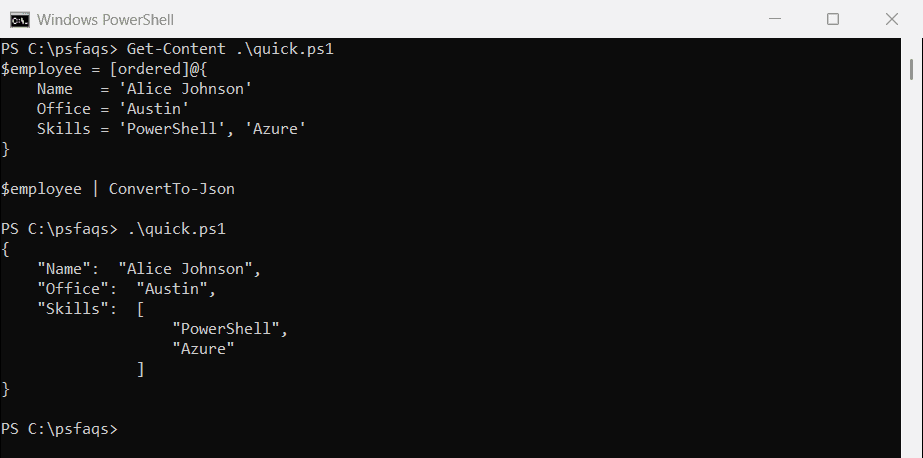
Also, notice the hashtable keys came out in a different order. Hashtables in PowerShell don’t guarantee order. If key order matters to you, use an [ordered] hashtable or a [PSCustomObject] instead.
Check out Convert JSON to CSV in PowerShell
Understanding the -Depth Parameter (This Is Critical)
This is the most common source of bugs when people first start using ConvertTo-Json, so I want to spend real time on it.
By default, ConvertTo-Json only serializes 2 levels deep. If your object has properties that contain other objects that contain other objects, anything beyond depth 2 gets truncated.
In PowerShell 7.1 and later, you’ll at least get a warning when this happens. In Windows PowerShell 5.1, it silently drops the data — which is much worse.
Here’s an example that shows the problem clearly:
$config = [PSCustomObject]@{
Server = [PSCustomObject]@{
Database = [PSCustomObject]@{
ConnectionString = "Server=sql01;Database=HR;Trusted_Connection=True"
Timeout = 30
}
}
}
# Default depth (2) - ConnectionString gets dropped!
$config | ConvertTo-JsonOutput (truncated result):
{
"Server": {
"Database": "Microsoft.Management.Infrastructure..."
}
}Now with the correct depth:
$config | ConvertTo-Json -Depth 10
Output:
{
"Server": {
"Database": {
"ConnectionString": "Server=sql01;Database=HR;Trusted_Connection=True",
"Timeout": 30
}
}
}My rule of thumb: if your data has any nested objects at all, always explicitly set -Depth. I typically use -Depth 10 as a safe default for most admin scripts. For very complex objects (like serializing exception records or WMI objects), be careful — I’ll cover that in the Common Mistakes section.
Check out Convert String to JSON in PowerShell
Using -Compress for APIs and Log Files
When you’re sending JSON to a REST API or writing compact log entries, the pretty-printed default format wastes bytes. The -Compress switch removes all whitespace:
$payload = [PSCustomObject]@{
EventType = "UserLogin"
Username = "jdoe"
Timestamp = (Get-Date -Format "o")
Success = $true
}
$payload | ConvertTo-Json -CompressOutput:
{"EventType":"UserLogin","Username":"jdoe","Timestamp":"2026-04-27T21:49:00.0000000+05:30","Success":true}This single-line format is exactly what most REST APIs and logging pipelines expect.
Real-World Use Case 1: Calling a REST API
This is one of the most practical scenarios you’ll hit regularly — building a JSON payload to POST to a REST API. Let me show you a realistic example using a webhook endpoint (like Microsoft Teams or a ticketing system API):
function Send-TeamsNotification {
param(
[string]$WebhookUrl,
[string]$Title,
[string]$Message,
[string]$Color = "0076D7"
)
$body = [PSCustomObject]@{
"@type" = "MessageCard"
"@context" = "http://schema.org/extensions"
"summary" = $Title
"themeColor" = $Color
"sections" = @(
[PSCustomObject]@{
"activityTitle" = $Title
"activityText" = $Message
}
)
}
$json = $body | ConvertTo-Json -Depth 5 -Compress
Invoke-RestMethod -Uri $WebhookUrl -Method Post -Body $json -ContentType "application/json"
}
# Call it
Send-TeamsNotification -WebhookUrl "https://your-tenant.webhook.office.com/..." `
-Title "Disk Space Alert" `
-Message "Server SRV01 is at 92% disk usage on C:\"Notice I set -Depth 5 here because the sections array contains nested objects. Without that, the section content would get truncated to a generic object reference.
Check out Write JSON to File in PowerShell
Real-World Use Case 2: Exporting System Inventory to JSON
Imagine you need to document server configurations and export them as JSON files for a CMDB or reporting tool. Here’s a script that collects disk, OS, and memory information and writes it to a structured JSON file:
function Export-ServerInventory {
param(
[string[]]$ComputerName,
[string]$OutputPath = "C:\Reports"
)
$results = foreach ($computer in $ComputerName) {
try {
$os = Get-CimInstance -ComputerName $computer -ClassName Win32_OperatingSystem
$disk = Get-CimInstance -ComputerName $computer -ClassName Win32_LogicalDisk -Filter "DriveType=3"
$mem = [math]::Round($os.TotalVisibleMemorySize / 1MB, 2)
[PSCustomObject]@{
ComputerName = $computer
OS = $os.Caption
TotalMemoryGB = $mem
Disks = $disk | Select-Object DeviceID,
@{N="SizeGB"; E={[math]::Round($_.Size/1GB,2)}},
@{N="FreeGB"; E={[math]::Round($_.FreeSpace/1GB,2)}}
CollectedAt = (Get-Date -Format "o")
}
}
catch {
Write-Warning "Could not connect to $computer : $_"
}
}
$json = $results | ConvertTo-Json -Depth 5
$outputFile = Join-Path $OutputPath "inventory_$(Get-Date -Format 'yyyyMMdd').json"
$json | Out-File -FilePath $outputFile -Encoding utf8
Write-Host "Exported inventory to: $outputFile" -ForegroundColor Green
}
# Run it
Export-ServerInventory -ComputerName "SRV01", "SRV02", "SRV03" -OutputPath "C:\Reports"This pattern — collect, shape with [PSCustomObject], convert, write — is the backbone of dozens of admin automation scripts I’ve worked with.
Real-World Use Case 3: Building and Updating Configuration Files
A lot of modern DevOps tooling (Azure DevOps pipelines, Bicep deployments, GitHub Actions) uses JSON configuration files. Here’s how to programmatically build and update a configuration file:
# Read existing config, modify a value, write it back
$configPath = "C:\Config\app-settings.json"
# Load and parse existing config
$config = Get-Content -Path $configPath -Raw | ConvertFrom-Json
# Update a specific value
$config.Database.ConnectionTimeout = 60
$config.Features.EnableAuditLog = $true
# Write it back as formatted JSON
$config | ConvertTo-Json -Depth 10 | Out-File -FilePath $configPath -Encoding utf8
Write-Host "Configuration updated successfully."
One thing to watch out for here: ConvertFrom-Json returns a PSCustomObject, which has fixed properties. If you need to add new keys to it, you’ll either need to use Add-Member or reconstruct the object as a new hashtable.
Check out Read JSON File into Array in PowerShell
Real-World Use Case 4: Logging Events as JSON
Structured logging is a big deal in modern operations. Instead of writing plain-text log lines that are hard to parse, write JSON log entries. They’re immediately queryable by tools like Splunk, Azure Monitor, and Elastic:
function Write-JsonLog {
param(
[string]$Level,
[string]$Message,
[hashtable]$Context = @{},
[string]$LogFile = "C:\Logs\app.log"
)
$entry = [PSCustomObject]@{
timestamp = (Get-Date -Format "o")
level = $Level.ToUpper()
message = $Message
context = $Context
host = $env:COMPUTERNAME
user = $env:USERNAME
}
$entry | ConvertTo-Json -Compress | Add-Content -Path $LogFile
}
# Usage
Write-JsonLog -Level "INFO" -Message "Backup started" -Context @{BackupTarget="\\NAS01\Backups"}
Write-JsonLog -Level "ERROR" -Message "Connection failed" -Context @{Server="SRV01"; Port=1433}Each line in the log file is a self-contained JSON object. You can then pipe this file into any log analytics tool and immediately filter, sort, and aggregate on any field.
The -AsArray Switch: When You Need Consistent Output
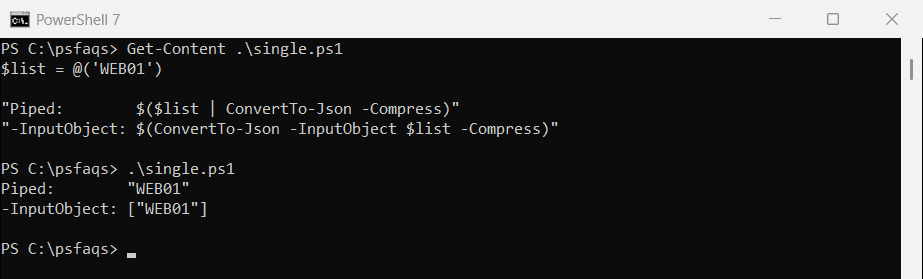
Here’s a subtle issue that can bite you when processing the output of ConvertTo-Json downstream. If your script sometimes returns one object and sometimes returns many, the JSON shape changes:
# One object — produces a JSON object {}
$single = [PSCustomObject]@{ Name = "Alice" }
$single | ConvertTo-Json
# Multiple objects — produces a JSON array []
$multiple = @(
[PSCustomObject]@{ Name = "Alice" }
[PSCustomObject]@{ Name = "Bob" }
)
$multiple | ConvertTo-JsonThis inconsistency breaks any downstream system expecting a consistent array. Fix it with -AsArray:
$single | ConvertTo-Json -AsArray
# Always outputs: [{"Name":"Alice"}]
Make it a habit to use -AsArray any time your script output might be consumed by another system or API.
You can see the exact output in the screenshot below:

Read PowerShell Question Mark Operator
Using -EnumsAsStrings for Readable Output
When your object contains .NET enum values, ConvertTo-Json will convert them to their numeric representation by default. This can make your JSON hard to read and hard to debug:
Get-Service -Name "Spooler" | Select-Object Name, Status | ConvertTo-Json
Default output:
{
"Name": "Spooler",
"Status": 4
}With -EnumsAsStrings:
Get-Service -Name "Spooler" | Select-Object Name, Status | ConvertTo-Json -EnumsAsStrings
Output:
{
"Name": "Spooler",
"Status": "Running"
}Much more useful when the JSON is being read by humans or systems that expect meaningful string values.
The -EscapeHandling Parameter (PowerShell 6.2+)
If you’re building JSON that will be embedded in HTML or sent through channels that might mangle special characters, the -EscapeHandling parameter is your friend:
$data = [PSCustomObject]@{
Html = "<h1>Hello & Welcome</h1>"
Script = "<script>alert('xss')</script>"
}
# Default: only control characters escaped
$data | ConvertTo-Json
# EscapeHtml: HTML-sensitive characters escaped
$data | ConvertTo-Json -EscapeHandling EscapeHtml
# EscapeNonAscii: all non-ASCII characters escaped (useful for ASCII-only channels)
$data | ConvertTo-Json -EscapeHandling EscapeNonAsciiUse EscapeHtml any time your JSON output might be rendered in a web context. Use EscapeNonAscii if you’re sending data through legacy systems that only handle ASCII safely.
Advanced Tip: Controlling Property Order with [ordered]
As I mentioned earlier, regular PowerShell hashtables don’t guarantee key order in JSON output. If you need predictable key ordering (which some APIs and diff tools care about), use an ordered dictionary:
$payload = [ordered]@{
id = 1001
name = "Deploy Production"
status = "pending"
createdAt = (Get-Date -Format "o")
}
$payload | ConvertTo-JsonOutput:
{
"id": 1001,
"name": "Deploy Production",
"status": "pending",
"createdAt": "2026-04-27T21:49:00.0000000+05:30"
}Keys come out in exactly the order you defined them.
Advanced Tip: Combining ConvertTo-Json with Invoke-RestMethod
When you use Invoke-RestMethod to call APIs, you often need to construct a JSON body. Here’s the clean pattern I use in production scripts:
$headers = @{
"Authorization" = "Bearer $accessToken"
"Content-Type" = "application/json"
}
$body = [PSCustomObject]@{
displayName = "New SharePoint Site"
description = "Created via PowerShell automation"
template = "STS#3"
} | ConvertTo-Json -Depth 5 -Compress
$response = Invoke-RestMethod -Uri "https://graph.microsoft.com/v1.0/sites" `
-Method Post `
-Headers $headers `
-Body $body
$response | ConvertTo-Json -Depth 5Always convert the response back using ConvertTo-Json when you want to inspect its structure during development — it makes complex nested responses much easier to read than PowerShell’s default object display.
Common Mistakes Beginners Make
Here are the mistakes I see most often, including a couple that have caused real production issues:
1. Not setting -Depth for nested objects
The default depth of 2 silently truncates data in PowerShell 5.1. Always set -Depth explicitly.
2. Serializing ErrorRecord or Exception objects
Never do this:
try { some-command } catch { $_ | ConvertTo-Json -Depth 100 }ErrorRecord and Exception objects contain deeply recursive properties. With a high -Depth value, this will consume all available memory. Instead, extract only what you need:
try { some-command } catch {
[PSCustomObject]@{
Message = $_.Exception.Message
Type = $_.Exception.GetType().Name
ScriptLine = $_.InvocationInfo.ScriptLineNumber
} | ConvertTo-Json
}3. Assuming hashtable key order is preserved
Use [ordered]@{} when key order in JSON matters.
4. Forgetting -Encoding UTF8 when writing to files
Without explicit encoding, Out-File in Windows PowerShell 5.1 defaults to UTF-16. Most tools and APIs expect UTF-8. Always use:
$json | Out-File -FilePath $path -Encoding utf8
5. Piping arrays through the pipeline incorrectly
When you pipe an array to ConvertTo-Json, PowerShell unrolls it and converts each element separately. Wrap it in a subexpression or use the -InputObject parameter:
# WRONG - each element gets converted separately
$array | ConvertTo-Json
# CORRECT - converts the full array as one JSON array
ConvertTo-Json -InputObject $array -Depth 5
# OR
$array | ConvertTo-Json -AsArray -Depth 5
6. Using string concatenation instead of proper conversion
I’ve seen scripts that manually build JSON strings with "{ ""name"": ""$name"" }". Don’t do this. Escape characters, special characters in values, and null handling will all break eventually. Always build proper objects and convert them.
Best Practices for Working with ConvertTo-Json
Follow these habits and your JSON-handling scripts will be reliable, readable, and easy to maintain:
- Always set
-Depthexplicitly. Don’t rely on the default of 2. Use-Depth 5or-Depth 10as your baseline. - Use
[PSCustomObject]for structured output. It gives you predictable property names and clean serialization. - Use
[ordered]hashtables when key order in the JSON output matters for the consuming system. - Always specify
-Encoding utf8when writing JSON to files withOut-FileorSet-Content. - Use
-Compressfor API payloads and log entries. Use pretty-printed (default) output for human-readable config files. - Use
-AsArrayany time your output might be consumed programmatically and you want consistent array wrapping. - Avoid serializing raw .NET objects with high
-Depthvalues. Shape your data into cleanPSCustomObjects first and only include the properties you actually need. - Validate your JSON after conversion during development. Pipe the output through
ConvertFrom-Jsonto confirm the round-trip works cleanly.
# Quick validation pattern
$obj = [PSCustomObject]@{ Name = "Test"; Value = 42 }
$json = $obj | ConvertTo-Json -Depth 5
$roundTrip = $json | ConvertFrom-Json
$roundTrip.Name # Should output: Test
- Use error handling around file writes:
try {
$config | ConvertTo-Json -Depth 10 | Out-File -FilePath $configPath -Encoding utf8 -ErrorAction Stop
Write-Host "Config saved." -ForegroundColor Green
}
catch {
Write-Error "Failed to save config: $($_.Exception.Message)"
}ConvertTo-Json vs ConvertFrom-Json
These two cmdlets work as a pair. ConvertTo-Json serializes objects to JSON strings. ConvertFrom-Json deserializes JSON strings back into PSCustomObject instances. You’ll use them together constantly:
- Use
ConvertTo-Jsonwhen sending data: writing to files, calling APIs, logging events, generating reports. - Use
ConvertFrom-Jsonwhen receiving data: reading config files, parsing API responses, processing webhook payloads.
The typical automation loop looks like this:
Read JSON → ConvertFrom-Json → Modify Object → ConvertTo-Json → Write JSON
Conclusion
In this tutorial, I explained how to use Convert-JSON in PowerShell with a few real examples. The key things to take away from this tutorial are: always set -Depth explicitly, use -Compress for API payloads, use -AsArray for consistent output, use [ordered] hashtables when key order matters, and never serialize raw exception objects.
Do let me know in the comment below if you still have any questions.
Bijay Kumar is an esteemed author and the mind behind PowerShellFAQs.com, where he shares his extensive knowledge and expertise in PowerShell, with a particular focus on SharePoint projects. Recognized for his contributions to the tech community, Bijay has been honored with the prestigious Microsoft MVP award. With over 15 years of experience in the software industry, he has a rich professional background, having worked with industry giants such as HP and TCS. His insights and guidance have made him a respected figure in the world of software development and administration. Read more.