
To replace text in a string in PowerShell, use the .Replace() method or the -replace operator. Both return a new string with the changes:
$message = 'Your order ships from Denver on Monday.'

$message.Replace('Denver', 'Austin')
$message -replace 'monday', 'Tuesday'
Output:
Your order ships from Austin on Monday.
Your order ships from Denver on Tuesday.
They look interchangeable, but they aren’t. .Replace() matches exact text and cares about case. -replace uses regular expressions and ignores case. I ran every example in PowerShell 7.6 and Windows PowerShell 5.1.
.Replace() vs -replace
Here’s the difference on two small strings:
$ip = '10.0.0.1'
$greeting = 'Hello hello'

".Replace('.', '-'):     $($ip.Replace('.', '-'))"
"-replace '.', '-':      $($ip -replace '.', '-')"
".Replace('hello', 'Hi'): $($greeting.Replace('hello', 'Hi'))"
"-replace 'hello', 'Hi': $($greeting -replace 'hello', 'Hi')"
Output:
.Replace('.', '-'):     10-0-0-1
-replace '.', '-':      --------
.Replace('hello', 'Hi'): Hello Hi
-replace 'hello', 'Hi': Hi Hi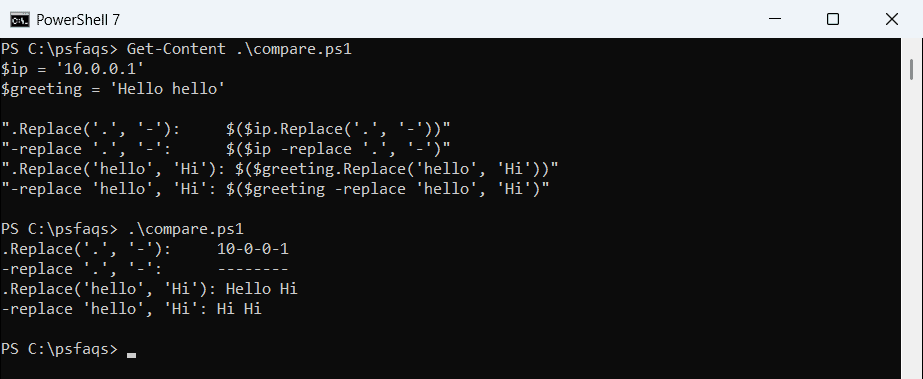
| .Replace() | -replace | |
|---|---|---|
| Matches | Exact text | A regular expression |
| Case | Sensitive | Ignored (use -creplace for sensitive) |
| Special characters like . $ ( ) | Plain text | Need escaping |
| Works on arrays | Through member enumeration | Yes, on every item |
A dot in -replace means “any character,” which is why every character became a dash. When you’re replacing plain text, .Replace() is the safer choice.
Case-insensitive .Replace() in PowerShell 7
PowerShell 7 can make .Replace() ignore case with a comparison option:
'Hello HELLO'.Replace('hello', 'Hi', [System.StringComparison]::OrdinalIgnoreCase)Output in PowerShell 7:
Hi HiWindows PowerShell 5.1 doesn’t have this version of the method, so it stops with an error. Use -replace there.
Reuse matched text: $1 in single quotes
With -replace, a capture group in the pattern can be reused in the replacement as $1. Put the replacement in single quotes:
$email = 'alice@contoso.com'

"Double quotes: $($email -replace '(\w+)@', "$1 at ")"
"Single quotes: $($email -replace '(\w+)@', '$1 at ')"
"Dollar sign:   $('Total 100 USD' -replace '(\d+) USD', '$$$1')"
Output:
Double quotes:  at contoso.com
Single quotes: alice at contoso.com
Dollar sign:   Total $100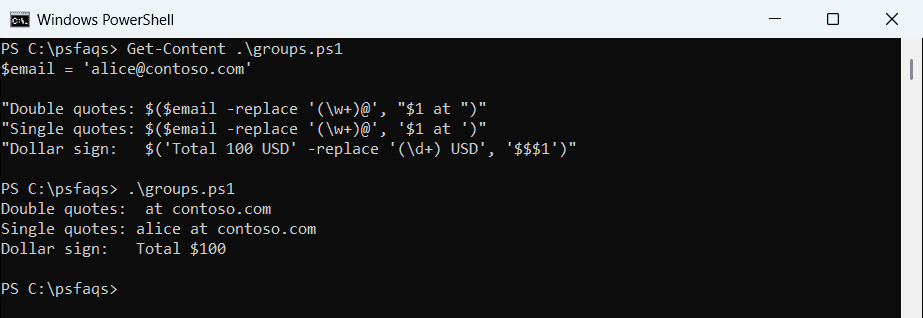
In double quotes, PowerShell reads $1 as its own variable before -replace sees it, and the name disappears. For a literal dollar sign in the result, write $$. Microsoft covers substitutions in about_Comparison_Operators.
For prefix cleanup, like removing everything before a colon or underscore, see how to replace a string before a character.
Replace multiple strings at once
Chain several -replace operators, or loop over a hashtable of find-and-replace pairs:
$address = '1600 Pennsylvania Avenue NW, Washington, District of Columbia'

$short = $address -replace 'Avenue', 'Ave' -replace 'D