
To remove whitespace from strings in PowerShell, use .Trim() for spaces at the start and end, or -replace ‘\s’, ” to strip every space, tab and line break:
'  Austin, TX  '.Trim()          # 'Austin, TX'
'Austin, TX' -replace '\s', ''   # 'Austin,TX'
Which one you need depends on whether the spaces inside the text matter. I tested every example in PowerShell 7 and Windows PowerShell 5.1, including the invisible characters that trip up most cleanup scripts.
Remove leading and trailing whitespace with Trim()
Trim() cleans both ends, and TrimStart() or TrimEnd() clean one side. Passing characters to Trim() removes those instead of whitespace:
$city = '   Austin, TX   '

"Trim():      [$($city.Trim())]"
"TrimStart(): [$($city.TrimStart())]"
"TrimEnd():   [$($city.TrimEnd())]"
"Trim('-'):   [$('--INV-1042--'.Trim('-'))]"
Output:
Trim():      [Austin, TX]
TrimStart(): [Austin, TX   ]
TrimEnd():   [   Austin, TX]
Trim('-'):   [INV-1042]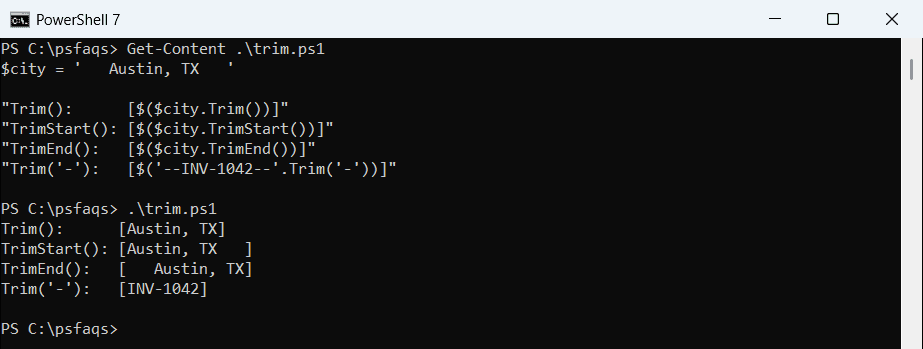
The brackets show exactly where the text starts and ends. Trim() never touches the space between Austin, and TX. Trimming strings in PowerShell covers more trimming options.
Remove all whitespace from a string
-replace ‘\s’ removes every whitespace character, including tabs and line breaks. .Replace(‘ ‘, ”) only removes the plain space character:
$text = "Austin`tTexas`r`n 78701 "

"-replace '\s': [$($text -replace '\s', '')]"
".Replace(' '): [$($text.Replace(' ', '') -replace "`t", '<tab>' -replace "`r`n", '<newline>')]"
Output:
-replace '\s': [AustinTexas78701]
.Replace(' '): [Austin<tab>Texas<newline>78701]
I made the tab and line break visible in the second line, so you can see .Replace() left them behind. Replacing text in strings explains -replace and .Replace() side by side.
Replace multiple spaces with one space
To keep words apart but remove extra gaps, replace runs of whitespace with a single space, then trim the ends:
$name = '  Maria    Lopez   Seattle  '

"Before: [$name]"
"After:  [$(($name -replace '\s+', ' ').Trim())]"
"Words:  $((($name.Trim()) -split '\s+') -join ' | ')"
Output:
Before: [  Maria    Lopez   Seattle  ]
After:  [Maria Lopez Seattle]
Words:  Maria | Lopez | Seattle
Splitting on \s+ gives you the words themselves, which is handy for names and addresses. Splitting a string and getting one element shows what to do next.
Why doesn’t Trim() remove all spaces?
Text from web pages and PDFs often contains characters that look like spaces. A no-break space counts as whitespace, but a zero-width space doesn’t:
$nbsp = 'Seattle' + [char]0x00A0          # no-break space, often pasted from web pages
$zwsp = 'Denver' + [char]0x200B           # zero-width space

"No-break space trimmed:  $($nbsp.Trim().Length -eq 7)"
"Zero-width space trimmed: $($zwsp.Trim().Length -eq 6)"
"'Denver<ZWSP>' -eq 'Denver': $($zwsp -eq 'Denver')"
"After -replace '[\s\p{Cf}]': $(($zwsp -replace '[\s\p{Cf}]', '') -eq 'Denver')"
Output:
No-break space trimmed:  True
Zero-width space trimmed: False
'Denver<ZWSP>' -eq 'Denver': True
After -replace '[\s\p{Cf}]': True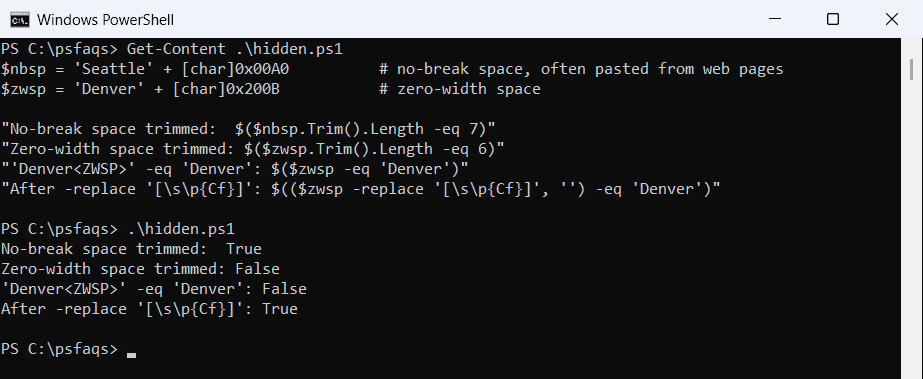
That’s PowerShell 7, where -eq even says the two strings are equal. Windows PowerShell 5.1 says False, so the same comparison behaves differently by version.
Microsoft notes that .NET Framework 4 and later don’t trim the zero-width space. The pattern [\s\p{Cf}] removes whitespace plus invisible format characters in both versions. Checking for special characters helps you spot them first.
Remove blank lines and trim every line
Lists read from files often have trailing spaces and empty lines. Trim each line, then keep only the ones that still have text:
$lines = 'PC-AUSTIN-01  ', '', '   ', "`tPC-DENVER-07", 'PC-SEATTLE-03 '

$clean = $lines | ForEach-Object { $_.Trim() } | Where-Object { $_ }
"Lines before: $($lines.Count), after: $($clean.Count)"
$clean | ForEach-Object { "[$_]" }
Output:
Lines before: 5, after: 3
[PC-AUSTIN-01]
[PC-DENVER-07]
[PC-SEATTLE-03]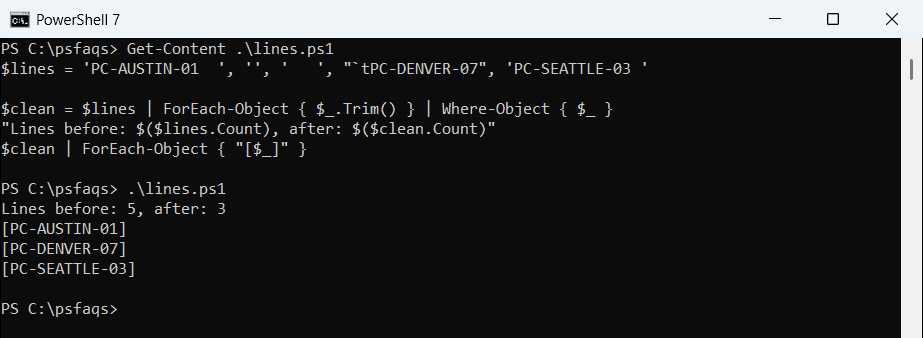
An empty string counts as False in Where-Object, so { $_ } drops it. For a file, start with Get-Content, as in reading a file line by line.
Trim spaces from every value in a CSV
Hand-edited CSV files often have spaces around the commas. This loops through each row’s properties and trims them all:
$rows = @'
Name,City,Amount
  Maria Lopez , Austin ,  1250
Tom Baker,  Denver,980
'@ | ConvertFrom-Csv

foreach ($row in $rows) {
    foreach ($p in $row.PSObject.Properties) { $p.Value = $p.Value.Trim() }
}
$rows | ForEach-Object { '[{0}] [{1}] [{2}]' -f $_.Name, $_.City, $_.Amount }
Output:
[Maria Lopez] [Austin] [1250]
[Tom Baker] [Denver] [980]
It changes the objects in place, so you can export them straight back out. The Import-Csv with ForEach guide covers reading the file first.
Frequently Asked Questions
How do I remove whitespace from a string in PowerShell?
Use $s.Trim() for the ends, or $s -