
To send PowerShell output to a file and the console at the same time, pipe it to Tee-Object -FilePath. It writes the output to the file and passes the same output on to the screen:
Get-ChildItem -Path C:\psfaqs\Reports -File |
    Select-Object -Property Name, Length |
    Tee-Object -FilePath C:\psfaqs\Logs\report.txt

'--- Saved in report.txt ---'
Get-Content -Path C:\psfaqs\Logs\report.txt
Output:
Name             Length
----             ------
budget-2026.xlsx   5122
notes.txt           302
q3-sales.csv       2050
--- Saved in report.txt ---

Name             Length
----             ------
budget-2026.xlsx   5122
notes.txt           302
q3-sales.csv       2050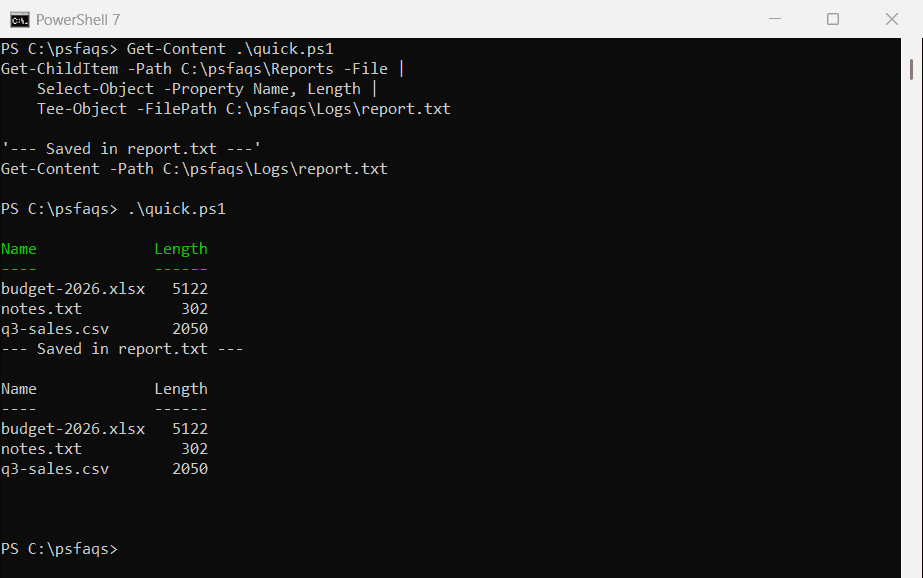
The file gets the text exactly as it looks on screen, table layout included. I ran every example here in PowerShell 7.6 and Windows PowerShell 5.1, and I point out where they differ.
Append to a log file with Tee-Object
By default, Tee-Object replaces the file. Add -Append to add to the end instead, which is what you want for a log:
'2026-09-28 09:00 Backup started'  | Tee-Object -FilePath C:\psfaqs\Logs\backup.log
'2026-09-28 09:14 Backup finished' | Tee-Object -FilePath C:\psfaqs\Logs\backup.log -Append

"Lines in backup.log: $((Get-Content -Path C:\psfaqs\Logs\backup.log).Count)"
Output:
2026-09-28 09:00 Backup started
2026-09-28 09:14 Backup finished
Lines in backup.log: 2
Keep the output in a variable too
-Variable saves the objects to a variable and still passes them down the pipeline. Here the files are counted and kept for later:
Get-ChildItem -Path C:\psfaqs\Reports -File |
    Tee-Object -Variable files |
    Measure-Object -Property Length -Sum |
    ForEach-Object { "Total size: $($_.Sum) bytes" }

"Files kept in `$files: $($files.Name -join ', ')"
Output:
Total size: 7474 bytes
Files kept in $files: budget-2026.xlsx, notes.txt, q3-sales.csv
Pass the variable name without the $. The Tee-Object documentation covers the other parameters.
Watch the file encoding in Windows PowerShell 5.1
Tee-Object and Out-File don’t write the same kind of file in both versions. These are the first bytes of each file:
'Backup finished' | Tee-Object -FilePath C:\psfaqs\Logs\tee.txt | Out-Null
'Backup finished' | Out-File -FilePath C:\psfaqs\Logs\outfile.txt

$bytes = { param($file) ([System.IO.File]::ReadAllBytes($file) | Select-Object -First 4) -join ' ' }
"Tee-Object first bytes: $(& $bytes 'C:\psfaqs\Logs\tee.txt')"
"Out-File first bytes:   $(& $bytes 'C:\psfaqs\Logs\outfile.txt')"
Output in PowerShell 7:
Tee-Object first bytes: 66 97 99 107
Out-File first bytes:   66 97 99 107
Output in Windows PowerShell 5.1:
Tee-Object first bytes: 255 254 66 0
Out-File first bytes:   255 254 66 0
255 254 is the marker for UTF-16, so 5.1 writes files that are twice as big and that some tools can’t read. The > operator does the same. PowerShell 7 writes UTF-8, and its Tee-Object also has an -Encoding parameter.
In 5.1, when another program has to read the file, save the output in a variable, show it, and write it with Out-File -Encoding utf8.
How do I save Write-Host output to a file?
Write-Host doesn’t send anything down the pipeline, so Tee-Object and > can’t see it. It writes to the information stream, which is stream 6. Redirect that stream with 6>&1:
Write-Host 'Backup finished' 5>&1 | Out-File -FilePath C:\psfaqs\Logs\stream5.txt
Write-Host 'Backup finished' 6>&1 | Out-File -FilePath C:\psfaqs\Logs\stream6.txt

"With 5>&1 the file has: [$(Get-Content -Path C:\psfaqs\Logs\stream5.txt)]"
"With 6>&1 the file has: [$(Get-Content -Path C:\psfaqs\Logs\stream6.txt)]"
Output:
Backup finished
With 5>&1 the file has: []
With 6>&1 the file has: [Backup finished]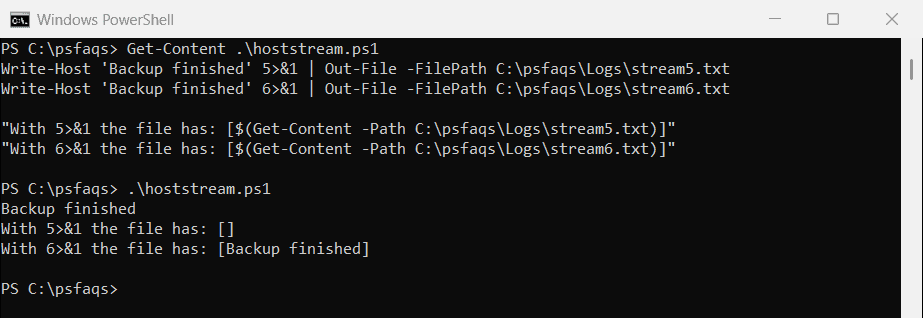
The first line, with 5>&1, still printed to the screen and saved an empty file. You’ll see it suggested for this, but stream 5 is the debug stream. That happened in both versions.
Write-Output vs Write-Host
If you control the script, the simpler fix is to use Write-Output for anything you want to save:
Write-Output 'Saved by Write-Output' > C:\psfaqs\Logs\output.txt
Write-Host   'Shown by Write-Host'   > C:\psfaqs\Logs\host.txt

"output.txt: [$(Get-Content -Path C:\psfaqs\Logs\output.txt)]"
"host.txt:   [$(Get-Content -Path C:\psfaqs\Logs\host.txt)]"
Output:
Shown by Write-Host
output.txt: [Saved by Write-Output]
host.txt:   []
The Write-Host text went to the screen, and host.txt stayed empty. Write-Host vs Write-Output explains the difference in more detail.
Save every stream to a file
*>&1 merges output, Write-Host, warnings and the other streams into one. Pipe that to Tee-Object to keep everything a script prints:
function Invoke-Backup {
    Write-Output  'Copied 12 files'
    Write-Host    'Backup finished'
    Write-Warning 'Skipped 1 locked file'
}

Invoke-Backup *>&1 | Tee-Object -FilePath C:\psfaqs\Logs\backup-run.txt | Out-Null
Get-Content -Path C:\psfaqs\Logs\backup-run.txt
Output:
Copied 12 files
Backup finished
Skipped 1 locked file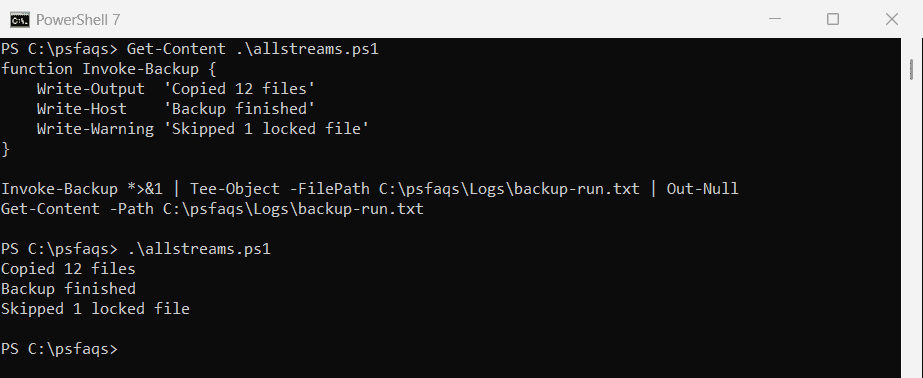
Record a whole session with Start-Transcript
A transcript saves everything that appears in the console, including Write-Host, until you stop it:
Start-Transcript -Path C:\psfaqs\Logs\session.txt | Out-Null
Write-Host 'Backup finished'
Stop-Transcript | Out-Null

Select-String -Path C:\psfaqs\Logs\session.txt -Pattern 'Backup' | ForEach-Object { "In the transcript: $($_.Line)" }
Ou