
The PowerShell format operator -f builds a string from a template. Put numbered placeholders like {0} and {1} in the string on the left, and the values on the right:
$name = 'Maria Lopez'
$tickets = 7
'{0} has {1} open tickets.' -f $name, $tickets
Output:
Maria Lopez has 7 open tickets.PowerShell drops each value into its placeholder, in order. The same placeholders also take number, date and width formats, which is where -f beats plain double quotes.
In this tutorial, I’ll show you how to format strings in PowerShell with the -f operator: numbers, currency, padding, dates and escaped braces. You’ll also see four ways to replace named placeholders in a template, tested in PowerShell 7.6 and 5.1.
How does the -f format operator work in PowerShell?
The -f operator is PowerShell’s shortcut to .NET composite formatting, the same engine behind [string]::Format(). Each placeholder, called a format item, has this shape:
{index[,alignment][:formatString]}The index is required and starts at 0. Alignment sets a column width, and the format string controls how a number or date looks. Both are optional.
Placeholders don’t have to be in order, and you can use one more than once:
'{1}, {0}' -f 'Maria', 'Lopez'
'{0}, {1} ({0} office)' -f 'Denver', 'CO'
[string]::Format('{0} + {1} = {2}', 2, 3, 5)
Output:
Lopez, Maria
Denver, CO (Denver office)
2 + 3 = 5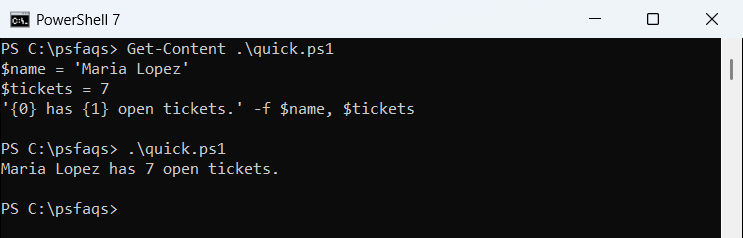
The last line shows the static method version. It gives the same result, so pick whichever reads better. If you only need to glue a few values together, you can also concatenate strings with + or -join.
Format numbers with -f: decimals, commas, currency and percent
Add a colon and a format specifier after the index. These are the ones I use most:
$total = 1234567.891
'{0:N2}' -f $total
'{0:C}' -f 19.5
'{0:P1}' -f 0.4567
'{0:F1}' -f $total
'{0:D5}' -f 42
'{0:X}' -f 255
'{0:#,0.00}' -f $total
Output:
1,234,567.89
$19.50
45.7%
1234567.9
00042
FF
1,234,567.89| Specifier | What it does | Example result |
|---|---|---|
N2 | Thousands separator, 2 decimals | 1,234,567.89 |
C | Currency for the current culture | $19.50 |
P1 | Multiplies by 100, adds % | 45.7% |
F1 | Fixed decimals, no separator | 1234567.9 |
D5 | Zero-pads whole numbers to 5 digits | 00042 |
X | Hexadecimal (whole numbers only) | FF |
The digit after the letter is the precision. D and X only work on whole numbers. Custom patterns like #,0.00 work too, and {0:00000} zero-pads the same way D5 does.
Keep in mind that -f returns text, not a number. If you need a value you can still do math with, round to 2 decimal places with [math]::Round first.
Pad and align text in columns
The alignment part sets a field width. A positive number right-aligns the value and a negative number left-aligns it, padding with spa