
PowerShell provides several powerful methods to search for directories based on naming conventions, wildcards, and regular expressions. In this tutorial, I will walk you through multiple approaches to find folders matching patterns in PowerShell.
Basics of Pattern Matching in PowerShell
Before diving into folder searches, it’s essential to understand how PowerShell handles pattern matching. PowerShell supports wildcard patterns, which use asterisks (*) and question marks (?) as special characters to match folder names.
The asterisk (*) matches any number of characters, while the question mark (?) matches exactly one character. These wildcards form the foundation of basic pattern matching in PowerShell.
Check out: How to List Hidden Files in PowerShell?
Method 1: Using Get-ChildItem with Wildcard Patterns
The most straightforward way to find folders matching a pattern is using the Get-ChildItem cmdlet with the -Filter parameter. This native PowerShell command efficiently searches for items matching your criteria.
Get-ChildItem -Path "C:\" -Filter "Test*" -Directory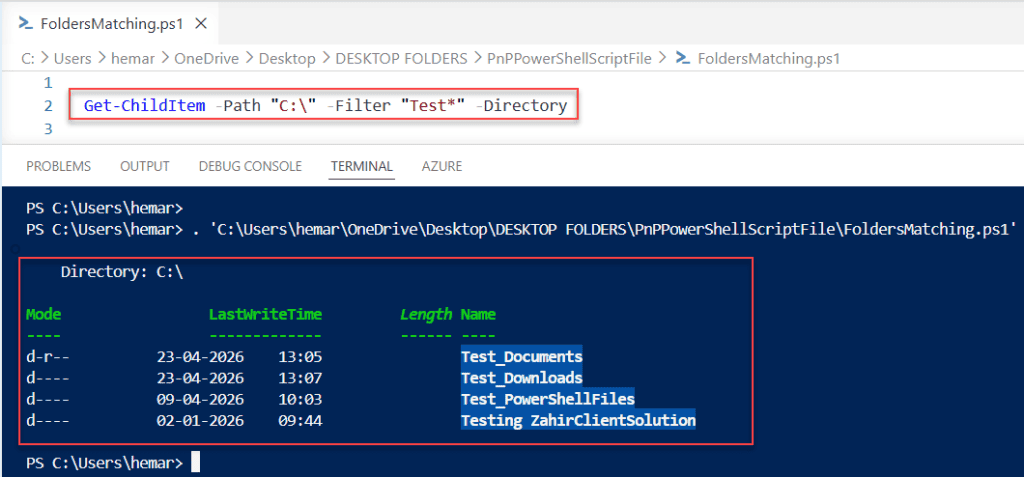
The -Directory parameter ensures that only folders are returned, excluding files. This is the fastest method for simple wildcard pattern matching because it filters at the file system level.
Method 2: Combining Get-ChildItem with Where-Object
For more complex pattern matching beyond basic wildcards, combine Get-ChildItem with Where-Object. This approach provides greater flexibility and allows for sophisticated filtering conditions.
Get-ChildItem -Path "C:\" -Directory | Where-Object {$_.Name -like "*Test*"}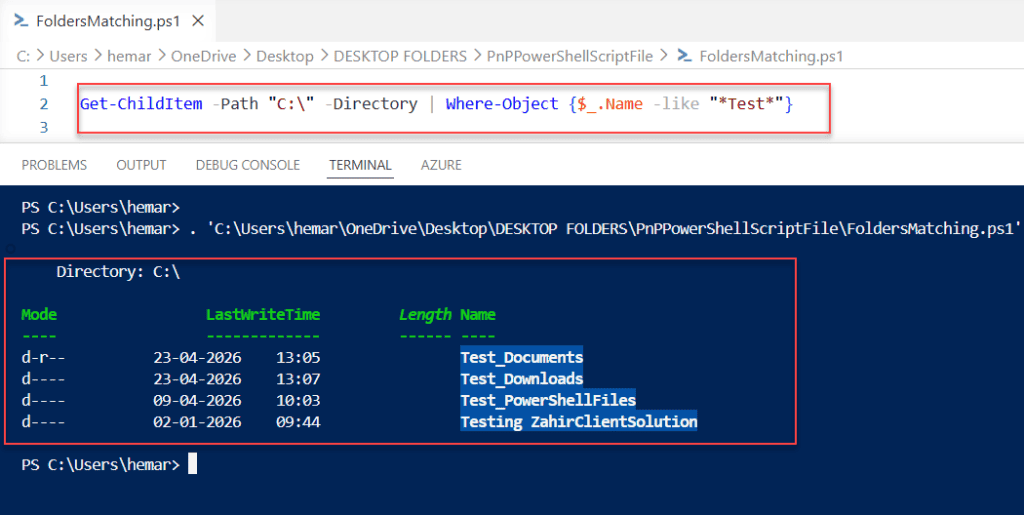
The -like operator in PowerShell supports wildcard patterns and is case-insensitive by default. Use -clike for case-sensitive matching when precision is required.
Check out PowerShell Where-Object Does Not Match [With Examples]
Method 3: Using Regular Expressions with -Match
Regular expressions provide the most powerful pattern matching capabilities in PowerShell. Use the -match operator within Where-Object to filter folders based on regex patterns.
Get-ChildItem -Path "C:\" -Directory | Where-Object {$_.Name -match '^[A-Z].*Temp$'}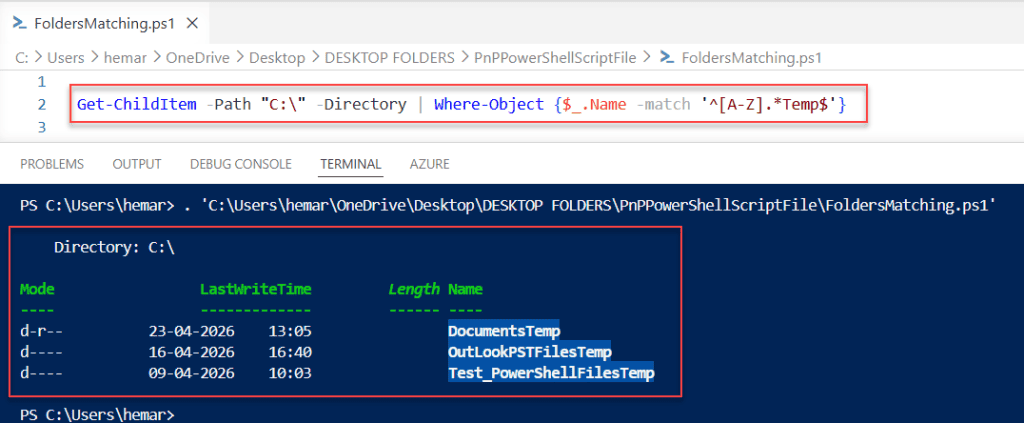
This regex pattern matches folder names starting with uppercase letters and ending with “Temp”. Regular expressions are case-sensitive by default in PowerShell.
Method 4: Recursive Folder Search with -Recurse Parameter
When you need to search for folders matching a pattern across multiple directory levels, use the -Recurse parameter. This powerful option searches through all subdirectories automatically.
Get-ChildItem -Path "C:\" -Filter "*Backup*" -Directory -Recurse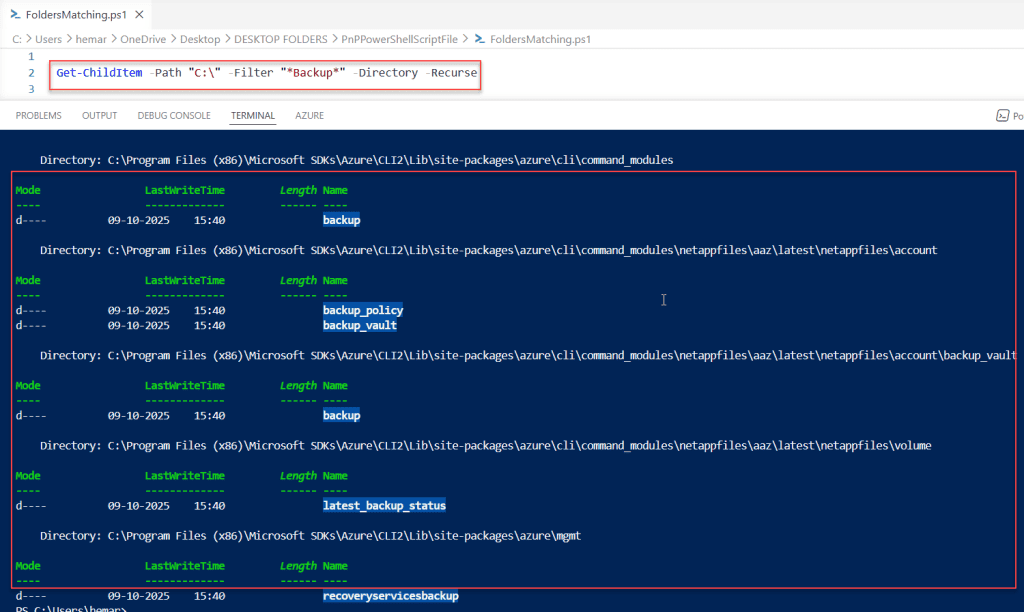
Be cautious when using -Recurse on large directory structures, as it may take considerable time to complete. Consider limiting the search path to specific directories for better performance.
Check out Check if a File’s LastWriteTime is Greater Than a Specific Date in PowerShell
Method 5: Finding Folders with Specific Date Patterns
Sometimes you need to find folders based on date patterns in their names. PowerShell allows you to match date formats like YYYY-MM-DD or MMDDYYYY within folder names.
Get-ChildItem -Path "D:\My work" -Directory -Recurse | Where-Object {$_.Name -match '\d{4}-\d{2}-\d{2}'}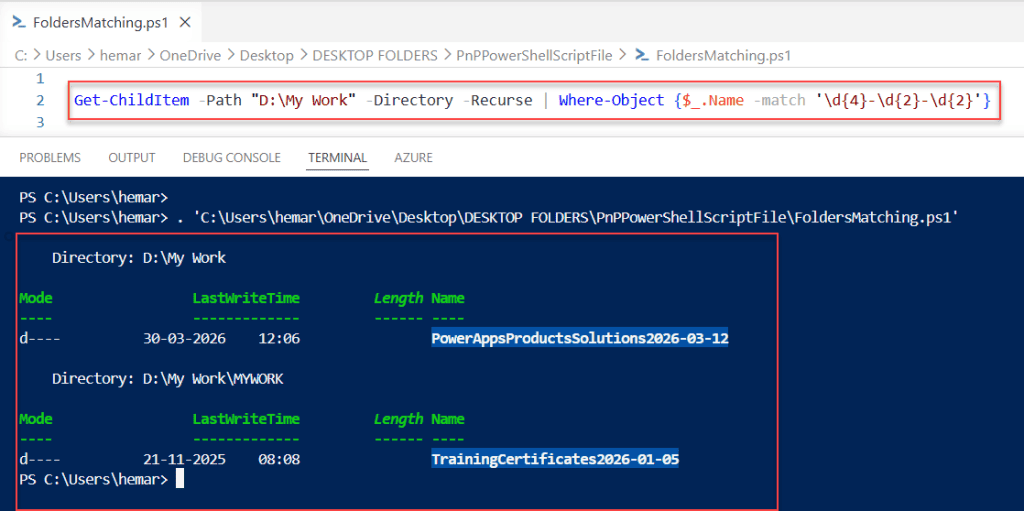
This regex pattern matches folder names containing dates in YYYY-MM-DD format. You can adjust the regex pattern to match other date formats as needed.
Method 6: Combining Multiple Pattern Conditions
PowerShell allows you to chain multiple conditions together using logical operators. This enables you to find folders matching multiple patterns simultaneously.
Get-ChildItem -Path "D\My work" -Directory | Where-Object {$_.Name -like "*Dev*" -and $_.Name -like "*2026*"}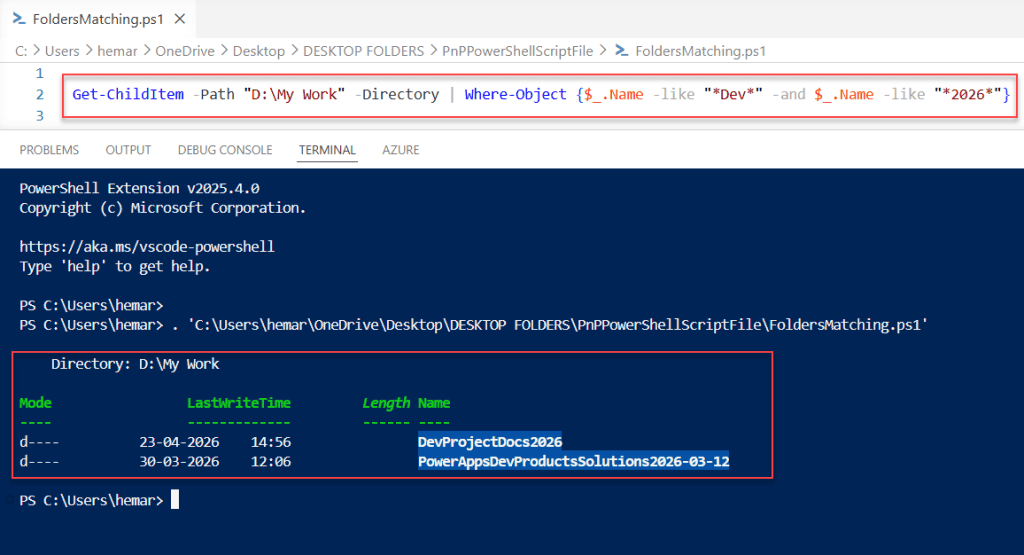
The -and operator requires both conditions to be true, while -or requires at least one condition to be true. You can combine these operators to create complex filter logic.
Method 7: Excluding Patterns from Results
Sometimes you need to find folders matching a pattern, but exclude certain folders. Use the -notlike or -notmatch operators to filter out unwanted results.
Get-ChildItem -Path "D:\My work" -Directory -Recurse | Where-Object {$_.Name -like "*Log*" -and $_.Name -notlike "*Archive*"}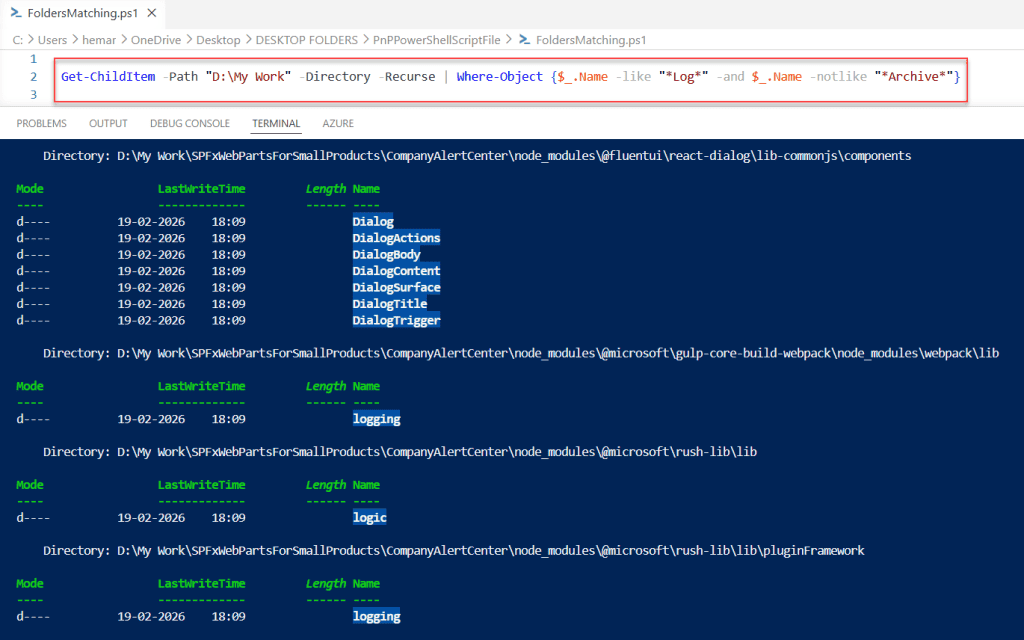
This command finds all folders containing “Log” in their names while excluding those containing “Archive”. Negative filters are useful for refining search results.
Read Convert Excel Files to CSV Using PowerShell
Method 8: Finding Folders by Name Length
You can search for folders matching patterns based on their name length. This approach is useful when folder naming conventions follow specific length requirements.
Get-ChildItem -Path "D:\My work" -Directory | Where-Object {$_.Name.Length -eq 8}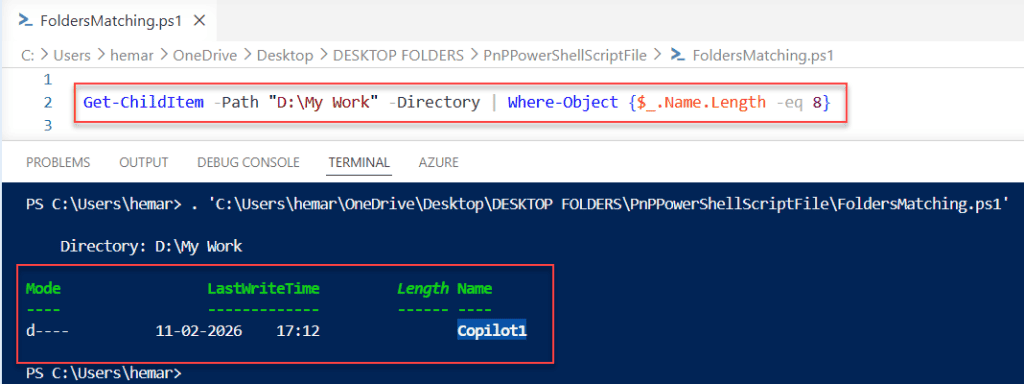
The $_.Name.Length property returns the number of characters in the folder name. This method works well when combined with other pattern matching criteria.
Method 9: Case-Sensitive Pattern Matching
PowerShell’s -like operator is case-insensitive by default, but you can enforce case-sensitive matching using -clike. This is essential when your naming conventions require precise case matching.
Get-ChildItem -Path "D:\My work" -Directory | Where-Object {$_.Name -clike "Config*"}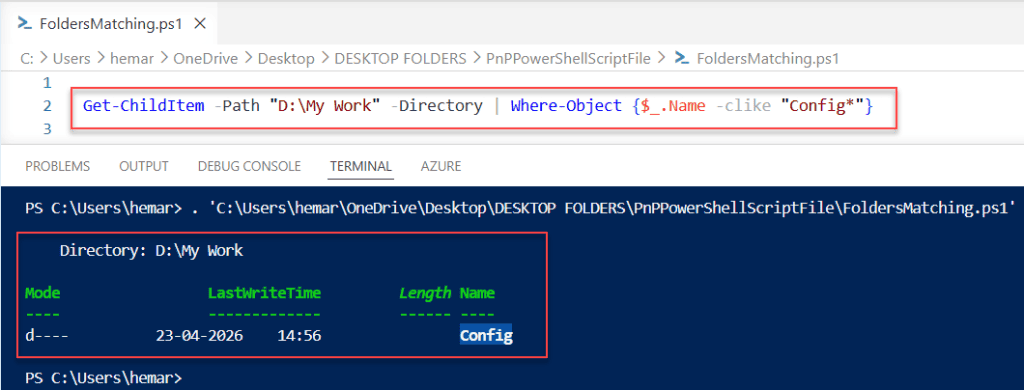
The -cmatch operator enforces case-sensitive regular expression matching. Always verify whether your use case requires case-sensitive matching before implementing it.
Method 10: Storing and Processing Results
Once you’ve found folders matching your pattern, you can store the results in a variable for further processing. This enables batch operations on multiple folders.
$folders = Get-ChildItem -Path "D:\My Work" -Filter "Temp*" -Directory -Recurse
$folders | ForEach-Object {Write-Host "Found: $($_.FullName)" -ForegroundColor Green}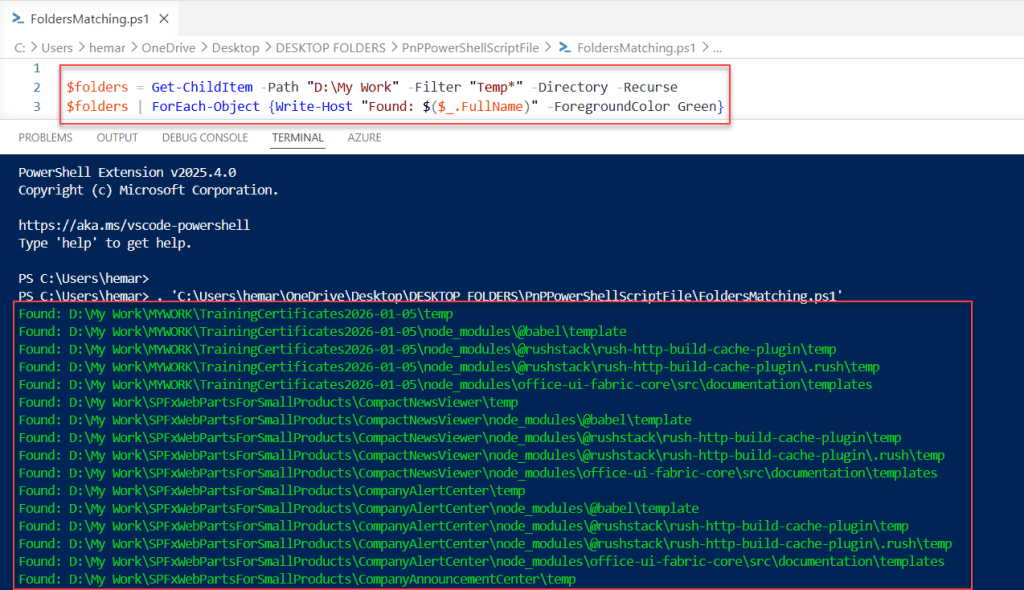
Storing results in variables allows you to perform multiple operations without re-executing the search command. This approach significantly improves script performance.
Check out PowerShell Find File by Name Wildcard Examples
Performance Considerations for Large Directory Structures
When searching large directory trees, performance becomes critical. Use the -Filter parameter instead of Where-Object whenever possible, as it filters at the file system level rather than in PowerShell.
Avoid using -Recurse on drives like C:\ without limiting the search scope to specific directories. Consider implementing depth limitations and timeout mechanisms in production scripts.
Combining with Other PowerShell Cmdlets
PowerShell’s pipeline architecture allows you to combine folder search results with other cmdlets for comprehensive directory management. Use Select-Object to display specific folder properties.
Get-ChildItem -Path "C:\Users" -Directory | Where-Object {$_.Name -like "*Profile*"} | Select-Object Name, FullPath, LastWriteTimePiping results through Measure-Object provides statistics about the folders found. This is valuable for reporting and documentation purposes.
Advanced: Creating Reusable Pattern Matching Functions
For complex pattern matching tasks, create custom PowerShell functions that encapsulate your search logic. This approach promotes code reusability and maintainability.
function Find-FoldersByPattern {
    param(
        [string]$Path,
        [string]$Pattern,
        [switch]$Recurse
    )
    Get-ChildItem -Path $Path -Directory -Recurse:$Recurse | Where-Object {$_.Name -match $Pattern}
}
Find-FoldersByPattern -Path "C:\Data" -Pattern "^Temp" -Recurse
This function provides flexibility by accepting parameters for path, pattern, and recursion. Reusable functions eliminate code duplication and make scripts more maintainable.
Troubleshooting Common Issues
If your pattern matching returns no results, verify that the path exists and you have appropriate permissions. Check that your wildcard or regex pattern is correct by testing it separately.
Use the -Verbose parameter with Get-ChildItem to troubleshoot search operations. This displays detailed information about the search process, helping identify potential issues.
Conclusion
I hope you found this article helpful. In this guide, I explained how to find folders using patterns in PowerShell. I covered different methods like wildcards, filters, regex, and recursive search. These examples help you understand different ways to search folders.
If you are working with many folders, these methods will save time. You can combine different conditions and filters based on your needs. Try these examples in your system and adjust them for your tasks.
Also, you may like:
- How to Move Files from One Folder to Another Using PowerShell (With Date Filtering)
- How to Find Passwords in Files with PowerShell?
- PowerShell Get-ChildItem Files Only

Bijay Kumar is an esteemed author and the mind behind PowerShellFAQs.com, where he shares his extensive knowledge and expertise in PowerShell, with a particular focus on SharePoint projects. Recognized for his contributions to the tech community, Bijay has been honored with the prestigious Microsoft MVP award. With over 15 years of experience in the software industry, he has a rich professional background, having worked with industry giants such as HP and TCS. His insights and guidance have made him a respected figure in the world of software development and administration. Read more.