
To change the Write-Host color in PowerShell, add -ForegroundColor for the text and -BackgroundColor for the area behind it:
Write-Host 'Backup completed' -ForegroundColor GreenBoth parameters take one of 16 console color names. Below I cover the full list, several colors on one line, a reusable status function, and the ANSI colors that only PowerShell 7 understands.
Write-Host -ForegroundColor and -BackgroundColor syntax
The Write-Host cmdlet prints straight to the console, and each color parameter is optional. Here are three typical messages:
Write-Host 'Backup completed' -ForegroundColor Green
Write-Host 'Disk C: is 92% full' -ForegroundColor Yellow
Write-Host 'Spooler service stopped' -ForegroundColor White -BackgroundColor DarkRed
Output:
Backup completed
Disk C: is 92% full
Spooler service stopped
The third line prints white text on a dark red bar. Neither parameter has a default, so leaving one out keeps the console’s current color.
What colors can you use with Write-Host?
Write-Host accepts the 16 values of the .NET ConsoleColor enum. This foreach loop prints each one with its number, in its own color:
foreach ($color in [enum]::GetValues([ConsoleColor])) {
    $label = '{0,2} {1,-12}' -f [int]$color, $color
    Write-Host $label -ForegroundColor $color -NoNewline
    Write-Host '  sample  ' -BackgroundColor $color
}
Output:
 0 Black         sample
 1 DarkBlue      sample
 2 DarkGreen     sample
 3 DarkCyan      sample
 4 DarkRed       sample
 5 DarkMagenta   sample
 6 DarkYellow    sample
 7 Gray          sample
 8 DarkGray      sample
 9 Blue          sample
10 Green         sample
11 Cyan          sample
12 Red           sample
13 Magenta       sample
14 Yellow        sample
15 White         sample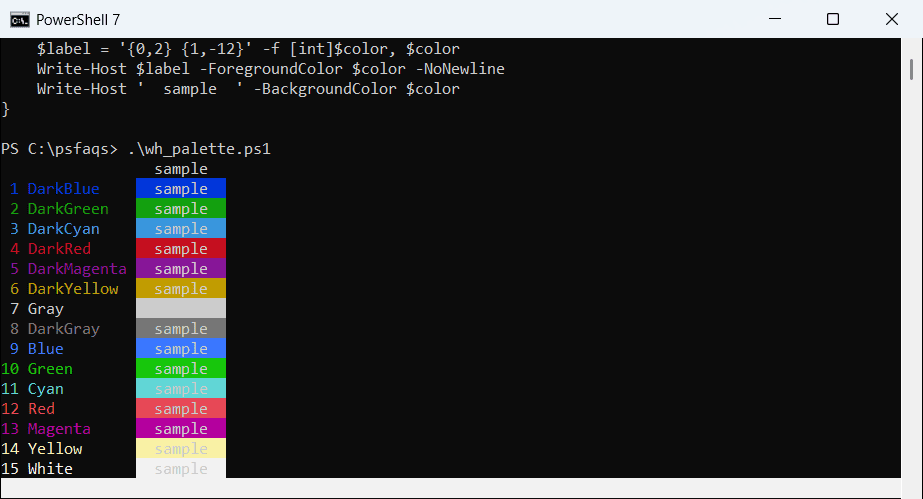
Black text is invisible on a black console, which is why the background bar helps. The numbers work too, so -ForegroundColor 12 prints red.
A name outside the list, such as Purple, stops the command before anything prints. The error lists every valid name:
Write-Host 'Report ready' -ForegroundColor PurpleError (same in PowerShell 7 and 5.1):
Cannot bind parameter 'ForegroundColor'. Cannot convert value "Purple" to type "System.ConsoleColor".
... Specify one of the following enumerator names and try again:
Black, DarkBlue, DarkGreen, DarkCyan, DarkRed, DarkMagenta, DarkYellow, Gray, DarkGray, Blue, Green, Cyan, Red, Magenta, Yellow, White
How do I write multiple colors on one line?
Add -NoNewline to every call except the last one. Each call keeps the cursor on the same line, so the pieces join up:
Write-Host 'Web01 status: ' -NoNewline
Write-Host 'ONLINE' -ForegroundColor Green -NoNewline
Write-Host ' | checked 2026-10-10 09:00 ET'
Output:
Web01 status: ONLINE | checked 2026-10-10 09:00 ETOnly the word ONLINE is green. The parts don’t add spaces between them, so put them inside the strings yourself, much as you would when you concatenate strings in PowerShell.
Build a color-coded status function
Typing color names in every line gets messy. Wrap the pattern in a small function that maps a level to a color:
function Write-Status {
    param(
        [string]$Message,
        [ValidateSet('OK', 'WARN', 'FAIL', 'INFO')]
        [string]$Level = 'INFO'
    )
    $colors = @{ OK = 'Green'; WARN = 'Yellow'; FAIL = 'Red'; INFO = 'Cyan' }
    Write-Host ('[{0,-4}] ' -f $Level) -ForegroundColor $colors[$Level] -NoNewline
    Write-Host $Message
}
Write-Status 'Connected to SQL01 in Seattle' OK
Write-Status 'Certificate expires on 2026-11-02' WARN
Write-Status 'Share \\FS02\Payroll not reachable' FAIL
Write-Status '3 of 4 checks passed'
Output:
[OK  ] Connected to SQL01 in Seattle
[WARN] Certificate expires on 2026-11-02
[FAIL] Share \\FS02\Payroll not reachable
[INFO] 3 of 4 checks passed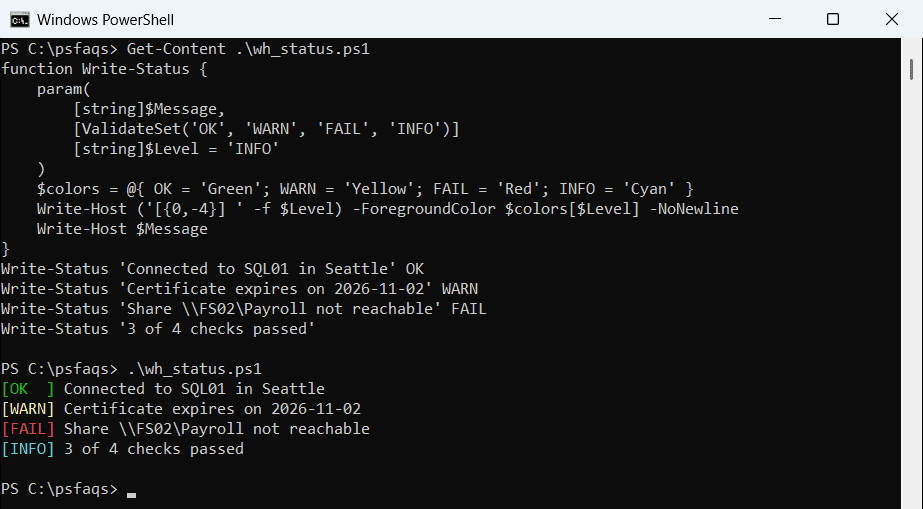
ValidateSet rejects unknown levels, and the hashtable keeps colors in one place. See functions in PowerShell for more on param blocks.
The [OK] and [FAIL] labels matter as much as the colors. Some readers can’t tell red from green, and a PowerShell log file drops colors entirely.
Use ANSI colors and $PSStyle in PowerShell 7
PowerShell 7.2 added the $PSStyle variable. It returns ANSI escape codes, so you can color part of a single string, use bold or underline, and pick any RGB color:
$green = $PSStyle.Foreground.BrightGreen
$orange = $PSStyle.Foreground.FromRgb(255, 140, 0)
$reset = $PSStyle.Reset
Write-Host "Build $($green)passed$reset with $($orange)3 warnings$reset"
Write-Host "$($PSStyle.Bold)$($PSStyle.Underline)Release 2026.10$reset"
Output:
Build passed with 3 warnings
Release 2026.10
FromRgb(255, 140, 0) gives the orange that ConsoleColor lacks. Always end with $PSStyle.Reset, or the color bleeds into the next line.
Windows PowerShell 5.1 has no $PSStyle, so those variables are empty and the text prints uncolored. The backtick-e escape is also new in PowerShell 6. In 5.1, use [char]27:
$esc = [char]27
Write-Host "$esc[32m[char]27 works$esc[0m"
Write-Host "`e[32mbacktick-e works`e[0m"
Output:
[char]27 works
backtick-e works
The output above is from PowerShell 7. Windows PowerShell 5.1 colors the first line but prints the second one literally as e[32mbacktick-e workse[0m, because it reads `e as a plain letter e.
![Windows PowerShell 5.1 prints e[32m literally for the backtick-e escape while [char]27 shows green text](https://powershellfaqs.com/wp-content/uploads/2026/10/windows-powershell-5-1-ansi-escape-backtick-e-not-supported.png)
If you need special characters inside those strings, see how to escape special characters in PowerShell.