
As a PowerShell user, you’ll often need to convert hashtables to strings for logging, debugging, or displaying data in a readable format. This tutorial shows several practical ways to convert a hashtable to a string in PowerShell with clear examples.
What is a Hashtable?
Before we dive in, let’s clarify: a hashtable is a PowerShell data structure that stores key-value pairs. Think of it like a dictionary where each piece of information has a label (key) and a value.
$myHashtable = @{
    Name = "John"
    Age = 30
    City = "New York"
}
Check out How to Convert String to Hashtable in PowerShell?
Method 1: Using Out-String (Simplest Approach)
This is the quickest way to convert a hashtable to a readable string format. Out-String converts pipeline output into a single multi-line string that looks like table output in the console.
$myHashtable = @{
    Name = "John"
    Age = 30
    City = "New York"
}

$stringResult = $myHashtable | Out-String
Write-Output $stringResult
Output:
Name                           Value
----                           -----
City                           New York
Age                            30
Name                           John
Here is the exact output in the screenshot below:

When to use this: Perfect for quick debugging or logging where you need a human-readable format.
Read Find Dates in Strings with PowerShell
Method 2: Using ConvertTo-Json (Best for Structured Data)
This method converts your hashtable to a JSON string, which is more structured and widely compatible. ConvertTo-Json converts the hashtable to a JSON string, which is useful for REST APIs, configuration files, or structured logging.
$myHashtable = @{
    Name = "John"
    Age = 30
    City = "New York"
}

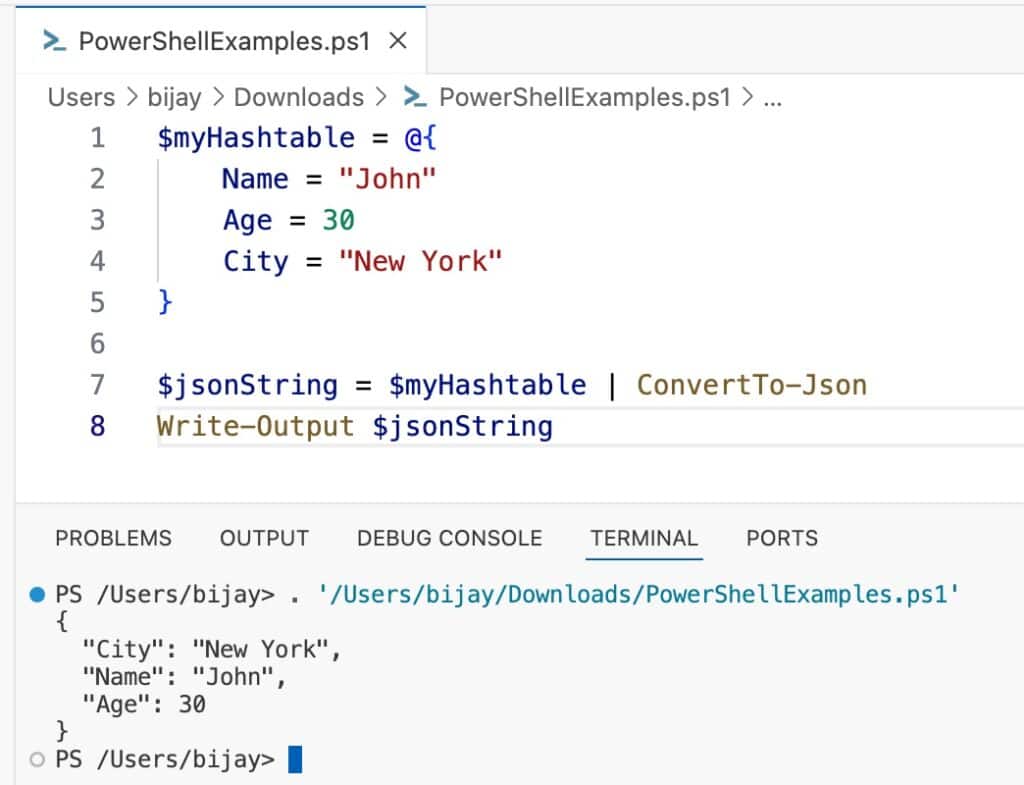
$jsonString = $myHashtable | ConvertTo-Json
Write-Output $jsonString
Output:
{
  "Name": "John",
  "Age": 30,
  "City": "New York"
}
You can see the exact output in the screenshot below:
Intermediate Tip: Use the -Compress parameter to create a single-line JSON string:
$compactJson = $myHashtable | ConvertTo-Json -Compress
# Output: {"Name":"John","Age":30,"City":"New York"}
Check out Convert JSON to XML using PowerShell
Method 3: Manual String Concatenation (Full Control)
For custom formatting, you can manually build your string.
$myHashtable = @{
    Name = "John"
    Age = 30
    City = "New York"
}

$stringBuilder = ""
foreach ($key in $myHashtable.Keys) {
    $stringBuilder += "$key = $($myHashtable[$key]); "
}

Write-Output $stringBuilder.TrimEnd("; ")
Output:
City = New York; Age = 30; Name = JohnRead PowerShell Convert XML to Object
Method 4: Using -join Operator (Concise One-Liner)
This approach creates a formatted string in one line. This method produces a clean key=value style string, which is great for logs or console output.
$myHashtable = @{
    Name = "John"
    Age = 30
    City = "New York"
}

$result = ($myHashtable.GetEnumerator() | ForEach-Object { "$($_.Key): $($_.Value)" }) -join ", "
Write-Output $result
Output:
City: New York, Age: 30, Name: JohnThis approach:
- Uses GetEnumerator() to iterate through key/value pairs.
- Builds a Key=Value string for each pair, then joins them with ; .
You can change “; ” to “,” or ” | ” if you prefer a different separator.
Intermediate Tip: Sort the keys alphabetically for consistent output:
$result = ($myHashtable.GetEnumerator() | Sort-Object Key | ForEach-Object { "$($_.Key): $($_.Value)" }) -join ", "Check out Create JSON Files with Content Using PowerShell
Method 5: Converting to Query String Format
The example below converts a hashtable into a properly escaped query string. Useful for building URLs or API requests.
$myHashtable = @{
    Name = "John"
    Age = 30
    City = "New York"
}

$queryString = ($myHashtable.GetEnumerator() | ForEach-Object {
    "$($_.Key)=$([uri]::EscapeDataString($_.Value))"
}) -join "&"

Write-Output $queryString
Output:
City=New%20York&Age=30&Name=JohnNotes:
- UrlEncode makes sure special characters are safe to use in URLs.
- This is perfect when building Invoke-RestMethod or Invoke-WebRequest URLs.
If [System.Web.HttpUtility] is not available (e.g., PowerShell 7 on non-Windows), you can use [System.Net.WebUtility]::UrlEncode() instead.
Check out Escape Ampersands in URLs with PowerShell
Handling Nested Hashtables
When dealing with nested hashtables, ConvertTo-Json is your best friend:
$complexHashtable = @{
    Person = @{
        Name = "John"
        Age = 30
    }
    Location = @{
        City = "New York"
        State = "NY"
    }
}

$nestedString = $complexHashtable | ConvertTo-Json -Depth 10
Write-Output $nestedString
Intermediate Tip: The -Depth parameter controls how many levels deep PowerShell will convert. The default is 2, but complex objects may need more.
Comparison Table
| Method | Best For | Pros | Cons |
|---|---|---|---|
| Out-String | Quick debugging | Simple, readable | Not structured |
| ConvertTo-Json | Data exchange | Structured, standard format | Verbose for simple data |
| Manual concatenation | Custom formatting | Complete control | More code required |
| -join operator | Compact output | Concise, efficient | Less readable for complex data |
| Query string | URL parameters | Web-ready format | Limited use case |
Best Practices
Here are some best practices you should follow.
- For logging: Use
ConvertTo-Json -Compressto save space - For debugging: Use
Out-Stringfor quick visibility - For APIs: Use
ConvertTo-Jsonfor standard compatibility - For URLs: Use the query string approach with proper encoding
Common Mistakes to Avoid
Now, let me show you some common mistakes that you should avoid.
- Don’t forget about special characters: Always use
[uri]::EscapeDataString()when building URLs - Watch the depth: Nested hashtables need the
-Depthparameter inConvertTo-Json - Order matters sometimes: Hashtables don’t guarantee order; use
[ordered]@{}if you need consistent ordering
# Ordered hashtable example
$orderedHash = [ordered]@{
    FirstName = "John"
    LastName = "Doe"
    Age = 30
}
Conclusion
You now have multiple methods to convert hashtables to strings in PowerShell. Start with ConvertTo-Json for most scenarios—it’s versatile and widely supported. As you grow more comfortable, experiment with custom formatting using the -join operator or manual concatenation for specialized needs.
You may also like the following tutorials:

Bijay Kumar is an esteemed author and the mind behind PowerShellFAQs.com, where he shares his extensive knowledge and expertise in PowerShell, with a particular focus on SharePoint projects. Recognized for his contributions to the tech community, Bijay has been honored with the prestigious Microsoft MVP award. With over 15 years of experience in the software industry, he has a rich professional background, having worked with industry giants such as HP and TCS. His insights and guidance have made him a respected figure in the world of software development and administration. Read more.