
To get JSON data from a URL in PowerShell, call Invoke-RestMethod. It downloads the response and converts the JSON into objects in one step, so there’s no ConvertFrom-Json to run:
$data = Invoke-RestMethod -Uri 'https://jsonplaceholder.typicode.com/users/1'
$data.name
I ran every example below in PowerShell 7.6 and Windows PowerShell 5.1 against free public test APIs, so you can paste them as they are. Several of them behave differently in the two versions.
Get JSON data from a URL with Invoke-RestMethod
JSONPlaceholder is a free fake API that’s perfect for practice. This request reads one user and pulls a few values, including nested ones:
$uri  = 'https://jsonplaceholder.typicode.com/users/1'
$user = Invoke-RestMethod -Uri $uri
$user.GetType().Name
"Name:    $($user.name)"
"Email:   $($user.email)"
"City:    $($user.address.city)"
"Company: $($user.company.name)"
Output:
PSCustomObject
Name:    Leanne Graham
Email:   Sincere@april.biz
City:    Gwenborough
Company: Romaguera-Crona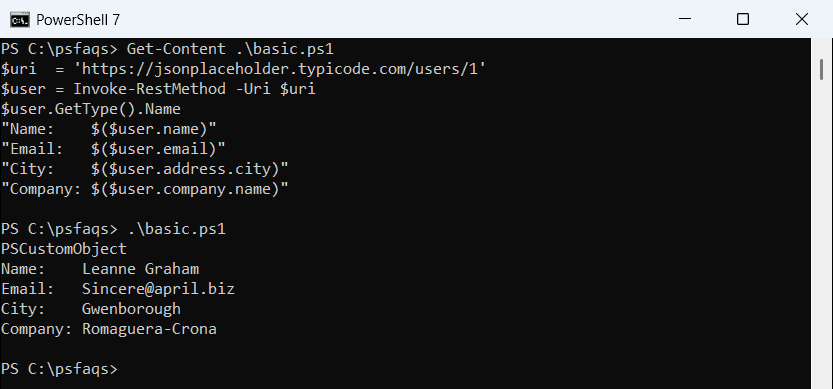
Each JSON property becomes an object property, and nested JSON objects become nested objects. That’s why $user.address.city works with plain dot notation.
If you’re not sure which fields an API returns, list all properties of the object with Format-List * before you write the rest of the script.
Why does piping an Invoke-RestMethod array count only one item?
When the URL returns a JSON array, PowerShell hands the whole array down the pipeline as one object. I counted the same 10 users two ways:
$uri = 'https://jsonplaceholder.typicode.com/users'
$n = 0; Invoke-RestMethod -Uri $uri | ForEach-Object { $n++ }
"Piped directly:   $n"
$n = 0; (Invoke-RestMethod -Uri $uri) | ForEach-Object { $n++ }
"In parentheses:   $n"
Output:
Piped directly:   1
In parentheses:   10
Both versions printed 1 for the direct pipe. Wrap the call in parentheses, or save it to a variable first, and ForEach-Object sees every user.
Filter the JSON response with Where-Object
Once the data is in a variable, it’s ordinary PowerShell objects. This finds users whose city starts with South:
$users = Invoke-RestMethod -Uri 'https://jsonplaceholder.typicode.com/users'
$users |
    Where-Object { $_.address.city -like 'South*' } |
    ForEach-Object { '{0,-3} {1,-21} {2}' -f $_.id, $_.name, $_.address.city }
Output:
4   Patricia Lebsack      South Elvis
6   Mrs. Dennis Schulist  South Christy
You can drill into nested values inside the script block, the same way you’d use Where-Object on local data.
Add custom headers and an API key
Most real APIs want a key or token in a header. Put the headers in a hashtable and pass it to -Headers. httpbin.org echoes back what it received, so you can see the headers arrived:
$headers = @{
    'X-Api-Key' = 'demo-key-123'
    Accept      = 'application/json'
}
$r = Invoke-RestMethod -Uri 'https://httpbin.org/headers' -Headers $headers
"Server saw X-Api-Key: $($r.headers.'X-Api-Key')"
"Server saw Accept:    $($r.headers.Accept)"
Output:
Server saw X-Api-Key: demo-key-123
Server saw Accept:    application/json
Swap the demo key for your own, but keep it out of the script itself. Read it from an environment variable or a secret store instead.
Bearer tokens in PowerShell 7 vs 5.1
PowerShell 6 and later can build the Authorization header for you with -Authentication Bearer and a SecureString token:
$token = ConvertTo-SecureString 'sample-token-2026' -AsPlainText -Force
try {
    $r = Invoke-RestMethod -Uri 'https://httpbin.org/bearer' -Authentication Bearer -Token $token -ErrorAction Stop
    "Authenticated: $($r.authenticated)"
}
catch { "Failed. $($_.Exception.Message)" }
Output:
Authenticated: TrueWindows PowerShell 5.1 doesn’t have that parameter and printed: Failed. A parameter cannot be found that matches parameter name 'Authentication'. In 5.1, send the header yourself as @{ Authorization = "Bearer $token" }, which works in both versions.
For APIs that use Basic authentication, create a credential object and pass it with -Credential.
Send query parameters and POST JSON to an API
On a GET request, a hashtable in -Body becomes the query string, and PowerShell URL-encodes the values for you. I use [ordered] so the keys keep their order:
$query = [ordered]@{ city = 'New York'; state = 'NY' }
$r = Invoke-RestMethod -Uri 'https://httpbin.org/get' -Body $query
$r.url
Output:
https://httpbin.org/get?city=New+York&state=NYTo create data, switch to -Method Post and send a JSON string. I build it from a hashtable with ConvertTo-Json and splat the parameters to keep the lines short:
$body = @{
    title  = 'Quarterly report'
    body   = 'Sales numbers for the Austin office'
    userId = 1
} | ConvertTo-Json
$params = @{
    Uri         = 'https://jsonplaceholder.typicode.com/posts'
    Method      = 'Post'
    Body        = $body
    ContentType = 'application/json'
}
$new = Invoke-RestMethod @params
"Created post $($new.id): $($new.title)"
Output:
Created post 101: Quarterly reportJSONPlaceholder fakes the save and returns id 101. Always set -ContentType ‘application/json’, or the server may read the body as form data.
Handle HTTP errors when the URL returns 404
A 404 or 500 response throws a terminating error, so put the call in a try-catch block and read the status code from the exception:
$uri = 'https://jsonplaceholder.typicode.com/users/999'
try {
    Invoke-RestMethod -Uri $uri -ErrorAction Stop
}
catch {
    "Status:    $([int]$_.Exception.Response.StatusCode)"
    "Exception: $($_.Exception.GetType().Name)"
    "Failed. $($_.Exception.Message)"
}