
Windows PowerShell vs CMD comes down to one difference: CMD passes plain text between commands, while PowerShell passes .NET objects you can filter, sort and format. For anything beyond a quick one-liner, PowerShell is the better choice.
CMD (cmd.exe, the Command Prompt) is still around for batch files and old habits. Below I compare the two side by side with commands I ran in PowerShell 7.6, Windows PowerShell 5.1 and CMD on Windows 11.
PowerShell vs CMD at a glance
| CMD | PowerShell | |
|---|---|---|
| Output | Plain text | .NET objects |
| Commands | Built-in commands and .exe tools | Cmdlets, functions and .exe tools |
| Scripts | .bat and .cmd | .ps1 |
| Environment variables | %PATH% | $env:PATH |
| Last exit code | %ERRORLEVEL% | $LASTEXITCODE |
| Remote management | Separate tools | Built in (Invoke-Command) |
| Runs on | Windows only | Windows; PowerShell 7 also on macOS and Linux |
Both shells run regular programs like ipconfig, ping and robocopy the same way. The real gap is what happens to the output.
Both can run inside Windows Terminal, as explained in Windows Terminal vs PowerShell.
Text vs objects: the key difference
Ask both shells for a folder listing and look at what comes back. CMD gives you strings, and PowerShell gives you file and folder objects:
$fromCmd = cmd.exe /c "dir /b C:\psfaqs\Compare"
$fromPs = Get-ChildItem -Path C:\psfaqs\Compare

"CMD returns:        $($fromCmd[0].GetType().Name) -> '$($fromCmd[0])'"
"PowerShell returns: $($fromPs[0].GetType().Name) -> Name, Length, LastWriteTime and more"
Output:
CMD returns:        String -> 'logs'
PowerShell returns: DirectoryInfo -> Name, Length, LastWriteTime and more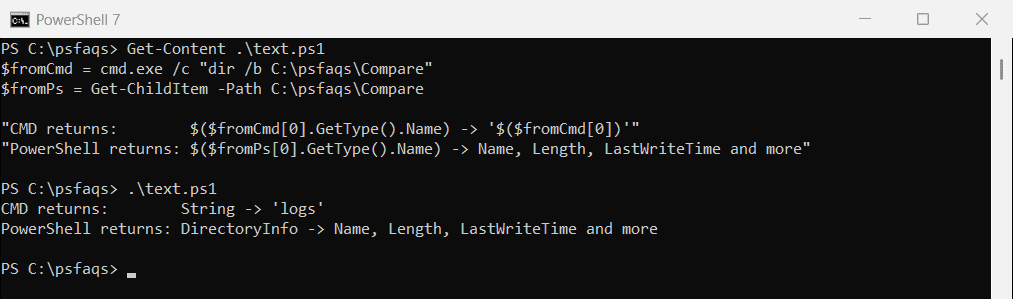
With text, you’d have to cut columns out of each line to get a file size. With objects, the size is already a number in the Length property.
Filter and sort without parsing text
Here I list every file over 10 KB, largest first. In CMD this needs a FOR loop and string parsing. In PowerShell it’s one pipeline:
Get-ChildItem -Path C:\psfaqs\Compare -File -Recurse |
    Where-Object Length -GT 10KB |
    Sort-Object -Property Length -Descending |
    ForEach-Object { '{0,-11} {1,8:N0} KB' -f $_.Name, ($_.Length / 1KB) }
Output:
app.log          244 KB
report.csv        47 KB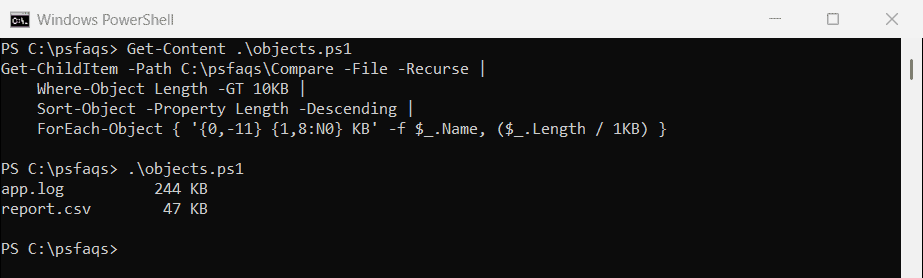
Sorting files by date uses the same idea with LastWriteTime instead of Length.
Familiar CMD commands in PowerShell
PowerShell includes aliases, so dir, cd, copy and del still work. Each one points to a cmdlet:
Get-Alias -Name dir, cd, copy, del, type, cls, md |
    ForEach-Object { '{0,-5} -> {1}' -f $_.Name, $_.Definition }
Output:
dir   -> Get-ChildItem
cd    -> Set-Location
copy  -> Copy-Item
del   -> Remove-Item
type  -> Get-Content
cls   -> Clear-Host
md    -> mkdir
The catch is that aliases take PowerShell parameters, not CMD switches. dir /s fails, because PowerShell reads /s as a path:
try { dir /s C:\psfaqs\Compare -ErrorAction Stop | Out-Null; 'dir /s worked' }
catch { "dir /s: Failed. $($_.Exception.Message)" }

"Get-ChildItem -Recurse found $((Get-ChildItem -Path C:\psfaqs\Compare -Recurse -File).Count) files"
Output:
dir /s: Failed. Cannot find path 'C:\s' because it does not exist.
Get-ChildItem -Recurse found 3 files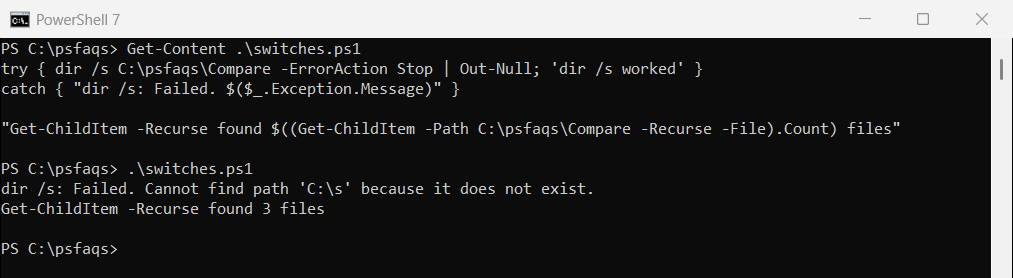
Use -Recurse instead of /s, -