
To install .NET Framework 3.5 using PowerShell, enable the NetFx3 Windows feature in an elevated window. Windows downloads the files from Windows Update:
Enable-WindowsOptionalFeature -Online -FeatureName NetFx3 -AllThat works on Windows 11 25H2 and earlier, Windows 10 and Windows Server. Windows 11 26H1 and later need a separate installer instead. Below I cover checking, installing online and offline, and fixing common errors.
Check if .NET Framework 3.5 is already installed
The registry shows the installed .NET Framework versions, and any user can read it. Here 3.5 is missing, while 4.8 is present as usual:
$v35 = Get-ItemProperty -Path 'HKLM:\SOFTWARE\Microsoft\NET Framework Setup\NDP\v3.5' -ErrorAction SilentlyContinue
$v4 = Get-ItemProperty -Path 'HKLM:\SOFTWARE\Microsoft\NET Framework Setup\NDP\v4\Full'

if ($v35.Install -eq 1) { ".NET Framework 3.5: installed ($($v35.Version))" }
else { '.NET Framework 3.5: not installed' }
".NET Framework 4.x:  $($v4.Version)"
Output:
.NET Framework 3.5: not installed
.NET Framework 4.x:  4.8.09221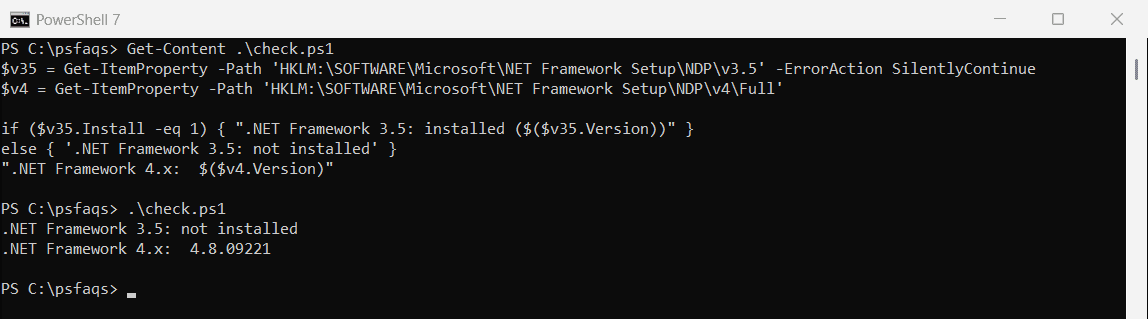
.NET Framework 4.x can’t run apps built for 2.0 through 3.5, which is why older apps ask for 3.5. Getting the .NET version with PowerShell covers every version.
Open PowerShell as administrator
The feature commands need admin rights. In a normal window, they fail straight away:
try {
    Get-WindowsOptionalFeature -Online -FeatureName NetFx3 -ErrorAction Stop
}
catch {
    "NetFx3 check: Failed. $($_.Exception.Message)"
}
Output:
NetFx3 check: Failed. The requested operation requires elevation.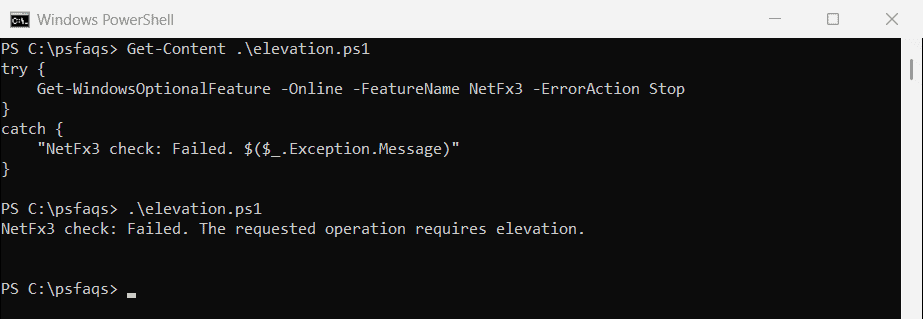
Right-click Terminal or PowerShell, choose Run as administrator, and run the commands below there.
Check which install method your Windows uses
Starting with Windows 11 26H1 (build 28000), Microsoft removed .NET Framework 3.5 as a Windows feature. Check your build first:
$os = Get-ItemProperty -Path 'HKLM:\SOFTWARE\Microsoft\Windows NT\CurrentVersion'
$build = [int]$os.CurrentBuildNumber

"Windows version: $($os.DisplayVersion) (build $build)"
if ($build -ge 28000) { 'Method: standalone .NET Framework 3.5 installer from Microsoft' }
else { 'Method: Windows feature NetFx3 (Enable-WindowsOptionalFeature or DISM)' }
Output:
Windows version: 25H2 (build 26200)
Method: Windows feature NetFx3 (Enable-WindowsOptionalFeature or DISM)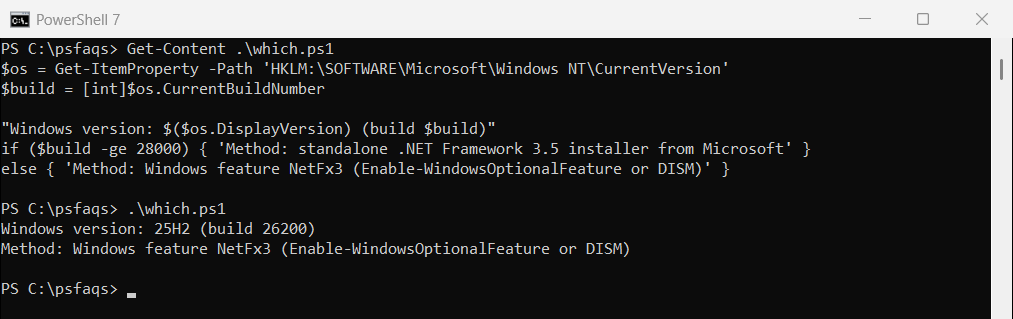
Getting the Windows version shows more ways to read the version and build.
Install .NET Framework 3.5 online
In an elevated window, check the feature state, then enable it. -All also enables any parent features it needs:
Get-WindowsOptionalFeature -Online -FeatureName NetFx3 | Select-Object FeatureName, State
Enable-WindowsOptionalFeature -Online -FeatureName NetFx3 -All
State changes from Disabled to Enabled. Restart if you’re asked to. The DISM command does exactly the same thing:
DISM /Online /Enable-Feature /FeatureName:NetFx3 /AllInstall .NET Framework 3.5 offline from Windows media
Without internet access, point to the sources\sxs folder on Windows installation media. Here the ISO is mounted as drive D:
Enable-WindowsOptionalFeature -Online -FeatureName NetFx3 -All -Source D:\sources\sxs -LimitAccess-LimitAccess stops Windows from contacting Windows Update or WSUS. Microsoft warns that the media must match your exact Windows version, or the install can fail or leave an unsupported state.
Install .NET Framework 3.5 on Windows Server
On Windows Server, install the NET-Framework-Core feature with Install-WindowsFeature:
Install-WindowsFeature -Name NET-Framework-Core
Install-WindowsFeature -Name NET-Framework-Core -Source D:\sources\sxs
Use the second line on servers that can’t reach Windows Update. Listing Windows features helps you confirm the result.
Windows 11 26H1 and later: use the standalone installer
On build 28000 and later, the Windows feature commands above no longer install .NET Framework 3.5. Download Microsoft’s standalone installer for your Windows version instead.
Those builds also remove ASP.NET 3.5 and the WCF activation components. Microsoft’s .NET Framework 3.5 on Windows 11 guide links the installer and explains the change.
Fix errors 0x800f0906 and 0x800f081f
These errors mean Windows couldn’t get the source files. It’s common on work PCs that use WSUS instead of Windows Update.
Use the offline -Source method above, or ask your admin team to allow downloads from Windows Update. Microsoft’s Install .NET Framework 3.5 guide and the DISM deployment guide cover both routes.