
To check for Windows updates using PowerShell, ask the built-in Windows Update Agent to search. It needs no extra module and no admin rights:
$searcher = (New-Object -ComObject Microsoft.Update.Session).CreateUpdateSearcher()
$searcher.Search("IsInstalled=0 and IsHidden=0").Updates | Select-Object Title
Below I list what’s waiting with KB numbers, show when Windows last checked, find where updates come from and check other PCs. I ran each check in PowerShell 7.6 and Windows PowerShell 5.1 on Windows 11.
Check for available Windows updates
The search contacts Windows Update, just like the Check for updates button in Settings. Here I print the category and KB number of each update:
$searcher = (New-Object -ComObject Microsoft.Update.Session).CreateUpdateSearcher()
$result = $searcher.Search("IsInstalled=0 and IsHidden=0")

"Available updates: $($result.Updates.Count)"
foreach ($update in $result.Updates) {
    $category = ($update.Categories | Select-Object -First 1).Name
    if ($update.Type -eq 2) { "  [$category] Driver update" }
    else { "  [$category] KB$($update.KBArticleIDs -join ', KB')" }
}
Output:
Available updates: 3
  [Definition Updates] KB2267602
  [Drivers] Driver update
  [Drivers] Driver update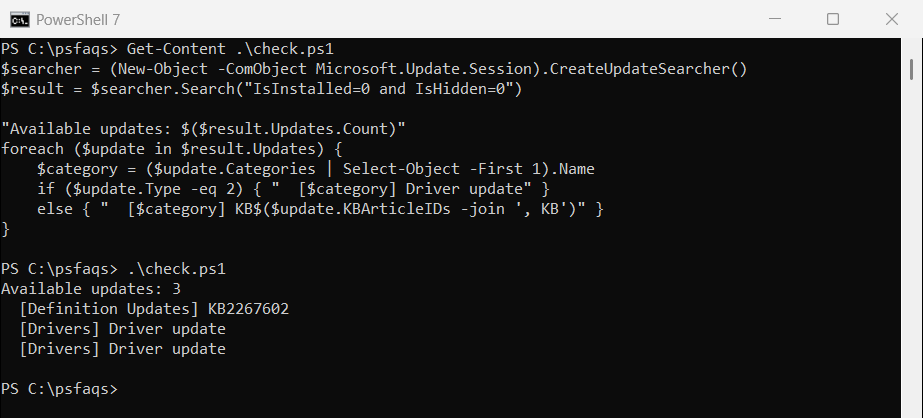
The search can take a minute or two. I print driver updates without their titles because titles name the hardware maker. To install what you find, see installing Windows updates with PowerShell.
Filter software and driver updates
The search string works like a filter. Type=’Software’ and Type=’Driver’ split the results:
$searcher = (New-Object -ComObject Microsoft.Update.Session).CreateUpdateSearcher()
$software = $searcher.Search("IsInstalled=0 and IsHidden=0 and Type='Software'")
$drivers = $searcher.Search("IsInstalled=0 and IsHidden=0 and Type='Driver'")

"Software updates: $($software.Updates.Count)"
"Driver updates:   $($drivers.Updates.Count)"
Output:
Software updates: 1
Driver updates:   2
Other useful criteria are BrowseOnly=0 for important updates only, and IsInstalled=1 for installed ones.
See when Windows last checked for updates
The AutoUpdate object remembers the last successful search and the last successful install:
$results = (New-Object -ComObject Microsoft.Update.AutoUpdate).Results

"Last successful check:   $($results.LastSearchSuccessDate.ToString('yyyy-MM-dd'))"
"Last successful install: $($results.LastInstallationSuccessDate.ToString('yyyy-MM-dd'))"
Output:
Last successful check:   2026-09-28
Last successful install: 2026-09-28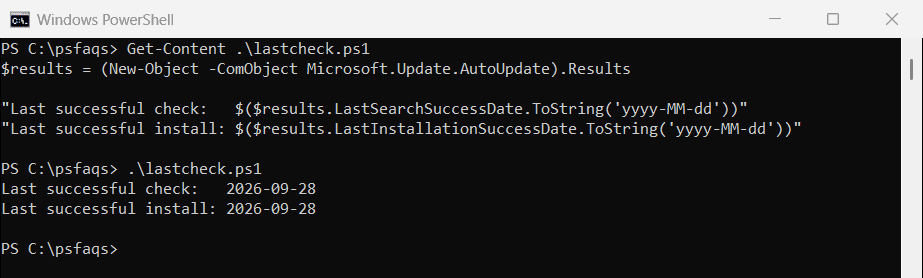
If the last check is weeks old, the Windows Update service may be stuck or blocked. That’s worth a look before anything else.
Check where updates come from
On work PCs, updates often come from a company WSUS server instead of Microsoft. This shows the default source and whether a WSUS policy is set:
$default = (New-Object -ComObject Microsoft.Update.ServiceManager).Services |
    Where-Object IsDefaultAUService
$key = 'HKLM:\SOFTWARE\Policies\Microsoft\Windows\WindowsUpdate'
$policy = Get-ItemProperty -Path $key -ErrorAction SilentlyContinue

"Updates come from:  $($default.Name)"
"WSUS server policy: $(if ($policy.WUServer) { 'Yes' } else { 'No' })"
Output:
Updates come from:  Microsoft Update
WSUS server policy: No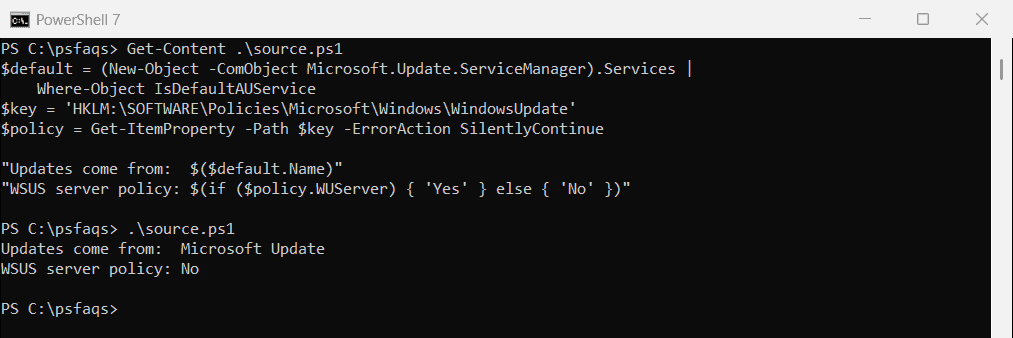
Microsoft Update also covers other Microsoft products. With WSUS, you only see the updates your IT team has approved.
To see what was actually installed, check the Windows Update history.
Check for updates on remote computers
Searching works over PowerShell remoting, as long as you’re an administrator on the remote PC:
Invoke-Command -ComputerName PC-SALES-07, PC-SALES-08 -ScriptBlock {
    $searcher = (New-Object -ComObject Microsoft.Update.Session).CreateUpdateSearcher()
    "$env:COMPUTERNAME: $($searcher.Search('IsInstalled=0 and IsHidden=0').Updates.Count) updates"
}
Downloading and installing don’t work remotely, though. Microsoft’s Using WUA from a remote computer lists what’s allowed, so run installs as a scheduled task on each PC.
Check for updates with PSWindowsUpdate
PSWindowsUpdate is a popular community module from the PowerShell Gallery. It isn’t made by Microsoft, but it wraps the same agent in simple cmdlets:
Install-Module -Name PSWindowsUpdate -Scope CurrentUser
Get-WindowsUpdate
Get-WindowsUpdate needs an elevated window. If you can’t install modules on a PC, the built-in method above does the same check.
Frequently Asked Questions
How do I check for Windows updates with PowerShell?
Create an update searcher with (New-Object -ComObject Microsoft.Update.Session).CreateUpdateSearcher() and run Search("IsInstalled=0 and IsHidden=0").
Do I need admin rights to check for updates?
No. Searching works in a normal window. Installing updates needs admin rights.
How do I see when Windows last checked for updates?
Read (New-Object -ComObject Microsoft.Update.AutoUpdate).Results.LastSearchSuccessDate.
Can I check for updates on a remote computer?
Yes. Run the search inside Invoke-Comm