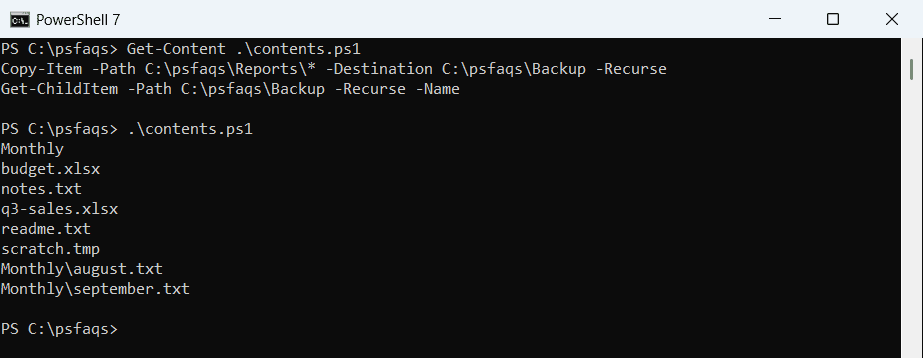
If you work in the IT sector in the USA, then you will mostly use PowerShell to automate various administrative tasks. In today’s tutorial, I will explain various useful cmdlets, such as PowerShell Copy-Item. You will understand how to use the Copy-Item PowerShell cmdlet with various examples.
To copy files in PowerShell, you can use the Copy-Item cmdlet with the -Filter parameter. For example, to copy only text files from the Documents folder to the Desktop, you would use the following command: Copy-Item -Path “C:\Users\JohnDoe\Documents\*” -Destination “C:\Users\JohnDoe\Desktop” -Filter “*.txt”. This command ensures that only files with a .txt extension are copied, making it an efficient way to filter and transfer specific types of files.
Note: I executed all the PowerShell scripts using VS code, but you can use any preferred editor.
What is PowerShell Copy-Item?
The Copy-Item cmdlet is used to copy items from one location to another in PowerShell. These items can include files, directories, and even registry keys. Whether you’re copying files across directories or duplicating entire folder structures, Copy-Item cmdlet can handle it all.
Syntax of Copy-Item
Here is the basic syntax of the Copy-Item cmdlet in PowerShell:
Copy-Item [-Path] <string[]> [-Destination] <string> [-Container] [-Force] [-Filter <string>] [-Include <string[]>] [-Exclude <string[]>] [-Recurse] [-PassThru] [-Credential <pscredential>] [-WhatIf] [-Confirm] [<CommonParameters>]Parameters:
- -Path: Specifies the path to the item(s) to be copied.
- -Destination: Specifies the path to the destination.
- -Container: Preserves the directory structure.
- -Force: Allows the cmdlet to overwrite existing files.
- -Recurse: Copies items in subdirectories.
- -Filter, -Include, -Exclude: Used to specify patterns for items to include or exclude.
Check out Copy and Rename Files in PowerShell
PowerShell Copy-Item Examples
Let me show you some practical examples to help you understand how to use Copy-Item in real-world scenarios in PowerShell.
I will show you different examples of using the Copy-Item cmdlet.
Example 1: Basic File Copy
To copy a single file from one directory to another, you can use the Copy-Item PowerShell cmdlet; below is the script:
Copy-Item -Path "C:\MyFolder\Report.docx" -Destination "C:\MyNewFolder"In this example, the Report.docx file is copied from the MyFolder folder to the MyNewFolder folder on the C drive.
I executed the above script, and you can see the exact output in the screenshot below:

Example 2: Copy an Entire Directory
If you need to copy an entire directory, including its subdirectories and files, you can use the -Recurse parameter of the Copy-Item PowerShell cmdlet.
Here is an example.
Copy-Item -Path "C:\Projects" -Destination "D:\Backup\Projects" -RecurseThis command copies the entire Projects directory, along with all its contents, to the specified backup location.
Check out Copy Files from One Folder to Another in PowerShell
Example 3: Overwrite Existing Files
Sometimes, you might want to overwrite the files in the destination folder while copying. Copy-Item has the -Force parameter.
To overwrite existing files in the destination, you can use the -Force parameter like the example below.
Copy-Item -Path "C:\MyFolder\Summary.docx" -Destination "C:\MyNewFolder" -ForceWhen you execute the above script, it will overwrite the file if it already exists.
Example 4: Using Wildcards
Let me show you another example of using the Copy-Item cmdlet while copying multiple files that match a specific pattern. In those scenarios, we can use the wildcards.
Here is an example of copying multiple files that match a specific pattern using wildcards with the Copy-Item cmdlet.
Copy-Item -Path "C:\MyFolder\*.pdf" -Destination "C:\MyNewFolder"This command copies all PDF files from the MyFolder folder to the MyNewFolder folder.
I executed the above PowerShell script and you can see the exact output in the screenshot below:

Check out Add Date to Filename Using PowerShell
Example 5: Copy Files with a Filter
Let me show you another usage of the Copy-Item cmdelt in PowerShell.
To copy files that meet specific criteria, you can use the -Filter parameter of Copy-Item. Here is a sample script.
Copy-Item -Path "C:\MyFolder\*" -Destination "C:\MyNewFolder" -Filter "*.txt"This command copies only text files from the Documents folder to the Desktop folder. As a PowerShell developer, you might get this kind of requirement while working with files or folders in PowerShell.
Example 6: Exclude Specific Files
Here is another example of a Copy-Item cmdlet. We can exclude specific files while copying in PowerShell. You can exclude certain files from being copied using the -Exclude parameter. Here is an example.
Copy-Item -Path "C:\MyFolder\*" -Destination "C:\MyNewFolder" -Exclude "*.tmp"This command copies all files except those with a .tmp extension.
Read Sort Files by Date in PowerShell
Example 7: Include Specific Files
Let me show you the final example of using the PowerShell Copy-Item cmdlet. You can include specific files while copying.
To include only specific files, use the -Include parameter of the Copy-Item cmdlet.
Copy-Item -Path "C:\MyFolder\*" -Destination "C:\MyNewFolder" -Include "*.docx", "*.xlsx"This command copies only .docx and .xlsx files from the Documents folder to the Desktop folder.
Conclusion
I hope now you got an idea of using the PowerShell Copy-Item cmdlet. This is a very useful cmdlet to work with files and directories. In this tutorial, I explained seven different examples of using the Copy-Item in PowerShell.
Feel free to experiment with the examples provided above. If you have any questions, don’t hesitate to let me know.
You may also like:
- Get the First 10 Files in a Folder Using PowerShell
- Get Unique Lines from a File Using PowerShell
- How To Create File If Not Exists In PowerShell?
- PowerShell Select-Object
- PowerShell Copy-item Create Folder If Not Exist
Bijay Kumar is an esteemed author and the mind behind PowerShellFAQs.com, where he shares his extensive knowledge and expertise in PowerShell, with a particular focus on SharePoint projects. Recognized for his contributions to the tech community, Bijay has been honored with the prestigious Microsoft MVP award. With over 15 years of experience in the software industry, he has a rich professional background, having worked with industry giants such as HP and TCS. His insights and guidance have made him a respected figure in the world of software development and administration. Read more.