
Select-String is the PowerShell cmdlet that searches text and files for a pattern, much like grep on Linux or findstr in Command Prompt. Give it a file and a pattern, and it returns every matching line:
2026-09-28 08:00:01 INFO  Service started on WEB01
2026-09-28 08:05:12 WARN  Disk C: at 85% on WEB01
2026-09-28 08:07:45 ERROR Connection to SQL01 failed: timeout after 30s
2026-09-28 08:07:46 INFO  Retrying connection to SQL01
2026-09-28 08:07:50 ERROR Connection to SQL02 failed: login failed for svc-app
2026-09-28 08:10:00 INFO  Request from 10.0.4.21 to 10.0.4.35 completed
2026-09-28 08:11:15 INFO  Invoice 1042 total $25.00 sent
2026-09-28 08:12:30 INFO  Errors reset by admin
That’s the sample log I search in this guide. Here’s the first search:
Select-String -Path C:\psfaqs\Logs\app.log -Pattern 'ERROR'Output:
Logs\app.log:3:2026-09-28 08:07:45 ERROR Connection to SQL01 failed: timeout after 30s
Logs\app.log:5:2026-09-28 08:07:50 ERROR Connection to SQL02 failed: login failed for svc-app
Logs\app.log:8:2026-09-28 08:12:30 INFO  Errors reset by admin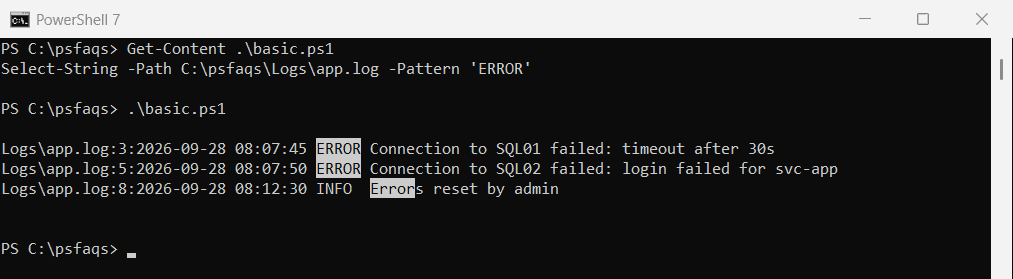
Each result shows the file, the line number and the line. Notice the third result: Errors reset matched too, because the search ignores case and matches text inside words.
I ran every example in PowerShell 7.6 and Windows PowerShell 5.1. The results matched, and PowerShell 7 also highlights each match on screen.
How do I make Select-String an exact match?
It depends on what “exact” means for your search. For matching case, add -CaseSensitive:
Select-String -Path C:\psfaqs\Logs\app.log -Pattern 'ERROR' -CaseSensitive | ForEach-Object LineOutput:
2026-09-28 08:07:45 ERROR Connection to SQL01 failed: timeout after 30s
2026-09-28 08:07:50 ERROR Connection to SQL02 failed: login failed for svc-app
To match a whole word in any case, wrap it in \b word boundaries. \berror\b matches ERROR but not Errors:
Select-String -Path C:\psfaqs\Logs\app.log -Pattern '\berror\b' | ForEach-Object LineOutput:
2026-09-28 08:07:45 ERROR Connection to SQL01 failed: timeout after 30s
2026-09-28 08:07:50 ERROR Connection to SQL02 failed: login failed for svc-app
Search for text with special characters
The pattern is a regular expression, so characters like $, . and ( have special meanings. -SimpleMatch searches for the text exactly as you typed it:
"Regex:        $(@(Select-String -Path C:\psfaqs\Logs\app.log -Pattern '$25.00').Count) match(es)"
"-SimpleMatch: $(@(Select-String -Path C:\psfaqs\Logs\app.log -Pattern '$25.00' -SimpleMatch).Count) match(es)"
Output:
Regex:        0 match(es)
-SimpleMatch: 1 match(es)
The regular expression failed because $ means “end of line”. Use -SimpleMatch whenever you search for plain text like prices, paths or version numbers.
Find lines that don’t contain a pattern
-NotMatch flips the search and returns every line that doesn’t match. Here that’s everything except the INFO lines:
Select-String -Path C:\psfaqs\Logs\app.log -Pattern ' INFO ' -NotMatch | ForEach-Object LineOutput:
2026-09-28 08:05:12 WARN  Disk C: at 85% on WEB01
2026-09-28 08:07:45 ERROR Connection to SQL01 failed: timeout after 30s
2026-09-28 08:07:50 ERROR Connection to SQL02 failed: login failed for svc-app
I included the spaces around INFO so the pattern can’t match inside another word.
Search for multiple patterns
Pass several patterns separated by commas, and Select-String returns lines that match any of them:
Select-String -Path C:\psfaqs\Logs\app.log -Pattern 'WARN', 'timeout' | ForEach-Object LineOutput:
2026-09-28 08:05:12 WARN  Disk C: at 85% on WEB01
2026-09-28 08:07:45 ERROR Connection to SQL01 failed: timeout after 30s
For lines that must match all of several patterns, filter the lines with Where-Object and -and:
Get-Content -Path C:\psfaqs\Logs\app.log |
    Where-Object { $_ -match 'ERROR' -and $_ -match 'SQL02' }
Output:
2026-09-28 08:07:50 ERROR Connection to SQL02 failed: login failed for svc-appFor more on the -match operator used here, see how to check if a string contains a substring.
Show the lines after a match
-Context adds lines around each match. The first number is lines before, the second is lines after. The matching line is marked with >:
Select-String -Path C:\psfaqs\Logs\app.log -Pattern 'timeout' -Context 0, 1Output:
> Logs\app.log:3:2026-09-28 08:07:45 ERROR Connection to SQL01 failed: timeout after 30s
  Logs\app.log:4:2026-09-28 08:07:46 INFO  Retrying connection to SQL01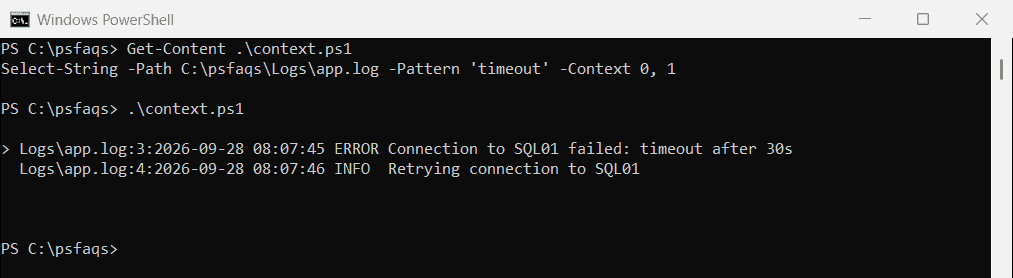
In a script, read the extra lines from the Context property instead of parsing the display:
$match = Select-String -Path C:\psfaqs\Logs\app.log -Pattern 'timeout' -Context 0, 1
"Error line: $($match.Line)"
"Next line:  $($match.Context.PostContext[0])"
Output:
Error line: 2026-09-28 08:07:45 ERROR Connection to SQL01 failed: timeout after 30s
Next line:  2026-09-28 08:07:46 INFO  Retrying connection to SQL01
Get every match on a line
By default, Select-String stops at the first match on each line. -AllMatches finds all of them, like both IP addresses here:
$pattern = '\d{1,3}(\.\d{1,3}){3}'

"Without -AllMatches: $((Select-String -Path C:\psfaqs\Logs\app.log -Pattern $pattern).Matches.Value -join ', ')"
"With -AllMatches:    $((Select-String -Path C:\psfaqs\Logs\app.log -Pattern $pattern -AllMatches).Matches.Value -join ', ')"
Output:
Without -AllMatches: 10.0.4.21
With -AllMatches:    10.0.4.21, 10.0.4.35
Pull values out with named groups
Named groups in the pattern, like (?<server>...), let you extract parts of each line into objects:
Select-String -Path C:\psfaqs\Logs\app.log