
In Windows Terminal vs PowerShell, the difference is simple: Windows Terminal is the window, and PowerShell is the shell that runs inside it. Windows Terminal draws the text, tabs and panes, while PowerShell understands your commands and runs scripts.
So it’s not really Windows Terminal or PowerShell. You run PowerShell in Windows Terminal, or in the older console window. Below I compare the two, check which one a session is using and show how to make them work together.
Windows Terminal vs PowerShell at a glance
| Windows Terminal | PowerShell | |
|---|---|---|
| What it is | A terminal app (the window) | A shell and scripting language |
| Runs | PowerShell, cmd, WSL, SSH, Azure Cloud Shell | Cmdlets, scripts, .NET code |
| Main features | Tabs, split panes, profiles, themes, GPU text | Objects in the pipeline, modules, remoting |
| Versions | Windows Terminal app (Store or winget) | Windows PowerShell 5.1 and PowerShell 7 |
| Can replace the other? | No, it needs a shell | No, it needs a window to display in |
Windows 11 includes Windows Terminal and makes it the default terminal, so most people already use both together. Microsoft’s Windows Terminal documentation and PowerShell overview cover each one.
If you’re also choosing between shells, see PowerShell vs CMD.
Check which shell and host a session uses
$PSVersionTable tells you which PowerShell you’re in, $Host.Name names the program hosting it, and Windows Terminal sets the WT_SESSION variable in every tab:
"PowerShell edition:  $($PSVersionTable.PSEdition)"
"PowerShell version:  $($PSVersionTable.PSVersion.Major).$($PSVersionTable.PSVersion.Minor)"
"Host program:        $($Host.Name)"
"In Windows Terminal: $([bool]$env:WT_SESSION)"
Output:
PowerShell edition:  Core
PowerShell version:  7.6
Host program:        ConsoleHost
In Windows Terminal: False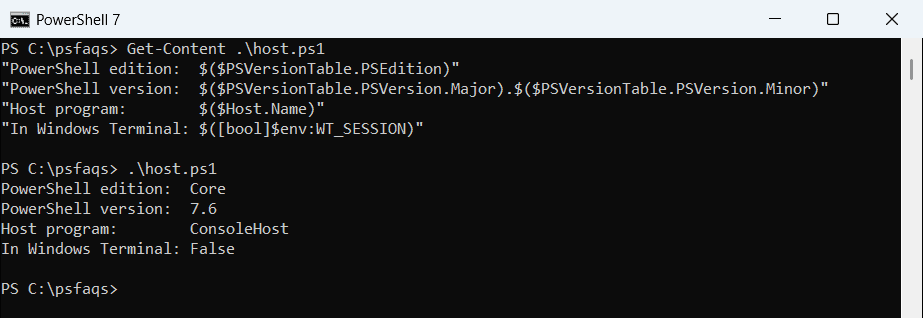
I ran these checks in the classic console window, so In Windows Terminal is False. In a Windows Terminal tab it’s True, while edition, version and host stay the same, because the shell doesn’t change.
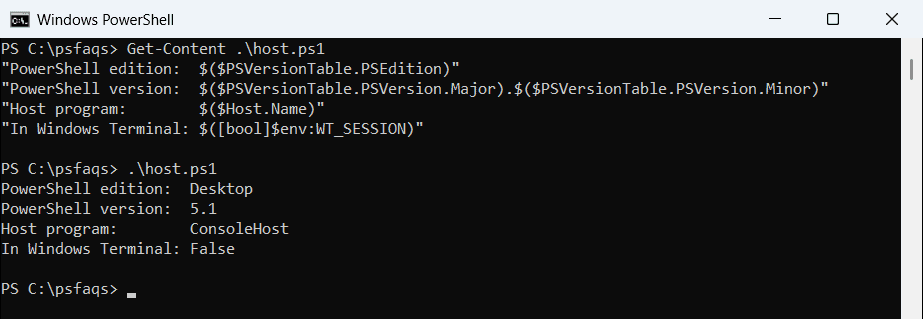
Desktop means Windows PowerShell 5.1 and Core means PowerShell 7. For more ways to check, see checking your PowerShell version.
Check which shells are installed
Get-Command finds programs on your PATH. This checks for Windows Terminal and the three shells you’d typically open in it:
foreach ($shell in 'wt.exe', 'pwsh.exe', 'powershell.exe', 'cmd.exe') {
    $found = Get-Command -Name $shell -ErrorAction SilentlyContinue
    '{0,-15} {1}' -f $shell, $(if ($found) { 'Installed' } else { 'Not found' })
}
Output:
wt.exe          Installed
pwsh.exe        Installed
powershell.exe  Installed
cmd.exe         Installed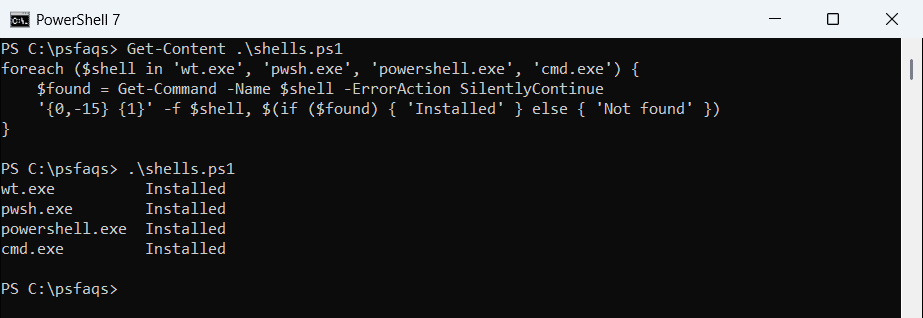
If pwsh.exe shows Not found, PowerShell 7 isn’t installed yet. See updating PowerShell on Windows 11.
Make PowerShell 7 the default in Windows Terminal
Windows Terminal often opens Windows PowerShell 5.1 by default. To switch, open Settings with Ctrl+, then under Startup set Default profile to PowerShell, which is the PowerShell 7 profile.
Under Default terminal application, choose Windows Terminal so that every console app, including powershell.exe started from the Run box, opens in a Terminal tab.
Open Windows Terminal tabs from PowerShell
wt.exe takes command-line arguments, so a script can open a ready-made layout. This opens PowerShell 7 in one tab and splits a second pane with cmd: