
Select-Object is the PowerShell cmdlet that picks properties from objects, or picks a number of objects from a list. The examples below use this list of employees:
$employees = @(
    [pscustomobject]@{ Name = 'Maria Garcia'; Department = 'Finance'; City = 'Austin'; Salary = 86000 }
    [pscustomobject]@{ Name = 'James Smith'; Department = 'IT'; City = 'Dallas'; Salary = 92000 }
    [pscustomobject]@{ Name = 'Emily Chen'; Department = 'IT'; City = 'Austin'; Salary = 98000 }
    [pscustomobject]@{ Name = 'Robert Brown'; Department = 'Sales'; City = 'Houston'; Salary = 74000 }
)
To keep only some properties, list them after -Property:
$employees | Select-Object -Property Name, CityOutput:
Name         City
----         ----
Maria Garcia Austin
James Smith  Dallas
Emily Chen   Austin
Robert Brown Houston
I ran every example in real PowerShell 7.6 and Windows PowerShell 5.1 consoles. Where a parameter exists in only one version, I say so.
Select-Object creates new objects
Select-Object -Property doesn’t just hide columns. It builds new objects that have only the properties you asked for:
$row = $employees | Select-Object -First 1 -Property Name, City
"Type:       $($row.GetType().Name)"
"Properties: $($row.PSObject.Properties.Name -join ', ')"
Output:
Type:       PSCustomObject
Properties: Name, City
That’s usually what you want before Export-Csv or ConvertTo-Json, because the file then contains only those columns. It’s also why the selected objects no longer have the original object’s methods.
Select the first or last items
-First and -Last pick items from the start or end of the list, and -Skip skips some first:
"First 2:         $(($employees | Select-Object -First 2).Name -join ', ')"
"Last 1:          $(($employees | Select-Object -Last 1).Name)"
"Skip 1, then 2:  $(($employees | Select-Object -Skip 1 -First 2).Name -join ', ')"
Output:
First 2:         Maria Garcia, James Smith
Last 1:          Robert Brown
Skip 1, then 2:  James Smith, Emily Chen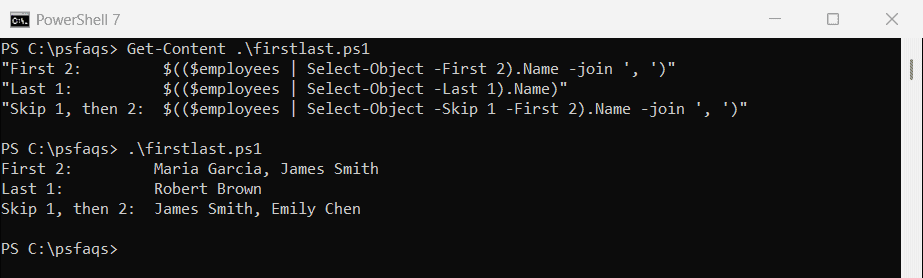
-First stops the pipeline early
With -First, PowerShell stops the command that produces the objects as soon as it has enough. -Last has to read everything:
$first = Measure-Command { 1..1000000 | Select-Object -First 3 }
$last  = Measure-Command { 1..1000000 | Select-Object -Last 3 }

'-First 3: {0,7:N0} ms' -f $first.TotalMilliseconds
'-Last 3:  {0,7:N0} ms' -f $last.TotalMilliseconds
Output in PowerShell 7:
-First 3:       4 ms
-Last 3:      886 ms
Windows PowerShell 5.1 showed the same pattern: 5 ms for -First and 1,353 ms for -Last. So Get-ChildItem -Recurse | Select-Object -First 1 returns quickly even on a huge drive.
Get unique values with -Unique
-Unique removes duplicates, but it’s case-sensitive. Sort-Object -Unique isn’t:
$cities = 'Austin', 'austin', 'Dallas', 'AUSTIN'

"Select-Object -Unique: $(($cities | Select-Object -Unique) -join ', ')"
"Sort-Object -Unique:   $(($cities | Sort-Object -Unique) -join ', ')"
Output in PowerShell 7:
Select-Object -Unique: Austin, austin, Dallas, AUSTIN
Sort-Object -Unique:   Austin, Dallas
Windows PowerShell 5.1 gave the same result, except that Sort-Object kept “AUSTIN”. Which spelling survives isn’t something to rely on.
PowerShell 7.4 added -CaseInsensitive to Select-Object, which keeps the first spelling it sees and the original order:
$cities = 'Austin', 'austin', 'Dallas', 'AUSTIN'
($cities | Select-Object -Unique -CaseInsensitive) -join ', '
Output in PowerShell 7:
Austin, DallasWith objects, -Unique compares the selected properties, so you can list the distinct values of one column:
$employees | Select-Object -Property City -UniqueOutput:
City
----
Austin
Dallas
Houston
How do I select only the value, without the property name?
-Property Name gives you objects that have a Name property. -ExpandProperty Name gives you the values themselves:
$withProperty = $employees | Select-Object -Property Name
$valueOnly    = $employees | Select-Object -ExpandProperty Name

"-Property:       $($withProperty[0])  ($($withProperty[0].GetType().Name))"
"-ExpandProperty: $($valueOnly[0])  ($($valueOnly[0].GetType().Name))"
Output:
-Property:       @{Name=Maria Garcia}  (PSCustomObject)
-ExpandProperty: Maria Garcia  (String)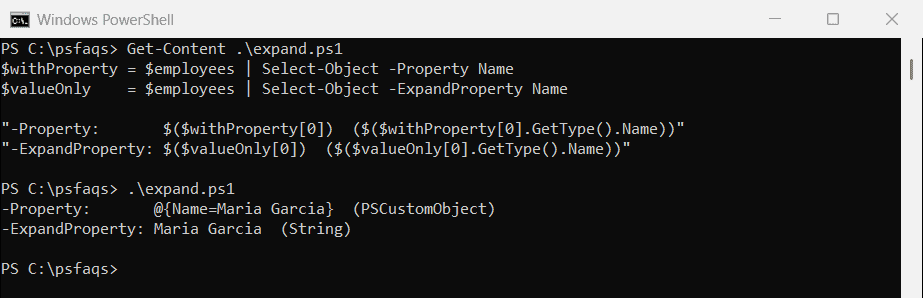
Use -ExpandProperty when you need plain strings, for example to join them or to pass them to a parameter like -ComputerName. If the property doesn’t exist, it tells you:
try {
    $employees | Select-Object -ExpandProperty FullName -ErrorAction Stop
}
catch {
    $_.Exception.Message
}
Output:
Property "FullName" cannot be found.For a quick list, you can also use dot notation on the whole array. PowerShell collects the property from every item:
$employees.Name -join ', 'Output:
Maria Garcia, James Smith, Emily Chen, Robert BrownSelect-Object without the header
Select-Object never adds a header; the header comes from how the objects are displayed. For a single column, use -ExpandProperty as above. For CSV text without the header row, skip the first line:
$employees | Select-Object -Property Name, City | ConvertTo-Csv -NoTypeInformation | Select-Object -Skip 1Output:
"Maria Garcia","Austin"
"James Smith","Dallas"
"Emily Chen","Austin"
"Robert Brown","Houston"
PowerShell 7.4 and later have a switch for this, and it gives the same result:
$employees | Select-Object -Property Name, City | ConvertTo-Csv -NoHeaderOutput in PowerShell 7:
"Maria Garcia","Austin"
"James Smith","Dallas"
"Emily Chen","Austin"
"Robert Brown","Houston"
For a table on screen without headers, see PowerShell Format-Table, which has -HideTableHeaders.
Add calculated properties
A hashtable with Name and Expression adds a column that you compute, such as a formatted salary and a monthly amount:
$employees | Select-Object -Property Name,
    @{ Name = 'Salary'; Expression = { '{0:C0}' -f $_.Salary } },
    @{ Name = 'Monthly'; Expression = { '{0:C0}' -f ($_.Salary / 12) } }
Output:
Name         Salary  Monthly
----         ------  -------
Maria Garcia $86,000 $7,167
James Smith  $92,000 $7,667
Emily Chen   $98,000 $8,167
Robert Brown $74,000 $6,167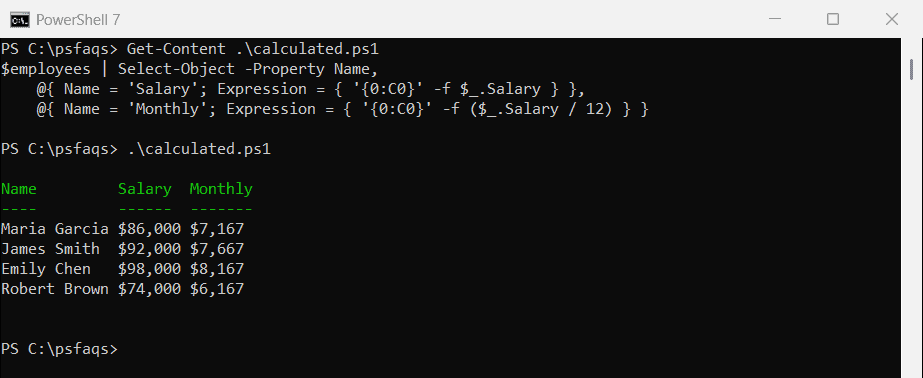
Inside the expression, $_ is the current object. The result is a real property, so you can sort or export it like any other.
Exclude properties
To keep everything except a few properties, combine -Property * with -ExcludeProperty:
$employees | Select-Object -Property * -ExcludeProperty Salary, DepartmentOutput:
Name         City
----         ----
Maria Garcia Austin
James Smith  Dallas
Emily Chen   Austin
Robert Brown Houston
PowerShell 6 and later don’t need the -Property * part. In Windows PowerShell 5.1, leaving it out makes -ExcludeProperty do nothing, and I got every column back, salary included.
So keep -Property * if a script might run in 5.1. The Select-Object documentation lists the rest, including -Index and -SkipLast.
Frequently Asked Questions
What does Select-Object do in PowerShell?
It picks properties from objects, like Select-Object -Property Name, City, or picks items from a list, like Select-Object -First 5.
How do I get only the value with Select-Object?
Use -ExpandProperty: Get-Process | Select-Object -ExpandProperty Name returns plain strings instead of objects with a Name property.
Is Select-Object -Unique case-sensitive?
Yes. “Austin” and “austin” are both kept. Add -CaseInsensitive in PowerShell 7.4 and later, or use Sort-Object -Unique.
How do I remove the header from Select-Object output?
Use -ExpandProperty for one column. For CSV text, add | Select-Object -Skip 1 after ConvertTo-Csv, or use ConvertTo-Csv -NoHeader in PowerShell 7.4+.
What’s the difference between -First and -Last?
-First takes items from the start and stops the pipeline early, so it’s fast. -Last takes items from the end, so it has to read the whole list.
Next, pair Select-Object with these:

Bijay Kumar is an esteemed author and the mind behind PowerShellFAQs.com, where he shares his extensive knowledge and expertise in PowerShell, with a particular focus on SharePoint projects. Recognized for his contributions to the tech community, Bijay has been honored with the prestigious Microsoft MVP award. With over 15 years of experience in the software industry, he has a rich professional background, having worked with industry giants such as HP and TCS. His insights and guidance have made him a respected figure in the world of software development and administration. Read more.