If you’ve ever worked with logs, timers, or performance data in PowerShell, you’ve probably come across time values in seconds that aren’t very human-friendly. Reading something like “7265 seconds” doesn’t immediately tell you much unless you stop and calculate it mentally.
In this post, we’ll make that easier by learning how to convert seconds into a clear hours and minutes format using PowerShell. Whether you’re building reports, automating monitoring scripts, or just cleaning up output for better readability, this simple conversion can make your results far more useful and presentable.
Let’s start.
Understanding the Math in PowerShell
Before using any PowerShell method, here’s the underlying arithmetic:
- Hours =
[Math]::Floor($seconds / 3600) - Minutes =
[Math]::Floor(($seconds % 3600) / 60) - Remaining seconds =
$seconds % 60
For example, 7385 seconds = 2 hours, 3 minutes, 5 seconds.
Method 1: [TimeSpan]::FromSeconds() — Best Default Approach
The cleanest one-liner. Pass seconds directly and get a full TimeSpan object back:
$seconds = 7385
$timespan = [TimeSpan]::FromSeconds($seconds)
Write-Host "Hours : $($timespan.Hours)"
Write-Host "Minutes : $($timespan.Minutes)"
Write-Host "Seconds : $($timespan.Seconds)"
Output:
Hours : 2
Minutes : 3
Seconds : 5
I executed the above PowerShell script, and you can see the exact output in the screenshot below:

Key TimeSpan properties for hours and minutes:
| Property | Returns |
|---|---|
.Hours | Hours component only (0–23) |
.Minutes | Minutes component only (0–59) |
.Seconds | Seconds component only (0–59) |
.TotalHours | Full decimal hours (e.g. 2.0513...) |
.TotalMinutes | Full decimal minutes (e.g. 123.08...) |
.Days | Days component for large values |
Check out Check if a File’s LastWriteTime is Greater Than a Specific Date in PowerShell
Method 2: New-TimeSpan Cmdlet
The PowerShell cmdlet equivalent — same result, slightly more readable syntax:
$seconds = 7385
$ts = New-TimeSpan -Seconds $seconds
Write-Host "Total Hours : $($ts.TotalHours)"
Write-Host "Total Minutes : $($ts.TotalMinutes)"
Write-Host "$($ts.Hours) hours, $($ts.Minutes) minutes, $($ts.Seconds) seconds"
Method 3: Format as hh:mm:ss String
Use ToString() with a custom format string to get clock-style output:
$seconds = 7385
$ts = [TimeSpan]::FromSeconds($seconds)
# HH:MM:SS format
$ts.ToString("hh\:mm\:ss")
# Output: 02:03:05
You can see the exact output in the screenshot below:

# Hours and minutes only — no seconds
$ts.ToString("hh\:mm")
# Output: 02:03
# With labels embedded in format string
$ts.ToString("hh' hours 'mm' minutes 'ss' seconds'")
# Output: 02 hours 03 minutes 05 seconds
# With days for large values
$ts.ToString("dd'\.hh\:mm\:ss'")
# Using -f operator style
"{0:hh}h:{0:mm}m:{0:ss}s" -f $ts
# Output: 02h:03m:05s
Important: Always escape the colon with a backslash inside
ToString()format strings —"hh\:mm\:ss"not"hh:mm:ss". Without the backslash,:is treated as a format specifier and produces unexpected output.
Read Find Dates in Strings with PowerShell
Method 4: Pure Math (No TimeSpan)
For simple scripts where you just want the numbers without a TimeSpan object:
$seconds = 7385
$hours = [Math]::Floor($seconds / 3600)
$minutes = [Math]::Floor(($seconds % 3600) / 60)
$secs = $seconds % 60
Write-Host "$hours hours, $minutes minutes, $secs seconds"
# Output: 2 hours, 3 minutes, 5 seconds
Zero-padded display:
$formatted = "{0:D2}:{1:D2}:{2:D2}" -f $hours, $minutes, $secs
Write-Host $formatted
# Output: 02:03:05Check out PowerShell Get-Date -UFormat Examples
Real-World Use Case 1: Display Script Execution Time
Measure how long a script block takes and display it as hours, minutes, and seconds:
$startTime = Get-Date
# --- Your workload here ---
Start-Sleep -Seconds 7385
$elapsed = (Get-Date) - $startTime
Write-Host "Script completed in:"
Write-Host " $($elapsed.Hours)h $($elapsed.Minutes)m $($elapsed.Seconds)s"
Write-Host " Formatted: $($elapsed.ToString('hh\:mm\:ss'))"
Or with Measure-Command:
$duration = Measure-Command { Start-Sleep -Seconds 125 }
Write-Host "Duration: $($duration.Hours)h $($duration.Minutes)m $($duration.Seconds)s"
Write-Host "Formatted: $($duration.ToString('hh\:mm\:ss'))"Real-World Use Case 2: System Uptime in Hours and Minutes
$os = Get-CimInstance Win32_OperatingSystem
$uptime = (Get-Date) - $os.LastBootUpTime
Write-Host "System Uptime"
Write-Host " Days : $($uptime.Days)"
Write-Host " Hours : $($uptime.Hours)"
Write-Host " Minutes : $($uptime.Minutes)"
Write-Host " Formatted: $($uptime.Days)d $($uptime.Hours)h $($uptime.Minutes)m"
Write-Host " Total hours: $([Math]::Round($uptime.TotalHours, 1))"
I executed the above PowerShell script, and you can see the exact output in the screenshot below:

Check out PowerShell Get-Date Month Name
Real-World Use Case 3: Convert a Seconds Column in a CSV
A monitoring tool, call center platform, or video streaming report exports durations as raw seconds. Convert them to hours and minutes for readable reporting:
# Sample CSV (durations.csv):
# TaskName,DurationSeconds
# Backup Job,7385
# Log Cleanup,245
# Report Gen,10920
Import-Csv "C:\Data\durations.csv" -Encoding UTF8 |
Select-Object TaskName,
DurationSeconds,
@{N='Hours'; E={ ([TimeSpan]::FromSeconds([int]$_.DurationSeconds)).Hours }},
@{N='Minutes'; E={ ([TimeSpan]::FromSeconds([int]$_.DurationSeconds)).Minutes }},
@{N='Seconds'; E={ ([TimeSpan]::FromSeconds([int]$_.DurationSeconds)).Seconds }},
@{N='Formatted'; E={ [TimeSpan]::FromSeconds([int]$_.DurationSeconds).ToString("hh\:mm\:ss") }} |
Export-Csv "C:\Output\durations_formatted.csv" -NoTypeInformation -Encoding UTF8 |
Format-Table -AutoSize
Output:
TaskName DurationSeconds Hours Minutes Seconds Formatted
-------- --------------- ----- ------- ------- ---------
Backup Job 7385 2 3 5 02:03:05
Log Cleanup 245 0 4 5 00:04:05
Report Gen 10920 3 2 0 03:02:00
Real-World Use Case 4: Multi-Machine Uptime Report
Pull uptime from multiple machines and format as hours and minutes:
$computers = @("Server01", "Server02", "Server03")
$report = foreach ($computer in $computers) {
try {
$os = Get-CimInstance Win32_OperatingSystem -ComputerName $computer -ErrorAction Stop
$uptime = (Get-Date) - $os.LastBootUpTime
[PSCustomObject]@{
Computer = $computer
LastBoot = $os.LastBootUpTime.ToString("yyyy-MM-dd HH:mm")
UptimeDays = $uptime.Days
UptimeHours = $uptime.Hours
UptimeMins = $uptime.Minutes
UptimeFmt = "$($uptime.Days)d $($uptime.Hours)h $($uptime.Minutes)m"
TotalHours = [Math]::Round($uptime.TotalHours, 1)
}
}
catch {
[PSCustomObject]@{
Computer = $computer
LastBoot = "N/A"
UptimeFmt = "Unreachable"
TotalHours = 0
}
}
}
$report | Format-Table -AutoSize
$report | Export-Csv "C:\Reports\uptime.csv" -NoTypeInformation -Encoding UTF8Check out PowerShell Get Difference Between Two Dates in Minutes
Real-World Use Case 5: Convert Event Log Duration
Calculate how long ago an event occurred and display in hours and minutes:
Get-WinEvent -LogName System -MaxEvents 10 | ForEach-Object {
$age = (Get-Date) - $_.TimeCreated
[PSCustomObject]@{
EventId = $_.Id
TimeCreated = $_.TimeCreated.ToString("yyyy-MM-dd HH:mm:ss")
AgoHours = $age.Hours
AgoMinutes = $age.Minutes
AgoFmt = "$($age.Days)d $($age.Hours)h $($age.Minutes)m ago"
}
} | Format-Table -AutoSizeHandle Large Values (Days)
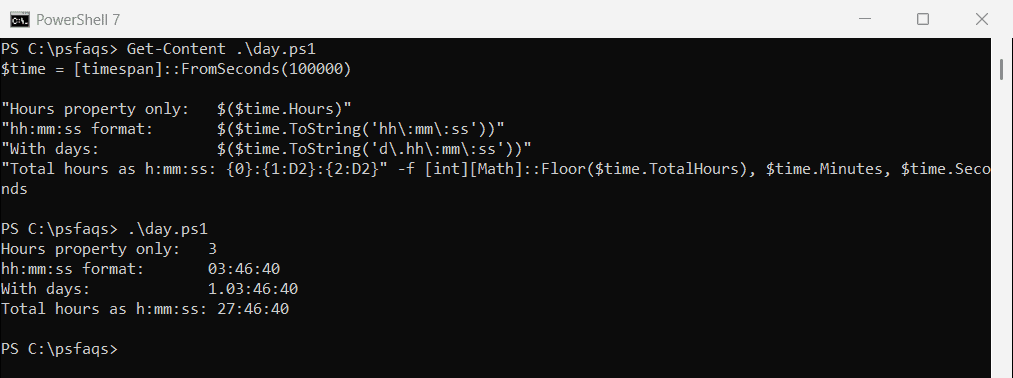
When seconds exceed 86,400 (one full day), the .Hours property resets to 0 and .Days increments. Always account for days in long-duration scenarios:
$seconds = 100000 # 1 day, 3 hours, 46 minutes, 40 seconds
$ts = [TimeSpan]::FromSeconds($seconds)
Write-Host "Days : $($ts.Days)"
Write-Host "Hours : $($ts.Hours)"
Write-Host "Minutes : $($ts.Minutes)"
Write-Host "Seconds : $($ts.Seconds)"
# Wrong — shows only 03:46:40, ignoring the day
$ts.ToString("hh\:mm\:ss")
# Correct — includes days
$ts.ToString("dd'.'hh\:mm\:ss") # 01.03:46:40
"{0}d {1}h {2}m" -f $ts.Days, $ts.Hours, $ts.Minutes # 1d 3h 46m
Check out PowerShell (Get-Date).AddDays(0) [With Examples]
Handle Milliseconds
For values from Measure-Command, performance counters, or API timers that include fractional seconds:
$ms = 9385750 # milliseconds
$ts = [TimeSpan]::FromMilliseconds($ms)
Write-Host "Hours : $($ts.Hours)"
Write-Host "Minutes : $($ts.Minutes)"
Write-Host "Seconds : $($ts.Seconds)"
Write-Host "Formatted: $($ts.ToString('hh\:mm\:ss\.fff'))"
# Output: 02:36:25.750
A Complete Reusable ConvertTo-HoursMinutes Function
Here is a complete reusable function that you can use in PowerShell.
function ConvertTo-HoursMinutes {
<#
.SYNOPSIS
Converts seconds to hours, minutes, and seconds with multiple output formats.
.PARAMETER Seconds
Input value in seconds. Accepts pipeline input.
.PARAMETER Format
HHMMSS → "02:03:05"
HHMM → "02:03"
Readable → "2 hours, 3 minutes, 5 seconds"
Short → "2h 3m 5s"
Object → PSCustomObject with all components
.EXAMPLE
ConvertTo-HoursMinutes -Seconds 7385 -Format Readable
.EXAMPLE
@(3600, 7200, 10800) | ConvertTo-HoursMinutes -Format Short
#>
[CmdletBinding()]
param (
[Parameter(Mandatory, ValueFromPipeline)]
[double]$Seconds,
[ValidateSet("HHMMSS","HHMM","Readable","Short","Object")]
[string]$Format = "HHMMSS"
)
process {
$ts = [TimeSpan]::FromSeconds($Seconds)
switch ($Format) {
"HHMMSS" {
if ($ts.Days -gt 0) {
"$($ts.Days)d " + $ts.ToString("hh\:mm\:ss")
} else {
$ts.ToString("hh\:mm\:ss")
}
}
"HHMM" {
if ($ts.Days -gt 0) {
"$($ts.Days)d " + $ts.ToString("hh\:mm")
} else {
$ts.ToString("hh\:mm")
}
}
"Readable" {
$parts = @()
if ($ts.Days -gt 0) { $parts += "$($ts.Days) day$(if($ts.Days -ne 1){'s'})" }
if ($ts.Hours -gt 0) { $parts += "$($ts.Hours) hour$(if($ts.Hours -ne 1){'s'})" }
if ($ts.Minutes -gt 0) { $parts += "$($ts.Minutes) minute$(if($ts.Minutes -ne 1){'s'})" }
if ($ts.Seconds -gt 0) { $parts += "$($ts.Seconds) second$(if($ts.Seconds -ne 1){'s'})" }
if ($parts.Count -eq 0) { "0 seconds" } else { $parts -join ", " }
}
"Short" {
$parts = @()
if ($ts.Days -gt 0) { $parts += "$($ts.Days)d" }
if ($ts.Hours -gt 0) { $parts += "$($ts.Hours)h" }
if ($ts.Minutes -gt 0) { $parts += "$($ts.Minutes)m" }
if ($ts.Seconds -gt 0) { $parts += "$($ts.Seconds)s" }
if ($parts.Count -eq 0) { "0s" } else { $parts -join " " }
}
"Object" {
[PSCustomObject]@{
InputSeconds = $Seconds
Days = $ts.Days
Hours = $ts.Hours
Minutes = $ts.Minutes
Seconds = $ts.Seconds
TotalHours = [Math]::Round($ts.TotalHours, 4)
TotalMinutes = [Math]::Round($ts.TotalMinutes, 4)
Formatted_HHMMSS = if ($ts.Days -gt 0) { "$($ts.Days)d " + $ts.ToString("hh\:mm\:ss") } else { $ts.ToString("hh\:mm\:ss") }
Formatted_Short = $(
$p = @()
if ($ts.Days -gt 0) { $p += "$($ts.Days)d" }
if ($ts.Hours -gt 0) { $p += "$($ts.Hours)h" }
if ($ts.Minutes -gt 0) { $p += "$($ts.Minutes)m" }
if ($ts.Seconds -gt 0) { $p += "$($ts.Seconds)s" }
if ($p.Count -eq 0) { "0s" } else { $p -join " " }
)
}
}
}
}
}Usage Examples
# Clock format
ConvertTo-HoursMinutes -Seconds 7385 -Format HHMMSS
# 02:03:05
# Hours and minutes only
ConvertTo-HoursMinutes -Seconds 7385 -Format HHMM
# 02:03
# Full readable string
ConvertTo-HoursMinutes -Seconds 7385 -Format Readable
# 2 hours, 3 minutes, 5 seconds
# Short compact format
ConvertTo-HoursMinutes -Seconds 7385 -Format Short
# 2h 3m 5s
# Full object with all components
ConvertTo-HoursMinutes -Seconds 7385 -Format Object
# Pipeline from array
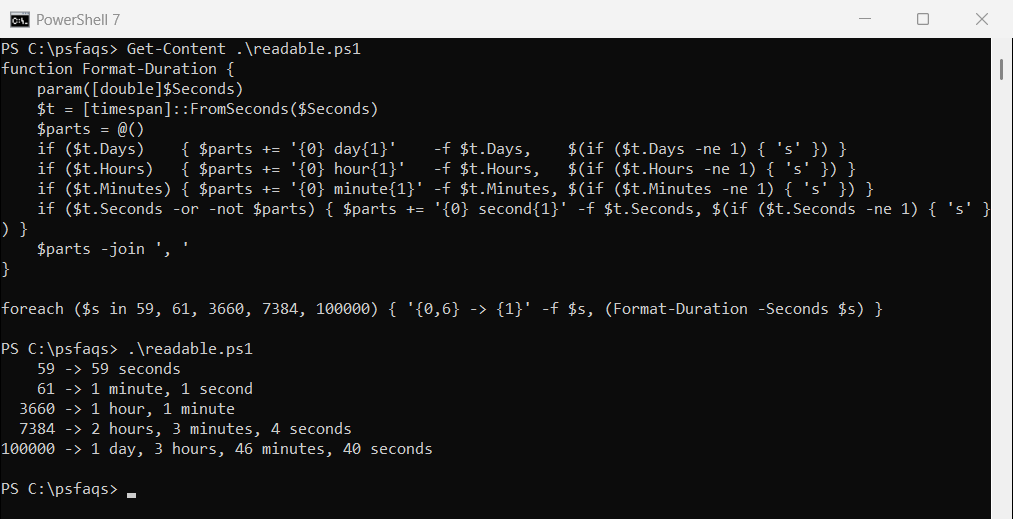
@(3600, 7200, 7385, 86400, 90061) | ConvertTo-HoursMinutes -Format Readable
# 1 hour
# 2 hours
# 2 hours, 3 minutes, 5 seconds
# 1 day
# 1 day, 1 hour, 1 minute, 1 second
# Pipeline from CSV column
Import-Csv "C:\Data\tasks.csv" |
ForEach-Object { $_.Duration = ConvertTo-HoursMinutes -Seconds $_.DurationSecs -Format Short; $_ } |
Format-Table
Check out Find Files Modified After a Specific Date Using PowerShell
Quick Reference
Here are all the methods.
| Goal | Code |
|---|---|
| Hours component | ([TimeSpan]::FromSeconds($s)).Hours |
| Minutes component | ([TimeSpan]::FromSeconds($s)).Minutes |
| Total decimal hours | ([TimeSpan]::FromSeconds($s)).TotalHours |
Format as hh:mm:ss | [TimeSpan]::FromSeconds($s).ToString("hh\:mm\:ss") |
Format as hh:mm | [TimeSpan]::FromSeconds($s).ToString("hh\:mm") |
| Readable label string | "{0}h {1}m {2}s" -f $ts.Hours, $ts.Minutes, $ts.Seconds |
| From milliseconds | [TimeSpan]::FromMilliseconds($ms).ToString("hh\:mm\:ss") |
| Script execution time | (Measure-Command { ... }).ToString("hh\:mm\:ss") |
| System uptime | ((Get-Date) - (Get-CimInstance Win32_OS).LastBootUpTime) |
Key Mistakes You Need to Avoid
Here are some key mistakes you need to avoid.
1. Using .Hours instead of .TotalHours for the complete value
.Hours returns the hours component (0–23) only. For 100000 seconds, .Hours returns 3 (the hours portion of “1 day, 3 hours”), while .TotalHours returns 27.77 (the complete duration in hours). Use .TotalHours when you want the full value, .Hours when you want the component.
2. Not escaping the colon in ToString() format strings
$ts.ToString("hh:mm:ss") produces wrong output. The colon must be escaped: $ts.ToString("hh\:mm\:ss"). This is the single most common formatting mistake with TimeSpan.
3. Ignoring days for large second values
86400 seconds = 1 full day. At this point .Hours resets to 0 and .Days becomes 1. If your display only shows hours and minutes, a 25-hour duration will wrongly display as 01:00. Always check .Days and include it in output for any use case that might exceed 24 hours.
4. Forgetting to cast CSV string values
[TimeSpan]::FromSeconds($_.DurationSeconds) fails when $_.DurationSeconds is a string (as all CSV fields are). Always cast first: [TimeSpan]::FromSeconds([int]$_.DurationSeconds) or [double]$_.DurationSeconds.
5. Using Get-Date formatting for durations
Get-Date formats work on actual clock times, not durations. Trying to format a TimeSpan through date format strings produces garbage output. Always use TimeSpan.ToString() or the -f operator with TimeSpan format specifiers.
Read Find Files Modified Between Dates Using PowerShell
Best Practices
Here are some best practices that you can follow.
- Use
[TimeSpan]::FromSeconds()as your default — clean, .NET native, works on all PowerShell versions - Always escape colons in format strings —
"hh\:mm\:ss"every time, without exception - Use
.TotalHours/.TotalMinutesfor calculations,.Hours/.Minutesfor display components - Always account for
.Daysin any use case that could exceed 86,400 seconds — uptime, backup durations, SLA tracking - Cast CSV seconds columns to
[int]or[double]before passing toFromSeconds() - Use
Measure-Commandinstead of manualGet-Datesubtraction for measuring script execution time — it’s cleaner and built for that purpose - Round
.TotalHourswhen displaying —[Math]::Round($ts.TotalHours, 1)avoids ugly floating-point strings like2.08472222222222
Conclusion
Converting seconds to hours and minutes in PowerShell is most cleanly done with [TimeSpan]::FromSeconds() — it gives you named component properties (.Hours, .Minutes, .Seconds) plus total decimal values (.TotalHours, .TotalMinutes) and a flexible ToString() formatter.
The reusable ConvertTo-HoursMinutes function in this tutorial covers all five output formats — clock string, readable label, compact short form, hours-only, and a full object — and works natively in pipelines for bulk CSV processing, uptime reporting, and performance metric formatting.
Do let me know if this helps.
You may also like the following tutorials:
- Create a Folder with Today’s Date and Copy Files to it using PowerShell
- Create a Folder with the Current Date using PowerShell
Bijay Kumar is an esteemed author and the mind behind PowerShellFAQs.com, where he shares his extensive knowledge and expertise in PowerShell, with a particular focus on SharePoint projects. Recognized for his contributions to the tech community, Bijay has been honored with the prestigious Microsoft MVP award. With over 15 years of experience in the software industry, he has a rich professional background, having worked with industry giants such as HP and TCS. His insights and guidance have made him a respected figure in the world of software development and administration. Read more.