
The “file is not digitally signed. You cannot run this script on the current system” error means your execution policy only runs signed scripts, and this one isn’t signed. For a script you trust, the quickest fix is to unblock it:
Unblock-File -Path .\Get-Report.ps1Below I reproduce the error, show why it happens, and walk through four fixes from safest to broadest. I tested each one in PowerShell 7.6 and Windows PowerShell 5.1.
What the error looks like
I downloaded a script and ran it under the RemoteSigned policy. PowerShell refused to load it:
$shell = (Get-Process -Id $PID).Path
$output = & $shell -NoProfile -ExecutionPolicy RemoteSigned -File C:\psfaqs\Signed\Get-Report.ps1 2>&1 |
    ForEach-Object { $_.ToString() } | Out-String
$message = ($output -replace '\s+', ' ') -replace '^.*?(File C:\S+ cannot be loaded\..*?current system\.).*$', '$1'
'Result: Failed.'
$message -split '(?<=\.) '
Output:
Result: Failed.
File C:\psfaqs\Signed\Get-Report.ps1 cannot be loaded.
The file C:\psfaqs\Signed\Get-Report.ps1 is not digitally signed.
You cannot run this script on the current system.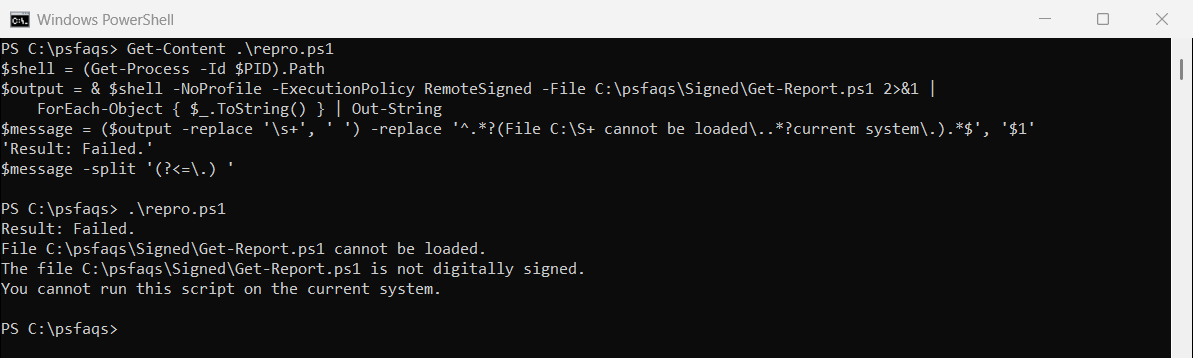
The error only appears in two cases. Either the policy is RemoteSigned and the script came from the internet, or the policy is AllSigned and the script isn’t signed.
This error is controlled by the execution policy, explained in setting the execution policy.
Why PowerShell blocks the script
Two things decide it: whether the script has a valid signature, and whether Windows marked it as downloaded. Check both:
$file = 'C:\psfaqs\Signed\Get-Report.ps1'
"Signature status: $((Get-AuthenticodeSignature -FilePath $file).Status)"
"Downloaded mark:  $([bool](Get-Item -Path $file -Stream Zone.Identifier -ErrorAction SilentlyContinue))"
Output:
Signature status: NotSigned
Downloaded mark:  True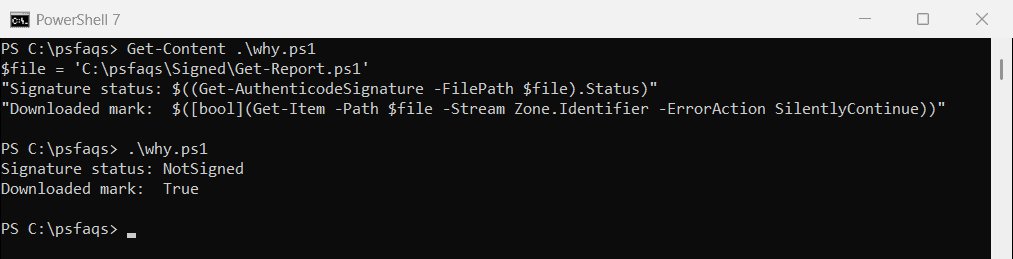
Browsers and most email apps add the Zone.Identifier mark to files you download. Under RemoteSigned, a marked script must be signed. Scripts you write yourself aren’t marked, so they run.
AllSigned blocks your own scripts too
Under AllSigned, even a script you created on this PC is refused. RemoteSigned runs it:
$shell = (Get-Process -Id $PID).Path
$output = & $shell -NoProfile -ExecutionPolicy AllSigned -File C:\psfaqs\Signed\My-Script.ps1 2>&1 |
    ForEach-Object { $_.ToString() } | Out-String
if ($output -match 'is not digitally signed') { 'AllSigned, local script: Failed. It is not digitally signed' } else { $output.Trim() }

$output = & $shell -NoProfile -ExecutionPolicy RemoteSigned -File C:\psfaqs\Signed\My-Script.ps1 2>&1 | Out-String
"RemoteSigned, local script: $($output.Trim())"
Output:
AllSigned, local script: Failed. It is not digitally signed
RemoteSigned, local script: My local script ran
Check your policy with Get-ExecutionPolicy -List.
Fix 1: Unblock the script you trust
Unblock-File removes the downloaded mark. The same script then runs normally under RemoteSigned:
Unblock-File -Path C:\psfaqs\Signed\Get-Report.ps1

$shell = (Get-Process -Id $PID).Path
& $shell -NoProfile -ExecutionPolicy RemoteSigned -File C:\psfaqs\Signed\Get-Report.ps1
Output:
Report ran at 2026-09-29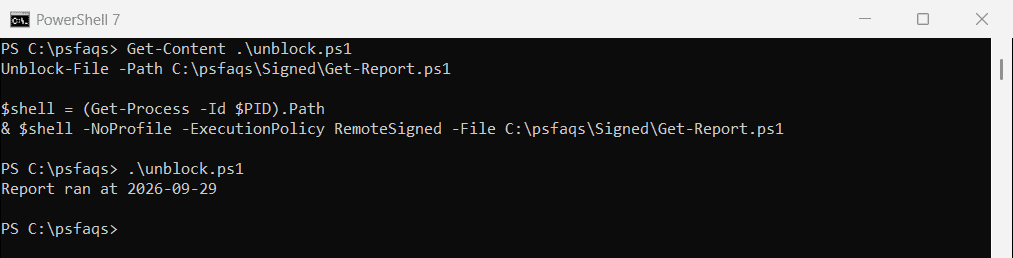
You can also right-click the file, choose Properties and select Unblock. For whole folders, see unblocking files recursively.
Fix 2: Bypass the policy for one run
To run a script once without changing anything, start PowerShell with -ExecutionPolicy Bypass. It only affects that one process:
powershell.exe -ExecutionPolicy Bypass -File .\Get-Report.ps1$shell = (Get-Process -Id $PID).Path
& $shell -NoProfile -ExecutionPolicy Bypass -File C:\psfaqs\Signed\Get-Report.ps1Output:
Report ran at 2026-09-29For the current window only, use Set-ExecutionPolicy -ExecutionPolicy Bypass -Scope Process. It resets when you close the window.
Fix 3: Change the execution policy for your account
If AllSigned is blocking your own scripts, switch your account to RemoteSigned. It doesn’t need admin rights:
Set-ExecutionPolicy -ExecutionPolicy RemoteSigned -Scope CurrentUserThis won’t help with downloaded scripts, which still need unblocking. If Group Policy sets the policy, this command can’t override it. Setting the execution policy covers every scope.
Fix 4: Sign the script
In companies that require AllSigned, sign scripts with a code signing certificate from your organization:
$cert = Get-ChildItem -Path Cert:\CurrentUser\My -CodeSigningCert | Select-Object -First 1
Set-AuthenticodeSignature -FilePath .\Get-Report.ps1 -Certificate $cert
The signature adds a comment block to the end of th