
To convert seconds to hours and minutes in PowerShell, turn the number into a TimeSpan with New-TimeSpan -Seconds. Its Hours, Minutes and Seconds properties hold the parts, and ToString formats it as hh:mm:ss:
$seconds = 7384
$time = New-TimeSpan -Seconds $seconds

"$seconds seconds = $($time.Hours) hours, $($time.Minutes) minutes, $($time.Seconds) seconds"
"As hh:mm:ss: $($time.ToString('hh\:mm\:ss'))"
Output:
7384 seconds = 2 hours, 3 minutes, 4 seconds
As hh:mm:ss: 02:03:04
The backslashes in ‘hh\:mm\:ss’ are required, because a colon means something special in TimeSpan formats. Every example ran in PowerShell 7.6 and Windows PowerShell 5.1, with the same results.
Parts vs totals
[timespan]::FromSeconds does the same job as New-TimeSpan. Hours and Minutes are the parts of the time, while TotalHours and TotalMinutes are the whole length in one unit:
$time = [timespan]::FromSeconds(7384)

"Hours:        $($time.Hours)"
"Minutes:      $($time.Minutes)"
"TotalHours:   $([Math]::Round($time.TotalHours, 2))"
"TotalMinutes: $([Math]::Round($time.TotalMinutes, 2))"
Output:
Hours:        2
Minutes:      3
TotalHours:   2.05
TotalMinutes: 123.07
Minutes is 3 because 7,384 seconds is 2 hours and 3 minutes. TotalMinutes is 123.07 because that’s the full length in minutes.
Convert seconds to minutes
Use TotalMinutes for a decimal number of minutes, or combine the whole minutes with the leftover seconds for a m:ss display:
foreach ($s in 45, 90, 754, 3600) {
    $t = [timespan]::FromSeconds($s)
    '{0,5} s = {1,6:N2} minutes = {2}:{3:D2} (m:ss)' -f $s, $t.TotalMinutes, [int][Math]::Floor($t.TotalMinutes), $t.Seconds
}
Output:
   45 s =   0.75 minutes = 0:45 (m:ss)
   90 s =   1.50 minutes = 1:30 (m:ss)
  754 s =  12.57 minutes = 12:34 (m:ss)
 3600 s =  60.00 minutes = 60:00 (m:ss)
Floor keeps whole minutes, since [int] would round 12.57 up to 13. Rounding numbers covers the rounding options.
More than 24 hours
Past one day, Hours starts over at 0 and the extra day goes into Days. A plain hh:mm:ss format then hides the day completely:
$time = [timespan]::FromSeconds(100000)

"Hours property only:   $($time.Hours)"
"hh:mm:ss format:       $($time.ToString('hh\:mm\:ss'))"
"With days:             $($time.ToString('d\.hh\:mm\:ss'))"
"Total hours as h:mm:ss: {0}:{1:D2}:{2:D2}" -f [int][Math]::Floor($time.TotalHours), $time.Minutes, $time.Seconds
Output:
Hours property only:   3
hh:mm:ss format:       03:46:40
With days:             1.03:46:40
Total hours as h:mm:ss: 27:46:40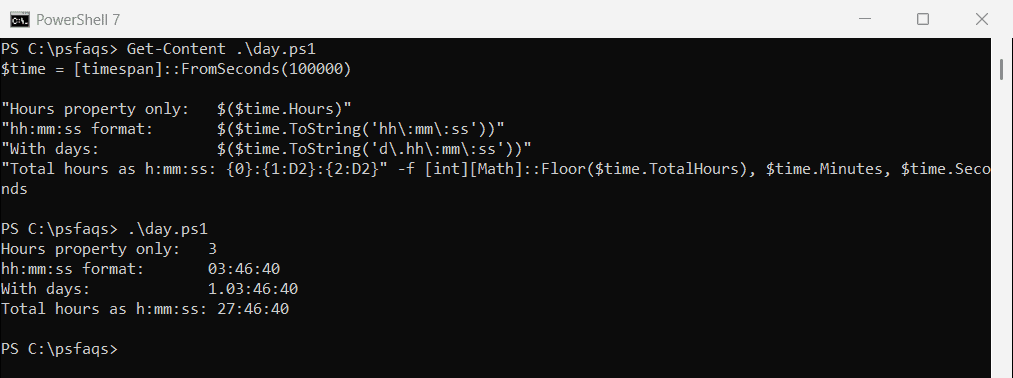
Use the d.hh:mm:ss format, or build the text from TotalHours, whenever durations can run past a day. Microsoft lists every format specifier in Custom TimeSpan format strings.
A readable duration
For reports and emails, words read better than colons. This function lists only the parts that aren’t zero and handles singular and plural:
function Format-Duration {
    param([double]$Seconds)
    $t = [timespan]::FromSeconds($Seconds)
    $parts = @()
    if ($t.Days)    { $parts += '{0} day{1}'    -f $t.Days,    $(if ($t.Days -ne 1) { 's' }) }
    if ($t.Hours)   { $parts += '{0} hour{1}'   -f $t.Hours,   $(if ($t.Hours -ne 1) { 's' }) }
    if ($t.Minutes) { $parts += '{0} minute{1}' -f $t.Minutes, $(if ($t.Minutes -ne 1) { 's' }) }
    if ($t.Seconds -or -not $parts) { $parts += '{0} second{1}' -f $t.Seconds, $(if ($t.Seconds -ne 1) { 's' }) }
    $parts -join ', '
}

foreach ($s in 59, 61, 3660, 7384, 100000) { '{0,6} -> {1}' -f $s, (Format-Duration -Seconds $s) }
Output:
    59 -> 59 seconds
    61 -> 1 minute, 1 second
  3660 -> 1 hour, 1 minute
  7384 -> 2 hours, 3 minutes, 4 seconds
100000 -> 1 day, 3 hours, 46 minutes, 40 seconds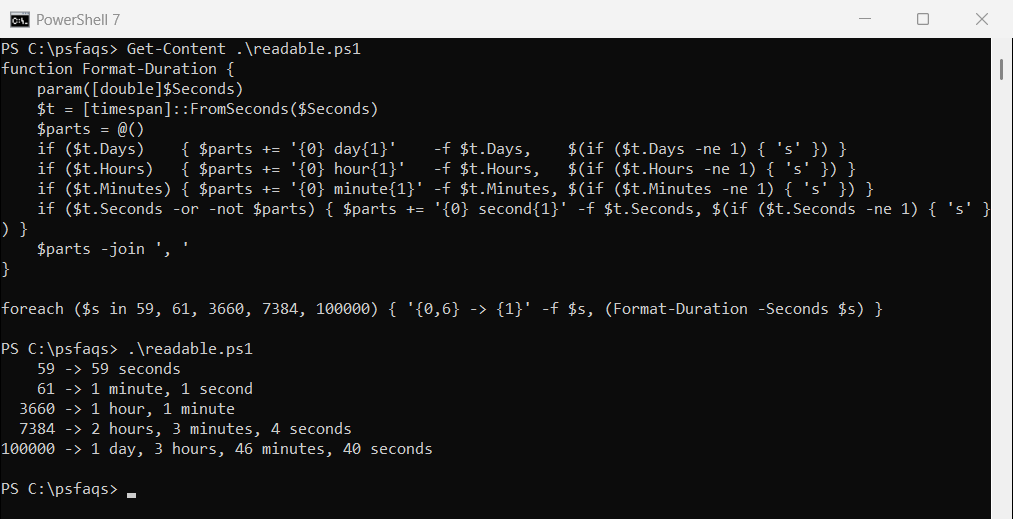
Convert a time string to seconds
Cast a time string to [timespan] and read TotalSeconds. The catch is that a short string like 2:30 is read as hours and minutes, not minutes and seconds:
foreach ($text in '00:02:30', '01:15:00', '2:30', '1.02:00:00') {
    '{0,-11} -> {1,6} seconds' -f $text, ([timespan]$text).TotalSeconds
}
Output:
00:02:30    ->    150 seconds
01:15:00    ->   4500 seconds
2:30        ->   9000 seconds
1.02:00:00  ->  93600 seconds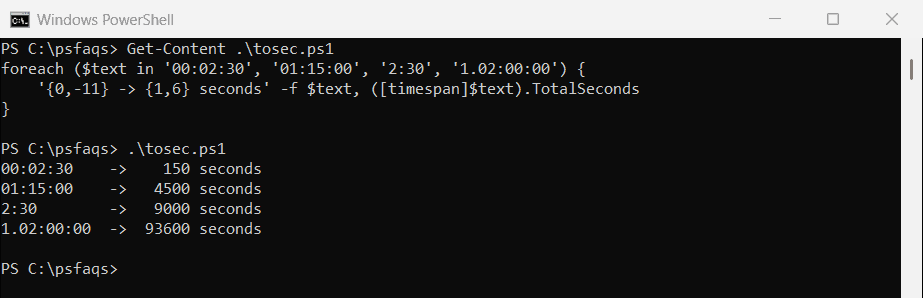
Write 00:02:30 for two and a half minutes. A day count goes before a dot, as in 1.02:00:00.
Minutes and seconds like 90:15
Lap times and video lengths are often written as minutes:seconds, with minutes over 59. The cast fails on those, so split the text instead:
$lap = '90:15'

try { "As a plain cast: $(([timespan]$lap).TotalSeconds)" }
catch { "As a plain cast: Failed. '$lap' is read as 90 hours and 15 minutes" }

$minutes, $seconds = $lap -split ':'
"Split into minutes and seconds: $([int]$minutes * 60 + [int]$seconds) seconds"
Output:
As a plain cast: Failed. '90:15' is read as 90 hours and 15 minutes
Split into minutes and seconds: 5415 seconds
Multiply the minutes by 60 and add the seconds. The same idea works for hours:minutes:seconds with more parts.
Seconds between two times
Subtracting one date from another gives a TimeSpan, so all of the above works on elapsed time too:
$start = Get-Date -Date '2026-09-29 08:15:00'
$end = Get-Date -Date '2026-09-29 10:47:30'

$elapsed = $end - $start
"Elapsed seconds: $($elapsed.TotalSeconds)"
"Elapsed time:    $($elapsed.ToString('hh\:mm\:ss'))"
Output:
Elapsed seconds: 9150
Elapsed time:    02:32:30
Measure-Command returns a TimeSpan as well, so its TotalSeconds works the same way. The New-TimeSpan documentation covers the -Start and -End parameters.
Frequently Asked Questions
How do I convert seconds to hours and minutes in PowerShell?
Use (New-TimeSpan -Seconds 7384).ToString('hh\:mm\:ss'), which returns 02:03:04.
How do I convert seconds to minutes in PowerShell?
Use [timespan]::FromSeconds(754).TotalMinutes for a decimal, or the Minutes and Seconds parts for m:ss.
Why does my hours value reset after 24 hours?
The Hours property only counts up to 23, and the rest goes into Days. Use TotalHours or a d.hh:mm:ss format.
How do I convert a time like 01:15:00 to seconds?
Cast it and read TotalSeconds: ([timespan]'01:15:00').TotalSeconds returns 4500.
Why does ‘2:30’ convert to 9000 seconds?
A two-part time string is read as hours:minutes. Write ’00:02:30′ for 2 minutes 30 seconds.
Working with dates and durations? These help too:
- Work out month start and end dates
- Convert a string to a date
- Round numbers
- Add a date to a file name

Bijay Kumar is an esteemed author and the mind behind PowerShellFAQs.com, where he shares his extensive knowledge and expertise in PowerShell, with a particular focus on SharePoint projects. Recognized for his contributions to the tech community, Bijay has been honored with the prestigious Microsoft MVP award. With over 15 years of experience in the software industry, he has a rich professional background, having worked with industry giants such as HP and TCS. His insights and guidance have made him a respected figure in the world of software development and administration. Read more.