
To find an HP laptop’s product number with PowerShell, read the SystemSKUNumber property of the Win32_ComputerSystem class. That’s the number printed on the sticker, the one HP support asks for:
(Get-CimInstance -ClassName Win32_ComputerSystem).SystemSKUNumberOutput:
7C2M1UA#ABAI ran everything in this guide on an HP Pavilion laptop, in PowerShell 7.6 and Windows PowerShell 5.1. A product number and serial number identify one specific laptop, so I’ve replaced mine with made-up values in the text and covered them in the screenshots.
Get the serial number
The serial number is stored in the BIOS, so it comes from Win32_BIOS:
(Get-CimInstance -ClassName Win32_BIOS).SerialNumberOutput:
5CD2140XYZYou need both numbers for most HP support tasks. The product number tells HP which model and configuration you have, and HP uses the serial number to look up your warranty.
Get the model, product number and serial number together
Combine the two classes into one object to see everything at once, along with the BIOS version:
$system = Get-CimInstance -ClassName Win32_ComputerSystem
$bios   = Get-CimInstance -ClassName Win32_BIOS

[pscustomobject]@{
    Manufacturer  = $system.Manufacturer
    Model         = $system.Model
    ProductNumber = $system.SystemSKUNumber
    SerialNumber  = $bios.SerialNumber
    BIOSVersion   = $bios.SMBIOSBIOSVersion
} | Format-List
Output:
Manufacturer  : HP
Model         : HP Pavilion Laptop 15-eg2xxx
ProductNumber : 7C2M1UA#ABA
SerialNumber  : 5CD2140XYZ
BIOSVersion   : F.14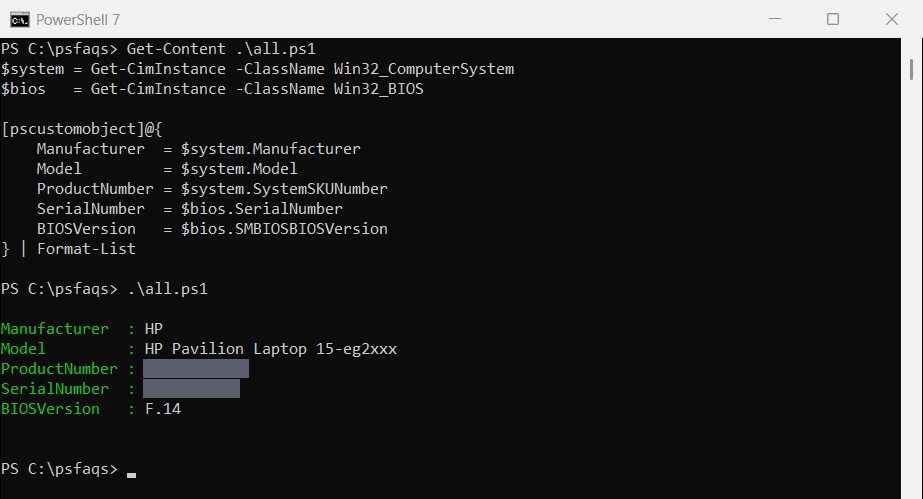
The model name from Win32_ComputerSystem is the marketing name, like HP Pavilion Laptop 15. The product number is more specific, so use it when you download drivers.
Win32_ComputerSystemProduct
Win32_ComputerSystemProduct is another place to look. Its IdentifyingNumber is the same serial number:
Get-CimInstance -ClassName Win32_ComputerSystemProduct |
    Select-Object -Property Vendor, Name, IdentifyingNumber
Output:
Vendor Name                         IdentifyingNumber
------ ----                         -----------------
HP     HP Pavilion Laptop 15-eg2xxx 5CD2140XYZ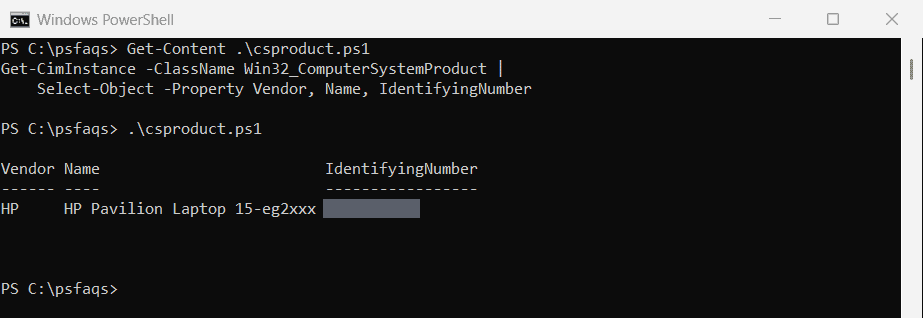
Why doesn’t wmic csproduct work anymore?
Many older guides use wmic csproduct get name in Command Prompt. On my updated Windows 11 laptop, it no longer exists:
cmd /c "wmic csproduct get name" 2>&1Output in PowerShell 7:
'wmic' is not recognized as an internal or external command,
operable program or batch file.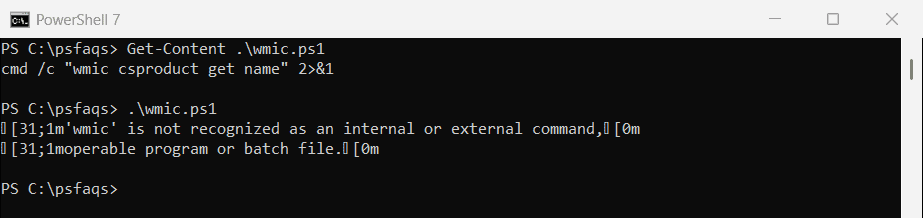
That’s expected. Microsoft deprecated WMIC years ago, and starting in August 2026, Windows 11 versions 24H2 and 25H2 no longer include it at all.
Get the product number from Command Prompt
You can still get it from Command Prompt by calling PowerShell for that one command:
cmd /c "powershell -NoProfile -Command (Get-CimInstance Win32_ComputerSystem).SystemSKUNumber"Output:
7C2M1UA#ABAThat line works in Command Prompt, in batch files, and anywhere else that runs a cmd command.
Get-WmiObject vs Get-CimInstance
Older scripts use Get-WmiObject, and it still works in Windows PowerShell 5.1:
Get-WmiObject -Class Win32_BIOS | Select-Object -Property SerialNumberOutput in Windows PowerShell 5.1:
SerialNumber
------------
5CD2140XYZ
It isn’t part of PowerShell 7, though. On my PC it still ran there, because PowerShell 7 quietly loaded it from Windows PowerShell through its compatibility feature:
$command = Get-Command -Name Get-WmiObject
"Module:   $($command.Source) $($command.Module.Version)"
"Loaded through Windows PowerShell compatibility: $($command.Module.Path -like '*remoteIpMoProxy*')"
Output in PowerShell 7:
Module:   Microsoft.PowerShell.Management 1.0
Loaded through Windows PowerShell compatibility: True
That runs in a hidden Windows PowerShell session, which is slower and only works on Windows. Get-CimInstance works natively in both versions, so use it in new scripts.
Collect HP laptop details for an inventory
For a fleet of laptops, save the details to a CSV file. Add the computer name so you can match rows to machines:
$system = Get-CimInstance -ClassName Win32_ComputerSystem
$bios   = Get-CimInstance -ClassName Win32_BIOS

[pscustomobject]@{
    ComputerName  = 'LAPTOP-042'
    Model         = $system.Model
    ProductNumber = $system.SystemSKUNumber
    SerialNumber  = $bios.SerialNumber
    CheckedOn     = Get-Date -Year 2026 -Month 9 -Day 28 -Format 'yyyy-MM-dd'
} | Export-Csv -Path C:\psfaqs\hp-inventory.csv -NoTypeInformation

Get-Content -Path C:\psfaqs\hp-inventory.csv
Output:
"ComputerName","Model","ProductNumber","SerialNumber","CheckedOn"
"LAPTOP-042","HP Pavilion Laptop 15-eg2xxx","7C2M1UA#ABA","5CD2140XYZ","2026-09-28"
To collect the same details from other laptops, add -ComputerName to Get-CimInstance. That needs PowerShell remoting (WinRM) on the targets, so I didn’t run it here:
Get-CimInstance -ClassName Win32_BIOS -ComputerName LAPTOP-042, LAPTOP-043 |
    Select-Object -Property PSComputerName, SerialNumber
See PowerShell Export-Csv for more on building reports.