
If you’ve been writing PowerShell scripts for a while, you’ve probably run into a situation where you’re looping through a list of items and at some point you think — “I don’t want to process this one, just skip it and move on.”
That’s exactly what we’re going to cover in this tutorial.
I’ll walk you through all the ways you can skip to the next item in a PowerShell loop — using continue, return, and a few other tricks — with practical examples you can use right away.
Let’s get into it.
What Does “Next Item in Loop” Mean?
When you loop through a collection in PowerShell (say, a list of servers, files, or usernames), each cycle of the loop is called an iteration. Sometimes, mid-iteration, you realize you don’t need to do anything with that particular item. You want to skip the rest of the code for that item and jump straight to the next one.
In PowerShell, you do this using:
continue— works inforeach,for,while, anddo-whileloopsreturn— used specifically insideForEach-Objectpipelines- Conditional logic — sometimes the cleanest option
Let me show you all three with proper examples.
Method 1: Using continue in a foreach Loop
This is the most common scenario. You have a foreach loop and you want to skip certain items based on a condition.
Here’s the basic syntax:
foreach ($item in $collection) {
    if (<condition>) {
        continue
    }
    # rest of your code
}
When PowerShell hits continue, it immediately stops running the rest of the code in that iteration and jumps to the next item in the collection. Everything below continue in that loop cycle gets skipped.
Example: Skip even numbers
Let’s say you have a list of numbers and you only want to process the odd ones:
$numbers = 1..10

foreach ($num in $numbers) {
    if ($num % 2 -eq 0) {
        continue
    }
    Write-Host "$num is odd"
}
Output:
1 is odd
3 is odd
5 is odd
7 is odd
9 is odd
Even numbers hit the continue statement, so the Write-Host line never runs for them. Only odd numbers make it through.
Here is the exact output in the screenshot below:

Example: Skip empty strings in a list
Here’s a real-world scenario — you have a list of computer names imported from a CSV and some rows are empty:
$computers = @("Server01", "", "Server02", "", "Server03")

foreach ($computer in $computers) {
    if ([string]::IsNullOrWhiteSpace($computer)) {
        continue
    }
    Write-Host "Connecting to $computer..."
}
Output:
Connecting to Server01...
Connecting to Server02...
Connecting to Server03...
The empty strings get skipped cleanly, and your script never tries to connect to a blank computer name.
Method 2: Using continue in a for Loop
The continue keyword works exactly the same in a traditional for loop in PowerShell. The loop counter still increments normally — continue just skips the rest of the code in that pass.
for ($i = 1; $i -le 10; $i++) {
    if ($i -eq 5) {
        continue
    }
    Write-Host "Processing item $i"
}
Output:
Processing item 1
Processing item 2
Processing item 3
Processing item 4
Processing item 6
Processing item 7
Processing item 8
Processing item 9
Processing item 10
Item 5 is skipped. Everything else processes normally.
Method 3: Using continue in a while Loop
Works the same way in while and do-while loops too. Just be careful — make sure you’re still incrementing your counter, otherwise you’ll end up in an infinite loop.
$i = 0

while ($i -lt 10) {
    $i++
    if ($i % 3 -eq 0) {
        continue
    }
    Write-Host "Current value: $i"
}
Output:
Current value: 1
Current value: 2
Current value: 4
Current value: 5
Current value: 7
Current value: 8
Current value: 10
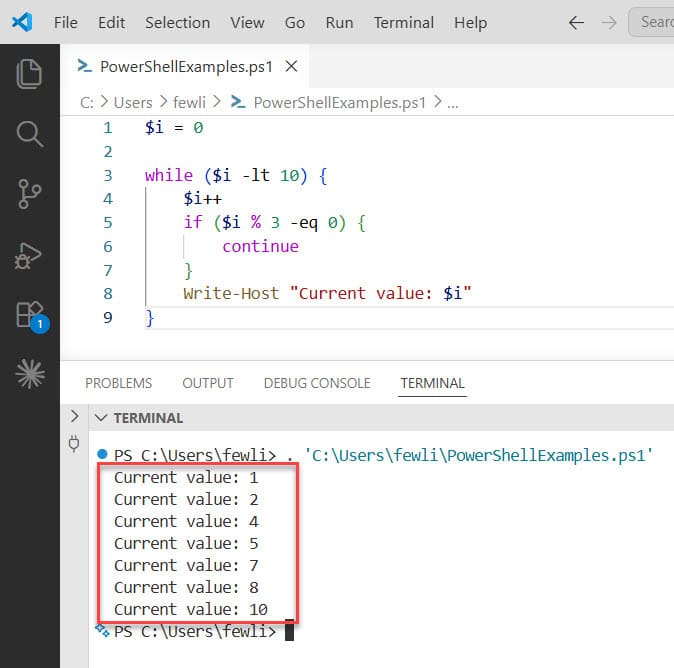
Multiples of 3 (3, 6, 9) are skipped. Notice I put $i++ before the if check — if I put it after and then hit continue, the increment would never run and I’d be stuck at the same value forever.
You can see the exact output in the screenshot below:
Method 4: Using return in ForEach-Object
Here’s something that trips up a lot of people.
If you’re using the pipeline-based ForEach-Object cmdlet instead of the foreach statement, continue does not work the way you’d expect. Using continue inside ForEach-Object can actually abort your entire script silently — not just skip one item.
The correct way to skip to the next item inside ForEach-Object is to use return.
$numbers = 1..10

$numbers | ForEach-Object {
    if ($_ % 2 -eq 0) {
        return
    }
    Write-Host "$_ is odd"
}
Output:
1 is odd
3 is odd
5 is odd
7 is odd
9 is odd
Inside ForEach-Object, return behaves like continue does in a foreach loop — it exits the current iteration’s script block and moves on to the next item. It doesn’t stop the pipeline.
Here’s a comparison to keep in mind:
| Loop Type | Keyword to Use | Notes |
|---|---|---|
foreach statement | continue | Standard, clean |
for loop | continue | Works identically |
while / do-while | continue | Be careful with counter placement |
ForEach-Object (pipeline) | return | Do NOT use continue here |
Check out PowerShell Do-Until Loop Examples
Method 5: Skipping Items with Conditional Logic (No continue Needed)
Sometimes you don’t even need continue. If your loop body is simple, you can just wrap the processing code in an if block and only run it when you want to.
$users = @("Alice", "Bob", "", "Charlie", "")

foreach ($user in $users) {
    if (-not [string]::IsNullOrWhiteSpace($user)) {
        Write-Host "Hello, $user!"
    }
}
This does the exact same thing as using continue but without the keyword. It’s just a matter of preference and readability. For short loops with simple logic, this approach is perfectly fine.
I personally lean toward continue when the condition for skipping is complex, because it lets me handle the “skip” logic early and keep the rest of the loop body clean and easy to read.
Real-World Example: Processing Files and Skipping Non-PS1 Files
Let me put it all together with a practical example you might actually use. Say you have a folder of files and you only want to process .ps1 script files:
$files = Get-ChildItem -Path "C:\Scripts" -File

foreach ($file in $files) {
    if ($file.Extension -ne ".ps1") {
        Write-Host "Skipping $($file.Name) — not a PowerShell file"
        continue
    }
    Write-Host "Processing: $($file.Name)"
    # Your processing logic here
}
Notice I added a Write-Host before continue to log the skip. You can do this — continue doesn’t have to be the very first thing in the if block. Any code before continue still runs. It’s only the code after continue (further down in the loop body) that gets skipped.
Real-World Example: Checking Active Directory Users
Here’s another one. You’re looping through a list of AD usernames and you want to skip any that don’t exist:
$usernames = @("jsmith", "adoe", "mwilson", "nonexistent_user")

foreach ($username in $usernames) {
    $user = Get-ADUser -Filter {SamAccountName -eq $username} -ErrorAction SilentlyContinue

    if ($null -eq $user) {
        Write-Warning "User '$username' not found. Skipping."
        continue
    }

    Write-Host "Found user: $($user.DisplayName)"
    # Do something with the user object
}
This keeps your script from throwing errors on missing accounts and moves on cleanly.
continue vs break — Don’t Mix These Up
While we’re here, it’s worth quickly clarifying the difference between continue and break since they look similar but do very different things:
continue— skips the current iteration and moves to the next item in the loop. The loop keeps going.break— exits the loop entirely. No more iterations after this point.
$numbers = 1..10

foreach ($num in $numbers) {
    if ($num -eq 5) {
        break  # stops the entire loop at 5
    }
    Write-Host $num
}
Output:
1
2
3
4
The loop stops completely at 5. If you had used continue instead, 5 would just be skipped, but the loop would continue through 6, 7, 8, 9, 10.
Use break when you’ve found what you’re looking for and have no reason to keep going. Use continue when you want to skip something but still need to finish processing the rest of the list.
Nested Loops: Which Loop Does continue Affect?
If you have a loop inside another loop, continue always applies to the innermost loop it’s in. It doesn’t bubble up to the outer loop.
foreach ($i in 1..3) {
    foreach ($j in 1..3) {
        if ($j -eq 2) {
            continue  # skips j=2 only, inner loop keeps going
        }
        Write-Host "i=$i, j=$j"
    }
}
Output:
i=1, j=1
i=1, j=3
i=2, j=1
i=2, j=3
i=3, j=1
i=3, j=3
Only j=2 is skipped in each pass of the inner loop. The outer loop runs all three iterations normally. If you want continue to affect the outer loop from inside the inner one, that’s more complex and usually means you need to rethink your logic — or use labeled loops (which PowerShell doesn’t natively support the way some languages do).
Quick Summary of What to Use When
Here’s a quick cheat sheet:
- Use
continueinsideforeach,for,while, anddo-whileloops to skip the current iteration - Use
returninsideForEach-Object(pipeline) to skip the current item - Never use
continueorbreakinsideForEach-Object— it can silently break your script - Use
breakwhen you want to exit the loop entirely, not just skip one item - For simple conditions, wrapping your code in an
ifblock works just as well ascontinue
Final Thoughts
Controlling loop flow is one of those things that makes your scripts feel solid and reliable. Once you understand when to use continue vs return vs just a plain if block, writing cleaner PowerShell becomes second nature.
The biggest gotcha to remember: return in ForEach-Object, continue everywhere else. Get that right, and you’ll avoid a whole category of frustrating bugs.
You may also like the following tutorials:

Bijay Kumar is an esteemed author and the mind behind PowerShellFAQs.com, where he shares his extensive knowledge and expertise in PowerShell, with a particular focus on SharePoint projects. Recognized for his contributions to the tech community, Bijay has been honored with the prestigious Microsoft MVP award. With over 15 years of experience in the software industry, he has a rich professional background, having worked with industry giants such as HP and TCS. His insights and guidance have made him a respected figure in the world of software development and administration. Read more.
