
To install Windows updates using PowerShell, use the Windows Update Agent built into Windows, or the community PSWindowsUpdate module. PSWindowsUpdate is the quickest. In an elevated window, install it once, then install every available update:
Install-Module -Name PSWindowsUpdate -Scope CurrentUser
Install-WindowsUpdate -AcceptAll -AutoReboot
-AutoReboot restarts the PC if an update needs it, so leave it off on machines people are using. Below I show how to check for updates first, the built-in method that needs no extra module, and how to confirm what got installed.
Check for pending updates
The Windows Update Agent has a COM interface that any PowerShell version can use without installing anything. Searching is read-only and works without admin rights:
$session = New-Object -ComObject Microsoft.Update.Session
$searcher = $session.CreateUpdateSearcher()
$result = $searcher.Search("IsInstalled=0 and IsHidden=0")

"Updates waiting: $($result.Updates.Count)"
foreach ($update in $result.Updates) {
    if ($update.Type -eq 2) { '  Driver update' }
    else { '  ' + $update.Title }
}
Output:
Updates waiting: 2
  Driver update
  Driver update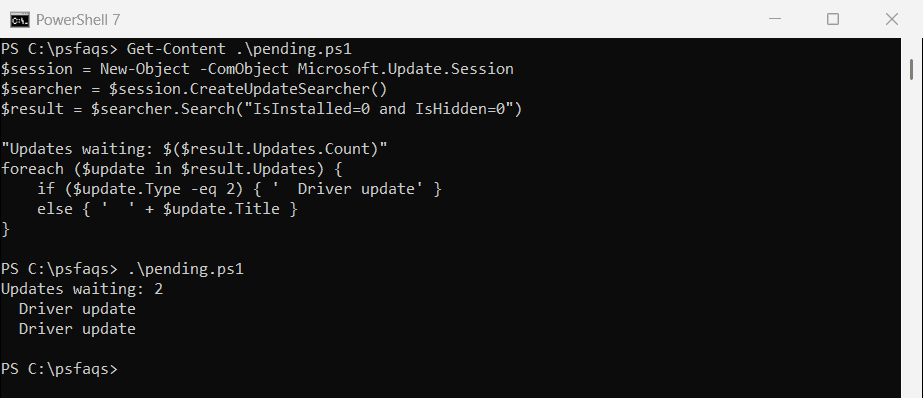
The search takes 20 to 60 seconds while Windows contacts the update service. I print driver updates generically here, but $update.Title gives you the full name.
With PSWindowsUpdate installed, Get-WindowsUpdate returns the same list in a table.
To see what was installed before, check the Windows Update history.
Install updates with the built-in Windows Update Agent
This follows Microsoft’s search, download and install sample. It needs an elevated window, and it installs software updates only, not drivers:
$session = New-Object -ComObject Microsoft.Update.Session
$result = $session.CreateUpdateSearcher().Search("IsInstalled=0 and Type='Software' and IsHidden=0")

$updates = New-Object -ComObject Microsoft.Update.UpdateColl
foreach ($update in $result.Updates) {
    if (-not $update.EulaAccepted) { $update.AcceptEula() }
    [void]$updates.Add($update)
}

if ($updates.Count -gt 0) {
    $downloader = $session.CreateUpdateDownloader()
    $downloader.Updates = $updates
    [void]$downloader.Download()

    $installer = $session.CreateUpdateInstaller()
    $installer.Updates = $updates
    $outcome = $installer.Install()
    "Result code: $($outcome.ResultCode), restart needed: $($outcome.RebootRequired)"
}
A result code of 2 means every update succeeded.
Install updates with PSWindowsUpdate
PSWindowsUpdate wraps the same agent in easy commands. It’s a community module from the PowerShell Gallery, not made by Microsoft, so check that your organization allows it:
Install-Module -Name PSWindowsUpdate -Scope CurrentUser
Import-Module PSWindowsUpdate

Get-WindowsUpdate
Install-WindowsUpdate -AcceptAll -IgnoreReboot
-IgnoreReboot installs everything but leaves the restart to you. Add -MicrosoftUpdate to include updates for Office and other Microsoft products.
“Get-WindowsUpdate is not recognized”
That error means the module isn’t installed or loaded in this window. Run Install-Module, then Import-Module, as shown above. If Install-Module is blocked, check the execution policy.
Check the update history
The agent keeps a history of every update and whether it worked. This is also read-only:
$searcher = (New-Object -ComObject Microsoft.Update.Session).CreateUpdateSearcher()
$status = @{ 1 = 'In progress'; 2 = 'Succeeded'; 3 = 'Succeeded with errors'; 4 = 'Failed'; 5 = 'Aborted' }

"Update history entries: $($searcher.GetTotalHistoryCount())"
$searcher.QueryHistory(0, 3) | ForEach-Object {
    $title = $_.Title
    if ($title.Length -gt 50) { $title = $title.Substring(0, 50) + '...' }
    '{0:yyyy-MM-dd}  {1,-9}  {2}' -f $_.Date, $status[[int]$_.ResultCode], $title
}
Output:
Update history entries: 744
2026-09-28  Succeeded  Security Intelligence Update for Microsoft Defende...
2026-09-28  Succeeded  Security Intelligence Update for Microsoft Defende...
2026-09-27  Succeeded  Security Intelligence Update for Microsoft Defende...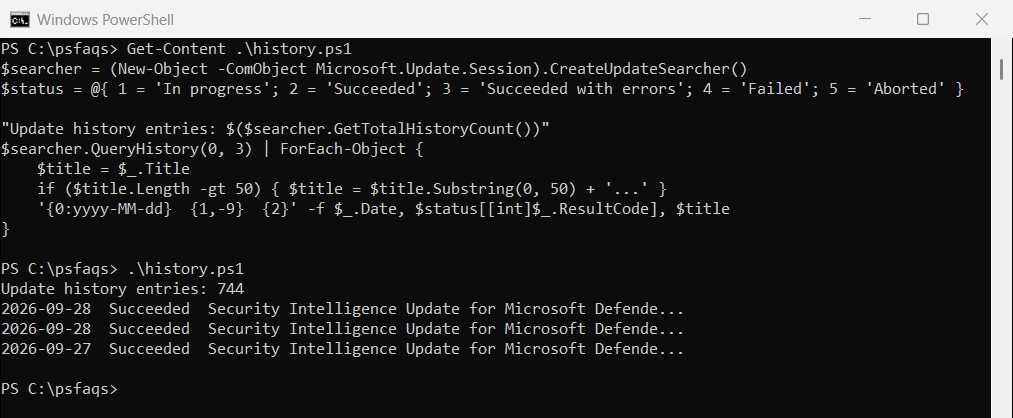
Look for Failed in the status column when an update keeps coming back.
List installed updates with Get-HotFix
Get-HotFix lists the Windows updates installed on the PC, with their KB numbers and dates:
Get-HotFix |
    Sort-Object -Property InstalledOn -Descending |
    Select-Object -First 3 |
    ForEach-Object { '{0}  {1,-16}  installed {2:yyyy-MM-dd}' -f $_.HotFixID, $_.Description, $_.InstalledOn }
Output:
KB5120998  Update            installed 2026-09-03
KB5120997  Update            installed 2026-09-03
KB5120708  Update            installed 2026-08-24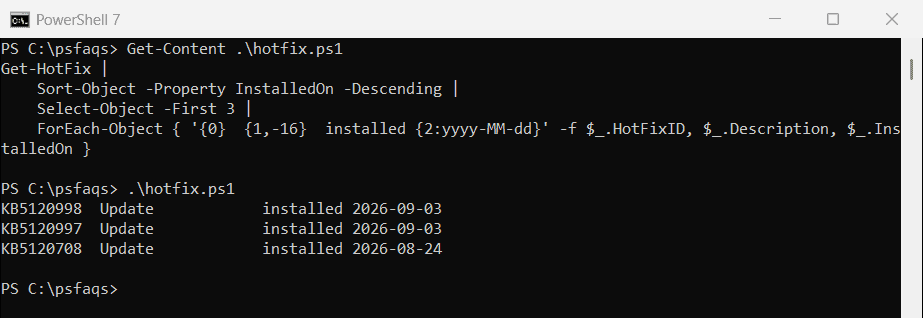
It shows Windows updates only, not Defender or driver updates. Add -ComputerName to check another PC.
Check if a restart is needed
Updates often finish only after a restart. The agent’s SystemInfo object tells you whether one is waiting:
$info = New-Object -ComObject Microsoft.Update.SystemInfo
"Restart needed to finish updates: $($info.RebootRequired)"
Output:
Restart needed to finish updates: FalseCheck this before rebooting servers during business hours. Restarting a computer with PowerShell covers scheduled restarts.
Frequently Asked Questions
How do I install all Windows updates with PowerShell?
Install the PSWindowsUpdate module, then run Install-WindowsUpdate -AcceptAll in an elevated window. Or use the built-in Windows Update Agent COM object.