PowerShell Start-Process [With Real-World Examples]

When working with PowerShell, I often need to launch external applications or processes. For these kinds of requirements, you can use the Start-Process cmdlet.

In this tutorial, I will explain everything you need to know about the PowerShell Start-Process cmdlet, including various parameters, practical examples, and common troubleshooting tips.

What is Start-Process in PowerShell?

The Start-Process cmdlet in PowerShell allows you to start one or more processes on the local computer. It gives you control over how a process starts, including options to run as an administrator, specify working directories, pass arguments, and control window styles.

I’ve found it particularly useful when:

  • Running applications with elevated privileges
  • Starting processes with specific arguments
  • Controlling process window visibility
  • Waiting for processes to complete before continuing script execution

Basic Syntax of Start-Process

Below is the complete syntax of Start-Process in PowerShell.

Start-Process [-FilePath] <String> [[-ArgumentList] <String[]>] [-Credential <PSCredential>] 
[-WorkingDirectory <String>] [-LoadUserProfile] [-NoNewWindow] [-PassThru] 
[-RedirectStandardError <String>] [-RedirectStandardInput <String>] 
[-RedirectStandardOutput <String>] [-WindowStyle <ProcessWindowStyle>] 
[-Wait] [-UseNewEnvironment] [<CommonParameters>]

Let’s break down the essential parameters I use most often:

Check out PowerShell Throw Exception with Message

Method 1 – Starting a Basic Process

The simplest way to use Start-Process in PowerShell is to specify just the path to the executable you want to run.

Start-Process -FilePath "notepad.exe"

This command will launch Notepad. I use this basic approach when I just need to start an application without any special requirements.

You can see I have executed the above PowerShell cmdlets, and below is the output in the screenshot:

PowerShell Start-Process

When working with applications in the system PATH, you can simply specify the executable name. However, for applications not in the PATH, you’ll need to provide the full path:

Start-Process -FilePath "C:\Program Files\Microsoft Office\root\Office16\EXCEL.EXE"

Check out PowerShell For Loop With Index and Range Examples

Method 2 – Running a Process with Arguments

Most of the time, I need to pass arguments to the applications I’m launching. The -ArgumentList parameter makes this easy:

Start-Process -FilePath "powershell.exe" -ArgumentList "-NoProfile -ExecutionPolicy Bypass -File C:\Scripts\DataAnalysis.ps1"

This launches PowerShell with specific arguments to run a script with customized settings.

For applications that require multiple arguments, you can pass them as an array:

Start-Process -FilePath "ping.exe" -ArgumentList "google.com", "-t"

Method 3 – Running with Administrative Privileges

One of the most useful features of Start-Process is the ability to launch processes with elevated privileges. Here is how you can use it.

Start-Process -FilePath "powershell.exe" -ArgumentList "-NoProfile -ExecutionPolicy Bypass -File C:\Scripts\SystemConfig.ps1" -Verb RunAs

The -Verb RunAs parameter triggers the User Account Control (UAC) prompt, ensuring the process runs with administrative rights. I use this constantly when my scripts need to modify system settings or access protected resources.

Read Delete User Profiles Using PowerShell in Windows 11

Method 4 – Controlling Window Style

Sometimes I need to control how the process window appears. The -WindowStyle parameter accepts four values:

  • Normal
  • Hidden
  • Minimized
  • Maximized

For example, to run a backup script without showing its window:

Start-Process -FilePath "powershell.exe" -ArgumentList "-File C:\Scripts\DailyBackup.ps1" -WindowStyle Hidden

This is particularly useful for scheduled tasks or automation where you don’t want windows popping up on the screen.

Read Generate SSH Keys with PowerShell

Method 5 – Waiting for Process Completion

When my scripts need to execute processes sequentially, I use the -Wait parameter to ensure PowerShell waits for the process to complete before continuing:

Start-Process -FilePath "C:\Program Files\7-Zip\7z.exe" -ArgumentList "a -tzip C:\Backups\Documents.zip C:\Users\Bijay\Documents" -Wait

This ensures the zip file is completely created before the script continues to the next step, which might involve moving or uploading the zip file.

Method 6 – Capturing Process Output

To capture the output of a process, I combine -RedirectStandardOutput with the -Wait parameter:

Start-Process -FilePath "ipconfig.exe" -RedirectStandardOutput "C:\Temp\ipconfig_output.txt" -Wait -NoNewWindow

This command runs ipconfig, saves its output to a text file, and waits for completion before continuing. The -NoNewWindow parameter is crucial here as it ensures the output is properly redirected.

Check out How to Open PowerShell in a Folder?

Method 7 – Working with Process Objects

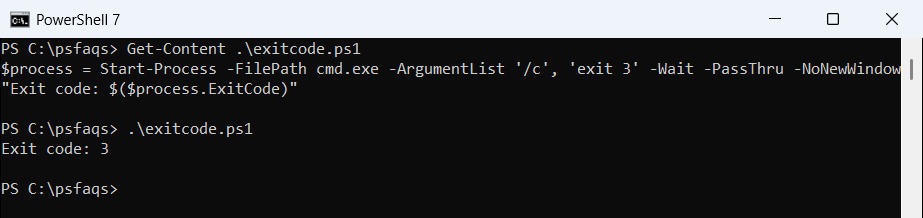
When I need to interact with the process after launching it, I use the -PassThru parameter:

$process = Start-Process -FilePath "notepad.exe" -PassThru
Start-Sleep -Seconds 5
$process.Kill()

This launches Notepad, waits 5 seconds, and then terminates it. The -PassThru parameter returns a process object that lets you manage the process programmatically.

Practical Examples in Business Scenarios

Now, let me show you some practical examples of using the Start-Process PowerShell cmdlet.

Example 1: Automated Software Deployment

When deploying software across multiple workstations, I often use the following PowerShell script.

Start-Process -FilePath "msiexec.exe" -ArgumentList "/i C:\Installers\AdobeReader.msi /qn" -Wait -NoNewWindow

This silently installs Adobe Reader and waits for the installation to complete before continuing with other deployment tasks.

Example 2: Running Database Backups

For database administrators, you can use the below PowerShell cmdlets to run a database backups.

Start-Process -FilePath "sqlcmd.exe" -ArgumentList "-S SQLSERVER01 -Q 'BACKUP DATABASE CustomerDB TO DISK=''C:\Backups\CustomerDB.bak'''" -Wait -NoNewWindow

This runs a SQL Server backup command and waits for completion.

Example 3: Starting Multiple Processes in Different Directories

Start-Process -FilePath "npm.exe" -ArgumentList "start" -WorkingDirectory "C:\Projects\WebApp1"
Start-Process -FilePath "npm.exe" -ArgumentList "start" -WorkingDirectory "C:\Projects\WebApp2"

This starts two Node.js applications, each in its own directory. The -WorkingDirectory parameter ensures each process runs in the correct context.

Check out List Directories and Files in PowerShell

Troubleshooting Common Issues

Here are some troubleshooting steps that you can follow while working with these PowerShell cmdlets.

Issue 1: Access Denied Errors

If you’re getting “Access Denied” errors when trying to start a process, try using -Verb RunAs:

Start-Process -FilePath "regedit.exe" -Verb RunAs

Issue 2: Process Starting but Closing Immediately

If your console application starts but closes immediately, use -NoNewWindow and -Wait:

Start-Process -FilePath "ping.exe" -ArgumentList "localhost" -NoNewWindow -Wait

Issue 3: Arguments Not Working as Expected

If your arguments contain spaces or special characters, ensure proper quoting:

Start-Process -FilePath "powershell.exe" -ArgumentList "-Command", "Write-Host 'Hello, San Francisco!'"

Check out Track User Login History on Windows Using PowerShell

Start-Process vs. Invoke-Expression vs. Call Operator (&)

Here’s a quick comparison table to help you choose the right method for running processes:

FeatureStart-ProcessInvoke-ExpressionCall Operator (&)
Run as adminYes (with -Verb RunAs)No (needs additional code)No (needs additional code)
Wait for completionYes (with -Wait)Yes (naturally waits)Yes (naturally waits)
Capture outputYes (with redirection)Yes (direct capture)Yes (direct capture)
SecurityMore secureLess secure (injection risk)More secure
ComplexityMore verboseSimpler syntaxSimplest syntax

I prefer Start-Process when I need fine-grained control over how processes run, especially for GUI applications or when administrative privileges are required.

Conclusion

The Start-Process cmdlet is used for launching applications, whether you’re developing automation scripts, deploying software, or managing system configurations.

I’ve found it particularly valuable in enterprise environments where process control, security, and reliable execution are critical. I hope you now understand how to use the PowerShell Start-Process cmdlet, using the examples I’ve shared.

If you have any questions or your own tips for using Start-Process, please share them in the comments below!

You may also like:

100 PowerShell cmdlets download free

100 POWERSHELL CMDLETS E-BOOK

FREE Download an eBook that contains 100 PowerShell cmdlets with complete script and examples.