
To set a local user’s password to never expire, run Set-LocalUser with -PasswordNeverExpires $true in PowerShell as administrator:
Set-LocalUser -Name 'svc-backup' -PasswordNeverExpires $trueIt works in PowerShell 7 and Windows PowerShell 5.1. Below I check which accounts already never expire, preview the change, show two other ways and cover domain accounts. I didn’t change any accounts on my PC.
Check whether a password expires
Get-LocalUser shows the PasswordExpires date. An empty value means the password never expires:
Get-LocalUser -Name Administrator, Guest, DefaultAccount | ForEach-Object {
    $expires = if ($_.PasswordExpires) { $_.PasswordExpires.ToString('yyyy-MM-dd') } else { 'Never' }
    '{0,-15} Enabled: {1,-5}  PasswordExpires: {2}' -f $_.Name, $_.Enabled, $expires
}
Output:
Administrator   Enabled: False  PasswordExpires: Never
Guest           Enabled: False  PasswordExpires: Never
DefaultAccount  Enabled: False  PasswordExpires: Never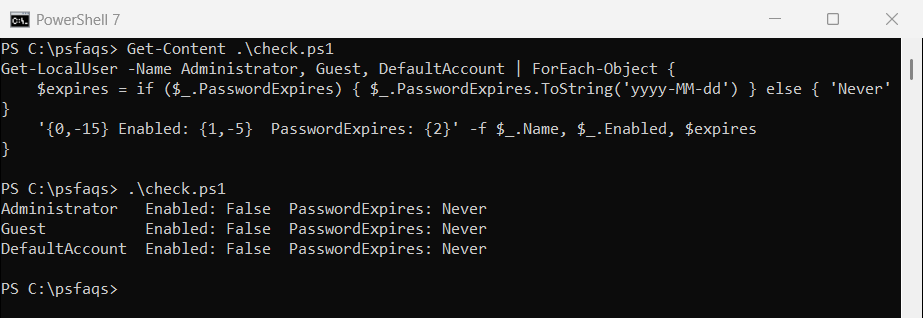
For all accounts, run Get-LocalUser | Select-Object Name, PasswordExpires. Listing local users has more filters.
Preview the change with -WhatIf
Set-LocalUser supports -WhatIf. I used the built-in Guest account as a safe target:
Set-LocalUser -Name 'Guest' -PasswordNeverExpires $true -WhatIfOutput:
What if: Performing the operation "Modify local user" on target "Guest".
Remove -WhatIf in an elevated window to apply it. To make the password expire again, use -PasswordNeverExpires $false.
To check which accounts exist first, see listing local users.
Set it for several accounts
Pipe the accounts you want into Set-LocalUser. Here I pick service accounts by a name prefix:
Get-LocalUser -Name 'svc-*' | Set-LocalUser -PasswordNeverExpires $trueCheck the list with Get-LocalUser first, so you don’t catch an account by accident.
To set a new password at the same time, see setting a local user’s password.
Use ADSI when LocalAccounts isn’t available
On 32-bit PowerShell or older systems, the ADSI WinNT provider reads the same setting from the account’s flags:
foreach ($name in 'Administrator', 'Guest') {
    $user = [ADSI]"WinNT://./$name,user"
    $neverExpires = [bool]($user.UserFlags.Value -band 0x10000)
    '{0,-14} Password never expires: {1}' -f $name, $neverExpires
}
Output:
Administrator  Password never expires: True
Guest          Password never expires: True
To set it with ADSI, add the flag and save:
$user = [ADSI]'WinNT://./svc-backup,user'
$user.UserFlags.Value = $user.UserFlags.Value -bor 0x10000
$user.SetInfo()
Change the maximum password age instead
If every local password expires too soon, look at the policy rather than individual accounts. net accounts shows it:
net accounts | Select-String -Pattern 'password age|password length'Output:
Minimum password age (days):                          0
Maximum password age (days):                          42
Minimum password length:                              0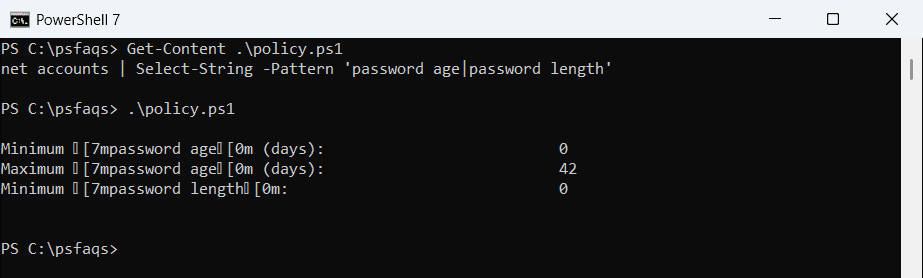
Microsoft now advises against forced periodic password changes.
Domain accounts
For Active Directory users, use Set-ADUser from the ActiveDirectory module:
Set-ADUser -Identity 'svc-sql' -PasswordNeverExpires $trueYou need permission on the account in AD. The Set-ADUser reference lists the other options.
Frequently Asked Questions
How do I set a local password to never expire in PowerShell?
Run Set-LocalUser -Name 'username' -PasswordNeverExpires $true as administrator.
How do I check if a password never expires?
Run Get-LocalUser -Name 'username'. An empty PasswordExpires value means it never expires.
How do I undo password never expires?
Run Set-LocalUser -Name 'username' -PasswordNeverExpires $false.
Does this work for domain accounts?
No. Use Set-ADUser -Identity 'username' -PasswordNeverExpires $true for Active Directory users.
Is it safe to set passwords to never expire?
For strong, unique passwords, yes. Microsoft no longer recommends forced periodic changes, but use Windows LAPS for local admin accounts. See Microsoft’s Set-LocalUser reference.
Related account guides: