
To open PowerShell in a folder, open the folder in File Explorer, click the address bar, type pwsh (or powershell for Windows PowerShell 5.1) and press Enter. PowerShell starts with that folder as its location.
In Windows 11 you can also right-click inside the folder and choose Open in Terminal. Below I cover shortcuts, command-line options, admin windows and changing folders once PowerShell is open.
Open PowerShell from File Explorer
| Method | Steps | Opens |
|---|---|---|
| Address bar | Alt+D, type pwsh or powershell, Enter | PowerShell 7 or 5.1 in that folder |
| Right-click menu | Right-click empty space > Open in Terminal | Your default Terminal profile |
| Shift+right-click | Shift+right-click > Open PowerShell window here | Windows PowerShell 5.1 |
| PowerShell 7 menu | Right-click > Open here (PowerShell 7) | Only if chosen during PowerShell 7 setup |
None of these open an admin window. Elevated windows always need a separate step, which I cover below.
Once PowerShell is open, you can move around with Set-Location.
Start PowerShell in a folder from a command
PowerShell 7 has -WorkingDirectory. For Windows PowerShell 5.1, run Set-Location as the first command. Both work from Run (Win+R), a shortcut or another shell:
$seven = pwsh -NoProfile -WorkingDirectory 'C:\psfaqs\Client Projects' -Command '(Get-Location).Path'
$five = powershell.exe -NoProfile -Command "Set-Location 'C:\psfaqs\Client Projects'; (Get-Location).Path"

"pwsh started in:           $seven"
"powershell.exe started in: $five"
Output:
pwsh started in:           C:\psfaqs\Client Projects
powershell.exe started in: C:\psfaqs\Client Projects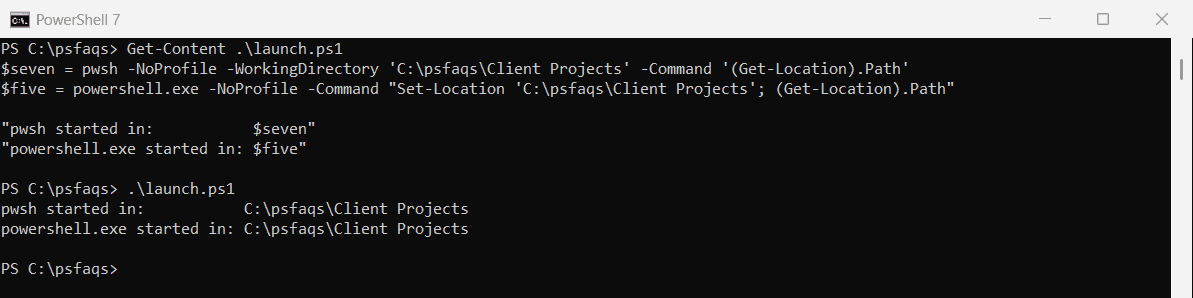
Add -NoExit to keep the window open, for example pwsh -NoExit -WorkingDirectory 'C:\Projects'.
Windows Terminal
wt -d "C:\Projects" opens Windows Terminal in a folder, and wt -d . uses the current one.
Open an admin PowerShell in a folder
Elevated windows often start in C:\Windows\System32, even when you ask for another folder. The reliable fix is to pass the folder to pwsh itself:
Start-Process pwsh -Verb RunAs -ArgumentList '-NoExit', '-WorkingDirectory', "`"$PWD`""The escaped quotes keep folder names with spaces in one piece. Windows asks for approval before the window opens.
Change folders inside PowerShell
Once PowerShell is open, Set-Location (cd) moves you around. Push-Location saves your spot, and Pop-Location returns to it:
Set-Location -Path 'C:\psfaqs\Client Projects'
"Now in:      $PWD"
Push-Location -Path '.\Contoso Austin'
"Pushed to:   $PWD"
Pop-Location
"Popped back: $PWD"
Output:
Now in:      C:\psfaqs\Client Projects
Pushed to:   C:\psfaqs\Client Projects\Contoso Austin
Popped back: C:\psfaqs\Client Projects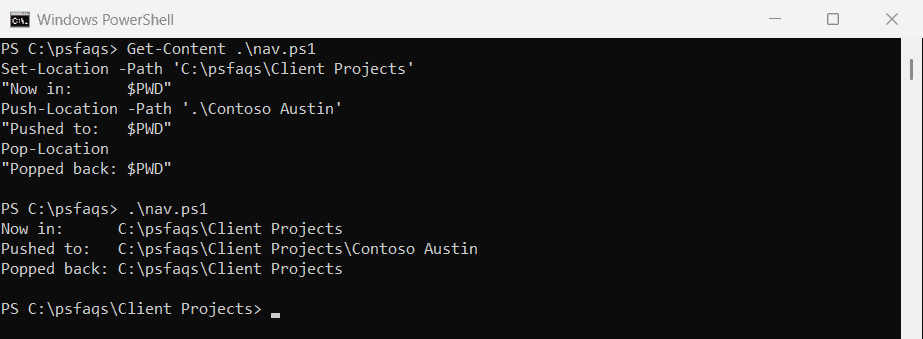
Put quotes around paths with spaces. The Set-Location reference covers other drives, like HKCU: and Cert:.
Current folder vs. script folder
A script runs in whatever folder you’re in, not the folder it’s saved in. $PSScriptRoot gives you the script’s own folder. Here’s a small script saved as C:\psfaqs\Tools\report.ps1:
"Current folder (`$PWD):         $PWD"
"Script folder (`$PSScriptRoot): $PSScriptRoot"
I run it from a different folder:
Set-Location -Path 'C:\psfaqs\Client Projects'
& 'C:\psfaqs\Tools\report.ps1'
Output:
Current folder ($PWD):         C:\psfaqs\Client Projects
Script folder ($PSScriptRoot): C:\psfaqs\Tools