PowerShell Throw Exception with Message

Proper error handling is absolutely critical when developing PowerShell scripts, especially for production environments. One of the most powerful error handling techniques in PowerShell is throwing exceptions with custom messages.

Over my years working with PowerShell, I’ve found that a PowerShell script should show proper exception messages, which can save hours of troubleshooting time.

In this tutorial, I’ll show you multiple methods to throw exceptions with custom messages in PowerShell, along with practical examples.

What is an Exception in PowerShell?

An exception in PowerShell is how the system communicates that something unexpected has occurred during script execution. Think of it as PowerShell’s way of saying, “I’ve encountered a problem I can’t handle on my own.”

Exceptions provide useful information about what went wrong, where it happened, and sometimes even how to fix it.

When writing any PowerShell scripts, especially in the production environment, knowing how to throw and handle exceptions properly is essential to:

  • Prevent scripts from continuing with invalid data
  • Provide meaningful error messages
  • Enable proper logging of issues
  • Allow controlled script termination

Check out How to Log Error Messages to a File Using PowerShell Try Catch?

PowerShell provides different methods to throw exceptions with messages. Let me show you those methods with examples.

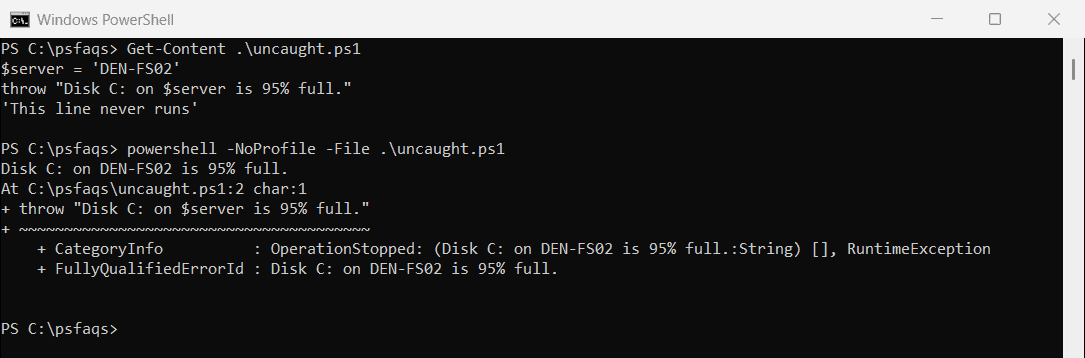
Method 1: Using the throw Statement

The simplest way to throw an exception in PowerShell is by using the throw statement.

function Test-Connection {
    param (
        [string]$ServerName
    )
    
    if ([string]::IsNullOrEmpty($ServerName)) {
        throw "Server name cannot be empty. Please provide a valid server name."
    }
    
    # Rest of the function
}

When you execute this function without providing a server name, it will throw an exception with your custom message.

Here’s what happens when you call the function without a parameter:

PS> Test-Connection
Exception: Server name cannot be empty. Please provide a valid server name.
At line:6 char:9
+         throw "Server name cannot be empty. Please provide a valid server name ..."
+         ~~~~~~~~~~~~~~~~~~~~~~~~~~~~~~~~~~~~~~~~~~~~~~~~~~~~~~~~~~~
    + CategoryInfo          : OperationStopped: (Server name cannot be empty.:String) [], RuntimeException
    + FullyQualifiedErrorId : Server name cannot be empty.

What I love about this method is its simplicity. It’s direct, easy to read, and works well for most basic scenarios.

Here is another simple example of using the throw keyword in PowerShell.

function Divide-Numbers {
    param (
        [int]$Numerator,
        [int]$Denominator
    )

    if ($Denominator -eq 0) {
        throw "Divide by zero error: Denominator cannot be zero."
    }

    $result = $Numerator / $Denominator
    Write-Output "Result: $result"
}
Divide-Numbers -Numerator 10 -Denominator 0

You can see the output like in the screenshot below.

PowerShell Throw Exception with Message examples

Check out Create a Log File with Date and Time in PowerShell

Method 2: Using throw with Error Record

For more complex scenarios, you can throw an exception with an ErrorRecord, which allows you to specify more detailed information.

Here is an example and the complete PowerShell script.

function Connect-Database {
    param (
        [string]$ConnectionString
    )
    
    if ([string]::IsNullOrEmpty($ConnectionString)) {
        $errorId = 'ConnectionStringMissing'
        $errorCategory = [System.Management.Automation.ErrorCategory]::InvalidArgument
        $errorMessage = "Connection string cannot be empty. Format should be: 'Server=myServerName;Database=myDatabase;'"
        $exception = New-Object System.ArgumentException $errorMessage
        $errorRecord = New-Object System.Management.Automation.ErrorRecord $exception, $errorId, $errorCategory, $null
        
        throw $errorRecord
    }
    
    # Database connection logic here
}

This method gives you more control over the exception details, including:

  • Error ID
  • Error category
  • Custom message
  • Exception type

This approach is particularly useful when you need to differentiate between various error types or when you want to provide richer error information.

Read Read Log Files with PowerShell

Method 3: Using Write-Error with -ErrorAction Stop

Another approach is to use Write-Error with the -ErrorAction Stop parameter:

function Process-Customer {
    param (
        [string]$CustomerId
    )
    
    if (-not ($CustomerId -match '^\d{6}$')) {
        Write-Error -Message "Invalid customer ID format: $CustomerId. The customer ID must be a 6-digit number." -ErrorAction Stop
    }

    Write-Output "Customer ID $CustomerId is valid."
}

When you run this with an invalid customer ID:

PS> Process-Customer -CustomerId "ABC123"
Process-Customer: Invalid customer ID format: ABC123. The customer ID must be a 6-digit number.

I’ve found this method useful in scripts where I want to leverage PowerShell’s built-in error handling system while still ensuring execution stops.

You can see the exact error message like in the screenshot below:

PowerShell Throw Exception with Message

Check out Create a Log File in PowerShell

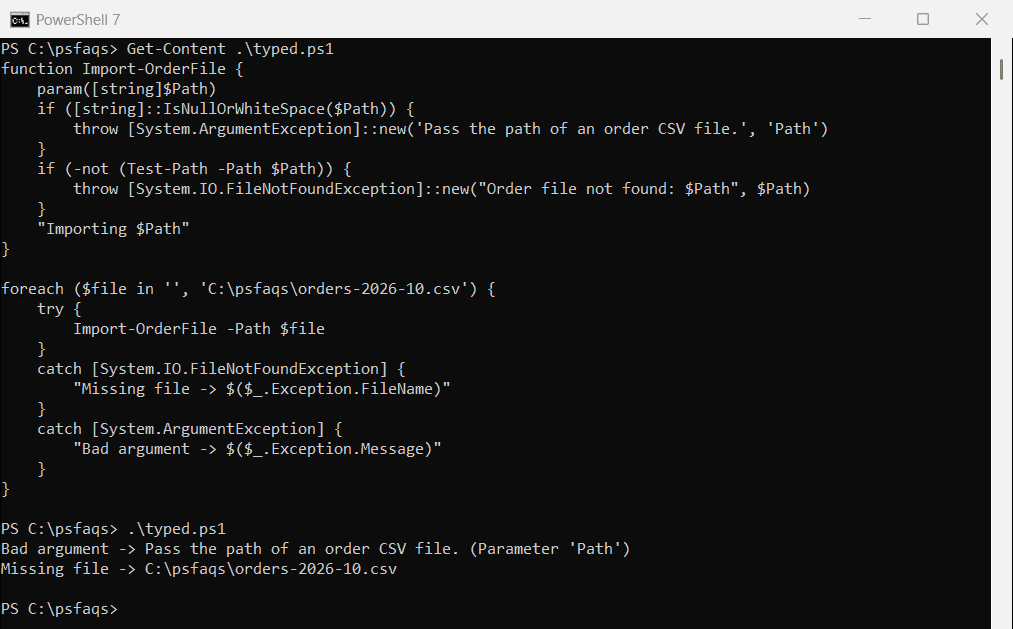
Method 4: Throwing Specific Exception Types

You can also throw specific messages for specific exception types in PowerShell.

Here is an example and the complete PowerShell script.

function Get-UserData {
    param (
        [string]$UserId,
        [string]$FilePath
    )
    
    if ([string]::IsNullOrEmpty($UserId)) {
        throw [System.ArgumentNullException]::new("UserId", "User ID cannot be null or empty")
    }
    
    if (-not (Test-Path $FilePath)) {
        throw [System.IO.FileNotFoundException]::new("Could not find the user data file: $FilePath", $FilePath)
    }
    
    # Process user data
}

This approach is particularly effective when:

  • You need to differentiate between various error conditions
  • Your script interfaces with .NET code that expects specific exception types
  • You want to provide very detailed error information

Read Set Password for Local User in Windows 11 Using PowerShell

Method 5: Using Try-Catch with Custom Exception Throwing

When you want to handle exceptions and potentially re-throw them with additional context:

function Update-EmployeeRecord {
    param (
        [string]$EmployeeId,
        [hashtable]$NewData
    )
    
    try {
        $employee = Get-Employee -Id $EmployeeId
        
        # Update logic here
        
        # If something goes wrong during the update
        if (-not $UpdateSuccessful) {
            throw "Failed to update employee record for ID: $EmployeeId"
        }
    }
    catch [System.Net.WebException] {
        throw "Network error while updating employee $EmployeeId. Please check your connection: $($_.Exception.Message)"
    }
    catch {
        # Re-throw with additional context
        throw "Error updating employee $EmployeeId: $($_.Exception.Message)"
    }
}

I’ve used this pattern extensively in production scripts because it allows me to:

  1. Catch specific types of exceptions separately
  2. Add contextual information to the error message
  3. Create a cleaner error handling flow

Check out Create Files with Content Using PowerShell

Best Practices for Throwing Exceptions in PowerShell

Based on my experience, here are some best practices to follow:

1. Be Specific with Error Messages

Always include:

  • What went wrong
  • Why it went wrong
  • What the expected input/state should be

Here is an example.

  • BAD: throw "Invalid input."
  • GOOD: throw "Customer ID '12345' is invalid. It must be a 6-digit number starting with 9."

2. Use Appropriate Exception Types

Match your exception type to the error condition:

Error ConditionRecommended Exception Type
Invalid parameterSystem.ArgumentException
Missing parameterSystem.ArgumentNullException
File not foundSystem.IO.FileNotFoundException
Permission issuesSystem.UnauthorizedAccessException
General errorsSystem.Management.Automation.RuntimeException

3. Include Relevant Data

Always include the value that caused the problem:

if ($age -lt 18) {
    throw "Age $age is below the minimum required age of 18 years."
}

4. Document Your Error Handling Approach

For team projects, document how errors are thrown and should be handled:

<#
.SYNOPSIS
    Processes customer orders.
.DESCRIPTION
    Processes customer orders from the system.
.NOTES
    Error Handling:
    - Throws ArgumentException for invalid order IDs
    - Throws UnauthorizedAccessException for permission issues
    - Throws FileNotFoundException if order file is missing
#>
function Process-CustomerOrder {
    # Function implementation
}

Read Create a File in the Current Directory Using PowerShell

Real-World Example: File Processing Script

Here’s a real example showing exception throwing in a real-world scenario:

function Process-SalesReports {
    [CmdletBinding()]
    param (
        [Parameter(Mandatory=$true)]
        [string]$ReportFolder,
        
        [Parameter()]
        [string]$OutputFolder = "C:\Processed",
        
        [Parameter()]
        [string]$Region = "West"
    )
    
    # Validate folders
    if (-not (Test-Path $ReportFolder)) {
        throw [System.IO.DirectoryNotFoundException]::new("Report folder does not exist: $ReportFolder")
    }
    
    if (-not (Test-Path $OutputFolder)) {
        try {
            New-Item -Path $OutputFolder -ItemType Directory -Force
        }
        catch {
            throw "Failed to create output folder $OutputFolder : $($_.Exception.Message)"
        }
    }
    
    # Validate region
    $validRegions = @("East", "West", "North", "South")
    if ($validRegions -notcontains $Region) {
        throw [System.ArgumentException]::new("Invalid region specified: '$Region'. Valid regions are: $($validRegions -join ', ')")
    }
    
    # Get reports
    $reports = Get-ChildItem -Path $ReportFolder -Filter "Sales_*.csv"
    if ($reports.Count -eq 0) {
        throw "No sales reports found in $ReportFolder. Expected files matching pattern 'Sales_*.csv'"
    }
    
    # Process each report
    foreach ($report in $reports) {
        try {
            $data = Import-Csv -Path $report.FullName
            
            # Filter for region
            $regionData = $data | Where-Object { $_.Region -eq $Region }
            
            if ($regionData.Count -eq 0) {
                Write-Warning "No data for region '$Region' found in report: $($report.Name)"
                continue
            }
            
            # Process and save
            $outputFile = Join-Path -Path $OutputFolder -ChildPath "Processed_$($report.Name)"
            $regionData | Export-Csv -Path $outputFile -NoTypeInformation
            
            Write-Verbose "Successfully processed $($report.Name) for region $Region"
        }
        catch [System.IO.IOException] {
            throw "I/O error processing report $($report.Name): $($_.Exception.Message)"
        }
        catch {
            throw "Error processing report $($report.Name): $($_.Exception.Message)"
        }
    }
    
    Write-Output "Successfully processed $($reports.Count) sales reports for region $Region"
}

This script demonstrates:

  • Multiple exception types based on different error conditions
  • Contextual error messages that include the problematic values
  • A hierarchical approach to error handling

Check out Create JSON Files with Content Using PowerShell

Integrate Exception Handling with Logging in PowerShell

In production environments, I always pair exception throwing with proper logging:

function Add-Customer {
    [CmdletBinding()]
    param (
        [Parameter(Mandatory=$true)]
        [string]$Name,
        
        [Parameter(Mandatory=$true)]
        [string]$Email
    )
    
    try {
        # Validate email format
        if ($Email -notmatch '^[\w-\.]+@([\w-]+\.)+[\w-]{2,4}$') {
            Write-Error "Invalid email format: $Email" -ErrorAction Stop
        }
        
        # Add customer logic
        # ...
        
        Write-Verbose "Successfully added customer: $Name"
        return $true
    }
    catch {
        # Log the error
        $timestamp = Get-Date -Format "yyyy-MM-dd HH:mm:ss"
        $logMessage = "[$timestamp] ERROR: Failed to add customer. $($_.Exception.Message)"
        Add-Content -Path "C:\Logs\customer_operations.log" -Value $logMessage
        
        # Re-throw for the caller to handle
        throw
    }
}

I’ve found that this combination of throwing exceptions and logging provides the best of both worlds: immediate error notification and a permanent record for later

Check out PowerShell to Get the Current Logged On User on a Remote Computer

Handling Exceptions vs. Throwing Exceptions

Now, let me explain the differences between handling exceptions and throwing exceptions in PowerShell. Here is an example to help you understand this topic.

function Update-CustomerRecord {
    [CmdletBinding()]
    param (
        [Parameter(Mandatory=$true)]
        [string]$CustomerId,
        
        [Parameter(Mandatory=$true)]
        [hashtable]$UpdateData
    )
    
    try {
        # Validate input
        if ($CustomerId -notmatch '^\d{6}$') {
            throw [System.ArgumentException]::new("Customer ID must be a 6-digit number, got: $CustomerId", "CustomerId")
        }
        
        # Try to perform update
        $result = Invoke-DatabaseUpdate -CustomerId $CustomerId -Data $UpdateData
        return $result
    }
    catch [System.ArgumentException] {
        # We created this exception, so just re-throw it
        throw
    }
    catch [System.Data.SqlClient.SqlException] {
        # Database error - add context and re-throw
        throw "Database error while updating customer $CustomerId. Error: $($_.Exception.Message)"
    }
    catch {
        # Unexpected error - log it and throw a user-friendly message
        Write-Log -Level Error -Message "Unexpected error: $($_.Exception.Message)"
        throw "An unexpected error occurred while updating customer $CustomerId. Please contact support."
    }
}

I follow this rule of thumb: throw exceptions for conditions that shouldn’t occur in normal operation, and handle exceptions for conditions that might be expected (like network issues or file permissions).

Check out Get Windows Activation Status Using PowerShell

Exception Handling Across Multiple Functions in PowerShell

When building complex scripts, I often implement a cascading exception handling pattern:

function Get-Customer {
    [CmdletBinding()]
    param([string]$Id)
    
    if ([string]::IsNullOrEmpty($Id)) {
        throw [System.ArgumentNullException]::new("Id", "Customer ID cannot be null or empty")
    }
    
    # Get customer logic
}

function Update-Customer {
    [CmdletBinding()]
    param(
        [string]$Id,
        [hashtable]$Properties
    )
    
    try {
        $customer = Get-Customer -Id $Id
        # Update customer
    }
    catch [System.ArgumentNullException] {
        # Simply re-throw as this is an input validation error
        throw
    }
    catch {
        throw "Failed to update customer $Id. Error: $($_.Exception.Message)"
    }
}

function Sync-CustomerDatabase {
    [CmdletBinding()]
    param()
    
    try {
        $customers = Import-Csv "C:\Data\customers.csv"
        foreach ($customer in $customers) {
            try {
                Update-Customer -Id $customer.Id -Properties @{
                    Name = $customer.Name
                    Email = $customer.Email
                }
                Write-Verbose "Updated customer $($customer.Id)"
            }
            catch {
                # Log error but continue with other customers
                Write-Warning "Could not update customer $($customer.Id): $($_.Exception.Message)"
            }
        }
    }
    catch {
        # Fatal error for the entire operation
        throw "Customer database sync failed: $($_.Exception.Message)"
    }
}

This pattern allows different levels of error handling:

  • At the lowest level, we throw specific exceptions
  • At mid-levels, we re-throw with added context
  • At the top level, we handle non-fatal errors and throw only for fatal ones

Read PowerShell Write-Host vs Write-Error

Using Custom Exception Classes

This example is for a little advanced PowerShell user. For larger PowerShell modules, I sometimes create custom exception classes:

# Define custom exception class
class CustomerServiceException : System.Exception {
    [string]$CustomerId
    [string]$Operation
    
    CustomerServiceException([string]$message, [string]$customerId, [string]$operation) : base($message) {
        $this.CustomerId = $customerId
        $this.Operation = $operation
    }
}

function Update-CustomerStatus {
    [CmdletBinding()]
    param(
        [string]$CustomerId,
        [string]$NewStatus
    )
    
    $validStatuses = @("Active", "Inactive", "Pending")
    
    if ($validStatuses -notcontains $NewStatus) {
        throw [CustomerServiceException]::new(
            "Invalid status '$NewStatus'. Valid values are: $($validStatuses -join ', ')",
            $CustomerId,
            "StatusUpdate"
        )
    }
    
    # Update logic here
}

This provides extremely rich error information that can be caught and handled specifically:

try {
    Update-CustomerStatus -CustomerId "123456" -NewStatus "Deleted"
}
catch [CustomerServiceException] {
    Write-Host "Customer Service Error:"
    Write-Host "  Customer ID: $($_.Exception.CustomerId)"
    Write-Host "  Operation: $($_.Exception.Operation)"
    Write-Host "  Message: $($_.Exception.Message)"
}

Conclusion

As a PowerShell developer, you should know how to throw exceptions with informative messages while writing any PowerShell scripts. When I first started with PowerShell, I often neglected error handling, but I quickly learned that exception handling is what separates production-ready scripts from quick one-off utilities.

I hope you now have a complete idea of throwing exceptions with messages in PowerShell with the above examples and the complete PowerShell scripts.

I recommend reviewing your existing scripts and updating their error handling based on these techniques.

You may also like:

100 PowerShell cmdlets download free

100 POWERSHELL CMDLETS E-BOOK

FREE Download an eBook that contains 100 PowerShell cmdlets with complete script and examples.