
To add a computer to a domain with PowerShell, run Add-Computer as an administrator, give it the domain name and an account that’s allowed to join machines, and restart:
Add-Computer -DomainName 'corp.example.com' -Credential (Get-Credential) -RestartIn this tutorial, I’ll show you how to add a computer to a domain using PowerShell: a safe dry run first, the checks to do before joining, OU placement, renaming in the same restart, bulk joins, verification, and the errors you’re most likely to hit.
I ran every command here in PowerShell 7.6 and Windows PowerShell 5.1 on a Windows 11 workgroup PC. There’s no domain on that PC, so the join commands use -WhatIf, and corp.example.com is a sample name.
How to add a computer to a domain with Add-Computer
Add-Computer is part of the Microsoft.PowerShell.Management module in Windows PowerShell 5.1. It joins the local computer, or remote ones, to a domain or a workgroup.
Open PowerShell with Run as administrator first. Then you need three things: the domain’s DNS name, a domain account with permission to join computers, and a restart afterward.
-Credential is mandatory in the domain parameter set. Pass Get-Credential so you’re prompted for the password instead of typing it in a script; creating a credential object in PowerShell covers the other ways to build one.
Before a real join, I like to rehearse with -WhatIf. This splat holds the domain, the OU, and the restart switch, and -WhatIf makes Add-Computer stop before it touches anything:
$joinParams = @{
    DomainName = 'corp.example.com'
    OUPath     = 'OU=Workstations,OU=Austin,DC=corp,DC=example,DC=com'
    Credential = [pscredential]::Empty   # -WhatIf never contacts the domain
    Restart    = $true
    WhatIf     = $true
}
Add-Computer @joinParams
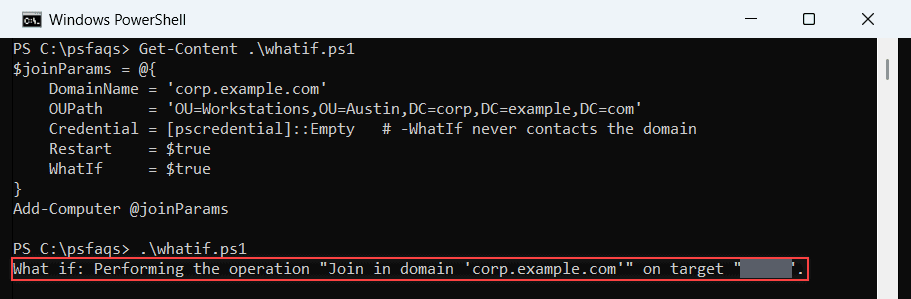
Output (PowerShell 7 and 5.1, computer name masked):
What if: Performing the operation "Join in domain 'corp.example.com'" on target "DESKTOP-4T7K2QX".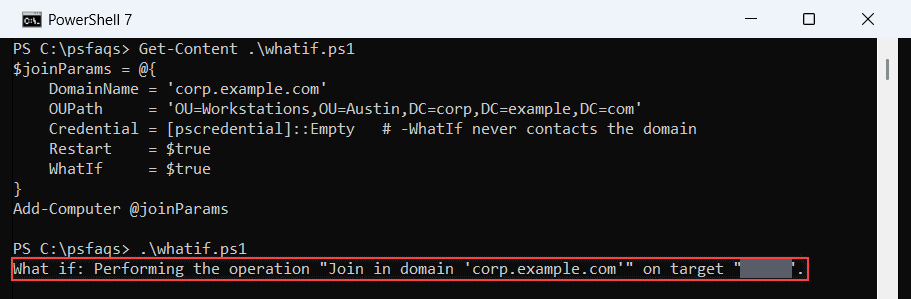
The “What if” line names the domain and the computer that would join. Nothing was sent to a domain controller, which is why an empty credential was enough for the rehearsal.
For the real run, remove WhatIf, and swap the empty credential for Get-Credential. -Restart reboots the PC as soon as the join succeeds; leave it out if you’d rather restart the computer with PowerShell later.
What do you need before joining a computer to a domain?
Most failed joins come down to DNS, rights, or a stale computer account. Check these before you run Add-Computer:
- An elevated PowerShell session on the computer that’s joining.
- DNS settings that point to the domain’s DNS servers, so the PC can find a domain controller.
- A domain account allowed to join computers (Domain Admins, or a user with delegated rights on the OU).
- Network access from the PC to a domain controller.
- A computer name that isn’t already used by another account in Active Directory.
This pre-flight check covers the first two from PowerShell. It asks DNS for the _ldap._tcp.dc._msdcs SRV records, which is how Windows finds domain controllers:
$domain = 'corp.example.com'
$cs = Get-CimInstance -ClassName Win32_ComputerSystem
$me = [Security.Principal.WindowsPrincipal][Security.Principal.WindowsIdentity]::GetCurrent()
$srv = Resolve-DnsName -Name "_ldap._tcp.dc._msdcs.$domain" -Type SRV -ErrorAction SilentlyContinue
[pscustomobject]@{
    RunningAsAdmin    = $me.IsInRole([Security.Principal.WindowsBuiltInRole]::Administrator)
    AlreadyInDomain   = $cs.PartOfDomain
    DCRecordsFound    = @($srv | Where-Object Type -eq 'SRV').Count
} | Format-List
Output (PowerShell 7 and 5.1):
RunningAsAdmin  : False
AlreadyInDomain : False
DCRecordsFound  : 0
DCRecordsFound is 0 because corp.example.com is a sample domain. On a real network you want a number above zero; if it’s 0, fix the PC’s DNS server before anything else.
RunningAsAdmin was False, since I ran the check as a standard user. A real join needs True. To see who’s in the local Administrators group, use this way to list local administrators.
Join the computer to a specific OU with -OUPath
Without -OUPath, the new computer account lands in the domain’s default Computers container. Group Policy linked to your workstation OU won’t apply there.
Pass the OU’s full distinguished name in quotes:
Add-Computer -DomainName 'corp.example.com' `
    -OUPath 'OU=Workstations,OU=Austin,DC=corp,DC=example,DC=com' `
    -Credential (Get-Credential) -Restart
The account you use needs Create Computer objects rights on that OU. If the computer is already in the domain and you’re not sure where it went, here’s how to find the OU of a computer.
To pick the domain controller yourself, add -Server with the DC’s fully qualified name, such as dc01.corp.example.com. Since the August 2024 domain join hardening, short DC names fail.
Rename the computer and join the domain in one restart
New PCs often ship with a random name like DESKTOP-4T7K2QX. You can rename and join with a single reboot, which also avoids writing the computer account to Active Directory twice.
The simplest way is -NewName on Add-Computer:
Add-Computer -DomainName 'corp.example.com' -NewName 'PC-AUS-014' `
    -Credential (Get-Credential) -Restart
Microsoft Learn also shows a two-step version: rename first without restarting, then join with the JoinWithNewName option so the domain gets the new name:
Rename-Computer -NewName 'PC-AUS-014' -Force
Add-Computer -DomainName 'corp.example.com' -Credential (Get-Credential) `
    -Options JoinWithNewName, AccountCreate -Restart
-NewName only works for one computer at a time. For a rename without a domain change, see how to rename a Windows computer with P