
To track user login history using PowerShell, read successful logon events (ID 4624) from the Security log with Get-WinEvent in an elevated window. Each event records who signed in, when and how:
Get-WinEvent -FilterHashtable @{ LogName = 'Security'; Id = 4624 } -MaxEvents 50Below I turn those events into a readable report, find failed sign-ins, and show a history you can read without admin rights. I ran every command in PowerShell 7.6 and Windows PowerShell 5.1 on Windows 11. Account and PC names are masked.
Run PowerShell as administrator first
Only administrators can read the Security log. In a normal window, you’ll hit one of two errors, and the second is misleading:
try { Get-WinEvent -LogName Security -MaxEvents 5 -ErrorAction Stop }
catch { "LogName Security:     Failed. $($_.Exception.Message)" }

try { Get-WinEvent -FilterHashtable @{ LogName = 'Security'; Id = 4624 } -MaxEvents 5 -ErrorAction Stop }
catch { "FilterHashtable 4624: Failed. $($_.Exception.Message)" }
Output:
LogName Security:     Failed. Attempted to perform an unauthorized operation.
FilterHashtable 4624: Failed. No events were found that match the specified selection criteria.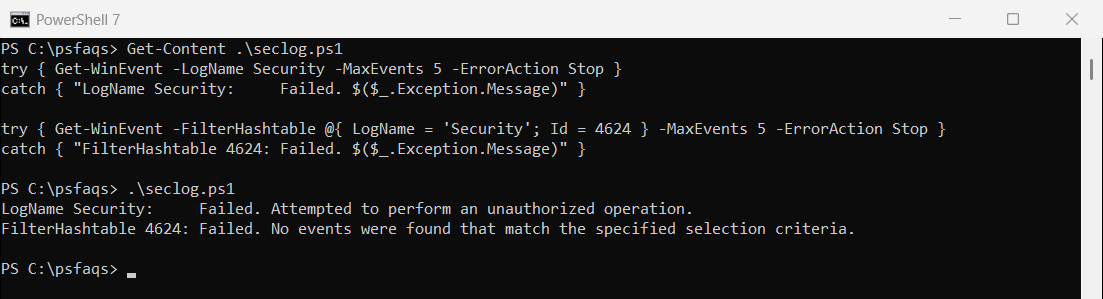
If you see “No events were found” for the Security log, check that the window is elevated before you assume the log is empty.
To see who is signed in right now, use showing logged-in users.
Get the login history from the Security log
The event’s fields are easiest to read by name from its XML. This report lists logons from the last 7 days, skipping service and system accounts:
$events = Get-WinEvent -FilterHashtable @{
    LogName = 'Security'; Id = 4624; StartTime = (Get-Date).AddDays(-7)
}

$events | ForEach-Object {
    $data = @{}
    ([xml]$_.ToXml()).Event.EventData.Data | ForEach-Object { $data[$_.Name] = $_.'#text' }
    [pscustomobject]@{
        Time      = $_.TimeCreated
        User      = "$($data.TargetDomainName)\$($data.TargetUserName)"
        LogonType = $data.LogonType
        Source    = $data.IpAddress
    }
} | Where-Object { $_.LogonType -in 2, 7, 10, 11 } | Format-Table -AutoSize
Reading fields by name is safer than Properties[5] or Properties[8]. The position of a field can differ between event IDs, so an index that works for 4624 breaks for 4625.
Logon types you’ll see
| Type | Name | Meaning |
|---|---|---|
| 2 | Interactive | Signed in at the keyboard |
| 3 | Network | Accessed a share or service over the network |
| 5 | Service | A service started under an account |
| 7 | Unlock | Unlocked the workstation |
| 10 | RemoteInteractive | Signed in with Remote Desktop |
| 11 | CachedInteractive | Signed in with cached domain credentials |
Types 2, 7, 10 and 11 are real people.
Login history tells you who signed in recently. To spot accounts with stale passwords instead, check out finding users whose pwdLastSet is older than 90 days.
Find failed login attempts
Failed sign-ins are event 4625. The same named-field approach shows who failed and from where:
Get-WinEvent -FilterHashtable @{ LogName = 'Security'; Id = 4625; StartTime = (Get-Date).AddDays(-1) } |
    ForEach-Object {
        $data = @{}
        ([xml]$_.ToXml()).Event.EventData.Data | ForEach-Object { $data[$_.Name] = $_.'#text' }
        '{0}  {1}  from {2}' -f $_.TimeCreated, $data.TargetUserName, $data.IpAddress
    }
Many failures for one account in a short time can mean a password-guessing attack. The event 4625 reference explains the failure status codes. Checking if an account is locked is the usual next step.
See logon history without admin rights
Windows also writes a simpler record to the System log, which any user can read. Winlogon logs event 7001 at logon and 7002 at logoff, with the user’s SID:
$events = Get-WinEvent -FilterHashtable @{
    LogName      = 'System'
    ProviderName = 'Microsoft-Windows-Winlogon'
    Id           = 7001, 7002
} -MaxEvents 6

$events | ForEach-Object {
    $sid = [Security.Principal.SecurityIdentifier]$_.Properties[1].Value
    $type = if ($_.Id -eq 7001) { 'Logon' } else { 'Logoff' }
    '{0}  {1,-6}  {2}' -f $_.TimeCreated.ToString('yyyy-MM-dd HH:mm'), $type, $sid.Translate([Security.Principal.NTAccount]).Value
}
Output:
2026-09-23 07:21  Logon   DESKTOP-4T7K2QX\alice
2026-09-23 07:20  Logoff  DESKTOP-4T7K2QX\alice
2026-09-13 16:44  Logon   DESKTOP-4T7K2QX\alice
2026-09-03 12:18  Logon   DESKTOP-4T7K2QX\alice
2026-09-03 12:13  Logoff  D