
To remove a computer from a domain with PowerShell, run Remove-Computer as administrator, name the workgroup to join and restart:
Remove-Computer -WorkgroupName 'WORKGROUP' -UnjoinDomainCredential (Get-Credential) -RestartThe credential needs rights to remove the computer account. Below I check the join state, preview the command, remove remote PCs and clean up AD. My test PC isn’t on a domain, so I used -WhatIf.
Check if the computer is on a domain
Win32_ComputerSystem tells you whether the PC is joined and what role it plays:
$cs = Get-CimInstance -ClassName Win32_ComputerSystem
$roles = @{ 0 = 'Standalone workstation'; 1 = 'Member workstation'; 2 = 'Standalone server'
            3 = 'Member server'; 4 = 'Backup domain controller'; 5 = 'Primary domain controller' }

"Part of a domain: $($cs.PartOfDomain)"
"Domain or group:  $($cs.Domain)"
"Role:             $($roles[[int]$cs.DomainRole])"
Output:
Part of a domain: False
Domain or group:  WORKGROUP
Role:             Standalone workstation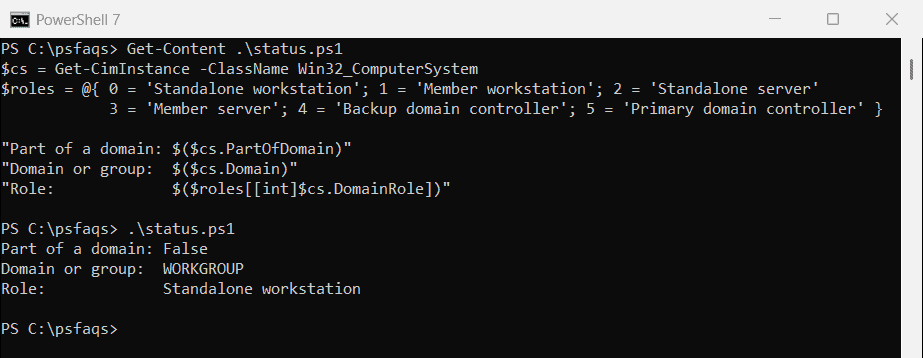
On a joined PC, PartOfDomain is True and Domain shows the domain name, such as corp.contoso.com. Getting the computer name covers the related properties.
Preview the removal with -WhatIf
Remove-Computer supports -WhatIf, so you can confirm the target before anything changes:
Remove-Computer -WorkgroupName 'WORKGROUP' -WhatIfOutput:
What if: Performing the operation "Remove-Computer" on target "DESKTOP-4T7K2QX".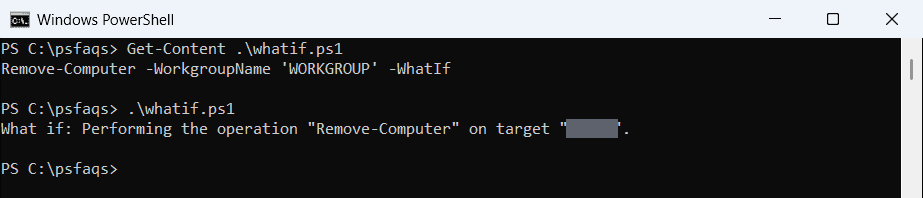
Remove -WhatIf and add -Restart when you’re ready. The change only takes effect after the restart.
PowerShell 7
Remove-Computer is a Windows PowerShell 5.1 cmdlet. PowerShell 7 still runs it by loading the module through Windows PowerShell compatibility:
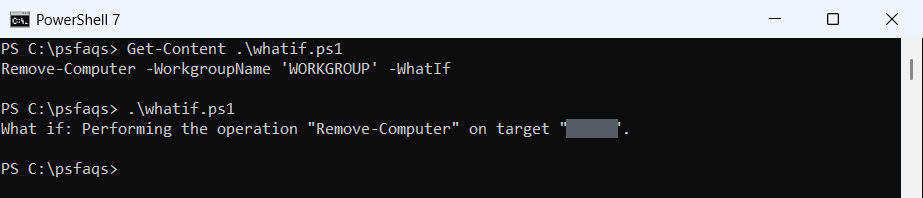
It works, but I’d run domain changes in Windows PowerShell 5.1 to keep things simple.
Remove a remote computer from the domain
Use -ComputerName with a domain admin credential. -Force skips the confirmation prompt:
$cred = Get-Credential -Message 'Domain admin'
Remove-Computer -ComputerName PC-SALES-07, PC-SALES-08 -UnjoinDomainCredential $cred `
    -WorkgroupName 'WORKGROUP' -Restart -Force
The remote PCs must allow WMI connections from your computer. Make sure you know a local admin password on each one first, because domain accounts stop working after the restart.
Delete the computer account in Active Directory
Remove-Computer disables the computer object in AD, but it doesn’t delete it. Clean it up with the ActiveDirectory module:
Remove-ADComputer -Identity 'PC-SALES-07' -Confirm:$falseTo join the PC again later, follow adding a computer to a domain.
Before you delete accounts, find computers that haven’t logged in for 30 days so you only clean up machines that are really gone.
Microsoft Entra ID joined PCs
Remove-Computer only handles on-premises Active Directory. For a PC joined to Microsoft Entra ID, run dsregcmd /leave as administrator, or disconnect it in Settings > Accounts > Access work or school.
Frequently Asked Questions
How do I remove a computer from a domain with PowerShell?
Run Remove-Computer -WorkgroupName 'WORKGROUP' -UnjoinDomainCredential (Get-Credential) -Restart as administrator.
Does Remove-Computer work in PowerShell 7?
Yes, through Windows PowerShell compatibility. It’s a 5.1 cmdlet, so you can also run it in Windows PowerShell directly.
How do I check if a computer is on a domain?
Run (Get-CimInstance Win32_ComputerSystem).PartOfDomain. True means it’s joined.
Do I need to restart after removing a computer from a domain?
Yes. The change takes effect after a restart, so add -Restart or restart manually.
Does Remove-Computer delete the AD computer object?
No, it disables it. Delete it with Remove-ADComputer if you don’t plan to rejoin the PC. See Microsoft’s Remove-Computer reference.
For other computer management tasks, see:
