
To show logged-in users with PowerShell, run quser (short for query user). It lists every user signed in to the computer, including Remote Desktop sessions, with their session ID, state, idle time and logon time.
Two other commands answer slightly different questions:
| Command | What it returns | Remote PCs |
|---|---|---|
quser | Every signed-in user and session, active or disconnected | Yes, with /server: |
(Get-CimInstance Win32_ComputerSystem).UserName | Only the user at the physical console | Yes, with -ComputerName |
$env:USERNAME | The account running your script | No |
I tested all of these on Windows 11 in PowerShell 7.6 and Windows PowerShell 5.1. In the outputs, I replaced my account and computer names with alice and PC-01, and covered them in the screenshots.
Show all logged-in users with quser
quser is a Windows command, so it works the same in every PowerShell version. Type it on its own:
quserOutput:
 USERNAME              SESSIONNAME        ID  STATE   IDLE TIME  LOGON TIME
>alice                 console             1  Active      none   23-09-2026 07:21 AM
The > sign marks your own session. STATE is Active for a user who’s working and Disc for a disconnected Remote Desktop session.
A disconnected user is still signed in. Their apps keep running and they still count as logged on.
One gotcha: LOGON TIME uses the regional date format of the PC. On a typical US setup, you’ll see something like 9/23/2026 7:21 AM. That matters when you parse the text, which is the next step.
Convert quser output into PowerShell objects
quser returns plain text, so you can’t sort or filter it like normal PowerShell output. This function splits each line into properties and turns LOGON TIME into a real date:
function Get-LoggedOnUser {
    [CmdletBinding()]
    param([string]$ComputerName = $env:COMPUTERNAME)

    $lines = quser /server:$ComputerName 2>$null
    if (-not $lines) { return }                    # nobody signed in, or the PC isn't reachable

    # quser prints the logon time in the user's regional short date/time format
    $intl = Get-ItemProperty 'HKCU:\Control Panel\International'
    $format = "$($intl.sShortDate) $($intl.sShortTime)"

    foreach ($line in $lines | Select-Object -Skip 1) {
        $parts = $line.Substring(1).Trim() -split '\s{2,}'
        if ($parts.Count -eq 6) { $name, $session, $id, $state, $idle, $logon = $parts }
        else { $name, $id, $state, $idle, $logon = $parts; $session = $null }   # disconnected session

        $time = [datetime]::MinValue
        $ok = [datetime]::TryParseExact($logon, $format, [cultureinfo]::InvariantCulture,
                                        [Globalization.DateTimeStyles]::None, [ref]$time)

        [pscustomobject]@{
            ComputerName = $ComputerName
            UserName     = $name
            SessionName  = $session
            Id           = [int]$id
            State        = $state
            IdleTime     = $idle
            LogonTime    = if ($ok) { $time } else { $logon }
        }
    }
}

Get-LoggedOnUser | Format-List
Output:
ComputerName : PC-01
UserName     : alice
SessionName  : console
Id           : 1
State        : Active
IdleTime     : none
LogonTime    : 9/23/2026 7:21:00 AM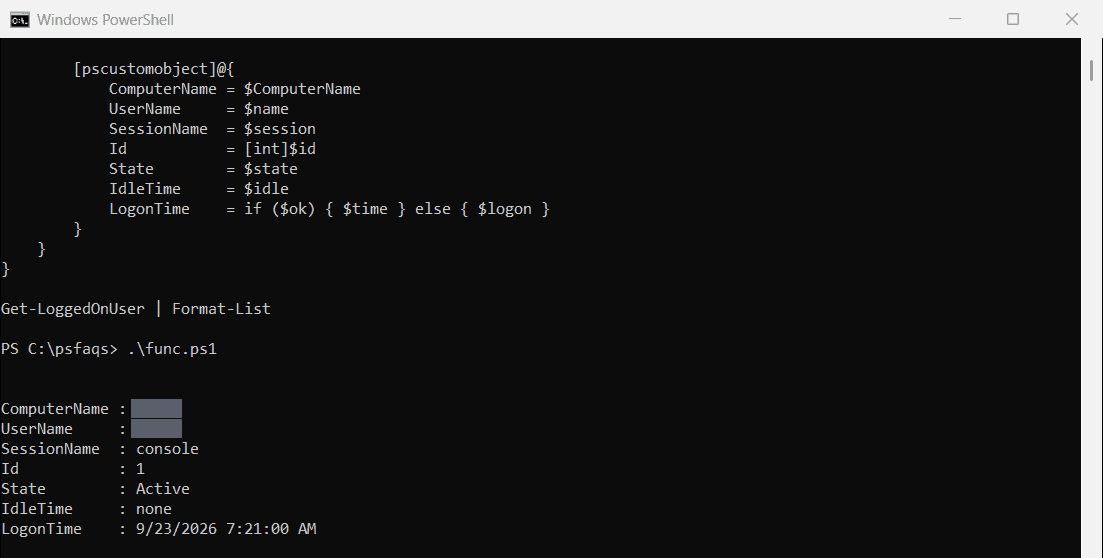
Two details make it reliable. Disconnected sessions have no session name, so the function counts the columns before assigning them.
It also reads your regional date format from the registry instead of assuming one, so the LogonTime column parses on US and non-US PCs alike.
Now you can filter like any other object, for example Get-LoggedOnUser | Where-Object State -eq 'Disc' to find sessions you could log off.
How do I get the user logged in at the console?
When you only care about the person si