
To generate SSH keys with PowerShell, run ssh-keygen, which ships with Windows 10 and 11 as part of the built-in OpenSSH client. Ed25519 is the recommended key type:
ssh-keygen -t ed25519 -C 'you@contoso.com'It asks where to save the key and for a passphrase, then creates a private key and a .pub public key. Below I check OpenSSH is installed, generate a test key, inspect it, load it into ssh-agent and copy it to a server.
Check that OpenSSH is installed
The OpenSSH client lives in C:\Windows\System32\OpenSSH. Get-Command confirms ssh-keygen is available:
$ssh = Get-Command -Name ssh-keygen -ErrorAction SilentlyContinue
"ssh-keygen found: $([bool]$ssh)"
"Location:         $($ssh.Source)"
"OpenSSH version:  $(cmd /c 'ssh -V 2>&1')"
Output:
ssh-keygen found: True
Location:         C:\WINDOWS\System32\OpenSSH\ssh-keygen.exe
OpenSSH version:  OpenSSH_for_Windows_9.5p2, LibreSSL 3.8.2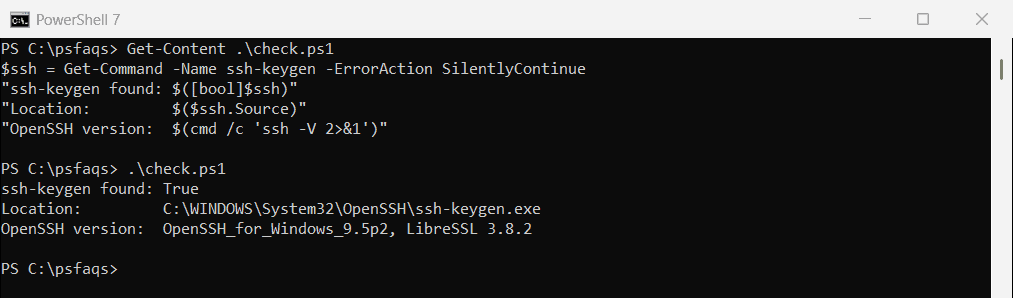
If it’s missing, add the OpenSSH Client optional feature in Settings, or follow Microsoft’s Get started with OpenSSH for Windows. If Git for Windows is also installed, make sure the Windows version comes first in your PATH.
For HTTPS or code signing, you’d create a certificate instead, as shown in creating a self-signed certificate.
Generate an SSH key pair
For this demo I save the key to a test folder and pass the passphrase with -N so the command doesn’t prompt. For real keys, leave -N out and type the passphrase when asked:
ssh-keygen -t ed25519 -C 'jordan.miller@contoso.com' -f C:\psfaqs\SSH\id_ed25519 -N 'Demo-Only-2026' |
    Select-Object -First 3
Output:
Generating public/private ed25519 key pair.
Your identification has been saved in C:\psfaqs\SSH\id_ed25519
Your public key has been saved in C:\psfaqs\SSH\id_ed25519.pub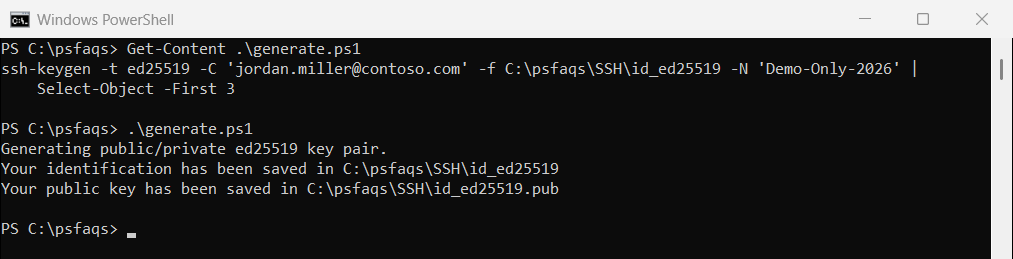
Without -f, keys go to .ssh in your user profile, named id_ed25519 and id_ed25519.pub. -C adds a comment, usually your email, so you can tell keys apart on the server.
Should you use RSA instead?
Use Ed25519 unless a server only supports RSA. If you need RSA, make it at least 3072 bits: ssh-keygen -t rsa -b 4096.
Check the key files and fingerprint
The private key has no extension and the public key ends in .pub. ssh-keygen -l prints the fingerprint that servers and Git hosts show:
Get-ChildItem -Path C:\psfaqs\SSH | ForEach-Object { '{0,-16} {1,4} bytes' -f $_.Name, $_.Length }

$public = Get-Content -Path C:\psfaqs\SSH\id_ed25519.pub
"Public key type:    $($public.Split(' ')[0])"
"Public key comment: $($public.Split(' ')[2])"
ssh-keygen -l -f C:\psfaqs\SSH\id_ed25519.pub
Output:
id_ed25519        464 bytes
id_ed25519.pub    108 bytes
Public key type:    ssh-ed25519
Public key comment: jordan.miller@contoso.com
256 SHA256:SstOt+VyFoGlGkVLFCy/KdLOiR+74hBC3Gdcxo1/Q+4 jordan.miller@contoso.com (ED25519)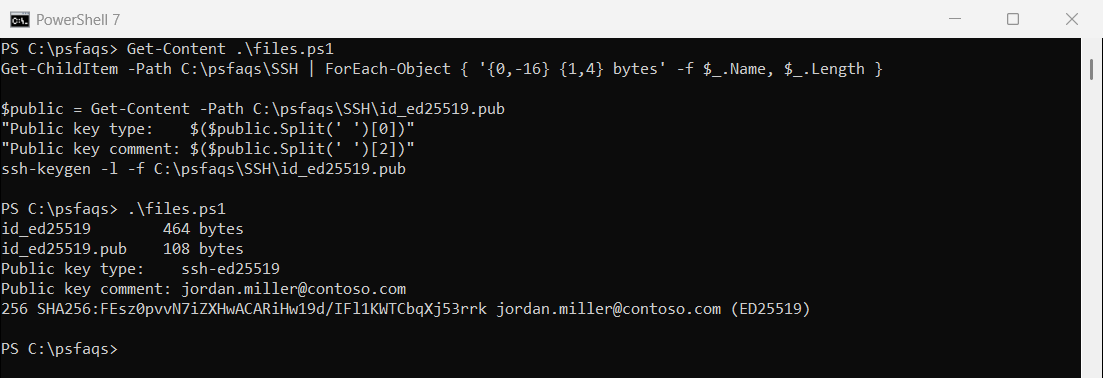
Share only the .pub file. The private key works like a password, so never email it or commit it to a repository.
Fingerprints are hashes, much like the file hashes in getting the hash of a file.
Load the key into ssh-agent
ssh-agent keeps your unlocked key in memory, so you don’t type the passphrase every time. It’s disabled by default:
Get-Service -Name ssh-agent | ForEach-Object { "ssh-agent: $($_.Status), start type $($_.StartType)" }Output:
ssh-agent: Stopped, start type DisabledEnable it once from an elevated window, then add your key:
Get-Service -Name ssh-agent | Set-Service -StartupType Automatic
Start-Service -Name ssh-agent
ssh-add $env:USERPROFILE\.ssh\id_ed25519
Microsoft suggests backing up the private key securely once it’s in the agent. Its key-based authentication guide explains why.
Copy the public key to a server
On a Linux server, append your public key to ~/.ssh/authorized_keys. From PowerShell, you can pipe it over SSH:
Get-Content -Path $env:USERPROFILE\.ssh\id_ed25519.pub |
    ssh jordan@web01.contoso.com 'mkdir -p ~/.ssh && cat >> ~/.ssh/authorized_keys'
On a Windows server, standard users use C:\Users\username\.ssh\authorized_keys. Administrators use C:\ProgramData\ssh\administrators_authorized_keys, which must be readable only by Administrators and SYSTEM.
Connect with your key
Test the connection. If the key is loaded in ssh-agent, you won’t be asked for a password:
ssh jordan@web01.contoso.comFor many servers, add them to .ssh\config with an IdentityFile line. Installing Git with PowerShell is the next step if you use these keys for GitHub.
Frequently Asked Questions
How do I generate an SSH key in PowerShell?
Run ssh-keygen -t ed25519 -C 'you@example.com'. Windows 10 and 11 include ssh-keygen with the OpenSSH client.
Where does ssh-keygen save keys on Windows?
In the .ssh folder of your user profile, as id_ed25519 and id_ed25519.pub, unless you pass -f.
Should I use Ed25519 or RSA?
Ed25519 is shorter, faster and the default in current OpenSSH. Use RSA 3072 or 4096 bits only for older servers.
Why is ssh-agent not running on Windows?
It’s disabled by default. Set it to Automatic and start it from an elevated PowerShell window.