
To list directories and files in PowerShell, use Get-ChildItem. On its own, it lists every folder and file in the current location. Add -Directory for folders only, -File for files only and -Recurse to include subfolders.
Here it is on a sample Projects folder I created for this article:
Get-ChildItem -Path C:\psfaqs\ProjectsOutput:
    Directory: C:\psfaqs\Projects

Mode                 LastWriteTime         Length Name
----                 -------------         ------ ----
d----           8/14/2026 11:00 AM                Archive
d----           9/20/2026  5:45 PM                Reports
d----           9/20/2026  5:45 PM                Scripts
d----           9/20/2026  5:45 PM                Website
-a---            9/1/2026  9:30 AM          48213 Budget-2026.xlsx
-a---            9/3/2026  9:30 AM           1200 notes.txt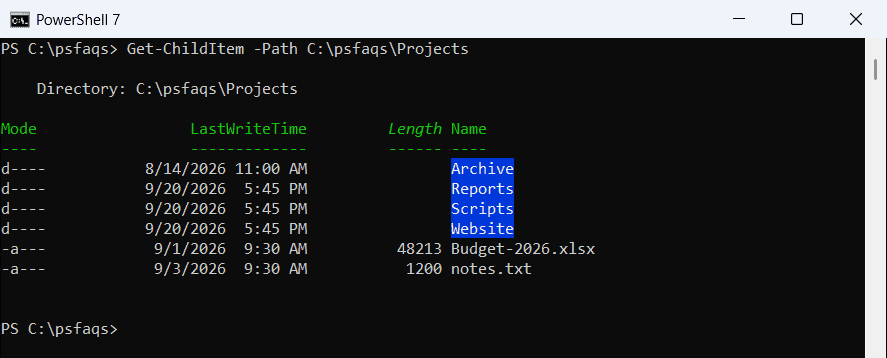
The Mode column tells you what each item is. A d means directory, a means the archive attribute is set (a normal file), and h would mean hidden.
dir, ls and gci are aliases for Get-ChildItem, so dir C:\psfaqs\Projects returns the same list. I tested everything in PowerShell 7.6 and Windows PowerShell 5.1.
List only directories in PowerShell
Add the -Directory switch to skip the files:
Get-ChildItem -Path C:\psfaqs\Projects -DirectoryOutput:
    Directory: C:\psfaqs\Projects

Mode                 LastWriteTime         Length Name
----                 -------------         ------ ----
d----           8/14/2026 11:00 AM                Archive
d----           9/20/2026  5:45 PM                Reports
d----           9/20/2026  5:45 PM                Scripts
d----           9/20/2026  5:45 PM                Website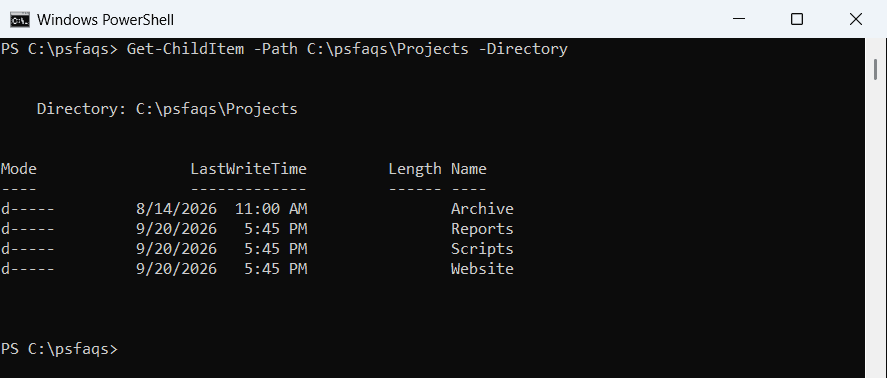
List only files
-File does the opposite and returns only files:
Get-ChildItem -Path C:\psfaqs\Projects -FileOutput:
    Directory: C:\psfaqs\Projects

Mode                 LastWriteTime         Length Name
----                 -------------         ------ ----
-a---            9/1/2026  9:30 AM          48213 Budget-2026.xlsx
-a---            9/3/2026  9:30 AM           1200 notes.txt
Notice that .env is missing. It’s a hidden file, and I’ll show you how to include those in a moment.
List files and folders recursively
-Recurse walks every subfolder. Combine it with -File and pick the columns you care about:
Get-ChildItem -Path C:\psfaqs\Projects -Recurse -File |
    Select-Object FullName, Length |
    Format-Table -AutoSize
Output:
FullName                                        Length
--------                                        ------
C:\psfaqs\Projects\Budget-2026.xlsx              48213
C:\psfaqs\Projects\notes.txt                      1200
C:\psfaqs\Projects\Reports\Q3-sales.csv           7766
C:\psfaqs\Projects\Reports\Q3-sales.pdf         154880
C:\psfaqs\Projects\Scripts\backup.ps1             3120
C:\psfaqs\Projects\Scripts\cleanup.ps1            1874
C:\psfaqs\Projects\Scripts\logs\backup-0926.log    912
C:\psfaqs\Projects\Website\index.html             5310
C:\psfaqs\Projects\Website\styles.css             2048
C:\psfaqs\Projects\Website\images\logo.png       18432
On a large drive, recursion can take a while. Point -Path at the folder you actually need instead of the root of C:\.
Limit how deep Get-ChildItem goes
-Depth controls how many levels below the starting folder you get. -Depth 0 is just the top level, and -Depth 1 adds one more:
Get-ChildItem -Path C:\psfaqs\Projects -Directory -Recurse -Depth 0 | Select-Object -ExpandProperty Name
'---'
Get-ChildItem -Path C:\psfaqs\Projects -Directory -Recurse -Depth 1 | Select-Object -ExpandProperty FullName
Output:
Archive
Reports
Scripts
Website
---
C:\psfaqs\Projects\Archive
C:\psfaqs\Projects\Reports
C:\psfaqs\Projects\Scripts
C:\psfaqs\Projects\Website
C:\psfaqs\Projects\Scripts\logs
C:\psfaqs\Projects\Website\images
I always pair -Depth with -Recurse. It makes the intent obvious to the next person who reads the script.
List file and folder names only
When you need plain text, for example to paste into an email or feed another command, add -Name. You get relative paths instead of objects:
Get-ChildItem -Path C:\psfaqs\Projects -Recurse -NameOutput:
Archive
Reports
Scripts
Website
Budget-2026.xlsx
notes.txt
Reports\Q3-sales.csv
Reports\Q3-sales.pdf
Scripts\logs
Scripts\backup.ps1
Scripts\cleanup.ps1
Scripts\logs\backup-0926.log
Website\images
Website\index.html
Website\styles.css
Website\images\logo.png
How do I list hidden files in PowerShell?
Get-ChildItem skips hidden and system items unless you add -Force:
(Get-ChildItem -Path C:\psfaqs\Projects -File).Name
'--- with -Force ---'
(Get-ChildItem -Path C:\psfaqs\Projects -File -Force).Name
Output:
Budget-2026.xlsx
notes.txt
--- with -Force ---
.env
Budget-2026.xlsx
notes.txt
If you only want the hidden items, use -Hidden instead. I cover more cases in how to list hidden files in PowerShell.
Filter by file type
-Filter is the fastest way to match one pattern, because the file system does the filtering:
Get-ChildItem -Path C:\psfaqs\Projects -Recurse -Filter *.ps1 | Select-Object Name, DirectoryOutput:
Name        Directory
----        ---------
backup.ps1  C:\psfaqs\Projects\Scripts
cleanup.ps1 C:\psfaqs\Projects\Scripts
For several patterns, use -Include. There’s a catch, though. -Include only works together with -Recurse or a path that ends in a wildcard:
Get-ChildItem -Path C:\psfaqs\Projects -Include *.csv, *.pdf    # no -Recurse: returns nothing
'--- with -Recurse ---'
(Get-ChildItem -Path C:\psfaqs\Projects -Include *.csv, *.pdf -Recurse).Name
Output:
--- with -Recurse ---
Q3-sales.csv
Q3-sales.pdf
The first command returns nothing and doesn’t raise an error, which makes this easy to miss. The