
A few weeks ago, I was reviewing disk space and server health data from a small company’s monitoring export. Several reports stored changes as negative numbers, such as -12.5 GB or -340 MB, but the operations team needed positive values for a clean summary.
Converting negative to positive in PowerShell is simple once you know which approach matches your data. The important part is choosing a method that also handles zero, decimals, arrays, and values imported from CSV files.
In this guide, I will show you how to convert negative to positive in PowerShell, explain what happens behind the scenes, and share safe patterns I use in automation scripts.
How to Convert Negative to Positive in PowerShell
The most reliable way to convert a negative number to a positive number is the absolute value. An absolute value returns the distance from zero, so both -25 and 25 become 25.
In PowerShell, you can get an absolute value with the .NET [Math]::Abs() method.
$DiskSpaceChange = -12.5

$PositiveValue = [Math]::Abs($DiskSpaceChange)

$PositiveValue
Output:
12.5
Here is the exact output in the screenshot below:
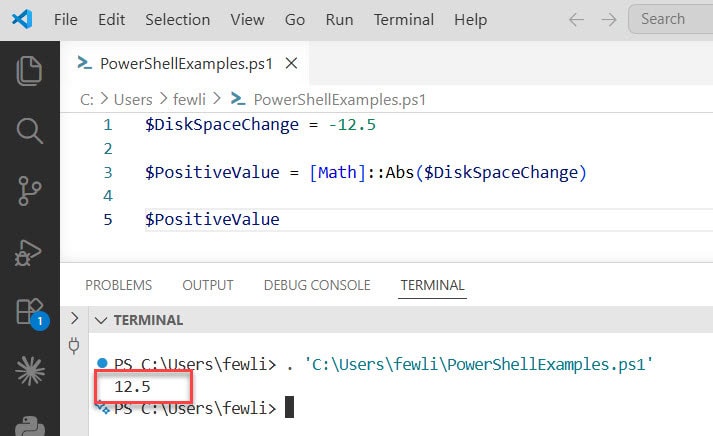
Here is what each line does:
$DiskSpaceChange = -12.5stores a negative decimal number in a variable.- [Math]::Abs() calls the .NET Math class and returns the absolute value.
$PositiveValuestores and displays the converted number.
I use this approach most often because it works whether the source value is already negative or positive. You do not need an extra condition to check the sign first.
Convert Negative to Positive with Math Abs
The [Math]::Abs() method is the best general-purpose option for PowerShell scripts. It works with integers, decimals, and many common numeric values.
Imagine you collect memory-change values from several Windows servers. Some values show memory reductions as negative numbers.
$MemoryChangeMB = -340

$AbsoluteMemoryChange = [Math]::Abs($MemoryChangeMB)

Write-Output "Memory change: $AbsoluteMemoryChange MB"
Output:
Memory change: 340 MB
The Write-Output cmdlet sends an object to the PowerShell pipeline. A pipeline passes data from one command to another, or displays it when no later command receives it.
You can also use [Math]::Abs() directly inside a command.
[Math]::Abs(-85)
Output:
85
This one-line command works well when you test a calculation in the PowerShell console.
If you need to understand the data type behind a value before converting it, see this guide on getting the type of an object in PowerShell.
Convert Negative to Positive Using Multiplication
You can also convert a known negative number by multiplying it by -1.
$ServerStorageDifference = -125

$PositiveDifference = $ServerStorageDifference * -1

$PositiveDifference
Output:
125
Here is the exact output in the screenshot below:
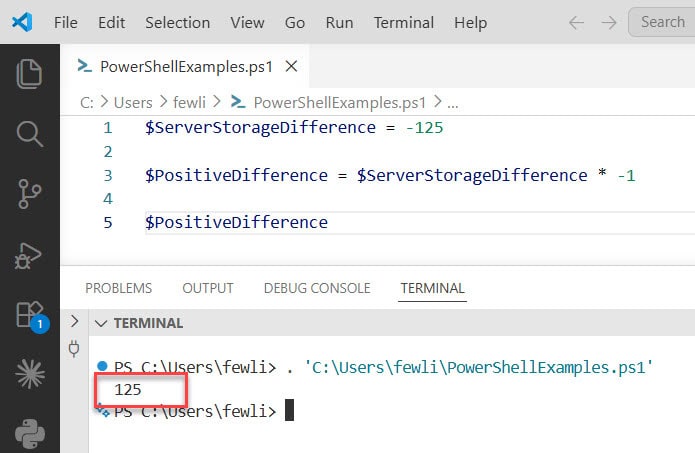
This works because a negative number multiplied by a negative number becomes positive.
However, I do not recommend using this pattern for values that may already be positive. If $ServerStorageDifference equals 125, multiplying it by -1 changes it to -125, which is usually not what you want.
$ServerStorageDifference = 125

$ServerStorageDifference * -1
Output:
-125
Use multiplication only when you know every incoming value is negative and you intentionally want to reverse its sign. For mixed data, use [Math]::Abs() instead.
Convert Negative to Positive with If Statement
An if statement lets you convert only values below zero. This approach helps when you want to apply additional logic, such as writing a message or preserving the original value.
$BackupJobDifference = -48

if ($BackupJobDifference -lt 0) {
    $BackupJobDifference = $BackupJobDifference * -1
}

$BackupJobDifference
Output:
48
Let us break down the condition:
- if checks whether an expression is true.
$BackupJobDifference -lt 0checks whether the value is less than zero.- -lt means “less than” in PowerShell.
- The code inside curly braces runs only when the value is negative.
- Multiplying by
-1reverses the sign.
This pattern keeps positive values unchanged.
$BackupJobDifference = 48

if ($BackupJobDifference -lt 0) {
    $BackupJobDifference = $BackupJobDifference * -1
}

$BackupJobDifference
Output:
48
For more examples of numeric comparisons, read about PowerShell comparison operators.
Convert Negative Decimal Values in PowerShell
Server reports often include decimal values, especially when you measure storage, CPU averages, or transfer speeds. [Math]::Abs() handles decimal values without any special syntax.
$AverageTransferRate = -18.75

$PositiveTransferRate = [Math]::Abs($AverageTransferRate)

Write-Output "Average transfer rate: $PositiveTransferRate MB/s"
Output:
Average transfer rate: 18.75 MB/s
PowerShell usually detects a number type automatically. Still, imported data may arrive as text instead of a number. In that case, convert the string before calling [Math]::Abs().
$StorageChangeText = "-45.25"

$StorageChangeNumber = [decimal]$StorageChangeText
$PositiveStorageChange = [Math]::Abs($StorageChangeNumber)

$PositiveStorageChange
Output:
45.25
The [decimal] type conversion tells PowerShell to treat the text as a decimal number. This avoids unexpected string behavior in your script.
If your value contains a decimal separator from a different regional format, review this article on converting a string to a decimal in PowerShell.
Convert Multiple Negative Numbers to Positive
In real Windows automation, you rarely work with only one value. You may collect memory deltas, storage changes, or performance counters from multiple servers.
Create an array and send each value through ForEach-Object.
$DiskChanges = @(-12, 25, -8, 0, -45)

$PositiveDiskChanges = $DiskChanges | ForEach-Object {
    [Math]::Abs($_)
}

$PositiveDiskChanges
Output:
12
25
8
0
45
Here is how the script works:
$DiskChangesis an array, which stores multiple values in one variable.- The pipeline sends each number to ForEach-Object.
$_represents the current item moving through the pipeline.- [Math]::Abs($) returns the positive form of every number.
$PositiveDiskChangesstores the finished results.
This keeps the original array unchanged. That matters when you need both the signed value and the positive value in a final report.
For a deeper look at this cmdlet, see how to use ForEach-Object in PowerShell.
Pro Tip: In my experience, avoid multiplying every value by
-1when processing monitoring data. Exports often contain a mix of positive and negative changes, and that shortcut silently produces incorrect results for positive values. [Math]::Abs() makes the script safer and easier to maintain.
Convert Negative CSV Values to Positive
CSV files are common in Windows administration. You may export server health data from monitoring software, then use PowerShell to prepare a management report.
Assume you have a file named C:\Reports\ServerStorageChanges.csv with this content:
ServerName,StorageChangeGB
WEB01,-14.5
APP01,8.2
SQL01,-32.75
Use Import-Csv to read the file, calculate positive values, and export a new report.
$ReportPath = "C:\Reports\ServerStorageChanges.csv"
$OutputPath = "C:\Reports\ServerStorageChanges-Positive.csv"

$ServerReport = Import-Csv -Path $ReportPath

$ServerReport |
    Select-Object ServerName, @{
        Name = "StorageChangeGB"
        Expression = {
            [Math]::Abs([decimal]$_.StorageChangeGB)
        }
    } |
    Export-Csv -Path $OutputPath -NoTypeInformation
This PowerShell script does several useful things:
- Import-Csv reads each CSV row as an object with named properties.
- Select-Object chooses the output columns.
- The
@{}block creates a calculated property, which builds a new value during processing. Namedefines the output column name.Expressioncontains the calculation for each row.[decimal]$_.StorageChangeGBconverts the CSV text to a number.- [Math]::Abs() converts every negative storage change into a positive value.
- Export-Csv writes the cleaned results to a new CSV file.
-NoTypeInformationremoves unnecessary PowerShell type data from the file.
The output file looks like this:
"ServerName","StorageChangeGB"
"WEB01","14.5"
"APP01","8.2"
"SQL01","32.75"
Learn more about importing CSV files in PowerShell and exporting CSV data from PowerShell.
Create a Reusable Function
A function is reusable PowerShell code that performs one job. I use functions when a conversion appears in several places across a reporting or server-maintenance script.
function ConvertTo-PositiveNumber {
    param (
        [decimal]$Number
    )

    return [Math]::Abs($Number)
}
The function follows the PowerShell verb-noun naming pattern:
ConvertTodescribes the action.PositiveNumberdescribes the result.- The
paramblock defines input parameters. [decimal]$Numberrequires a numeric decimal input.- return sends the converted value back to the caller.
Now use the function with individual values.
$CpuChange = -7.25
$PositiveCpuChange = ConvertTo-PositiveNumber -Number $CpuChange

$PositiveCpuChange
Output:
7.25
You can also use the function in a pipeline.
$PerformanceChanges = @(-5, 10, -22, 4)

$PerformanceChanges | ForEach-Object {
    ConvertTo-PositiveNumber -Number $_
}
Output:
5
10
22
4
If you want to build more reusable scripts, explore these PowerShell function examples with parameters.
Windows PowerShell and PowerShell 7
The examples in this PowerShell tutorial work in both Windows PowerShell 5.1 and PowerShell 7. Both versions support the .NET [Math]::Abs() method, arrays, calculated properties, and CSV cmdlets.
Windows PowerShell 5.1 ships with many supported Windows versions and remains common in server environments. PowerShell 7 offers newer language features and cross-platform support, but you do not need it for this task.
Check your installed PowerShell version with this command:
$PSVersionTable.PSVersion
For help interpreting the output, read how to check your PowerShell version.
Things to Keep in Mind
- Use absolute values for mixed data: Choose [Math]::Abs() when data may contain both positive and negative numbers.
- Convert CSV text to numbers: Use
[int],[double], or[decimal]before calculations when Import-Csv returns numeric-looking text. - Keep the original value when needed: Store the result in a new property or variable when audit reports need the original sign.
- Test with realistic samples: Include negative, positive, zero, decimal, and blank values before you use the script in production.
- Validate blank values first: A blank or invalid CSV field can cause a conversion error, so check the value before casting it.
- Use error handling in reports: Add Try/Catch when you process large files or unreliable exports, especially in scheduled Windows automation.
Frequently Asked Questions
How do I convert a negative number to a positive number in PowerShell?
Use [Math]::Abs() with the number you want to convert. For example, [Math]::Abs(-50) returns 50. This method also leaves positive numbers unchanged.
Does Math Abs work with positive values?
Yes. [Math]::Abs(50) returns 50, while [Math]::Abs(-50) also returns 50. That makes it safer than multiplying every number by -1.
How do I convert a negative integer to positive in PowerShell?
Use [Math]::Abs($Number) for integers. For example, $PositiveNumber = [Math]::Abs(-100) stores 100 in the variable.
How do I convert negative decimal values to positive in PowerShell?
Use [Math]::Abs() with a decimal value such as [Math]::Abs(-18.75). If the value comes from a CSV file, cast it first with [decimal]$Value.
Can I convert an array of negative numbers to positive?
Yes. Send the array through ForEach-Object and call [Math]::Abs($) for each item. This creates a new list of positive values while preserving the original array.
Why does my PowerShell number stay negative after conversion?
You may have stored the result in a different variable but displayed the original variable. Assign the returned value back to the same variable, or output the variable that stores the converted result.
You now know how to convert negative to positive in PowerShell with [Math]::Abs(), conditional logic, arrays, CSV files, and reusable functions. Start small, test carefully, and then automate more once you’re confident. I hope you found this article helpful.
You May Also Like
- PowerShell arithmetic operators
- Convert a string to an integer in PowerShell
- Use Try/Catch in PowerShell
- Log error messages with PowerShell Try/Catch
- Run a PowerShell script with parameters

Bijay Kumar is an esteemed author and the mind behind PowerShellFAQs.com, where he shares his extensive knowledge and expertise in PowerShell, with a particular focus on SharePoint projects. Recognized for his contributions to the tech community, Bijay has been honored with the prestigious Microsoft MVP award. With over 15 years of experience in the software industry, he has a rich professional background, having worked with industry giants such as HP and TCS. His insights and guidance have made him a respected figure in the world of software development and administration. Read more.