
PowerShell’s comparison operators are -eq (equal), -ne (not equal), -gt (greater than), -ge (greater than or equal), -lt (less than) and -le (less than or equal). Each returns True or False:
$orders = 42

"-eq 42: $($orders -eq 42)"
"-ne 40: $($orders -ne 40)"
"-gt 40: $($orders -gt 40)"
"-ge 42: $($orders -ge 42)"
"-lt 50: $($orders -lt 50)"
"-le 41: $($orders -le 41)"
Output:
-eq 42: True
-ne 40: True
-gt 40: True
-ge 42: True
-lt 50: True
-le 41: False
PowerShell uses these letter operators instead of =, > and <, which mean something else here. I ran every example in PowerShell 7.6 and Windows PowerShell 5.1, with the same results.
Check if a variable equals a value
Use -eq inside an if statement. String comparisons ignore case by default, so ‘Manager’ matches ‘manager’:
$role = 'Manager'

if ($role -eq 'admin') { 'Full access' }
elseif ($role -eq 'manager') { 'Can approve expenses' }
else { 'Read-only access' }
Output:
Can approve expensesIf, elseif and else covers the if statement itself, and about_If is Microsoft’s reference.
Case-sensitive comparisons
Add a c to any operator to make it case-sensitive: -ceq, -cne, -cgt and so on. An i prefix, like -ieq, makes the default explicit:
"'Texas' -eq 'TEXAS':  $('Texas' -eq 'TEXAS')"
"'Texas' -ceq 'TEXAS': $('Texas' -ceq 'TEXAS')"
"'Texas' -cne 'TEXAS': $('Texas' -cne 'TEXAS')"
Output:
'Texas' -eq 'TEXAS':  True
'Texas' -ceq 'TEXAS': False
'Texas' -cne 'TEXAS': True
The left side decides the type
When the two sides have different types, PowerShell converts the right side to the type of the left side. The same values can give different answers:
"10 -gt '9':    $(10 -gt '9')"
"'10' -gt 9:    $('10' -gt 9)"
"'10' -gt '9':  $('10' -gt '9')"
Output:
10 -gt '9':    True
'10' -gt 9:    False
'10' -gt '9':  False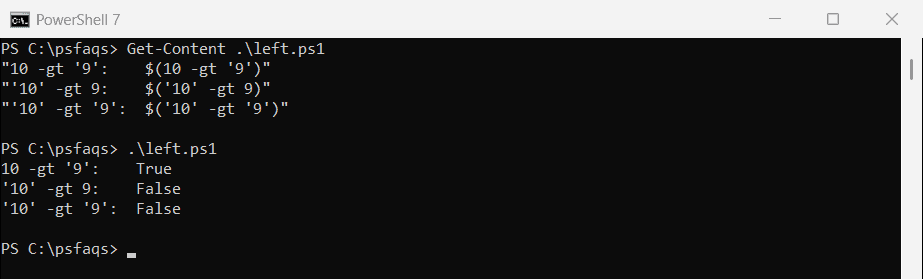
With text on the left, ’10’ comes before ‘9’ because 1 sorts before 9. Values from Read-Host, CSV files and the registry are text, so cast them with [int] or [double] first.
Compare version numbers with [version]
Version strings are a common trap for -ge and -gt. Cast both sides to [version] so each part is compared as a number:
$installed = '10.0.2'
$required  = '9.4.1'

"As text:     $($installed -ge $required)"
"As versions: $([version]$installed -ge [version]$required)"
Output:
As text:     False
As versions: True
As text, 10.0.2 looks smaller than 9.4.1. The [version] type compares major, minor and build numbers in order.
Comparison operators on arrays filter them
With an array on the left, a comparison doesn’t return True or False. It returns the items that match:
$scores = 88, 92, 75, 92, 60

"-eq 92 returns: $($scores -eq 92)"
"-ge 80 returns: $($scores -ge 80)"
"-eq 50 returns: [$($scores -eq 50)]"
Output:
-eq 92 returns: 92 92
-ge 80 returns: 88 92 92
-eq 50 returns: []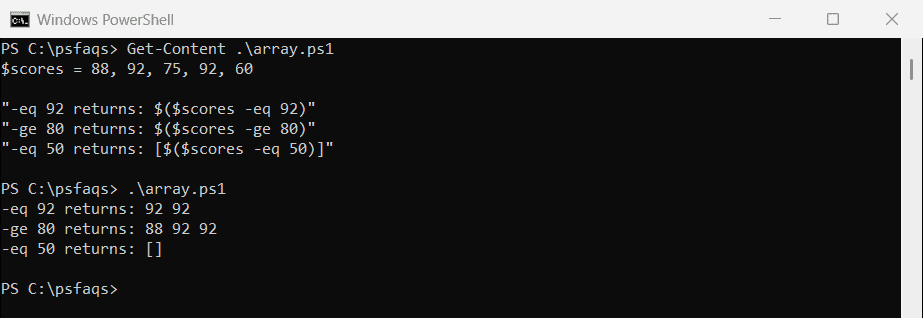
That’s handy for quick filters, but it changes what an if statement sees. An empty result counts as False, and so does a result with a single 0 or empty string.
Put $null on the left
This is why PowerShell’s own script analyzer asks you to write $null -eq $value. With an array on the left, the null check gives the wrong answer:
$servers = 'WEB01', $null, 'WEB02'

"-ne `$null keeps:           $($servers -ne $null)"
"if (`$servers -eq `$null) ran: $(if ($servers -eq $null) { 'yes' } else { 'no' })"
"`$null -eq `$servers:        $($null -eq $servers)"
Output:
-ne $null keeps:           WEB01 WEB02
if ($servers -eq $null) ran: no
$null -eq $servers:        False
The array does contain $null, but the filter returned a list holding just $null, and that counts as False. Checking for null or empty goes deeper.
Two mistakes that don’t cause an error
> redirects output to a file
In PowerShell, > isn’t greater than. It’s the redirection operator, so this writes 5 into a new file named 3:
Set-Location -Path C:\psfaqs\Compare
$count = 5

if ($count > 3) { 'This looks like a comparison' }
"Files created: $((Get-ChildItem).Name)"
"Contents of file '3': $(Get-Content -Path .\3)"
Output (the if block never ran):
Files created: 3
Contents of file '3': 5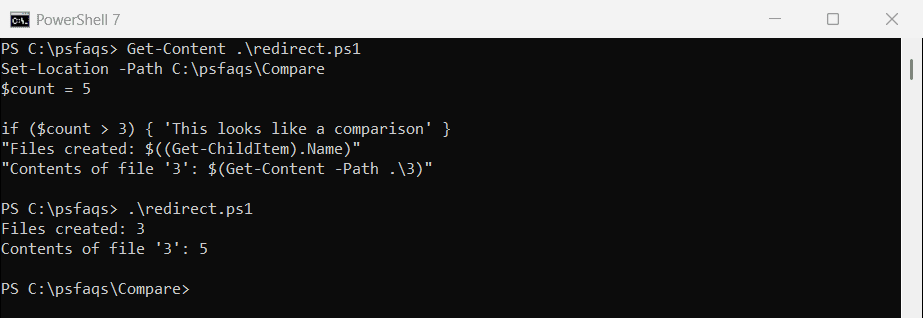
Always use -gt and -lt. Microsoft covers > and >> in about_Redirection.
= assigns a value
A single equals sign in an if statement assigns the value, and the if tests the assigned value:
$state = 'CA'

if ($state = 'TX') { "Oops, this ran, and `$state is now $state" }