
To export data to a CSV file in PowerShell, pipe objects to Export-Csv and give it a path. Each object becomes a row, and each property becomes a column:
$employees = @(
    [pscustomobject]@{ Name = 'Emma Carter'; Office = 'Seattle'; Salary = 98500 }
    [pscustomobject]@{ Name = 'Liam Brooks'; Office = 'Austin'; Salary = 87250 }
    [pscustomobject]@{ Name = 'Olivia Reed'; Office = 'Chicago'; Salary = 91000 }
)

$employees | Export-Csv -Path C:\psfaqs\Export\employees.csv -NoTypeInformation
Get-Content -Path C:\psfaqs\Export\employees.csv
Output:
"Name","Office","Salary"
"Emma Carter","Seattle","98500"
"Liam Brooks","Austin","87250"
"Olivia Reed","Chicago","91000"
Add -NoTypeInformation if the script might run in Windows PowerShell 5.1. I ran every example in PowerShell 7.6 and 5.1, and I point out each place where they behave differently.
The #TYPE line in Windows PowerShell 5.1
Without -NoTypeInformation, Windows PowerShell 5.1 writes a #TYPE line above the header. PowerShell 7 leaves it out by default. The examples below reuse the $employees array from above:
$employees | Export-Csv -Path C:\psfaqs\Export\employees.csv
Get-Content -Path C:\psfaqs\Export\employees.csv -TotalCount 2
Output in Windows PowerShell 5.1:
#TYPE System.Management.Automation.PSCustomObject
"Name","Office","Salary"
Excel shows that #TYPE line as the first row, and other tools may read it as the header. -NoTypeInformation is harmless in PowerShell 7, so keep it for scripts that run in both.
Choose, rename and order the columns
Export-Csv writes every property. Put Select-Object in front of it to pick the columns and their order, and Sort-Object to order the rows:
$employees |
    Sort-Object -Property Salary -Descending |
    Select-Object -Property Office, Name |
    Export-Csv -Path C:\psfaqs\Export\by-salary.csv -NoTypeInformation

Get-Content -Path C:\psfaqs\Export\by-salary.csv
Output:
"Office","Name"
"Seattle","Emma Carter"
"Chicago","Olivia Reed"
"Austin","Liam Brooks"
Don’t use Format-Table here. It sends formatting objects down the pipeline, and the CSV fills with columns like ClassId2e4f51ef21dd47e99d3c952918aff9cd. Select-Object also renames columns with calculated properties.
The first object decides the columns
Export-Csv builds the header from the first object only. Later objects with extra properties lose them, and missing ones become empty values. When your objects differ, select the same property list for all of them first.
Export an array to CSV
An array of objects exports cleanly, as above. An array of plain strings doesn’t. Strings have one property, Length, so that’s all you get:
$servers = 'web01', 'web02', 'sql01'

$servers | Export-Csv -Path C:\psfaqs\Export\servers.csv -NoTypeInformation
Get-Content -Path C:\psfaqs\Export\servers.csv
'--- Fixed: wrap each string in an object ---'
$servers | ForEach-Object { [pscustomobject]@{ Server = $_ } } |
    Export-Csv -Path C:\psfaqs\Export\servers.csv -NoTypeInformation
Get-Content -Path C:\psfaqs\Export\servers.csv
Output:
"Length"
"5"
"5"
"5"
--- Fixed: wrap each string in an object ---
"Server"
"web01"
"web02"
"sql01"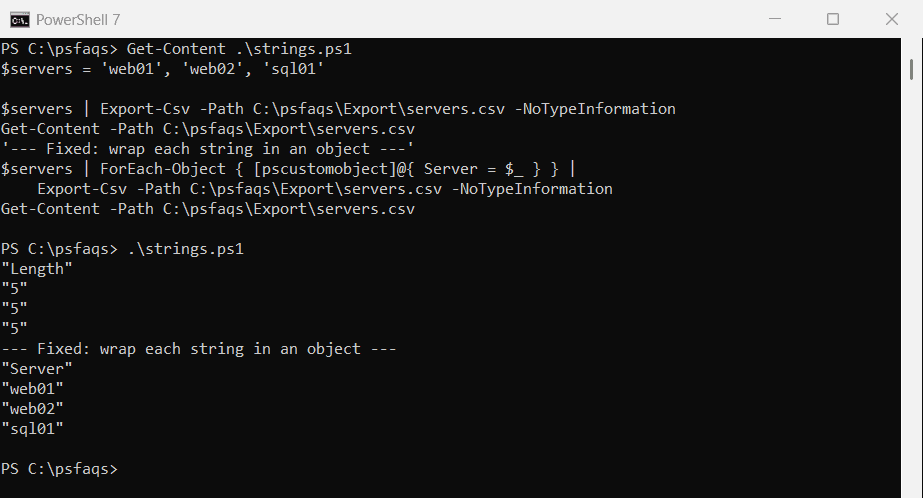
Wrap each string in a [pscustomobject] with a column name you choose. For a one-column list, Out-File or Set-Content is simpler still.
Arrays inside a property
A property that holds an array exports as the text System.Object[]. ConvertTo-Csv prints the same lines Export-Csv would save, so I use it to show the fix, a calculated property that joins the values:
$user = [pscustomobject]@{ Name = 'Emma Carter'; Groups = @('Sales', 'VPN Users', 'Seattle Office') }

$user | ConvertTo-Csv -NoTypeInformation
'--- Fixed: join the array into one text value ---'
$user | Select-Object -Property Name, @{ Name = 'Groups'; Expression = { $_.Groups -join '; ' } } |
    ConvertTo-Csv -NoTypeInformation
Output:
"Name","Groups"
"Emma Carter","System.Object[]"
--- Fixed: join the array into one text value ---
"Name","Groups"
"Emma Carter","Sales; VPN Users; Seattle Office"
I used a semicolon between the values, so they don’t get mixed up with the commas between columns.
Export a hashtable to CSV
Hashtables are where PowerShell 7 and 5.1 differ most. PowerShell 7.2 and later export the keys as columns, while 5.1 exports the hashtable’s own properties:
$inventory = [ordered]@{ Laptops = 42; Monitors = 67; Docks = 18 }
$inventory | ConvertTo-Csv -NoTypeInformation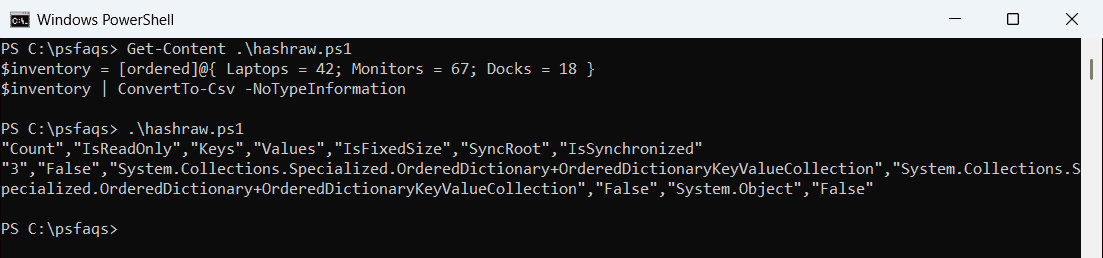
These two forms work the same in both versions. Pick one row per key, or one row with the keys as columns:
$inventory = [ordered]@{ Laptops = 42; Monitors = 67; Docks = 18 }

'--- One row per key ---'
$inventory.GetEnumerator() |
    Select-Object -Property @{ Name = 'Item'; Expression = { $_.Key } }, @{ Name = 'Count'; Expression = { $_.Value } } |
    ConvertTo-Csv -NoTypeInformation
'--- One row, keys as columns ---'
[pscustomobject]$inventory | ConvertTo-Csv -NoTypeInformation
Output:
--- One row per key ---
"Item","Count"
"Laptops","42"
"Monitors","67"
"Docks","18"
--- One row, keys as columns ---
"Laptops","Monitors","Docks"
"42","67","18"
I used [ordered] so the rows come out in the order I typed them. Hashtables and dictionaries covers ordered hashtables and GetEnumerator.
Export a table to CSV
A System.Data.DataTable, like the result of a SQL query, exports directly. PowerShell passes each row down the pipeline, and the columns become the header:
$table = New-Object -TypeName System.Data.DataTable -ArgumentList 'Orders'
[void]$table.Columns.Add('OrderId', [int])
[void]$table.Columns.Add('State', [string])
[void]$table.Columns.Add('Total', [decimal])
[void]$table.Rows.Add(1001, 'TX', 249.99)
[void]$table.Rows.Add(1002, 'CA', 89.50)

$table | Export-Csv -Path C:\psfaqs\Export\orders.csv -NoTypeInformation
Get-Content -Path C:\psfaqs\Export\orders.csv
Output:
"OrderId","State","Total"
"1001","TX","249.99"
"1002","CA","89.5"