
To run a PowerShell script from the command line with parameters, start powershell.exe with -File, then the script path, then the parameters:
powershell.exe -NoProfile -ExecutionPolicy Bypass -File C:\Scripts\Send-Report.ps1 -City "San Antonio" -Days 30Use pwsh.exe instead for PowerShell 7. Below I run real batch files to show quoting, arrays, switches and exit codes, which all behave a little differently from inside PowerShell.
The sample script
Every example calls Send-Report.ps1. It prints what it received, and exits with code 3 for one test city:
param(
    [string]$City = 'Austin',
    [int]$Days = 7,
    [string[]]$Recipients = @('ops@contoso.com'),
    [switch]$Detailed
)
"City: $City | Days: $Days | Recipients: $($Recipients.Count) | Detailed: $Detailed"
if ($City -eq 'Nowhere') { exit 3 }
Declaring parameters this way is covered in passing variables to a PowerShell script. Here the focus is on calling the script from cmd.
Run the script from cmd
This batch file runs the script once in Windows PowerShell 5.1 and once in PowerShell 7. I show the file first, then run it:
Get-Content -Path .\run-report.cmd
''
.\run-report.cmd
Output (batch file, then results):
@echo off
powershell.exe -NoProfile -ExecutionPolicy Bypass -File .\Send-Report.ps1 -City "San Antonio" -Days 30
pwsh.exe -NoProfile -ExecutionPolicy Bypass -File .\Send-Report.ps1 -City "San Antonio" -Days 30

City: San Antonio | Days: 30 | Recipients: 1 | Detailed: False
City: San Antonio | Days: 30 | Recipients: 1 | Detailed: False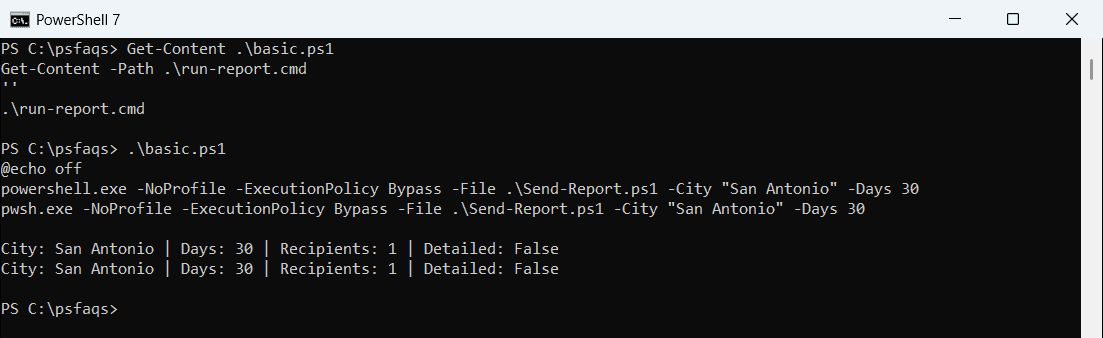
Put double quotes around values with spaces, like “San Antonio”. cmd doesn’t understand single quotes. -NoProfile skips your profile so the script starts the same way everywhere.
What the switches do
| Switch | Why you use it |
|---|---|
-NoProfile | Faster, predictable start without your profile |
-ExecutionPolicy Bypass | Runs the script even if the policy blocks it, for this run only |
-File | Runs a script file and passes the rest of the line as parameters |
-NoExit | Keeps the window open after the script ends |
-WindowStyle Hidden | Hides the window, handy for scheduled tasks |
-File must come last, because everything after the script path goes to the script. Details are in about_PowerShell_exe and about_Pwsh.
If cmd shows “Missing an argument for parameter”, a parameter name on your command line has no value after it. Here is how to fix the “Missing an argument for parameter” error in PowerShell.
-File vs -Command: arrays behave differently
-File passes each value as plain text. -Command parses the line as PowerShell, so a comma makes an array:
Get-Content -Path .\run-array.cmd
''
.\run-array.cmd
Output (batch file, then results):
@echo off
powershell.exe -NoProfile -File .\Send-Report.ps1 -Recipients amy@contoso.com,dan@contoso.com
powershell.exe -NoProfile -Command "& .\Send-Report.ps1 -Recipients amy@contoso.com,dan@contoso.com"

City: Austin | Days: 7 | Recipients: 1 | Detailed: False
City: Austin | Days: 7 | Recipients: 2 | Detailed: False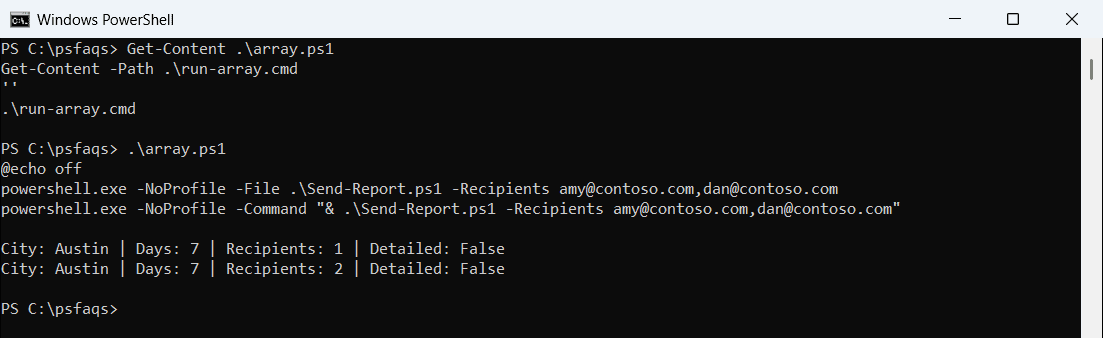
With -File, the script got one string, “amy@contoso.com,dan@contoso.com”. Use -Command when you need arrays or expressions, and wrap the script call in double quotes with &.