PowerShell ForEach-Object [With Examples]

Today, I am going to explain a very useful concept in PowerShell: the ForEach-Object cmdlet. This is the most widely used cmdlet in PowerShell. I will show you detailed examples of PowerShell ForEach-Object.

The ForEach-Object cmdlet in PowerShell processes each item in a collection individually, allowing for operations such as modifying properties or executing commands. For example, to double each number in a sequence, you can use 1..5 | ForEach-Object { $_ * 2 }, which outputs 2, 4, 6, 8, and 10.

ForEach-Object in PowerShell

The ForEach-Object cmdlet in PowerShell operates on each item in a collection of input objects. This cmdlet is particularly useful when you need to process each item individually in a pipeline. Unlike the ForEach keyword, which is used in a script block, ForEach-Object is a cmdlet that can be used directly in the pipeline.

Syntax of PowerShell ForEach-Object

The syntax of ForEach-Object in PowerShell is like this:

ForEach-Object [-InputObject] <psobject> [-Begin <scriptblock>] [-Process <scriptblock>] [-End <scriptblock>] [<CommonParameters>]
  • -InputObject: Specifies the objects to be processed. This parameter is optional because ForEach-Object typically receives input from the pipeline.
  • -Begin: Defines a script block that runs before the Process script block.
  • -Process: Defines the script block that runs once for each input object.
  • -End: Defines a script block that runs after the Process script block has processed all input objects.

Read How to Use Wildcards in PowerShell Switch?

PowerShell foreach-object examples

Now, let me show you a few examples of how to use the foreach-object in PowerShell.

Example-1: Basic ForEach-Object

Suppose we have a list of numbers and want to print each number. Here is the script with the foreach-object.

1..5 | ForEach-Object { $_ }

In this example, 1..5 generates a sequence of numbers from 1 to 5, and ForEach-Object processes each number in the sequence. The $_ variable represents the current object in the pipeline.

I execute the above PowerShell script using VS code, and you can see the output in the screenshot below:

foreach-object in PowerShell

Example-2: Perform Calculation

You can use ForEach-Object to perform various operations on each object in the pipeline. For instance, let’s say we want to double each number in the list; then, you can write the below script.

1..5 | ForEach-Object { $_ * 2 }

This script will output:

2
4
6
8
10

Example-3: Rename Files in a Directory using foreach-object

Suppose you have a directory with files that need to be renamed to include a timestamp. You can use ForEach-Object to get this, like the below:

Get-ChildItem -Path "C:\MyFolder" -File | ForEach-Object {
    $newName = "{0}_{1}{2}" -f $_.BaseName, (Get-Date -Format "yyyyMMdd"), $_.Extension
    Rename-Item -Path $_.FullName -NewName $newName
}

You can see the screenshot below, it rename all the files in the folder after I executed the above PowerShell script.

PowerShell ForEach-Object

Example-4: Modify Registry Keys using foreach-object

Let me show you another little complex example of a foreach-object.

Suppose you need to update a specific registry key for a list of computers. You can use ForEach-Object to perform this task.

$computers = @("Computer1", "Computer2", "Computer3")
$computers | ForEach-Object {
    Invoke-Command -ComputerName $_ -ScriptBlock {
        Set-ItemProperty -Path "HKLM:\Software\MyApp" -Name "Setting" -Value "NewValue"
    }
}

This script updates the registry key on each computer in the list.

PowerShell foreach-object with Begin, Process, and End Script Blocks

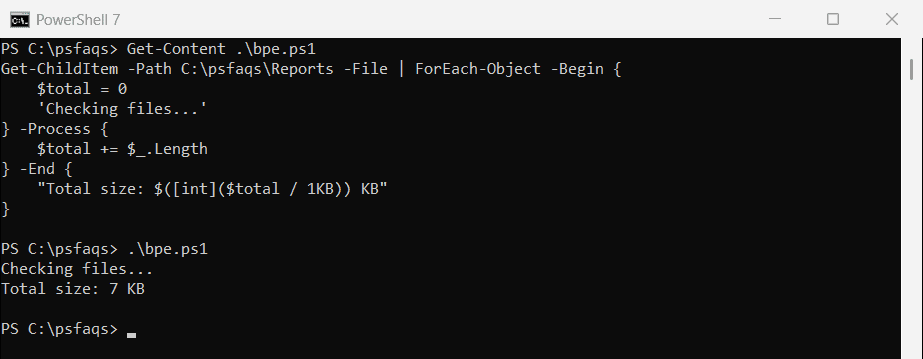
The ForEach-Object cmdlet in PowerShell allows you to define three script blocks: BeginProcess, and End. These script blocks can perform initialization, processing, and cleanup tasks.

Here is an example:

Suppose we want to calculate the sum of a list of numbers using PowerShell. We can use the BeginProcess, and End script blocks to achieve this:

$sum = 0
1..5 | ForEach-Object -Begin { $sum = 0 } -Process { $sum += $_ } -End { $sum }

In this example:

  • The Begin block initializes the $sum variable to 0.
  • The Process block adds each number to the $sum variable.
  • The End block outputs the final sum.

The output will be:

15

Read PowerShell ForEach Loop

Filter Objects with Where-Object in a PowerShell foreach-object

Here is an exciting example of filtering objects with Where-Object in a PowerShell foreach-object.

You can use the Where-Object cmdlet with ForEach-Object to achieve this.

Let’s filter out only the even numbers from a list and then double them:

1..10 | Where-Object { $_ % 2 -eq 0 } | ForEach-Object { $_ * 2 }

The Where-Object cmdlet filters the numbers and ForEach-Object processes the filtered numbers. The output will be:

4
8
12
16
20

You can also see the output in the screenshot below after I executed the above script using VS code.

Filter Objects with Where-Object in a PowerShell foreach-object

PowerShell foreach-object with Arrays and Collections

ForEach-Object is particularly useful when working with PowerShell arrays and collections. Let’s consider an example where we have an array of strings representing file names, and we want to append a suffix to each file name.

$files = @("file1.txt", "file2.txt", "file3.txt")
$files | ForEach-Object { "$_ - backup" }

This script will output:

file1.txt - backup
file2.txt - backup
file3.txt - backup

Nested ForEach-Object in PowerShell

You can nest ForEach-Object cmdlets to perform more complex operations. For example, let’s say we have a list of directories, and we want to list all files in each directory.

Here is an example of a nested foreach-object example.

$directories = @("C:\Folder1", "C:\Folder2")
$directories | ForEach-Object {
    Get-ChildItem $_ | ForEach-Object {
        $_.FullName
    }
}

This script will list the full paths of all files in the specified directories.

Error Handling with PowerShell foreach-object

Now, let me show you how to error handling with PowerShell foreach-object with an example.

Suppose we have a list of file paths and want to read each file’s content. We can handle potential errors using Try and Catch blocks:

$files = @("C:\file1.txt", "C:\file2.txt", "C:\nonexistent.txt")
$files | ForEach-Object {
    Try {
        Get-Content $_
    } Catch {
        Write-Host "Error reading file: $_"
    }
}

In this example, the error will be caught if a file does not exist, and a message will be displayed instead of terminating the script.

Read PowerShell For Loop

PowerShell foreach-object continue

Let us understand in detail how to use the PowerShell foreach-object continue statement with an example.

In PowerShell, the continue statement within a ForEach-Object cmdlet is used to skip the current iteration and proceed to the next item in the pipeline. This is useful when bypassing certain items based on a condition without terminating the entire loop.

Let’s say you have a list of numbers and want to process only the odd numbers, skipping the even ones. You can use the continue statement within ForEach-Object like the below:

1..10 | ForEach-Object {
    if ($_ % 2 -eq 0) {
        continue
    }
    Write-Output $_
}

In this example:

  • 1..10 generates a sequence of numbers from 1 to 10.
  • ForEach-Object processes each number in the sequence.
  • The if statement checks if the current number ($_) is even ($_ % 2 -eq 0).
  • If the number is even, the continue statement skips the rest of the script block and moves to the next number.
  • If the number is odd, it is printed using Write-Output.

The output will be:

1
3
5
7
9

PowerShell foreach-object break

You can also use the break statement in PowerShell foreach-object. Let me show you an example.

In PowerShell, the break statement within a ForEach-Object cmdlet is used to exit the loop entirely, stopping further processing of items in the pipeline. This can be useful for terminating the loop early based on a specific condition.

Let’s say you have a list of numbers, and you want to process them until you encounter the number 5, at which point you want to stop processing further.

1..10 | ForEach-Object {
    if ($_ -eq 5) {
        break
    }
    Write-Output $_
}

In this example:

  • 1..10 generates a sequence of numbers from 1 to 10.
  • ForEach-Object processes each number in the sequence.
  • The if statement checks if the current number ($_) is equal to 5.
  • If the number is 5, the break statement exits the loop, stopping any further processing.
  • If the number is not 5, it is printed using Write-Output.

The output will be:

1
2
3
4

The loop exits when the number 5 is encountered, and no further numbers are processed or printed. This explains how the break statement can be used within ForEach-Object to control the processing flow and terminate the loop based on specific conditions.

I executed the above PowerShell script and you can see the output in the screenshot below:

PowerShell foreach-object break

Conclusion

I hope you now know how to use the foreach-object in PowerShell with the examples above. With that, I have also explained the following:

  • PowerShell foreach-object with Begin, Process, and End Script Blocks
  • Filter Objects with Where-Object in a PowerShell foreach-object
  • PowerShell foreach-object with Arrays and Collections
  • Nested ForEach-Object in PowerShell
  • Error Handling with PowerShell foreach-object
  • PowerShell foreach-object continue
  • PowerShell foreach-object break

You may also like:

100 PowerShell cmdlets download free

100 POWERSHELL CMDLETS E-BOOK

FREE Download an eBook that contains 100 PowerShell cmdlets with complete script and examples.