
Last month I inherited a file server cleanup script from a colleague who’d left the company. It read folder names from a CSV, glued them together with plain string concatenation, and then failed on half the rows. Some paths had double backslashes. Others had trailing spaces. A few used relative paths like ..\Archive that never resolved correctly.
That’s when I rewrote the whole thing using proper path handling. Once you learn how to convert a string to path in PowerShell the right way, these bugs disappear. PowerShell gives you dedicated cmdlets — small commands like Join-Path and Resolve-Path — that build and validate paths safely.
In this guide, I’ll walk you through every reliable way to turn a string into a usable path, using a real file server cleanup scenario as our example environment.
Why String Concatenation Breaks Paths
Let’s start with what most beginners do:
$root = "D:\Logs"
$folder = "AppServer01"
$fullPath = $root + "\" + $folder
This works — until it doesn’t. If $root already ends with a backslash, you get D:\Logs\\AppServer01. If someone stores the folder name with a trailing space, the path silently breaks.
I’ve debugged this exact problem on production servers more than once. The fix is simple: stop concatenating and start using path cmdlets.
Method 1: Use Join-Path to Build Paths from Strings
Join-Path is my go-to cmdlet for combining string parts into a path. A cmdlet is a built-in PowerShell command that follows a Verb-Noun naming pattern.
$root = "D:\Logs"
$folder = "AppServer01"
$fullPath = Join-Path -Path $root -ChildPath $folder
Write-Output $fullPath
Line by line:
- Line 1 stores the parent folder as a plain string.
- Line 2 stores the child folder name.
- Line 3 uses
Join-Pathto merge them. It handles the separator for you. - Line 4 prints the result:
D:\Logs\AppServer01.
The best part? Join-Path normalizes separators. It doesn’t matter if $root is D:\Logs or D:\Logs\. You get one clean backslash either way.
In PowerShell 7, Join-Path accepts multiple child paths in one call:
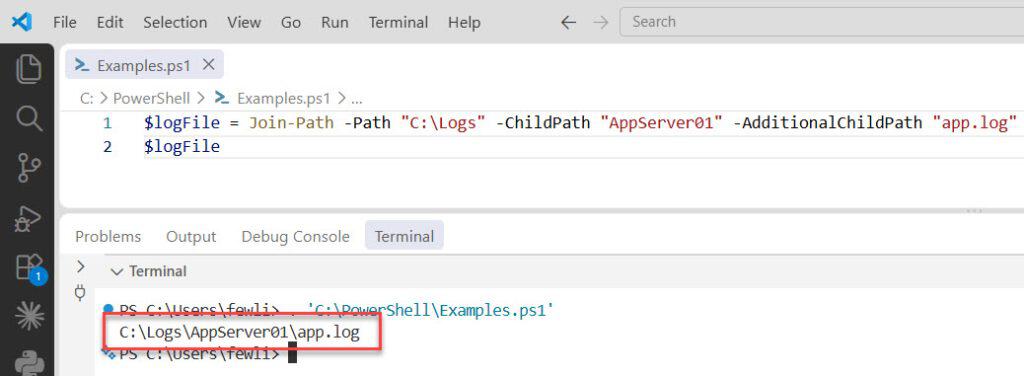
$logFile = Join-Path -Path "D:\Logs" -ChildPath "AppServer01" -AdditionalChildPath "app.log"
$logFile
You can see the exact path in the screenshot below:
In Windows PowerShell 5.1, you need to nest the calls instead:
$logFile = Join-Path (Join-Path "D:\Logs" "AppServer01") "app.log"Pro Tip: I’ve found that
Join-Pathdoesn’t check whether the path exists. It’s purely string math. That’s actually a feature — you can build a path for a folder you’re about to create. Just don’t assume a successfulJoin-Pathmeans the folder is really there.
Check out Convert PDF to Word Using PowerShell
Method 2: Use Resolve-Path to Convert Relative Strings
Sometimes your string is a relative path like .\Archive or ..\Old. Resolve-Path converts that string into a full, absolute path based on your current location.
Set-Location "D:\Logs\AppServer01"
$resolved = Resolve-Path -Path ".\Archive"
Write-Output $resolved.Path
Here’s what happens:
Set-Locationmoves your session to the target folder.Resolve-Pathexpands.\ArchiveintoD:\Logs\AppServer01\Archive..Pathpulls the string value out of the returned object.
One important catch: Resolve-Path throws an error if the path doesn’t exist. That’s useful for validation, but it will stop your script cold. Wrap it in error handling or use the -ErrorAction parameter:
$resolved = Resolve-Path -Path ".\Archive" -ErrorAction SilentlyContinue
if (-not $resolved) {
    Write-Warning "Archive folder not found."
}
Resolve-Path also expands wildcards. If you pass D:\Logs\App*, it returns every matching folder. That’s handy when you need to find folders matching a pattern across a share.
If you need the absolute path without the wildcard behavior, check out our guide on how to get the absolute path of a directory in PowerShell.
Method 3: Use Convert-Path for Provider Paths
Convert-Path looks similar to Resolve-Path, but it returns a plain string instead of a PathInfo object. It also strips PowerShell provider prefixes.
$path = Convert-Path -Path ".\Archive"
Write-Output $path
Why does this matter? Some cmdlets return paths that look like Microsoft.PowerShell.Core\FileSystem::D:\Logs. If you pass that string to a .NET method or an external program, it fails. Convert-Path cleans it up into D:\Logs.
I use Convert-Path when I’m handing a path to something outside PowerShell — like robocopy or a .NET class. Like Resolve-Path, it requires the path to exist.
Method 4: Cast a String to a FileInfo or DirectoryInfo Object
Sometimes you don’t just want a path string. You want a real object with properties like Length, LastWriteTime, and Extension.
You can cast a string directly into a .NET type:
$file = [System.IO.FileInfo]"D:\Logs\AppServer01\app.log"
Write-Output $file.Name
Write-Output $file.DirectoryName
Write-Output $file.Extension
Breaking it down:
[System.IO.FileInfo]is a type accelerator — a shortcut that converts the string into a .NET object..Namegives youapp.log..DirectoryNamegives youD:\Logs\AppServer01..Extensiongives you.log.
For folders, use [System.IO.DirectoryInfo] instead. The nice thing here is that casting doesn’t require the file to exist. You still get all the parsing properties.
This approach pairs well with our guide on how to extract the directory from a file path in PowerShell.
Method 5: Use Split-Path to Break a Path String Apart
The reverse operation matters too. Split-Path takes a path string and pulls out the piece you need.
$full = "D:\Logs\AppServer01\app-2026-08-30.log"

Split-Path -Path $full -Parent      # D:\Logs\AppServer01
Split-Path -Path $full -Leaf        # app-2026-08-30.log
Split-Path -Path $full -Qualifier   # D:
Split-Path -Path $full -IsAbsolute  # True
That last one is my favorite for validation. -IsAbsolute returns $true or $false, so you can check whether an incoming string is a full path before you act on it.
If you need the individual segments, see how to split a path into an array in PowerShell.
Putting It Together: A Real Cleanup Script
Here’s a practical script from our file server scenario. It reads folder names from a CSV, converts each string to a valid path, and reports the folder size.
$rootPath = "D:\Logs"
$servers  = Import-Csv -Path "C:\Scripts\servers.csv"

foreach ($server in $servers) {

    $target = Join-Path -Path $rootPath -ChildPath $server.FolderName.Trim()

    if (-not (Test-Path -Path $target)) {
        Write-Warning "Missing path: $target"
        continue
    }

    $size = (Get-ChildItem -Path $target -Recurse -File |
             Measure-Object -Property Length -Sum).Sum / 1MB

    [PSCustomObject]@{
        Server = $server.FolderName
        Path   = (Convert-Path $target)
        SizeMB = [math]::Round($size, 2)
    }
}
What each part does:
Import-Csvreads the CSV into objects. Each row has aFolderNamecolumn..Trim()removes stray spaces — the bug that broke my colleague’s script.Join-Pathbuilds the full path safely.- Test-Path checks whether the path exists and returns
$trueor$false. continueskips to the next row when the folder is missing. See more on how to skip to the next item in a PowerShell foreach loop.Convert-Pathreturns a clean absolute path string for the report.[PSCustomObject]builds a tidy output object you can pipe toExport-Csv.
The pipeline — the | symbol — passes objects from one cmdlet to the next without saving them to a variable first.
Handle Paths with Spaces and Special Characters
Paths like D:\Logs\App Server 01 trip up beginners. In PowerShell, quoting handles this fine:
$path = Join-Path "D:\Logs" "App Server 01"
Get-ChildItem -Path $path
The variable holds the string with spaces, and the cmdlet handles it. You only need quotes when typing the literal string.
Square brackets are a different story. PowerShell treats [ and ] as wildcards in the -Path parameter. Use -LiteralPath instead:
Get-ChildItem -LiteralPath "D:\Logs\App[01]"I hit this on a share where folders were named with bracketed ticket numbers. -LiteralPath saved hours of confusion.
Things to Keep in Mind
- Always use Join-Path over concatenation. Manual
+and\joins produce double separators and break on edge cases.Join-Pathhandles it every time. - Test with Test-Path before acting. Never assume a converted path exists. Run
Test-Pathfirst, especially before delete or move operations. Our guide on Test-Path in PowerShell covers the details. - Use -WhatIf in early testing. When your script writes or deletes, add
-WhatIftoRemove-ItemandMove-Item. It shows what would happen without touching anything. - Trim your input strings. CSV files and user input often carry trailing spaces. A quick
.Trim()prevents mysterious “path not found” errors. - Watch your execution policy. Execution policy is the Windows setting that controls whether scripts can run. If your script is blocked, check the set execution policy guide.
- Wrap risky operations in Try/Catch. Path errors are common on network shares. Try/Catch lets you catch the error and log it instead of crashing the script.
Frequently Asked Questions
What’s the difference between Resolve-Path and Convert-Path?
Resolve-Path returns a PathInfo object and keeps provider information. Convert-Path returns a plain string with provider prefixes stripped. Use Convert-Path when passing the result to external tools or .NET methods.
Can I convert a string to a path if the folder doesn’t exist yet?
Yes, but only with Join-Path or a [System.IO.DirectoryInfo] cast. Both work on strings without checking the file system. Resolve-Path and Convert-Path both require the path to already exist.
How do I handle UNC network paths?
Join-Path works fine with UNC paths like \\FileSrv01\Logs. Just pass the UNC root as the -Path value. Make sure your account has permission to the share, or you’ll get access errors.
Why does my path fail when it contains square brackets?
PowerShell treats brackets as wildcard characters in the -Path parameter. Switch to -LiteralPath on cmdlets like Get-ChildItem and Remove-Item. That tells PowerShell to treat the string exactly as written.
How do I get just the filename from a full path string?
Use Split-Path -Path $full -Leaf. It returns the last segment, which is the filename. For the name without the extension, use [System.IO.Path]::GetFileNameWithoutExtension($full).
Does Join-Path work the same in PowerShell 7 and Windows PowerShell 5.1?
Mostly, yes. PowerShell 7 added the -AdditionalChildPath parameter for combining three or more segments in one call. In 5.1, you need to nest Join-Path calls instead.
You now know five reliable ways to convert a string to path in PowerShell — Join-Path for building, Resolve-Path and Convert-Path for resolving, type casting for objects, and Split-Path for breaking paths apart. Start small: replace one concatenation in an existing script, test it with Test-Path, and expand from there once you’re confident. I hope you found this article helpful.
You may also like the following tutorials:
- How to get the path of a file in PowerShell
- How to get the file name from a path in PowerShell
- How to fix “Access to the path is denied” in PowerShell
- How to use Try/Catch in PowerShell
- How to get the current directory in PowerShell

Bijay Kumar is an esteemed author and the mind behind PowerShellFAQs.com, where he shares his extensive knowledge and expertise in PowerShell, with a particular focus on SharePoint projects. Recognized for his contributions to the tech community, Bijay has been honored with the prestigious Microsoft MVP award. With over 15 years of experience in the software industry, he has a rich professional background, having worked with industry giants such as HP and TCS. His insights and guidance have made him a respected figure in the world of software development and administration. Read more.