
To check the PowerShell version, run $PSVersionTable.PSVersion. It works in every version on Windows, macOS and Linux. Here it is in PowerShell 7:
$PSVersionTable.PSVersionOutput in PowerShell 7.6:
Major  Minor  Patch  PreReleaseLabel BuildLabel
-----  -----  -----  --------------- ----------
7      6      6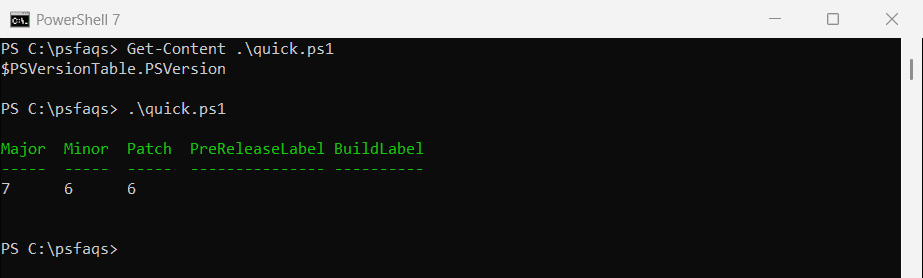
The same command in Windows PowerShell 5.1 shows a different layout, with Build and Revision instead of Patch:
Major  Minor  Build  Revision
-----  -----  -----  --------
5      1      26100  9278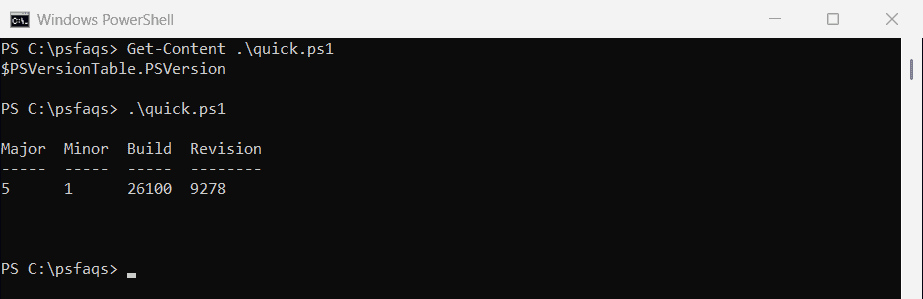
Most Windows 11 PCs have both: Windows PowerShell 5.1 is built in, and PowerShell 7 is a separate install. Below I show how to tell them apart and check the version from scripts and remote computers.
See all the version details
$PSVersionTable holds more than the version number. PSEdition tells you which PowerShell you’re in, Core for PowerShell 7 and Desktop for Windows PowerShell:
$PSVersionTable.GetEnumerator() |
    Where-Object Name -In 'PSVersion', 'PSEdition', 'CLRVersion', 'OS' |
    Sort-Object -Property Name |
    ForEach-Object { '{0,-10} {1}' -f $_.Name, $_.Value }
Output in PowerShell 7.6:
OS         Microsoft Windows 10.0.26200
PSEdition  Core
PSVersion  7.6.6
Output in Windows PowerShell 5.1:
CLRVersion 4.0.30319.42000
PSEdition  Desktop
PSVersion  5.1.26100.9278
Type $PSVersionTable on its own to see every entry.
If the version is older than you expected, see updating PowerShell on Windows 11.
Get just the major version
For a quick yes or no, the Major property is usually enough: 7 means PowerShell 7, and 5 means Windows PowerShell:
"Version:  $($PSVersionTable.PSVersion)"
"Major:    $($PSVersionTable.PSVersion.Major)"
"Edition:  $($PSVersionTable.PSEdition)"
Output in PowerShell 7.6:
Version:  7.6.6
Major:    7
Edition:  Core
In Windows PowerShell 5.1, the same lines print 5.1.26100.9278, 5 and Desktop on my PC.
Check both versions from one window
You can ask each shell for its version without opening it. The same commands work from PowerShell, Command Prompt or Windows Terminal:
"Windows PowerShell: $(powershell.exe -NoProfile -Command '$PSVersionTable.PSVersion.ToString()')"
"PowerShell 7:       $(pwsh.exe -NoProfile -Command '$PSVersionTable.PSVersion.ToString()')"
"pwsh -Version:      $(pwsh.exe -Version)"
Output:
Windows PowerShell: 5.1.26100.9278
PowerShell 7:       7.6.6
pwsh -Version:      PowerShell 7.6.6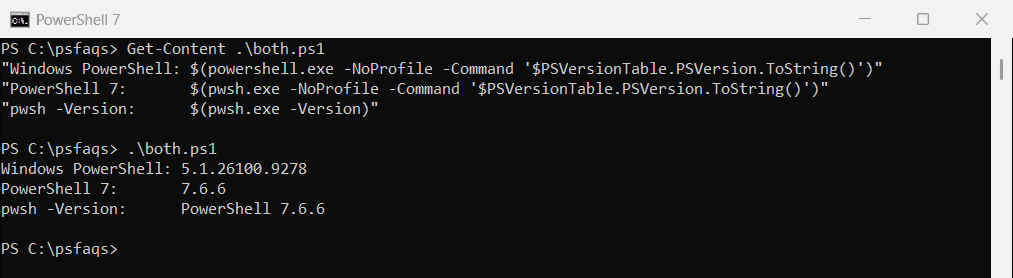
If pwsh isn’t recognized, PowerShell 7 isn’t installed. Updating PowerShell on Windows 11 walks through installing it, and Microsoft’s install guide lists every option.
Check the version in a script
Compare $PSVersionTable.PSVersion against a [version] value to run different code for each version:
if ($PSVersionTable.PSVersion -ge [version]'7.2') {
    "PowerShell $($PSVersionTable.PSVersion): new features available"
}
else {
    "PowerShell $($PSVersionTable.PSVersion): using the Windows PowerShell 5.1 code path"
}
Output in PowerShell 7.6:
PowerShell 7.6.6: new features availableTo stop a script from running at all on older versions, put a #Requires line at the top:
#Requires -Version 7.2PowerShell then refuses to start the script and says which version it needs.
Check the version on a remote computer
Run the same property through Invoke-Command. The remote computer needs PowerShell remoting turned on:
Invoke-Command -ComputerName Server01 -ScriptBlock { $PSVersionTable.PSVersion }Remoting connects to Windows PowerShell 5.1 by default. Enabling WinRM covers the setup.
Don’t rely on $Host or the registry
$Host.Version shows the version of the program hosting PowerShell. In the VS Code terminal, that’s the extension’s version, not PowerShell’s.
The registry also stores a Windows PowerShell version, but it can lag behind after updates. On my PC it shows an older build than $PSVersionTable:
$key = 'HKLM:\SOFTWARE\Microsoft\PowerShell\3\PowerShellEngine'
"Windows PowerShell engine: $((Get-ItemProperty -Path $key).PowerShellVersion)"
Output:
Windows PowerShell engine: 5.1.26100.8875Stick with $PSVersionTable, which always reports the version that’s actually running.
Frequently Asked Questions
How do I check my PowerShell version?
Run $PSVersionTable.PSVersion. It shows the major, minor and patch or build numbers of the PowerShell you’re using.
How do I know if I’m using PowerShell 7 or Windows PowerShell?
Check $PSVersionTable.PSEdition. Core means PowerShell 7, and Desktop means Windows PowerShell 5.1.
How do I check the PowerShell version from Command Prompt?
Run pwsh -Version for PowerShell 7, or powershell -Command "$PSVersionTable.PSVersion" for Windows PowerShell.
How do I check the PowerShell version on a remote computer?
Use Invoke-Command -ComputerName Server01 -ScriptBlock { $PSVersionTable.PSVersion }.