How to Check if a Variable Exists in PowerShell?

Check if a Variable Exists in PowerShell

As a PowerShell user, you should find out whether a specific variable exists before using it in your script. In this tutorial, I will show you different methods to check if a variable exists in PowerShell and provide some real examples. To check if a variable exists in PowerShell, you can use the Get-Variable cmdlet. … Read more
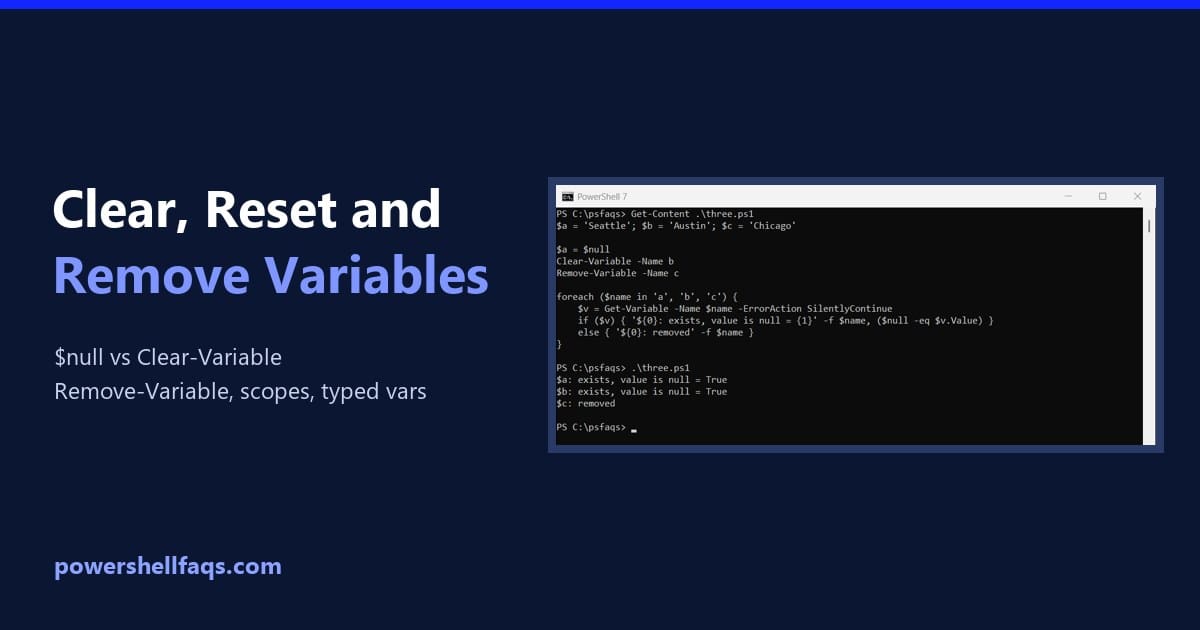
How to Clear, Reset and Remove Variables in PowerShell

Clear variables in PowerShell

To clear variables in PowerShell, use Clear-Variable to empty a variable’s value, or Remove-Variable to delete the variable completely. Both take the name without the $ sign: Output: Below I compare these with setting a variable to $null, then cover typed variables, collections, read-only variables, scopes and removing every variable a script created. I ran … Read more

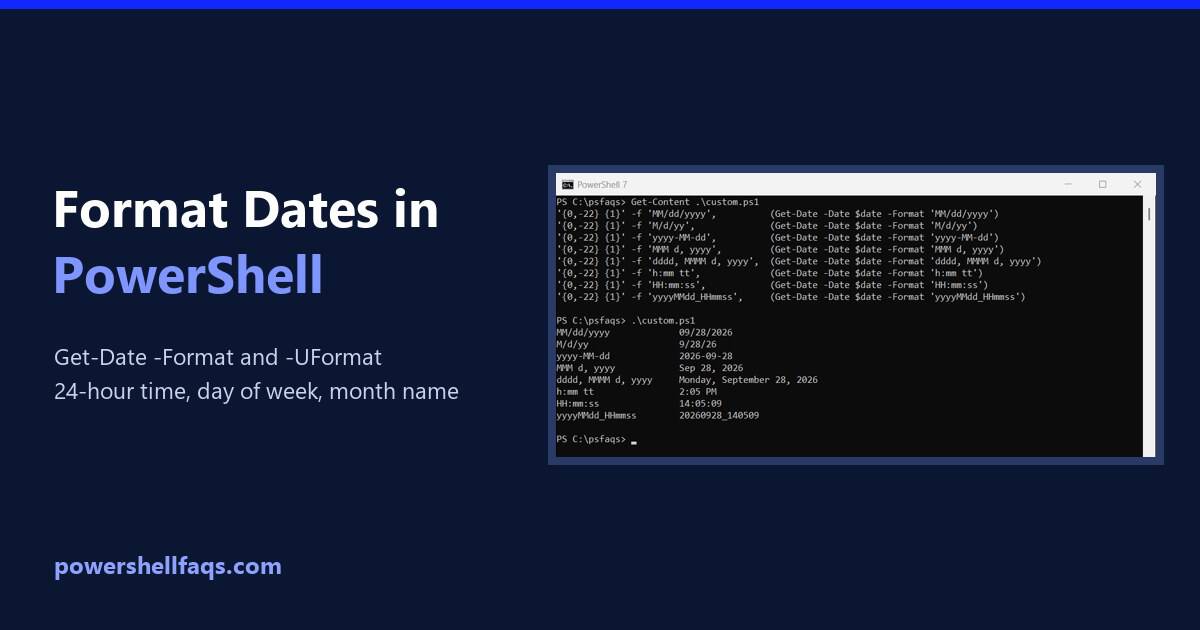
How to Format Dates in PowerShell (Get-Date -Format Examples)

Format dates in PowerShell with Get-Date

To format a date in PowerShell, pass a format string to Get-Date -Format. MM is the month, dd the day, yyyy the year, HH the hour on a 24-hour clock and mm the minutes: Output: Every example here uses the same fixed date, September 28, 2026 at 2:05:09 PM, so your output will match mine. … Read more

How to Get the Difference Between Two Dates in PowerShell

Get the difference between two dates in PowerShell

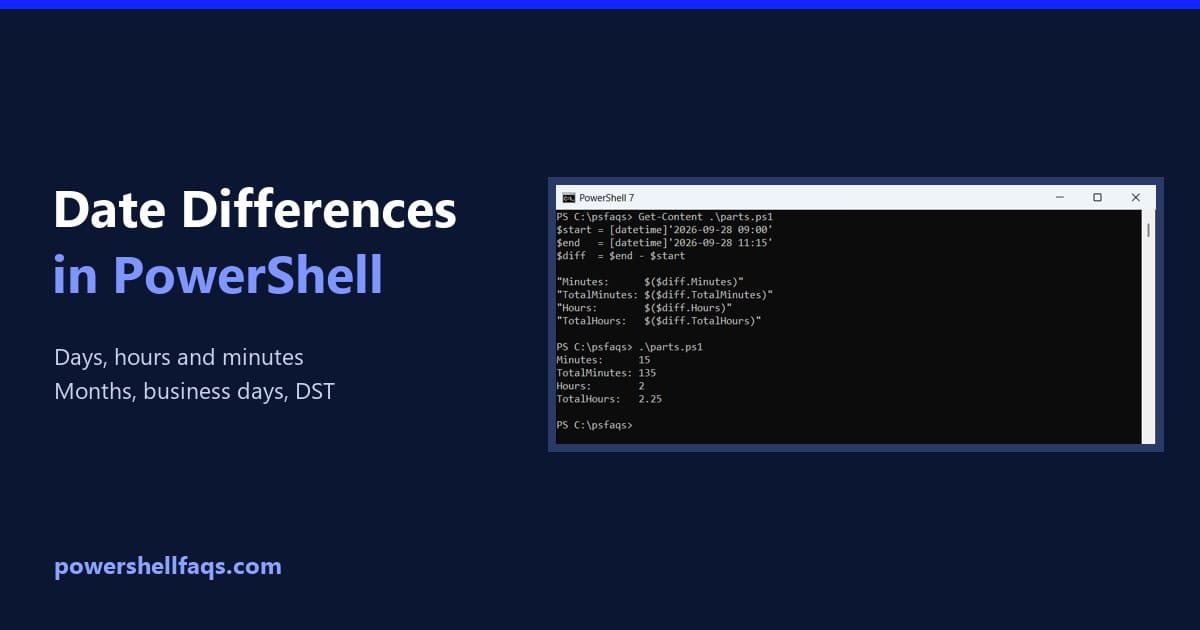
To get the difference between two dates in PowerShell, subtract one [datetime] from the other. The result is a TimeSpan, and its TotalDays, TotalHours and TotalMinutes properties give the full difference in each unit: Output: I ran every example in PowerShell 7.6 and Windows PowerShell 5.1, with the same results. All dates are fixed so … Read more

PowerShell Get-Date Format ISO 8601

powershell get-date format iso 8601

If you’re working with dates and times in PowerShell, you might need to format them according to the ISO 8601 standard. This format is widely used and recognized, making it essential for data exchange and logging. In this tutorial, I will explain the syntax and examples of using the Get-Date cmdlet to format dates in … Read more

PowerShell Date Comparison: Compare Dates the Right Way

PowerShell date comparison

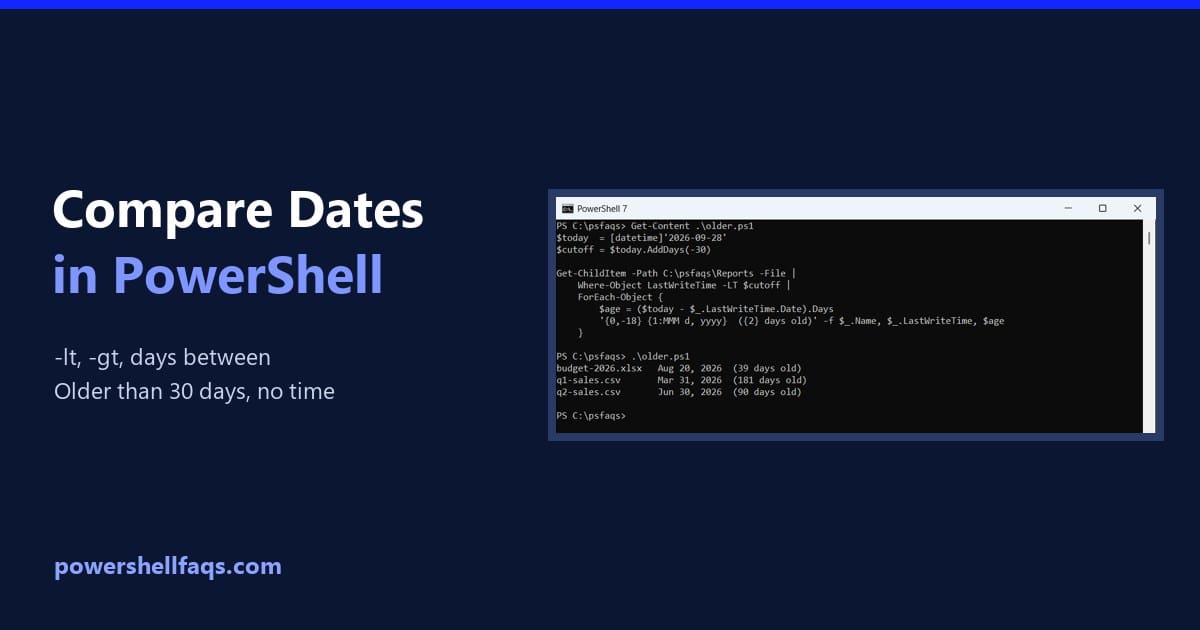
To compare dates in PowerShell, make sure both sides are [datetime] values, then use -lt, -gt and -eq. Subtracting one date from another tells you how far apart they are: Output: Earlier means smaller, so -lt reads as “before” and -gt as “after.” I ran every example in PowerShell 7.6 and Windows PowerShell 5.1, with … Read more

How to Add a Date to a File Name Using PowerShell

Add date to file name in PowerShell

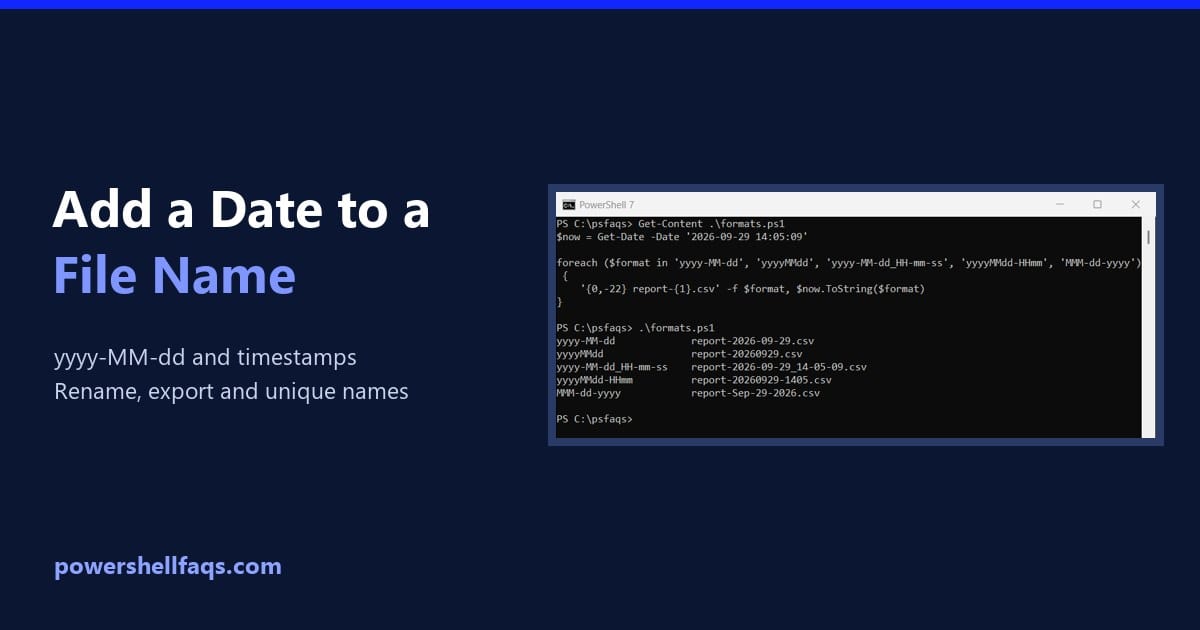
To add a date to a filename in PowerShell, format the date as text with (Get-Date).ToString(‘yyyy-MM-dd’) or Get-Date -Format ‘yyyy-MM-dd’, then put it inside the name: Output: I used a fixed date so the output doesn’t change. In a real script, use $now = Get-Date. Every example here ran in PowerShell 7.6 and Windows PowerShell … Read more

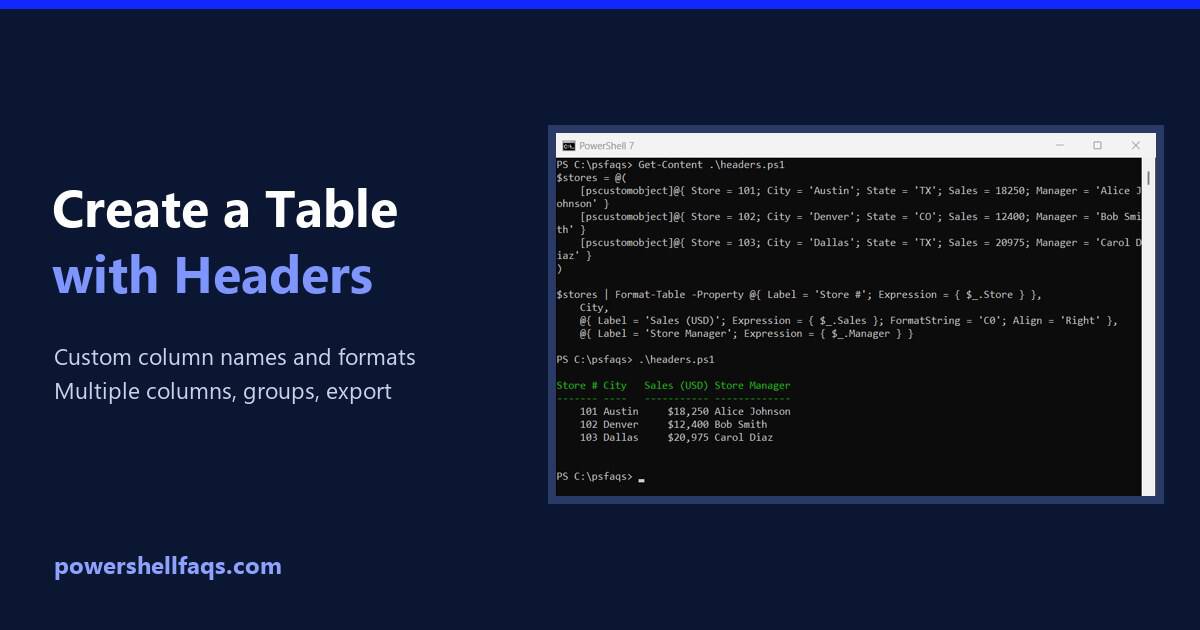
How to Create a Table with Headers in PowerShell

Create a table with headers in PowerShell

To create a table with headers in PowerShell, make [pscustomobject] rows. The property names become the column headers, and PowerShell prints the rows as a table: Output: For custom header text, widths and number formats, use Format-Table with calculated columns. I ran every example in PowerShell 7.6 and Windows PowerShell 5.1, and the tables match … Read more

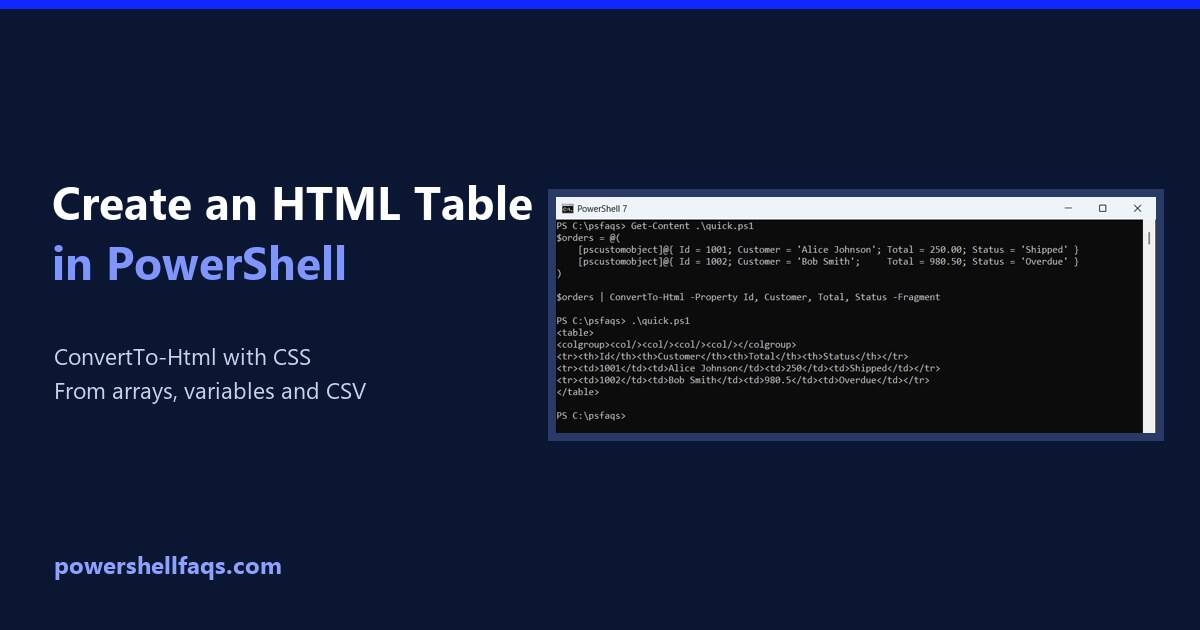
How to Create an HTML Table in PowerShell

Create an HTML table in PowerShell

To create an HTML table in PowerShell, pipe objects to ConvertTo-Html. Use -Property to pick the columns and -Fragment to get just the table: Output: Each object becomes a row and each property a column. I ran every example in PowerShell 7.6 and Windows PowerShell 5.1 and point out where the output differs. Arrays of … Read more