To create an array of objects in PowerShell, put [pscustomobject]@{ ... } entries inside @( ), one per line. Each object’s keys become its properties:
$users = @(
    [pscustomobject]@{ Name = 'Alice Johnson'; State = 'TX'; Licenses = 3 }
    [pscustomobject]@{ Name = 'Bob Smith';     State = 'CO'; Licenses = 1 }
    [pscustomobject]@{ Name = 'Carol Diaz';    State = 'TX'; Licenses = 2 }
)

$users | Format-Table
Output:
Name          State Licenses
----          ----- --------
Alice Johnson TX           3
Bob Smith     CO           1
Carol Diaz    TX           2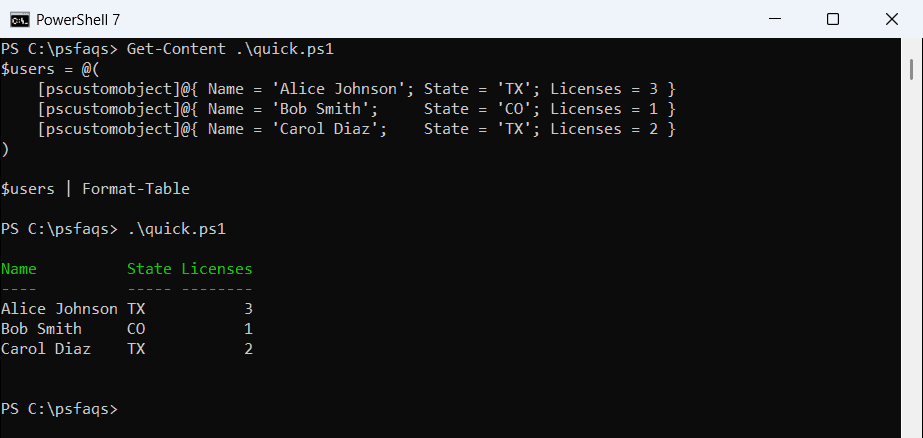
PowerShell shows the array as a table, with one row per object. I ran every example in PowerShell 7.6 and Windows PowerShell 5.1 and note the two places they differ.
Access and filter the objects
Index into the array for one object, use dot notation on the array to get a property from every object, and filter with Where-Object:
$users = @(
    [pscustomobject]@{ Name = 'Alice Johnson'; State = 'TX'; Licenses = 3 }
    [pscustomobject]@{ Name = 'Bob Smith';     State = 'CO'; Licenses = 1 }
    [pscustomobject]@{ Name = 'Carol Diaz';    State = 'TX'; Licenses = 2 }
)

"First user:       $($users[0].Name)"
"All names:        $($users.Name -join ', ')"
"Texas users:      $(($users | Where-Object State -eq 'TX').Name -join ', ')"
"Total licenses:   $(($users | Measure-Object -Property Licenses -Sum).Sum)"
Output:
First user:       Alice Johnson
All names:        Alice Johnson, Bob Smith, Carol Diaz
Texas users:      Alice Johnson, Carol Diaz
Total licenses:   6
Getting $users.Name from the whole array is called member enumeration. Where-Object covers filtering in more depth.
Change properties in the array
Objects are passed by reference, so changing a property inside a foreach loop updates the object in the array:
$users = @(
    [pscustomobject]@{ Name = 'Alice Johnson'; State = 'TX'; Licenses = 3 }
    [pscustomobject]@{ Name = 'Bob Smith';     State = 'CO'; Licenses = 1 }
    [pscustomobject]@{ Name = 'Carol Diaz';    State = 'TX'; Licenses = 2 }
)

foreach ($user in $users) {
    if ($user.State -eq 'TX') { $user.Licenses += 1 }
}
$users | ForEach-Object { '{0,-14} {1}' -f $_.Name, $_.Licenses }
Output:
Alice Johnson  4
Bob Smith      1
Carol Diaz     3
That’s different from an array of strings, where the loop variable is only a copy. Replacing values in an array explains that case.
Create an empty array and add objects
For a list you’ll add to and remove from, use a generic List. Its Add and RemoveAt methods change the list in place:
$servers = [System.Collections.Generic.List[pscustomobject]]::new()

$servers.Add([pscustomobject]@{ Name = 'WEB01'; Role = 'Web' })
$servers.Add([pscustomobject]@{ Name = 'SQL01'; Role = 'Database' })

"Servers in the list: $($servers.Count)"
$servers.RemoveAt(0)
"After RemoveAt(0):   $($servers.Name)"
Output:
Servers in the list: 2
After RemoveAt(0):   SQL01
Build the array from a loop instead of +=
Often you don’t need an empty array at all. Assign the loop itself to a variable, and PowerShell collects every object it outputs:
$report = foreach ($state in 'TX', 'CO', 'FL') {
    [pscustomobject]@{
        State   = $state
        Checked = [datetime]'2026-09-28'
        Status  = 'OK'
    }
}

"Type: $($report.GetType().Name), items: $($report.Count)"
$report | ForEach-Object { '{0}  {1:yyyy-MM-dd}  {2}' -f $_.State, $_.Checked, $_.Status }
Output:
Type: Object[], items: 3
TX  2026-09-28  OK
CO  2026-09-28  OK
FL  2026-09-28  OK
Avoid $list += $object in loops. It copies the whole array each time:
$plusEquals = Measure-Command {
    $list = @()
    foreach ($i in 1..20000) { $list += [pscustomobject]@{ Id = $i } }
}
$collect = Measure-Command {
    $list = foreach ($i in 1..20000) { [pscustomobject]@{ Id = $i } }
}

"Collecting loop output was more than 10 times faster: $($plusEquals.TotalMilliseconds / $collect.TotalMilliseconds -gt 10)"
Output:
Collecting loop output was more than 10 times faster: TrueWith 20,000 objects, += was about 18 times slower in PowerShell 7.6 and about 110 times slower in 5.1 on my PC. Array vs ArrayList explains why.
Use [pscustomobject], not New-Object -Property
Older scripts create objects with New-Object PSObject -Property. The hashtable it takes doesn’t keep your property order, while [pscustomobject] does:
$old = New-Object -TypeName PSObject -Property @{ Name = 'Alice'; State = 'TX'; Id = 1001 }
$new = [pscustomobject]@{ Name = 'Alice'; State = 'TX'; Id = 1001 }

"New-Object -Property: $($old.PSObject.Properties.Name -join ', ')"
"[pscustomobject]:     $($new.PSObject.Properties.Name -join ', ')"
Output in Windows PowerShell 5.1:
New-Object -Property: State, Name, Id
[pscustomobject]:     Name, State, Id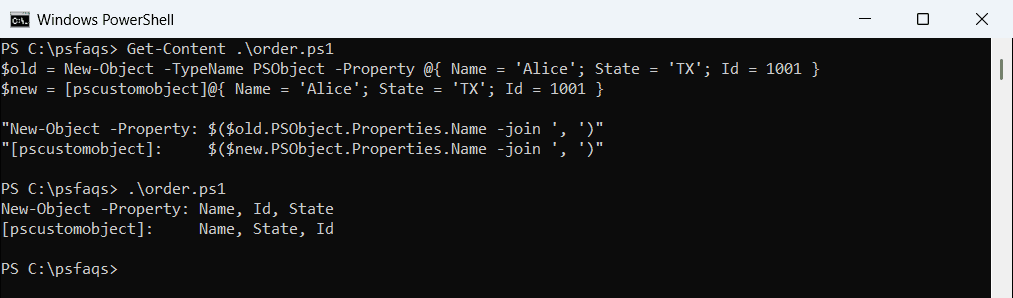
In PowerShell 7, the New-Object order follows the hashtable and can change from run to run. The column order matters for tables and CSV files, so stick with [pscustomobject], as Microsoft’s PSCustomObject guide also shows.
Export an array of objects to CSV
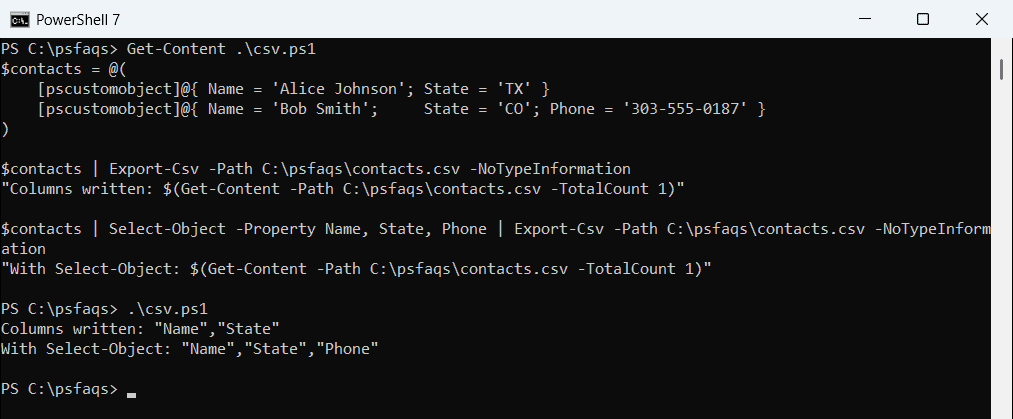
Export-Csv takes its columns from the first object only. If a later object has an extra property, that column is dropped without a warning:
$contacts = @(
    [pscustomobject]@{ Name = 'Alice Johnson'; State = 'TX' }
    [pscustomobject]@{ Name = 'Bob Smith';     State = 'CO'; Phone = '303-555-0187' }
)

$contacts | Export-Csv -Path C:\psfaqs\contacts.csv -NoTypeInformation
"Columns written: $(Get-Content -Path C:\psfaqs\contacts.csv -TotalCount 1)"

$contacts | Select-Object -Property Name, State, Phone | Export-Csv -Path C:\psfaqs\contacts.csv -NoTypeInformation
"With Select-Object: $(Get-Content -Path C:\psfaqs\contacts.csv -TotalCount 1)"
Output:
Columns written: "Name","State"
With Select-Object: "Name","State","Phone"