PowerShell naming conventions come down to one pattern for commands: an approved verb, a hyphen, and a singular noun, both in PascalCase. Parameters use PascalCase too. Here’s a function that follows all of it:
function Get-DiskReport {
[CmdletBinding()]
param(
[Parameter(Mandatory)]
[string[]]$ComputerName,
[int]$MinimumFreeGB = 10
)
foreach ($computer in $ComputerName) {
"Checking $computer for less than $MinimumFreeGB GB free"
}
}
Get-DiskReport -ComputerName WEB01, SQL01
Output:
Checking WEB01 for less than 10 GB free
Checking SQL01 for less than 10 GB free
Anyone who knows Get-Service or Get-ChildItem can guess what Get-DiskReport does and how to call it. That’s the whole point of the conventions.
I checked each rule below in PowerShell 7.6 and Windows PowerShell 5.1, and I show where the two versions differ.
Use an approved verb
PowerShell keeps a list of approved verbs, and Get-Verb shows it, along with the group each verb belongs to:
Get-Verb -Verb Get, New, Remove, Invoke | Select-Object -Property Verb, Group
Output:
Verb Group
---- -----
Get Common
New Common
Remove Common
Invoke Lifecycle
To check a verb before you use it, pass it to Get-Verb. An empty result means it isn’t approved:
foreach ($verb in 'Get', 'New', 'Fetch', 'Create', 'Delete', 'Build') {
'{0,-7} approved: {1}' -f $verb, [bool](Get-Verb -Verb $verb)
}
Output in PowerShell 7:
Get approved: True
New approved: True
Fetch approved: False
Create approved: False
Delete approved: False
Build approved: True
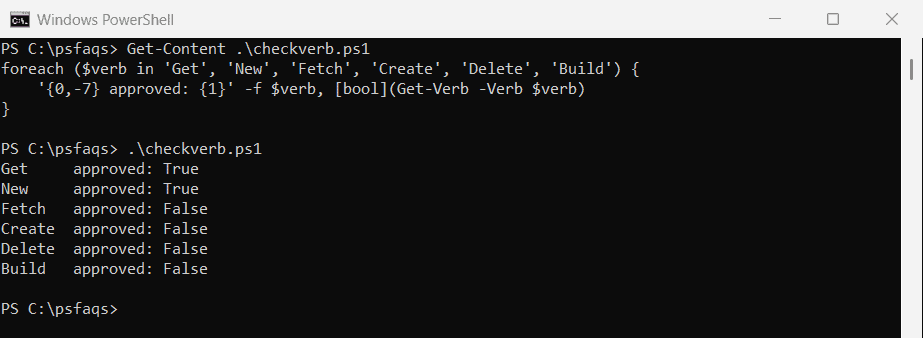
Build is approved in PowerShell 7 but not in 5.1. Microsoft added Build and Deploy in PowerShell 6, which is why the counts differ:
"Approved verbs: $((Get-Verb).Count)"
Output in PowerShell 7:
Approved verbs: 100
Windows PowerShell 5.1 reported 98. If your module must work in 5.1, pick verbs that exist in both.
Verbs to avoid and what to use instead
Microsoft asks you not to use synonyms of approved verbs. These are the swaps I see most often in scripts:
| Instead of | Use | Why |
|---|---|---|
| Create, Make, Generate | New | New creates a resource |
| Delete, Erase, Discard | Remove | Remove deletes a resource |
| Obtain, Acquire, Dump | Get | Get retrieves a resource |
| Run | Invoke | Invoke performs an action and waits |
| Kill, Terminate, End | Stop | Stop ends an activity |
| Verify, Diagnose, Analyze | Test | Test verifies a resource |
Microsoft’s list of approved verbs describes each verb and gives the full list of synonyms to avoid.
What happens if you use an unapproved verb?
Nothing breaks, but anyone who imports your module gets a warning. This test module has a Fetch-Report function:
Import-Module -Name C:\psfaqs\DemoTools -Force
'--- same module with -DisableNameChecking:'
Import-Module -Name C:\psfaqs\DemoTools -Force -DisableNameChecking
Output in PowerShell 7:
WARNING: The names of some imported commands from the module 'DemoTools' include unapproved verbs that might make them less discoverable. To find the commands with unapproved verbs, run the Import-Module command again with the Verbose parameter. For a list of approved verbs, type Get-Verb.
--- same module with -DisableNameChecking:

-DisableNameChecking hides the warning, but that only hides the symptom. Renaming the function to Get-Report fixes it.
Use a singular, specific noun
The noun names the thing the command works on, and it’s always singular: Get-Service, not Get-Services, even when it returns many services. Consistent nouns are what make commands easy to discover:
Get-Command -Noun Service -Module Microsoft.PowerShell.Management | Select-Object -ExpandProperty Name
Output in PowerShell 7:
Get-Service
New-Service
Remove-Service
Restart-Service
Resume-Service
Set-Service
Start-Service
Stop-Service
Suspend-Service
That list came from PowerShell 7. Windows PowerShell 5.1 showed the same list without Remove-Service, which was added later.
For your own commands, add a short prefix to the noun, like Get-ContosoUser, so they don’t clash with commands from other modules.
Name parameters like built-in cmdlets
Use PascalCase for parameters, and reuse the names PowerShell already uses: ComputerName, Path, Credential, Name. People then know what to pass without reading your help.
Keep parameter names singular too, even when they accept several values. -ComputerName takes a list of computers, as in the first example. See PowerShell array parameters for how to accept lists.
Variable naming conventions
PowerShell ignores the case of variable names. These two lines set the same variable:
$ServerName = 'WEB01'
$servername = 'SQL01'
"ServerName is now: $ServerName"
Output:
ServerName is now: SQL01
So pick one style and stick to it. Most scripts use PascalCase for parameters, as Microsoft’s cmdlets do, and camelCase for local variables, like $serverName. Names that say what they hold, like $failedServers, beat short ones like $fs.
Keywords are allowed, automatic variables aren’t
You’ll read that keywords like if can’t be variable names. They can. What you can’t reuse are some automatic variables that PowerShell owns:
$if = 'a keyword'
$function = 'another keyword'
"Keywords work as variable names: $if, $function"
try {
$Host = 'WEB01'
}
catch {
$_.Exception.Message
}
Output:
Keywords work as variable names: a keyword, another keyword
Cannot overwrite variable Host because it is read-only or constant.

Even where PowerShell allows it, don’t name variables after keywords or automatic variables such as $input, $args or $_. It makes scripts confusing to read.
Names with spaces or dashes
Wrap a name in braces and it can contain almost anything:
${server name} = 'WEB01'
${log-file} = 'C:\Logs\backup.log'
"${server name} writes to ${log-file}"
Output:
WEB01 writes to C:\Logs\backup.log
It works, but it’s awkward to type. Stick to letters, numbers and underscores.
Values that shouldn’t change
PowerShell has no special casing for constants. Mark them read-only instead, and PowerShell stops accidental changes:
Set-Variable -Name MaxRetries -Value 3 -Option ReadOnly
try {
$MaxRetries = 5
}
catch {
$_.Exception.Message
}
"MaxRetries is still $MaxRetries"
Output:
Cannot overwrite variable MaxRetries because it is read-only or constant.
MaxRetries is still 3
Script and module names
There’s no enforced rule for file names, but two habits help. Name scripts that act like commands with the same pattern, like Get-DiskReport.ps1. Name modules with a PascalCase noun or product name, like ContosoTools, and keep the folder name the same as the module file.
For more on writing functions that follow these rules, see functions in PowerShell.
Frequently Asked Questions
What is the PowerShell naming convention for functions?
Use an approved verb, a hyphen and a singular noun, both in PascalCase, like Get-DiskReport. Run Get-Verb to see the approved verbs.
How do I check if a verb is approved in PowerShell?
Run Get-Verb -Verb YourVerb. If nothing comes back, the verb isn’t approved. PowerShell 7 approves a few verbs, like Build, that 5.1 doesn’t.
What happens if I use an unapproved verb?
The function still works, but Import-Module shows a warning about unapproved verbs. Rename the function rather than hiding the warning with -DisableNameChecking.
Are PowerShell variable names case-sensitive?
No. $ServerName and $servername are the same variable. Choose one casing style and use it consistently.
Should PowerShell variables use camelCase or PascalCase?
Either works, since PowerShell ignores case. A common style is PascalCase for parameters and camelCase for local variables.
More guides for writing clean scripts:
- Functions in PowerShell
- PowerShell array parameters
- PowerShell switch parameters
- List installed PowerShell modules
Bijay Kumar is an esteemed author and the mind behind PowerShellFAQs.com, where he shares his extensive knowledge and expertise in PowerShell, with a particular focus on SharePoint projects. Recognized for his contributions to the tech community, Bijay has been honored with the prestigious Microsoft MVP award. With over 15 years of experience in the software industry, he has a rich professional background, having worked with industry giants such as HP and TCS. His insights and guidance have made him a respected figure in the world of software development and administration. Read more.