PowerShell Where-Object filters objects in the pipeline. You give it a condition in a script block, and it passes on only the objects where the condition is true. Here it keeps orders over $900:
$orders = @(
[pscustomobject]@{ Id = 1001; Customer = 'Alice Johnson'; State = 'TX'; Status = 'Shipped'; Total = 1250 }
[pscustomobject]@{ Id = 1002; Customer = 'Bob Smith'; State = 'CO'; Status = 'Pending'; Total = 980 }
[pscustomobject]@{ Id = 1003; Customer = 'Carol Davis'; State = 'WA'; Status = 'Shipped'; Total = 15000 }
[pscustomobject]@{ Id = 1004; Customer = 'Dan Miller'; State = 'FL'; Status = 'Cancelled'; Total = 425 }
[pscustomobject]@{ Id = 1005; Customer = 'Alice Johnson'; State = 'TX'; Status = 'Pending'; Total = 310 }
)
$orders | Where-Object { $_.Total -gt 900 } | Select-Object -Property Id, Customer, Total
Output:
Id Customer Total
-- -------- -----
1001 Alice Johnson 1250
1002 Bob Smith 980
1003 Carol Davis 15000
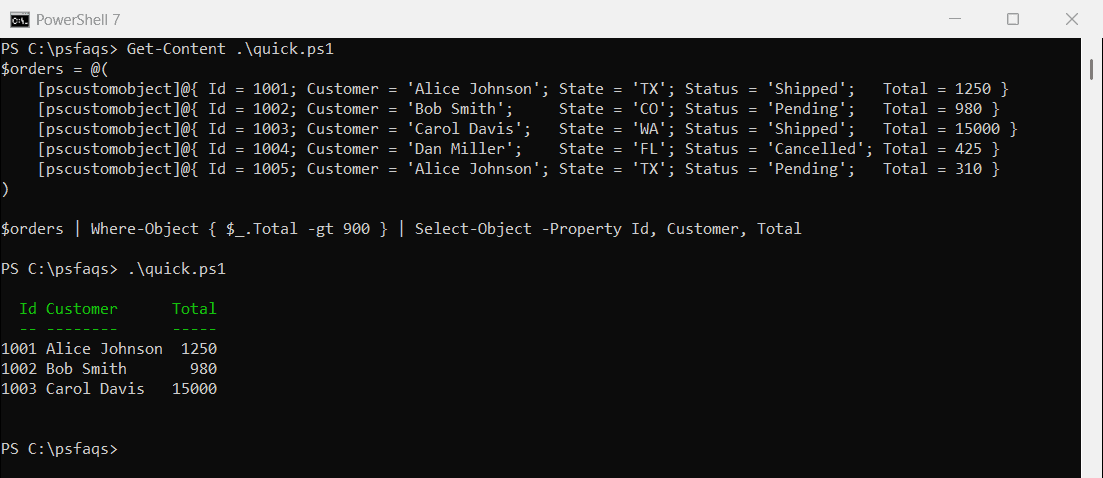
$_ is the object being checked. The other examples in this guide use the same five sample orders in $orders, so run the $orders = @(...) part of the script above once in your session.
I ran each example in PowerShell 7.6 and Windows PowerShell 5.1. Apart from the timings, the only difference was one count, which I show below.
Script block vs simplified syntax
For a single condition, you can skip the braces and $_. This is the simplified syntax:
$orders | Where-Object Status -EQ 'Pending' | Select-Object -Property Id, Customer, Status
Output:
Id Customer Status
-- -------- ------
1002 Bob Smith Pending
1005 Alice Johnson Pending
It’s shorter, but it only takes one condition. For -and, -or or any calculation, use the script block. The Where-Object documentation lists every operator parameter.
Common Where-Object operators
| Operator | Keeps objects where | Example |
|---|---|---|
-eq / -ne | The value is equal / not equal | $_.Status -ne 'Cancelled' |
-gt / -lt | The value is greater / less than | $_.Total -gt 900 |
-like / -notlike | The value matches a wildcard | $_.Customer -like 'A*' |
-match | The value matches a regex | $_.Customer -match 'son$' |
-in / -notin | The value is in a list | $_.State -in 'TX', 'FL' |
Where-Object not equal
To exclude values, use the “not” version of each operator:
"Not cancelled: $(($orders | Where-Object { $_.Status -ne 'Cancelled' }).Id -join ', ')"
"Not like 'A*': $(($orders | Where-Object { $_.Customer -notlike 'A*' }).Id -join ', ')"
"Not in TX or FL: $(($orders | Where-Object { $_.State -notin 'TX', 'FL' }).Id -join ', ')"
Output:
Not cancelled: 1001, 1002, 1003, 1005
Not like 'A*': 1002, 1003, 1004
Not in TX or FL: 1002, 1003
Case-sensitive matching
Text comparisons ignore case by default. Add a c to the operator, like -ceq, when case matters:
"-eq 'shipped': $(@($orders | Where-Object { $_.Status -eq 'shipped' }).Count) orders"
"-ceq 'shipped': $(@($orders | Where-Object { $_.Status -ceq 'shipped' }).Count) orders"
Output:
-eq 'shipped': 2 orders
-ceq 'shipped': 0 orders
Filter on multiple conditions
Combine conditions with -and and -or inside one script block:
$orders | Where-Object { $_.State -eq 'TX' -and $_.Status -ne 'Cancelled' } | Select-Object -Property Id, Customer, Status
Output:
Id Customer Status
-- -------- ------
1001 Alice Johnson Shipped
1005 Alice Johnson Pending
Where-Object with multiple conditions covers grouping with parentheses and mixing -and with -or.
How do I count Where-Object results?
Read .Count on the result. But watch what happens when only one object matches:
$orders = @(
[pscustomobject]@{ Id = 1001; Customer = 'Alice Johnson'; State = 'TX'; Status = 'Shipped'; Total = 1250 }
[pscustomobject]@{ Id = 1002; Customer = 'Bob Smith'; State = 'CO'; Status = 'Pending'; Total = 980 }
[pscustomobject]@{ Id = 1003; Customer = 'Carol Davis'; State = 'WA'; Status = 'Shipped'; Total = 15000 }
[pscustomobject]@{ Id = 1004; Customer = 'Dan Miller'; State = 'FL'; Status = 'Cancelled'; Total = 425 }
[pscustomobject]@{ Id = 1005; Customer = 'Alice Johnson'; State = 'TX'; Status = 'Pending'; Total = 310 }
)
$pending = $orders | Where-Object Status -EQ 'Pending'
$cancelled = $orders | Where-Object Status -EQ 'Cancelled'
"Pending: [$($pending.Count)]"
"Cancelled: [$($cancelled.Count)]"
"Cancelled with @(): [$(@($cancelled).Count)]"
Output in Windows PowerShell 5.1:
Pending: [2]
Cancelled: []
Cancelled with @(): [1]

In Windows PowerShell 5.1, one matching custom object has no count. PowerShell 7 returns 1. Wrapping the result in @() gives the right count in both.
Count and sum with Measure-Object
Measure-Object counts the results and can also add up a property at the same time:
$stats = $orders | Where-Object Status -EQ 'Shipped' | Measure-Object -Property Total -Sum -Maximum
"Shipped orders: $($stats.Count), total: `$$($stats.Sum), largest: `$$($stats.Maximum)"
Output:
Shipped orders: 2, total: $16250, largest: $15000
Find unique values
Where-Object doesn’t remove duplicates by itself. Use Sort-Object -Unique for distinct values, or Group-Object with Where-Object to find values that appear once:
"Distinct customers: $(($orders.Customer | Sort-Object -Unique) -join ', ')"
$oneOrder = $orders | Group-Object -Property Customer | Where-Object Count -EQ 1
"Ordered only once: $($oneOrder.Name -join ', ')"
Output:
Distinct customers: Alice Johnson, Bob Smith, Carol Davis, Dan Miller
Ordered only once: Bob Smith, Carol Davis, Dan Miller
Alice Johnson has two orders, so she’s in the distinct list but not in the “only once” list.
Use Where-Object with foreach
Filter first, then loop over what’s left. Put Where-Object before ForEach-Object in the pipeline:
$orders | Where-Object Status -EQ 'Pending' | ForEach-Object {
"Reminder: order $($_.Id) for $($_.Customer) is still pending"
}
Output:
Reminder: order 1002 for Bob Smith is still pending
Reminder: order 1005 for Alice Johnson is still pending
The .Where() method
Arrays also have a .Where() method. It can stop at the first match or split a list in two, which Where-Object can’t do:
$firstBig = $orders.Where({ $_.Total -gt 900 }, 'First')
"First order over 900: $($firstBig.Id)"
$shipped, $notShipped = $orders.Where({ $_.Status -eq 'Shipped' }, 'Split')
"Shipped: $($shipped.Id -join ', ') | Not shipped: $($notShipped.Id -join ', ')"
Output:
First order over 900: 1001
Shipped: 1001, 1003 | Not shipped: 1002, 1004, 1005
Microsoft covers .Where() and its other modes in about_Arrays.
Where-Object vs filter vs foreach: which is faster?
A filter is a function that runs once per pipeline object. It can do the same job as Where-Object:
filter Get-BigOrder {
if ($_.Total -gt 900) { $_ }
}
($orders | Get-BigOrder).Id -join ', '
Output:
1001, 1002, 1003
To compare speed, I filtered 200,000 numbers four ways and timed each one:
$numbers = 1..200000
filter Get-Even { if ($_ % 2 -eq 0) { $_ } }
$results = [ordered]@{
'Where-Object' = Measure-Command { $null = $numbers | Where-Object { $_ % 2 -eq 0 } }
'filter keyword' = Measure-Command { $null = $numbers | Get-Even }
'.Where() method' = Measure-Command { $null = $numbers.Where({ $_ % 2 -eq 0 }) }
'foreach + if' = Measure-Command { $null = foreach ($n in $numbers) { if ($n % 2 -eq 0) { $n } } }
}
foreach ($r in $results.GetEnumerator()) {
'{0,-16} {1,6:N0} ms' -f $r.Key, $r.Value.TotalMilliseconds
}
Output in PowerShell 7 (your numbers will differ):
Where-Object 1,162 ms
filter keyword 112 ms
.Where() method 253 ms
foreach + if 106 ms

Where-Object was the slowest by far, in both PowerShell 7 and 5.1. For a few hundred objects, the difference doesn’t matter. For large loops, use foreach with if or a filter.
Filter left when you can
If the command that produces the objects has its own filter parameter, use it. Both lines below return the same files:
Get-ChildItem -Path C:\psfaqs\Logs -Filter *.log | Select-Object -ExpandProperty Name
Get-ChildItem -Path C:\psfaqs\Logs | Where-Object Extension -EQ '.log' | Select-Object -ExpandProperty Name
Output:
app.log
error.log
app.log
error.log
-Filter asks the file system for only the matching files. Where-Object gets every file first and then throws most of them away, so on big folders the first line is the better choice.
Frequently Asked Questions
What does Where-Object do in PowerShell?
It filters objects in the pipeline. It keeps objects where your condition is true, like Where-Object { $_.Total -gt 900 }, and drops the rest.
How do I use not equal in Where-Object?
Use -ne, like Where-Object { $_.Status -ne 'Cancelled' }. For wildcards and lists, use -notlike and -notin.
How do I count the results of Where-Object?
Use @($items | Where-Object { ... }).Count. The @() makes sure a single result still returns 1 in Windows PowerShell 5.1.
How do I get unique objects with Where-Object?
Where-Object doesn’t remove duplicates. Use Sort-Object -Unique, or Group-Object followed by Where-Object Count -EQ 1.
Is Where-Object slow?
It’s slower than a foreach loop with if or a filter function. In my test on 200,000 items, it was many times slower in both 7 and 5.1.
Once you’re comfortable with filtering, these are good next reads:
- Where-Object with multiple conditions
- Where-Object for null or empty values
- PowerShell Select-Object
- PowerShell ForEach-Object
Bijay Kumar is an esteemed author and the mind behind PowerShellFAQs.com, where he shares his extensive knowledge and expertise in PowerShell, with a particular focus on SharePoint projects. Recognized for his contributions to the tech community, Bijay has been honored with the prestigious Microsoft MVP award. With over 15 years of experience in the software industry, he has a rich professional background, having worked with industry giants such as HP and TCS. His insights and guidance have made him a respected figure in the world of software development and administration. Read more.