
To append to an array in PowerShell, use the += operator. It adds the new item to the end, so a list of two servers becomes three:
$servers = 'WEB01', 'WEB02'
$servers += 'SQL01'

$servers -join ', '
"Count: $($servers.Count)"
Output:
WEB01, WEB02, SQL01
Count: 3
That’s all you need for small scripts. But += doesn’t really grow the array. It builds a brand-new one each time, which explains most of the surprises below.
I ran each example in PowerShell 7.6 and Windows PowerShell 5.1. The results matched, apart from the speed test, where the two versions are very different.
Add multiple values to an array
Put several values after +=, separated by commas, or add another array. Either way, each value becomes its own item:
$servers = 'WEB01', 'WEB02'
$servers += 'SQL01', 'SQL02'

$newSite = 'APP01', 'APP02'
$servers += $newSite

$servers -join ', '
Output:
WEB01, WEB02, SQL01, SQL02, APP01, APP02If you want the second array stored as a single item instead, put a comma in front of it. That’s the unary comma operator:
$groups = @('Admins')
$groups += , ('Sales', 'Support')

"Count: $($groups.Count)"
"Last item: $($groups[-1] -join ' + ')"
Output:
Count: 2
Last item: Sales + Support
Create an empty array and add items
Start with @() and add to it with +=:
$servers = @()
"Starting count: $($servers.Count)"

$servers += 'WEB01'
"After adding:   $($servers.Count)"
Output:
Starting count: 0
After adding:   1
Don’t try .Add() on a normal array. PowerShell arrays have a fixed size, so the method throws an error:
$servers = 'WEB01', 'WEB02'
try {
    $servers.Add('SQL01')
}
catch {
    $_.Exception.InnerException.Message
}
Output:
Collection was of a fixed size.If you need .Add(), use a list instead, as shown further down.
Add an item to the beginning of an array
Put the new item in its own array first and add the old array after it. Leaving out the @() is a common mistake:
$cities = 'Chicago', 'Houston'

$wrong = 'New York' + $cities
"Without @(): $wrong"

$cities = @('New York') + $cities
"With @():    $($cities -join ', ')"
Output:
Without @(): New YorkChicago Houston
With @():    New York, Chicago, Houston
Without @(), PowerShell sees a string on the left, so it joins everything into one string. The left side decides what + does.
Use a List when the array changes a lot
A generic List can grow in place. It has methods for adding, inserting and removing, which a plain array doesn’t:
$servers = [System.Collections.Generic.List[string]]::new()
$servers.Add('WEB01')
$servers.AddRange([string[]]('WEB02', 'SQL01'))
$servers.Insert(0, 'DC01')
$null = $servers.Remove('WEB02')

$servers -join ', '
Output:
DC01, WEB01, SQL01Insert(0, ...) is the cleanest way to add to the front. Remove() returns true or false, so I send that to $null.
Why ArrayList prints numbers
You’ll see System.Collections.ArrayList in older scripts. Its Add() method returns the new item’s index, and PowerShell prints it:
$list = [System.Collections.ArrayList]::new()
$list.Add('WEB01')
$list.Add('WEB02')
[void]$list.Add('SQL01')

"Items: $($list -join ', ')"
Output:
0
1
Items: WEB01, WEB02, SQL01
Cast the call to [void] to hide the number. Or better, use List[string], which doesn’t return anything.
Is += slow in PowerShell?
It used to be very slow, and it still is in Windows PowerShell 5.1. I timed three ways of building a 10,000-item array on the same PC:
$count = 10000

$plus = Measure-Command {
    $result = @()
    foreach ($i in 1..$count) { $result += $i }
}
$list = Measure-Command {
    $result = [System.Collections.Generic.List[int]]::new()
    foreach ($i in 1..$count) { $result.Add($i) }
}
$direct = Measure-Command {
    $result = foreach ($i in 1..$count) { $i }
}

'+= operator:      {0,7:N0} ms' -f $plus.TotalMilliseconds
'List.Add():       {0,7:N0} ms' -f $list.TotalMilliseconds
'Loop assignment:  {0,7:N0} ms' -f $direct.TotalMilliseconds
Output in PowerShell 7.6:
+= operator:           53 ms
List.Add():           130 ms
Loop assignment:        6 ms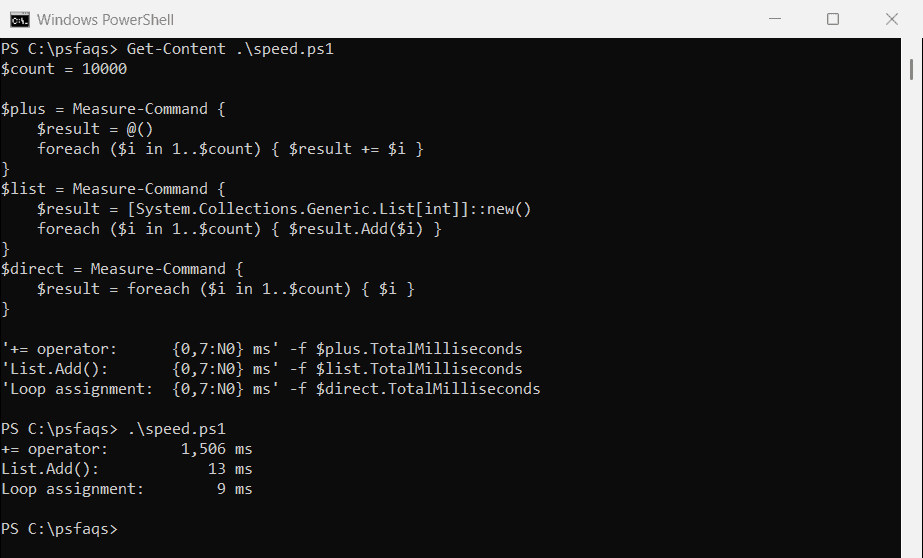
In 5.1, += took well over a second, because it copies the whole array on every loop. PowerShell 7.5 made += much faster, so 7.6 did it in 53 ms.
The winner in both versions is to let the loop build the array for you. Assign the whole foreach to a variable, and every value it outputs is collected:
$results = foreach ($server in 'WEB01', 'WEB02', 'SQL01') {
    "$server checked"
}

"Collected $($results.Count) results: $($results -join '; ')"
Output:
Collected 3 results: WEB01 checked; WEB02 checked; SQL01 checkedHow do I add only unique values to an array?
Check the array with -notcontains before you add. It ignores case, so “chicago” counts as a duplicate of “Chicago”:
$cities = 'New York', 'Chicago'

foreach ($city in 'Houston', 'chicago', 'Phoenix') {
    if ($cities -notcontains $city) {
        $cities += $city
    }
}
$cities -join ', '
Output:
New York, Chicago, Houston, PhoenixWatch the parentheses with -not
A version you’ll find online is if (-not $cities -contains $city). It never adds anything, because -not runs first, on the array:
$cities = 'New York', 'Chicago'
$city   = 'Houston'

if (-not $cities -contains $city) { "Added $city" } else { "Skipped $city" }
if (-not ($cities -contains $city)) { "Added $city" } else { "Skipped $city" }
Output:
Skipped Houston
Added Houston