
To sort an array in PowerShell, pipe it to Sort-Object. It sorts in ascending order, A to Z and smallest to largest, and ignores case. Add -Descending to reverse it:
$cities = 'Seattle', 'austin', 'Denver', 'Boston'

$cities | Sort-Object
'---'
$cities | Sort-Object -Descending
Output:
austin
Boston
Denver
Seattle
---
Seattle
Denver
Boston
austin
I ran every example in PowerShell 7.6 and Windows PowerShell 5.1. Most results match, but a few sorts differ between the versions, and I show each one.
Sort-Object returns a new array
Sort-Object doesn’t change the original array, so assign the result. [array]::Sort() is the exception, since it sorts in place:
$scores = 88, 42, 97, 65

$sorted = $scores | Sort-Object
"Sorted copy: $($sorted -join ', ')"
"Original:    $($scores -join ', ')"

[array]::Sort($scores)
"After [array]::Sort: $($scores -join ', ')"
Output:
Sorted copy: 42, 65, 88, 97
Original:    88, 42, 97, 65
After [array]::Sort: 42, 65, 88, 97
[array]::Sort is faster for very large arrays of plain values, but Sort-Object is easier to read and works on objects.
Sort numbers stored as text
Values from CSV files, Read-Host and text files are strings, and strings sort character by character. Sort by a script block that casts each value:
$fromCsv = '10', '9', '100', '25'

"As text:    $(($fromCsv | Sort-Object) -join ', ')"
"As numbers: $(($fromCsv | Sort-Object -Property { [int]$_ }) -join ', ')"
Output:
As text:    10, 100, 25, 9
As numbers: 9, 10, 25, 100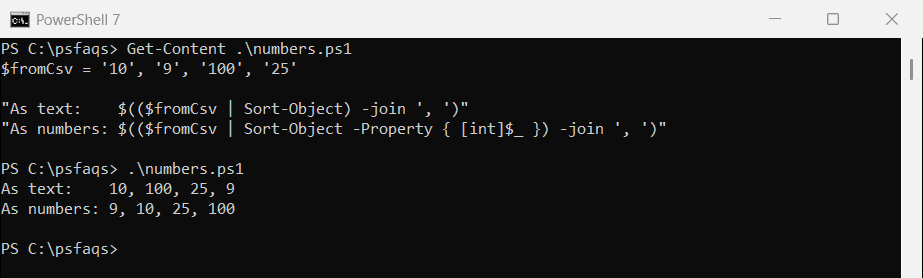
Natural sort for file names with numbers
The same thing happens inside names like report-10.csv. Pull out the number and sort on it:
$files = 'report-2.csv', 'report-10.csv', 'report-1.csv'

"Plain sort:   $(($files | Sort-Object) -join ', ')"
"Natural sort: $(($files | Sort-Object -Property { [int]($_ -replace '\D', '') }) -join ', ')"
Output:
Plain sort:   report-1.csv, report-10.csv, report-2.csv
Natural sort: report-1.csv, report-2.csv, report-10.csv
Sort by length, then alphabetically
Give Sort-Object more than one property or script block, and it uses the next one to break ties:
'Utah', 'California', 'Ohio', 'Texas' |
    Sort-Object -Property Length, { $_ } |
    ForEach-Object { '{0,-11} {1}' -f $_, $_.Length }
Output:
Ohio        4
Utah        4
Texas       5
California  10
Sort an array alphabetically
Sort-Object already sorts alphabetically. With -CaseSensitive, it puts lowercase before uppercase for the same letter:
$fruit = 'banana', 'Apple', 'apple', 'Banana'
"-CaseSensitive: $(($fruit | Sort-Object -CaseSensitive) -join ', ')"
Output:
-CaseSensitive: apple, Apple, banana, BananaDuplicates with -Unique
-Unique drops duplicates that differ only in case, but the two versions keep a different one:
$names = 'Austin', 'austin', 'Denver'
"Sort-Object -Unique keeps: $(($names | Sort-Object -Unique) -join ', ')"
Output in PowerShell 7:
Sort-Object -Unique keeps: Austin, DenverOutput in Windows PowerShell 5.1:
Sort-Object -Unique keeps: austin, DenverIf the spelling you keep matters, normalize the case first, for example with .ToLower() or (Get-Culture).TextInfo.ToTitleCase().
Hyphens and symbols sort differently in each version
PowerShell 7 uses ICU for text sorting on Windows, while 5.1 uses the older Windows rules, so hyphenated words can land in a different spot:
'co-op', 'coop', 'co_op', 'co op' | Sort-ObjectOutput in PowerShell 7:
co op
co_op
co-op
coop
Output in Windows PowerShell 5.1:
co op
co_op
coop
co-op
For output that must match everywhere, sort with an ordinal comparer: [array]::Sort($a, [StringComparer]::Ordinal).
Sort an array of objects
Pass property names to -Property. To sort one property ascending and another descending, use hashtables with Expression and Descending:
$sales = @(
    [pscustomobject]@{ Rep = 'Alice'; State = 'TX'; Amount = 18250 }
    [pscustomobject]@{ Rep = 'Bob';   State = 'CA'; Amount = 22100 }
    [pscustomobject]@{ Rep = 'Carol'; State = 'TX'; Amount = 20975 }
    [pscustomobject]@{ Rep = 'Dan';   State = 'CA'; Amount = 12400 }
)

$sales | Sort-Object -Property @{ Expression = 'State'; Descending = $false },
                               @{ Expression = 'Amount'; Descending = $true } |
    ForEach-Object { '{0}  {1,-6} {2,8:C0}' -f $_.State, $_.Rep, $_.Amount }
Output:
CA  Bob     $22,100
CA  Dan     $12,400
TX  Carol   $20,975
TX  Alice   $18,250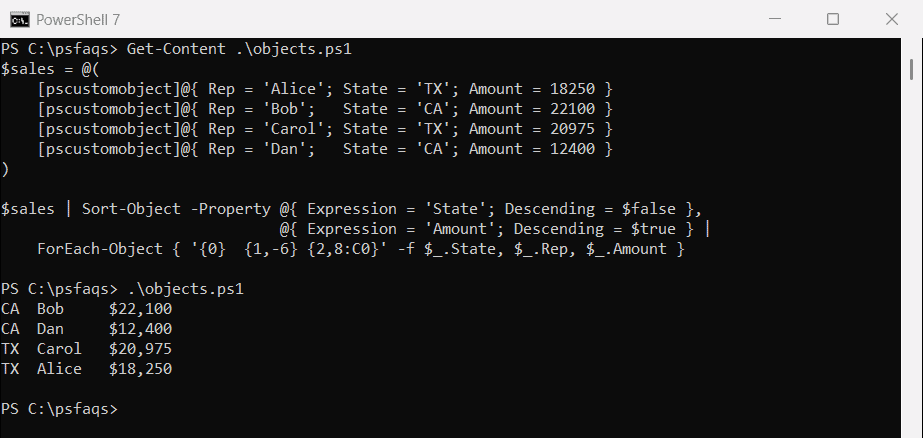
This is the cleanest way to rank people or items within groups. Sort-Object in depth covers more options.
Windows PowerShell 5.1 doesn’t keep ties in order
When two items have the same sort value, PowerShell 7 keeps them in their original order. That’s called a stable sort. Windows PowerShell 5.1 doesn’t:
$tickets = 1..8 | ForEach-Object { [pscustomobject]@{ Id = $_; Priority = if ($_ % 2) { 'Low' } else { 'High' } } }

$sorted = $tickets | Sort-Object -Property Priority
"Ticket order after sorting by Priority: $($sorted.Id -join ', ')"
Output in PowerShell 7:
Ticket order after sorting by Priority: 2, 4, 6, 8, 1, 3, 5, 7Output in Windows PowerShell 5.1:
Ticket order after sorting by Priority: 8, 6, 4, 2, 1, 7, 3, 5