
Need a folder or file path built inside a script without fighting backslashes? Use Join-Path in PowerShell. Join-Path -Path 'C:\Finance\Reports' -ChildPath 'Denver' returns C:\Finance\Reports\Denver, with exactly one separator between the parts.
I use it in a month-end job for a Denver accounting firm, where plain string concatenation kept giving me doubled or missing backslashes.
In this tutorial, I’ll show you how to use Join-Path in PowerShell to combine two parts, join many segments (including the Windows PowerShell 5.1 workaround), find real files with -Resolve, and avoid the traps of Path.Combine and string math.
The sample report folders we’ll use
Every method below uses one made-up Denver firm, Mile High Ledger, which files payroll reports by office, year and quarter.
To follow along, open PowerShell in an empty folder (here’s how to check the current directory first). Then paste this script, which builds the sample tree with the New-Item cmdlet:
$folders = '.\Reports\Denver\2026\Q1', '.\Reports\Denver\2026\Q2', '.\Reports\Boulder\2026\Q1'
New-Item -Path $folders -ItemType Directory -Force | Out-Null
$files = '.\Reports\Denver\2026\Q1\payroll-2026-01.csv', '.\Reports\Denver\2026\Q1\payroll-2026-03.csv',
         '.\Reports\Denver\2026\Q2\payroll-2026-04.csv', '.\Reports\Boulder\2026\Q1\payroll-2026-02.csv'
New-Item -Path $files -ItemType File -Force | Out-Null
"Sample files: $((Get-ChildItem -Path .\Reports -Recurse -File).Count)"
Output:
Sample files: 4That gives you four empty CSV files under .\Reports for the -Resolve examples.
Method 1: Combine a folder and a file name with Join-Path -Path -ChildPath
This is the form you’ll use most. -Path is the parent folder and -ChildPath is the part you add to it:
$reports = 'C:\Finance\Reports'
Join-Path -Path $reports -ChildPath 'Denver'
Join-Path -Path $reports -ChildPath 'payroll-2026-03.csv'
Join-Path $reports 'Denver\2026\Q1'
Output:
C:\Finance\Reports\Denver
C:\Finance\Reports\payroll-2026-03.csv
C:\Finance\Reports\Denver\2026\Q1
How does this code work?
Join-Path adds one backslash between $reports and each child value and returns a plain string. The last line skips the parameter names, because -Path sits in position 0 and -ChildPath in position 1.
Pro Tip: Join-Path never checks or creates folders. To go the other way, get the file name from a path with Split-Path -Leaf.
Method 2: Join more than two path segments (PowerShell 7 vs 5.1)
PowerShell 6.0 added -AdditionalChildPath, which takes any number of extra segments. Run this in PowerShell 7 first:
try {
    Join-Path -Path 'C:\Finance\Reports' -ChildPath 'Denver' -AdditionalChildPath '2026', 'Q1'
    Join-Path 'C:\Finance\Reports' 'Boulder' '2026' 'payroll-2026-02.csv'
}
catch {
    "Failed. $($_.Exception.Message)"
}
Output:
C:\Finance\Reports\Denver\2026\Q1
C:\Finance\Reports\Boulder\2026\payroll-2026-02.csv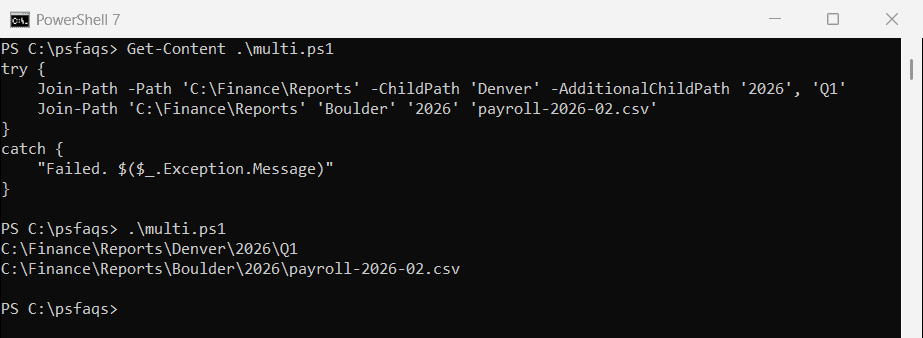
How does this code work?
‘2026’ and ‘Q1’ bind to -AdditionalChildPath and get appended in order. The second call has no names at all: the first value binds to -Path, the second to -ChildPath, and the rest to -AdditionalChildPath.
Windows PowerShell 5.1 doesn’t have that parameter. The same script stops at the first call:
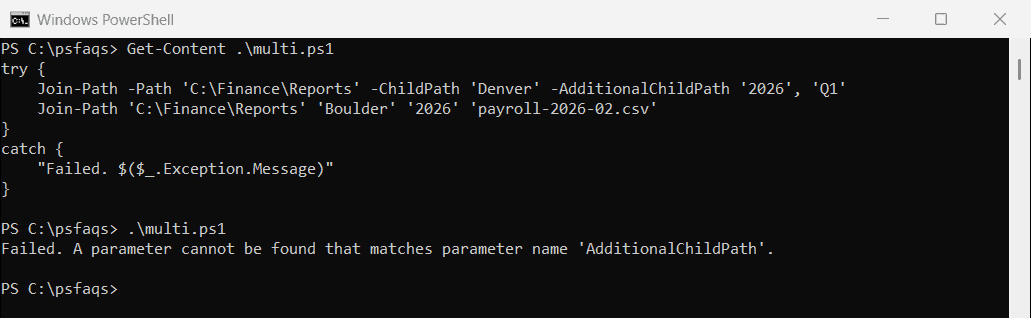
The positional call fails in 5.1 too. Not sure which shell runs your script? Check your PowerShell version first.
PowerShell 7.6 goes one step further: -ChildPath now accepts an array, so you can skip -AdditionalChildPath entirely:
Join-Path -Path 'C:\Finance\Reports' -ChildPath 'Denver', '2026', 'Q2'Output:
C:\Finance\Reports\Denver\2026\Q2That line throws “Cannot convert ‘System.Object[]’ to the type ‘System.String'” in 5.1, so keep it for 7.6-only scripts.
The Windows PowerShell 5.1 workaround
In 5.1, chain two-part joins instead. These two patterns give the same results in both versions:
$base = 'C:\Finance\Reports'
$base | Join-Path -ChildPath 'Denver' | Join-Path -ChildPath '2026' | Join-Path -ChildPath 'Q1'
$path = $base
foreach ($part in 'Boulder', '2026', 'Q1', 'payroll-2026-02.csv') {
    $path = Join-Path -Path $path -ChildPath $part
}
$path
Output:
C:\Finance\Reports\Denver\2026\Q1
C:\Finance\Reports\Boulder\2026\Q1\payroll-2026-02.csv
How does this code work?
The first line pipes each result into the next call, because -Path accepts pipeline input. The loop folds the segments into $path one at a time, so it scales to any depth.
Method 3: Join one child path to several parent folders
-Path takes an array, so one call can build the same subfolder for every office:
$offices = 'C:\Finance\Reports\Denver', 'C:\Finance\Reports\Boulder', 'C:\Finance\Reports\Fort Collins'
Join-Path -Path $offices -ChildPath '2026\Q4'
Output:
C:\Finance\Reports\Denver\2026\Q4
C:\Finance\Reports\Boulder\2026\Q4
C:\Finance\Re