
To filter objects where a property contains some text, use Where-Object with the -like operator and wildcards on both sides. This returns every server whose name contains “SQL”:
$servers | Where-Object Name -like '*SQL*'The -contains operator looks like the obvious choice, but it doesn’t check for text inside a string. That trips up almost everyone, so I’ll show you why below.
All the examples use this small list of servers. Paste it into your console first:
$servers = @(
    [pscustomobject]@{ Name = 'WEB01';  Role = 'Web server';      City = 'Dallas';  Tags = @('prod', 'iis') }
    [pscustomobject]@{ Name = 'WEB02';  Role = 'Web server';      City = 'Austin';  Tags = @('test', 'iis') }
    [pscustomobject]@{ Name = 'SQL01';  Role = 'SQL Server';      City = 'Dallas';  Tags = @('prod', 'sql') }
    [pscustomobject]@{ Name = 'APP-SQL02'; Role = 'App and SQL';  City = 'Denver';  Tags = @('prod', 'sql', 'app') }
    [pscustomobject]@{ Name = 'FILE01'; Role = 'File server';     City = 'Seattle'; Tags = @('prod') }
)
Output:
Name      Role        City    Tags
----      ----        ----    ----
WEB01     Web server  Dallas  prod, iis
WEB02     Web server  Austin  test, iis
SQL01     SQL Server  Dallas  prod, sql
APP-SQL02 App and SQL Denver  prod, sql, app
FILE01    File server Seattle prod
I tested every example in PowerShell 7.6 and Windows PowerShell 5.1.
Where-Object contains: filter with -like
Here’s the command from the top, with its output:
$servers | Where-Object Name -like '*SQL*'Output:
Name      Role        City   Tags
----      ----        ----   ----
SQL01     SQL Server  Dallas {prod, sql}
APP-SQL02 App and SQL Denver {prod, sql, app}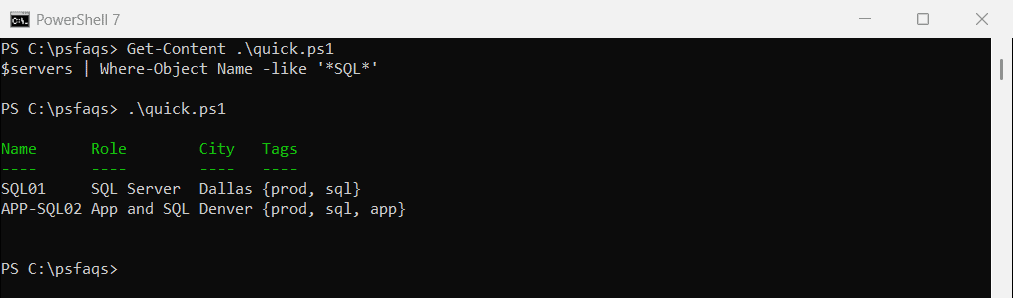
-like ignores case, so '*sql*' finds the same servers. The * means “any characters”, which is why a match anywhere in the name counts.
Wildcards work the same way everywhere -like is used, as explained in the PowerShell -like operator.
Why does -contains return nothing?
This is the most common mistake with Where-Object:
$servers | Where-Object Name -contains 'SQL'
'Found: ' + @($servers | Where-Object Name -contains 'SQL').Count
Output:
Found: 0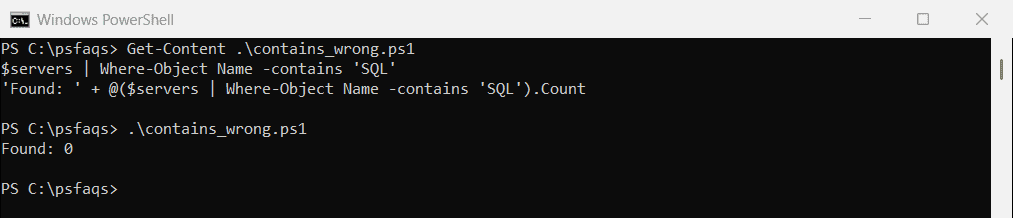
-contains is a collection operator. It asks “is this exact item in the list?”, not “does this text appear inside the string?”:
'SQL01' -contains 'SQL'               # a string is not a collection
@('SQL01', 'WEB01') -contains 'SQL01' # exact match of a whole item
@('SQL01', 'WEB01') -contains 'sql01' # case-insensitive
Output:
False
True
True
Use -contains when the property is a list, like the Tags column later in this article. For text inside a string, use -like or -match.
The .NET .Contains() method does check for a substring, but it’s case-sensitive, unlike PowerShell’s operators:
'SQL01'.Contains('SQL')
'SQL01'.Contains('sql')    # case-sensitive
Output:
True
False
Use a script block for more complex conditions
The short form (Where-Object Name -like '*SQL*') handles one condition. For two or more, use a script block with $_:
$servers | Where-Object { $_.Name -like '*sql*' -or $_.Role -like '*sql*' } |
    Select-Object Name, Role
Output:
Name      Role
----      ----
SQL01     SQL Server
APP-SQL02 App and SQL
I go deeper into this in Where-Object with multiple conditions.
Where-Object starts with
Put the wildcard only at the end to match the start of a string:
$servers | Where-Object Name -like 'WEB*' | Select-Object Name, CityOutput:
Name  City
----  ----
WEB01 Dallas
WEB02 Austin
Does not start with
Swap in -notlike:
$servers | Where-Object Name -notlike 'WEB*' | Select-Object -ExpandProperty NameOutput:
SQL01
APP-SQL02
FILE01
Ends with
Move the wildcard to the front:
$servers | Where-Object Name -like '*01' | Select-Object -ExpandProperty NameOutput:
WEB01
SQL01
FILE01
Exclude items with -notlike
-notlike works with any pattern, not just “starts with”. This keeps servers whose role doesn’t mention “server”:
$servers | Where-Object Role -notlike '*server*' | Select-Object Name, RoleOutput:
Name      Role
----      ----
APP-SQL02 App and SQL
Filter with regex using -match
When wildcards aren’t enough, -match takes a regular expression. This one keeps names that are WEB or FILE followed by exactly two digits:
$servers | Where-Object Name -match '^(WEB|FILE)\d{2}$' | Select-Object -ExpandProperty NameOutput:
WEB01
WEB02
FILE01
To match any of several words, separate them with |:
$servers | Where-Object Role -match 'SQL|File' | Select-Object Name, RoleOutput: